Radio learners with a small desk
If you want to use radio menus, enter frequencies or press a push-to-talk button while flying, and keep your keyboard or mouse within reach, check which actions your simulator lets you assign to stick buttons.


For simulated radio practice at a small desk, a single stick with built-in throttle and rudder controls is a sensible starting point if you want your keyboard or mouse within reach for menus and frequency entry. A HOTAS is a good option if you want to operate the throttle separately and have room for the extra hardware; a radio panel may suit you if your simulator and aircraft support direct COM controls. The radio functions you can assign depend on the simulator: a flight stick is no substitute for radio procedures or voice communication.
If you want to use radio menus, enter frequencies or press a push-to-talk button while flying, and keep your keyboard or mouse within reach, check which actions your simulator lets you assign to stick buttons.
If you prefer to operate common flight and radio functions using hardware, compare extra stick inputs with a separate radio panel. Logitech G lists controls for COM1/2 among the features of its Flight Radio Panel.
If you want to control the throttle with your other hand, check whether the HOTAS throttle can be attached to the stick or set up separately, and whether you have enough room. Thrustmaster lists both set-up options for the T.Flight Hotas One.
Best for: If you prefer a single device base and want your keyboard or mouse within reach for radio menus.
Trade-off: Stick buttons won't automatically tune frequencies; the action you want must be available in the simulator.
Best for: If you want more assignable inputs on the same device and its footprint fits your desk.
Trade-off: More inputs don't guarantee that the radio functions you want are available in your simulator and aircraft.
Best for: If you want to operate the throttle separately with your other hand.
Trade-off: Set up separately, the throttle needs extra desk space; according to Thrustmaster, attaching it to the stick takes up less room.
Best for: If you want to operate simulated COM frequencies directly using controls and your set-up supports the panel.
Trade-off: A radio panel is an extra piece of hardware and doesn't replace the stick; support for individual functions depends on the simulator and aircraft.
At a small desk, it’s not just about control: you also need room for your keyboard, mouse and the hand movements involved.
| Priority | What to check when buying | Who is this important to? |
|---|---|---|
| Radio controls | Check which radio functions your simulator lets you assign to stick buttons, and whether entering frequencies requires additional controls. | If I want radio menus and frequency selection within easy reach while flying, I need to know which functions my simulator lets me assign to buttons; around 33% of consumers prioritise easy-to-reach radio controls. |
| Desk space | Measure the usable area, including room for hand movements and cable routing; allow space for your keyboard or mouse too. | If I need to keep room for radio controls alongside the stick, I want to plan the complete set-up in advance; around 33% of consumers prioritise clear desk space. |
| Set-up | Check your simulator, platform and preferred aircraft; find out which axes and buttons you can assign and calibrate. | If I want to set up the controls without unnecessary hassle, I need clear assignments for my simulator; around 20% of consumers pay particular attention to ease of set-up. |
| Additional controls | Decide whether you need a separate throttle or other physical inputs, and where you want to position them. | If I want to operate the throttle or other functions directly using hardware, I check the additional controls and the space they need; around 14% of consumers prioritise these inputs. |
A stick button can trigger an assigned action. The radio functions available depend on the simulator, though; according to Logitech G, its radio panel has dedicated COM controls.
Before buying, decide whether assignable one-touch actions are enough or whether you want to operate frequencies using physical controls.
According to Thrustmaster, the throttle on the T.Flight Hotas One can be attached to the stick or set up separately. If you set it up separately, you'll need another area within easy reach.
Check the full set-up and leave room for the keyboard or mouse you plan to use during radio procedures.
Turtle Beach lists these devices under different model names and specifies different numbers of inputs. Details for the Flightstick II therefore shouldn't be assumed to apply to the older VelocityOne Flightstick.
Compare the full model name, platform and the inputs you actually need.
The range includes single sticks and HOTAS combinations to suit different set-up and control preferences.
The VelocityOne Flightstick and VelocityOne Flightstick II are different models with additional controls.
The Gladiator NXT EVO Space Combat Edition combines a desk-mounted stick with a throttle wheel and encoder.
The range includes a single stick and a separately available Flight Radio Panel for simulated radio control.
This selection includes a single stick with integrated throttle and rudder controls, plus a HOTAS with a detachable throttle – for set-ups where you want your keyboard or mouse within reach for simulated radio control.
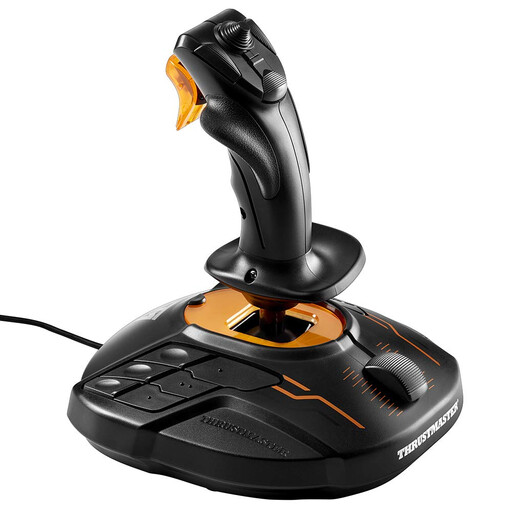 No image available
A good choice if you want a single device base with throttle and rudder controls, while continuing to use your keyboard or mouse to access radio menus.
Thrustmaster lists four axes, 16 action buttons and twist rudder control. Whether you can assign the radio functions you want depends on the simulator.
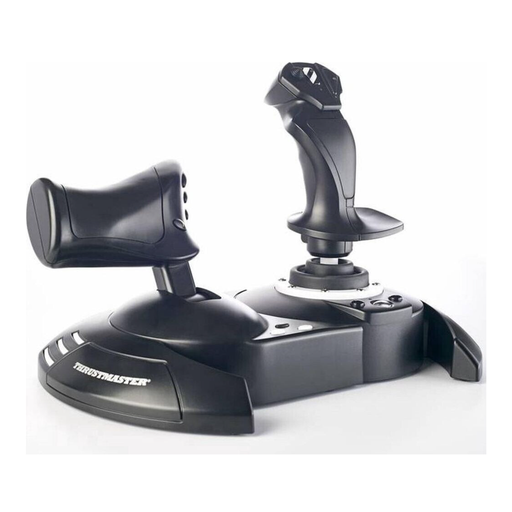 No image available
A good fit if you want to operate the throttle with your other hand and have room on your desk for one of the two set-up options.
The throttle is detachable and, according to Thrustmaster, can be attached to the stick or set up separately. It isn't a separate COM frequency control; the radio functions available depend on the simulator and aircraft.
Only if your simulator provides a suitable action to assign to the button. X-Plane explains how to assign and calibrate axes and buttons; Logitech G describes its separate Flight Radio Panel as having dedicated COM controls. Check which radio functions are available in the simulator and aircraft you use.
Assign the control axes in your simulator, calibrate them, then assign the buttons you want to use. X-Plane documents these steps in its control settings; menu names and available commands may differ in other simulators.
Not just because it's called a “flight stick”. Thrustmaster lists the T.16000M FCS as a stick and the T.Flight Hotas One as a combination with a throttle; Logitech G describes its Flight Radio Panel as a separate product. Check what's included with the version you choose.
According to the Federal Network Agency, a radio operator's certificate issued by the agency is generally required to operate aviation radio at ground and airborne stations. This applies to real aviation radio; practising in a simulator doesn't authorise you to operate a real radio station.
Measure the usable area and allow for the device base, hand movements, keyboard or mouse and, if applicable, a separate throttle. For the VelocityOne Flightstick II, Turtle Beach lists device dimensions of 190 × 252 × 208 mm; these measurements don't replace checking your complete set-up.