For getting started on a single monitor, a single flight stick with a suitable in-game button layout is a straightforward option if you’d like to keep using your mouse and keyboard. HOTAS is a good choice if you want to control thrust separately with your other hand. Twin sticks are worth considering if you want to split rotational and translational movement between both hands and have the space and time to set them up. Roberts Space Industries documents mouse-controlled free look for Star Citizen, so you don’t necessarily need additional head-tracking hardware; check the controls for other games.
Which setup is right for you?
Beginners with a single monitor
If you’re just starting to get to grips with flight axes and cockpit views, and want to keep using your mouse and keyboard, a single stick can make it easier to get started. Roberts Space Industries lists joysticks, mouse and keyboard as supported input devices for Star Citizen, and documents mouse-controlled free look.
Pilots focused on movement in space
If you want to assign lateral or vertical movement as well as rotation and thrust, check which analogue controls the device actually has and whether the game lets you assign them as needed.
Players with limited desk space
If your monitor, keyboard and mouse all need to fit on the same desk, measure the available space before opting for a second stick or a separate throttle. Different setups vary in the number of devices you’ll need to fit on your desk.
What should you look for when buying?
First, decide which movements you want to control with analogue inputs. Then you can work out how many controls you can fit on your desk and how you’d like to manage your cockpit view.
| What matters to you |
What to look for |
Who is it important to? |
| A straightforward setup for beginners |
Check the rotation axis, view hat and throttle controls, as well as whether you can use them alongside a mouse and keyboard. |
If I want to learn the flight axes one step at a time and keep my mouse or keyboard for now, a straightforward control layout matters to me. Around 33% of consumers prioritise an easy setup for learning. |
| Movement in space |
Check which axes and analogue controls are included in the complete set, and how you can assign them in the game. |
If I want to control rotation separately from lateral or vertical movement, being able to assign the axes I need is important to me. Around 27% of consumers prioritise controlling different types of movement separately. |
| Cockpit view |
Check that the view hat is easy to reach and see how the game in question handles free look. |
If I want to look around the cockpit on a single monitor without adding more head-tracking hardware, I look for controls that work well with a mouse or stick. Around 20% of consumers prioritise easy view controls. |
| Space and setup |
Measure the available desk space, and check the platform, full model name and setup mode. |
If I have limited space alongside my monitor, keyboard and mouse, or use a particular platform, I want to avoid unnecessary devices and setup steps. Around 20% of consumers prioritise desk space and a setup that meets their needs. |
Which common buying mistakes should you avoid?
-
Confusing a twin-stick set with a HOTAS
The Thrustmaster T.16000M FCS Space Sim Duo includes two sticks, while the T.16000M FCS HOTAS pairs one stick with the TWCS throttle. The sets therefore offer different ways to control your spacecraft.
Before ordering, compare the full set name and what’s included with the controls you want to use.
If you specifically want a separate throttle, choosing a twin-stick set could mean buying an additional device.
-
Assuming more buttons means more analogue axes
A high number of buttons doesn’t necessarily mean you can control a movement smoothly using its own analogue axis. What matters is which controls are actually included and what the game lets you assign.
Before buying, match the movements you care about most — rotation, thrust and lateral movement — to the axes on the specific model.
-
Overlooking model suffixes and variants
Different grip variants can have different controls. The VKB Gladiator NXT EVO is specifically listed with an analogue mini-stick on the Premium grip; details for the original Turtle Beach VelocityOne Flightstick don’t automatically apply to Flightstick II.
Check the full model name, grip variant and controls actually included.
Which brands are worth knowing about?
Thrustmaster
Thrustmaster offers the T.16000M FCS as a standalone stick, the T.16000M FCS HOTAS with a TWCS throttle, and the T.16000M FCS Space Sim Duo with two sticks — each a different configuration.
- The different sets make it easy to compare a single stick, a stick with a throttle and a twin-stick setup.
- The sets have different contents and aren’t interchangeable. The manufacturer’s precision claim for the HOTAS isn’t an independently verified performance comparison.
VKB
The Gladiator NXT EVO Space Combat Edition is aimed at consumers looking for a desk-mounted stick with a choice of grips and handedness.
- VKB lists a lockable twist axis, a throttle wheel and adjustable hand rests. The analogue mini-stick is specifically listed for the Premium grip.
- Before buying, check which grip and version you’ve selected; the listed controls aren’t necessarily included with every variant.
Logitech G
The X52 and X56 HOTAS ranges are worth considering if you prefer a stick and separate throttle.
- Logitech G lists additional mini analogue sticks for the X56.
- Check that the game in question supports the axes and controls you want to use; manufacturer claims about suitability aren’t an independent performance comparison.
Turtle Beach
The original VelocityOne Flightstick combines a stick, additional levers and view controls in one unit.
- For this model, Turtle Beach lists 27 programmable buttons and eight axes, as well as support for Windows 10 and 11 and Xbox.
- For PC setup, you’ll need to switch from the default Xbox input mode. Don’t assume details for the original Flightstick also apply to Flightstick II without checking.
VIRPIL Controls
The Constellation ALPHA grips are designed for modular single- or twin-stick setups.
- VIRPIL lists left- and right-hand grip versions, an analogue mini-stick and a lockable twist axis.
- The product page describes a grip and compatible bases, not a complete twin-stick set. Check what’s included and which bases you need separately.
Joybuy products for getting started
These Joybuy options cover getting started with a single stick, as well as the HOTAS setup with a separate throttle.
 No image available
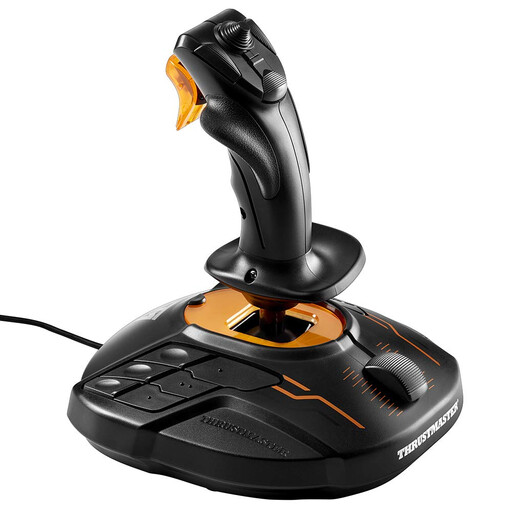
Thrustmaster T-16000M FCS Joystick
As a standalone stick, it’s a good choice for getting started gradually while continuing to use your mouse or keyboard. Thrustmaster lists four axes, 16 action buttons and an eight-way view hat for the T.16000M FCS.
View at Joybuy
 No image available
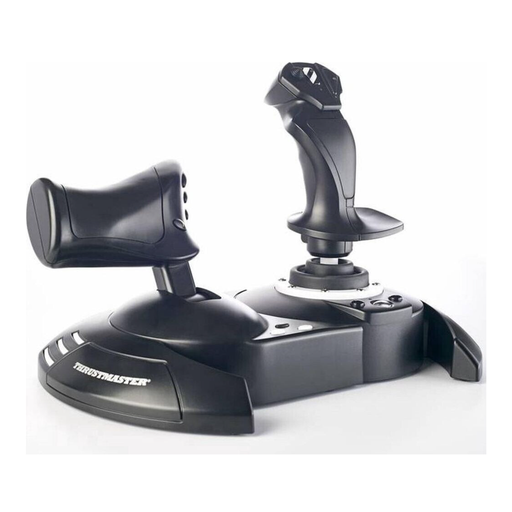
Thrustmaster T.Flight HOTAS One
This is a good match for the HOTAS setup if you want to control the stick and throttle separately. Before buying, check the platform compatibility and what’s included with the specific variant.
View at Joybuy
Frequently asked questions
Do I need head tracking to look around the cockpit on a single monitor?
Not necessarily for Star Citizen: Roberts Space Industries describes mouse-controlled free look and lists Z as the default control. Check the other game’s instructions to see if it offers the same feature.
How do I set up a new stick in Star Citizen?
In the options, select the controls for the input device in question and assign the actions you need under ‘Advanced Controls Customization’. Roberts Space Industries recommends checking for conflicting controls if you’re using a mouse and joystick at the same time.
What’s the difference between HOTAS and twin sticks?
HOTAS pairs a stick with a separate throttle, while a twin-stick set gives you one stick for each hand. The axes you can control depend on the specific model and how you assign the controls in the game.
Why might the original VelocityOne Flightstick not respond as expected on a Windows PC?
According to Turtle Beach, this model starts in Xbox input mode. Select PC mode on the device, then check the axis assignments in the game.


