Choose a flight yoke based on whether it works with your simulator and radio client, and whether you can assign your most-used radio functions to its controls. The device does not replace the radio software or its interface. With just one monitor, easily accessible view controls and a radio window you can bring up on screen often matter more than extra axes. Integrated controls or a separate quadrant should also suit your desk space and platform.
Who is a flight yoke suitable for?
Anyone practising radio procedures
If you want to access frequently used radio functions with buttons, your flight yoke, simulator and, where applicable, radio client need to work together. Microsoft Flight Simulator documents context-sensitive input profiles; Audio for VATSIM explains how to set up the pilot client and microphone.
Flight simulation fans with one monitor
If you want to keep both your aircraft’s attitude and cockpit view in sight on one screen, check whether you can bring up the radio window and change your view easily. The BeyondATC Help Center describes its toolbar as a companion feature that runs alongside the application on the same PC.
Flight simulation fans with limited desk space
If you’re weighing up integrated controls against separate modules, consider how they’re mounted, how far they move and how much room you need for your mouse and keyboard. The manufacturers’ specifications for each flight yoke and quadrant can help you compare specific setups.
What should you look for when buying?
Flight yoke with integrated controls
A good fit if: you want to control throttle, trim and rudder on the same device, and keep the number of separate modules to a minimum.
The trade-off: An integrated device won’t create extra room for the radio window or automatically give you the right radio control assignments.
Flight yoke with a separate quadrant
A good fit if: you can position the throttle levers separately and have a second suitable surface for them.
The trade-off: The extra quadrant takes up space; Thrustmaster’s Boeing edition is designed to suit those looking for a Boeing-style cockpit setup.
Modular setup or existing input devices
A good fit if: you want to add to a flight yoke with a switch panel over time, or simply practise radio procedures to begin with.
The trade-off: A modular setup may require additional controls; Microsoft Flight Simulator 2024 also supports a keyboard, mouse and controller.
| What matters to you |
What to check before buying |
Who should pay particular attention |
| Accessing radio functions |
Check whether you can assign the function you want, such as push-to-talk, in your simulator or radio client. |
If you want to trigger frequently used radio functions directly from your flight yoke while practising, the controls need to work with your software. Around 36% of consumers prioritise radio controls that are easy to reach and correctly assigned. |
| Flight view and radio window |
Check whether your software lets you show and hide a radio window, and whether you can change the view using the flight yoke. |
If you need to keep track of both the cockpit view and radio information on one monitor, you’ll want to switch between them as easily as possible. Around 29% of consumers prioritise the view on a single monitor. |
| Space and mounting |
Check that the desk edge, clamp and range of movement work with the space you’ve set aside for your mouse and keyboard. |
If your desk has little free space, you’ll need to position the flight yoke and controls without them getting in each other’s way. Around 21% of consumers prioritise a compact setup. |
| Platform and expandability |
Compare the full model name, supported platform and what’s included; also check which connections you’ll need for any add-ons. |
If you use a console or plan to add more controls later, check you’ve got the right device version and find out whether a quadrant is included. Around 14% of consumers prioritise platform compatibility and plans for expanding their setup. |
Common buying mistakes
-
Assuming lots of buttons means radio controls are ready to use
A button will only trigger the radio function you want once it has been assigned in your simulator or radio client. On VATSIM, push-to-talk is set up in the pilot client.
Decide how you want to handle radio procedures, then test the button assignments in the software you actually use.
Allow time to set up your simulator, radio client and microphone.
-
Assuming a radio window is a flight yoke feature
A radio window you can bring up on screen is part of the relevant software, not a feature that automatically comes with a flight yoke. The BeyondATC toolbar requires the application to be running on the same PC.
Check window controls and view controls separately, and don’t assume button assignments will work the same way in different radio programmes.
-
Assuming similar model names mean the same thing is included
The TCA SKY YOKE editions are designed for different platforms; a standalone flight yoke and a pack may also come with different items.
Before ordering, compare the full model name, platform and contents list.
Key brands at a glance
Thrustmaster
For those looking for integrated basic controls or comparing a flight yoke with a Boeing-style quadrant.
- Thrustmaster says the TCA SKY YOKE combines throttle, trim and rudder controls, with 24 action buttons.
- The Xbox/PC and PlayStation/PC editions should be considered separately. The right radio control assignments won’t be set up automatically.
Turtle Beach
The VelocityOne Flight combines a flight yoke, attachable quadrant and trim wheel in a PC or Xbox system.
- The manufacturer lists rudder controls, a quadrant, a trim wheel and switches for changing the view.
- The display isn’t specified as a replacement for viewing or controlling a radio client; check radio functions in the software.
Honeycomb Aeronautical
The Alpha Flight Controls XPC is an option for a modular PC or Xbox setup with a switch panel.
- The manufacturer lists a push-to-talk button and a POV switch.
- The listed pack contents don’t include a throttle quadrant; radio functionality still depends on the software assignments.
Logitech G
The Flight Yoke System is designed for PC users who want a separately positioned quadrant included in the set.
- Logitech G says the set includes a Flight Throttle Quadrant, as well as 25 programmable buttons and switch positions.
- The separate quadrant needs a suitable place; the listed controls alone don’t guarantee radio compatibility.
CH Products
The Flight Sim Yoke, part number 200-615, is a PC-focused option with three levers on the device.
- CH Products lists five axes and 20 buttons.
- The listed Windows compatibility goes up to Windows 10. Check support for your current operating system before choosing.
Joybuy products
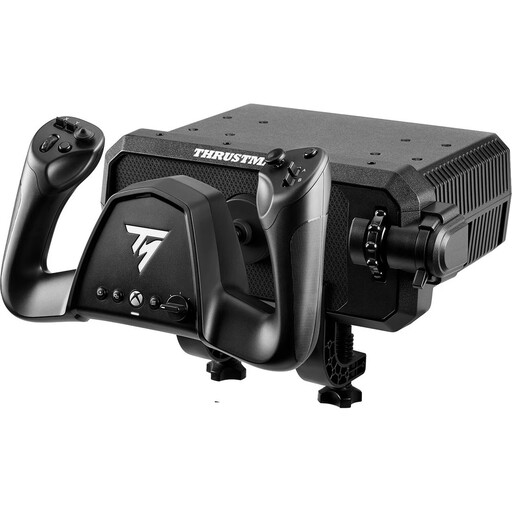
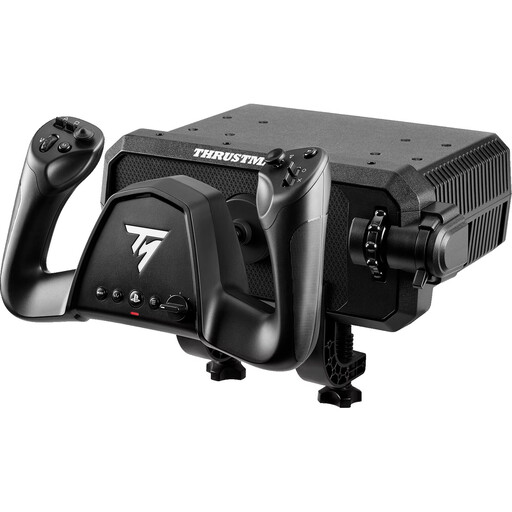
This selection includes integrated Thrustmaster TCA SKY YOKE flight yokes for Xbox/PC and PS5/PC. Check that your software supports the button assignments you need.
 No image available
Thrustmaster TCA SKY YOKE, Xbox Series X/PC
A good choice if you’re looking for an integrated flight yoke with action buttons for assignable simulator or radio functions.
Listed features include 7 axes, 24 action buttons, and integrated throttle, trim and rudder controls. The buttons need to be assigned in compatible software; don’t assume they come with radio or push-to-talk functions already set up.
View at Joybuy
 No image available
Thrustmaster TCA SKY YOKE, PS5/PC
A good choice if you’re looking for an integrated flight yoke with action buttons for assignable simulator or radio functions.
Listed features include 7 axes, 24 action buttons, and integrated throttle, trim and rudder controls. The buttons need to be assigned in compatible software; don’t assume they come with radio or push-to-talk functions already set up.
View at Joybuy
Frequently asked questions
Do I need a flight yoke for simulated radio practice?
No, you don’t need a flight yoke to enter commands in Microsoft Flight Simulator 2024: the simulator also supports a keyboard, mouse and controller. Whether your radio setup also requires a client, microphone or push-to-talk depends on the software you choose; Audio for VATSIM explains microphone settings and push-to-talk in the pilot client.
How do I set up the buttons, and what should I check if something goes wrong?
First, assign the controls you need in the simulator or radio client, then test them before your practice flight. On VATSIM, setup includes configuring the microphone and push-to-talk in the pilot client; a button on the flight yoke alone won’t transmit radio.
What additional costs and rights should I consider when buying online?
Compare what’s included, as not every flight yoke comes with a quadrant. In Germany, a 14-day right to cancel generally applies to relevant distance contracts; the Federal Portal (information from the Your Europe Portal, as at 20 July 2022) sets out this right, although exceptions may apply. Check the terms of your specific contract; cancelling a purchase when the goods aren’t faulty is different from making a claim about faulty goods.
Does practising radio procedures on a home simulator count towards pilot training?
Buying a flight yoke does not mean that it counts towards pilot training. The EASA has a separate regulatory framework covering the qualification and use of Flight Simulation Training Devices for formal training. If you’re seeking recognition, check the requirements with your training organisation rather than relying on a product description.


