What should you consider when choosing?
Windows for Access Desktop
Best suited to: You need to edit an existing database directly in Microsoft Access Desktop. Microsoft describes Access as a PC application.
Consider: Check which version of Access, licence and local features you need before choosing a device.
Larger Windows laptop
Best suited to: You mostly work at the collection table and want to view the catalogue, photos or PDFs side by side.
Consider: A larger screen takes up more room when you’re working with objects, so check that it’s practical at your recording locations.
MacBook for browser-based applications
Best suited to: Your collection software runs entirely in a browser and you don’t need a local Access desktop application. Its provider describes Specify 7 as a browser-based application.
Consider: A MacBook isn’t a direct replacement if your workflow depends on Access Desktop.
When choosing a laptop for cataloguing a fossil collection, the main things to consider are the software and file links you already use, and how you want to view catalogue entries and their sources at your workstation.
| Priority |
What to check before buying |
Who is it important to? |
| Catalogue software compatibility |
Check the software version, licence, browser access and any local features you need. |
If I need to keep using an existing database, the first thing that matters is whether the catalogue software works on my new device. Around 29% of consumers put software compatibility first. |
| File links and backups |
Check which files you have and where they’re stored; back up the database and source files together, and test a sample link. |
If I need photos and documents to remain accessible alongside catalogue entries, I look for working file links and a backup I can restore. Around 29% of consumers prioritise linking and backing up their source files. |
| Viewing the catalogue and sources side by side |
Open typical photos or PDFs next to the catalogue form, and check the screen size and resolution of the exact model. |
If I compare entries with images or documents, I need a workstation where both are easy to view. Around 24% of consumers put being able to see the catalogue and sources side by side first. |
| Recording details with the object |
Check the space available, power supply and ports you need at your recording location, based on your own workflow. |
If I record details in different locations, a laptop that works well in those spaces matters more to me than extra screen space. Around 18% of consumers prioritise portability when working with objects. |
Joybuy laptops for catalogue work
The Joybuy laptops below include larger 16-inch workstations and more compact 14-inch devices. If you need Access Desktop, check the operating system listed for the specific configuration.
 No image available
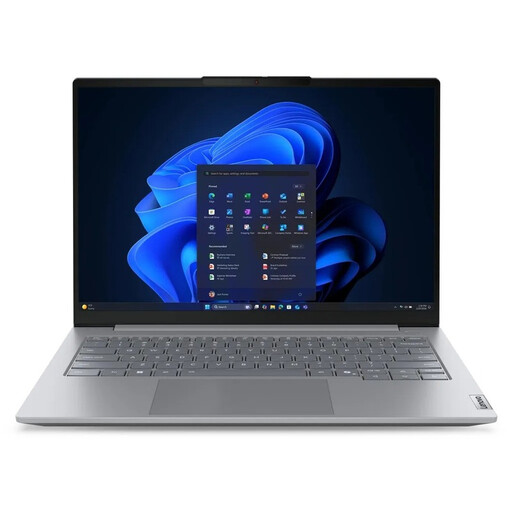
Lenovo ThinkBook 16 G9 AHP 21UT, Ryzen 5 220, 32 GB RAM, 1 TB SSD
This 16-inch laptop is an option if you want to view your catalogue and source documents at a larger workstation.
This configuration is listed with Windows 11 Pro, 32 GB RAM and a 1 TB SSD. Check that the storage suits the size of your actual file archive.
View at Joybuy
 No image available
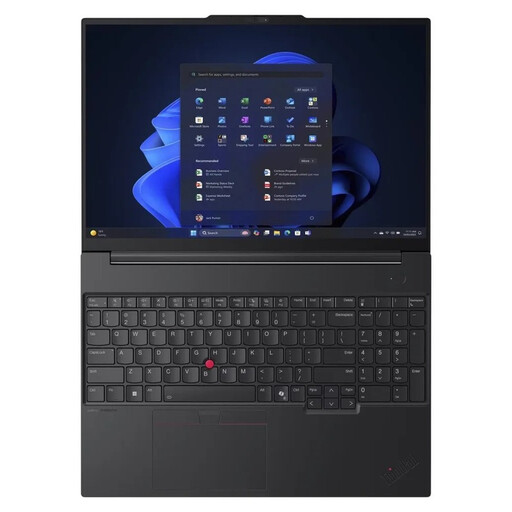
Lenovo ThinkPad E16 Gen 3 21ST, Ryzen 7 250, 32 GB RAM, 1 TB SSD
This 16-inch configuration is worth considering if you’re planning a larger workstation for viewing your catalogue and sources.
This model is listed with Windows 11 Pro, 32 GB RAM and a 1 TB SSD. Check that the operating system version is compatible with your catalogue software.
View at Joybuy
 No image available
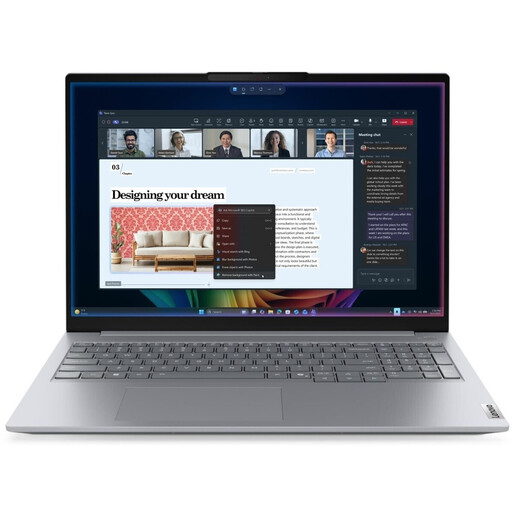
Lenovo ThinkBook 16 Gen 9, Intel Core Ultra 5 325, 32 GB RAM, 512 GB SSD
The 16-inch format may suit a workstation where you want to view your catalogue and source documents side by side.
This configuration lists Windows 11 Pro, 32 GB RAM and a 512 GB SSD. Compare the SSD capacity with the photos and documents you store locally.
View at Joybuy
 No image available
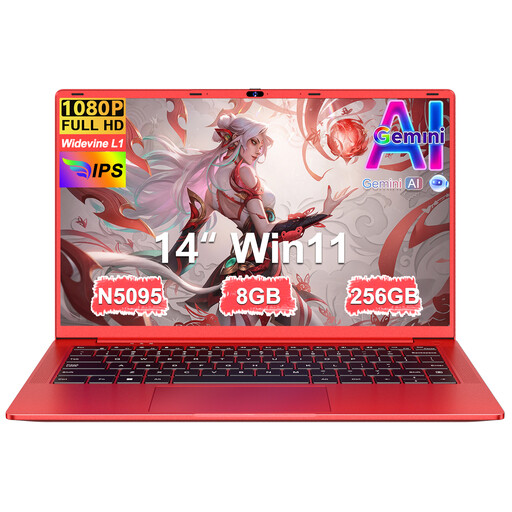
Ruzava 14-inch laptop, red, 8 GB RAM, 256 GB SSD
The more compact 14-inch format may be useful when recording details at a smaller workstation.
The product name lists 8 GB RAM, a 256 GB SSD, an FHD display, USB 3.0 and Type-C. Before buying, check that the operating system is compatible with the software you need.
View at Joybuy
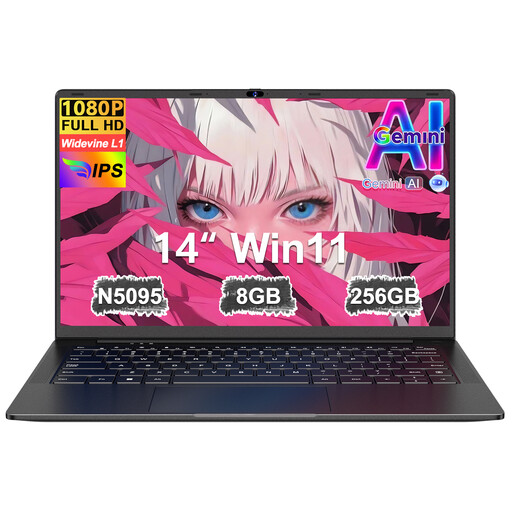 No image available
Ruzava 14-inch laptop, black, 8 GB RAM, 256 GB SSD
The 14-inch format may suit you if you’re looking for a more compact device to use in different locations.
The product name lists 8 GB RAM, a 256 GB SSD, an FHD display, USB 3.0 and Type-C. Check the storage against your files and make sure the operating system is compatible.
View at Joybuy
Frequently asked questions
Does my laptop need to run Windows?
Only if your workflow depends on a Windows application such as Microsoft Access Desktop. Its provider describes Specify 7 as a web application for modern browsers. Check which collection software and local features you actually use.
How can I access linked source files after switching devices?
Back up the database and its source files together, then test an entry and its link after moving everything. Access hyperlink fields can contain URLs or UNC paths, so whether a link continues to work also depends on the storage location and path. The German Federal Office for Information Security recommends backups to protect against hardware failure and data loss.
Do I need a particularly powerful laptop for CollectiveAccess?
You can’t determine a general minimum laptop specification from browser use alone. For a self-hosted installation, the CollectiveAccess documentation sets out requirements for the server environment, particularly for large media files. Check whether you’ll only be using the software in a browser or hosting it yourself.
What screen size is right for viewing a catalogue and photos?
A larger screen gives you more physical space, while a more compact device takes up less room when you’re working with objects. Open typical photos or PDFs alongside the catalogue form, then check which specific screen size and resolution will work in your space.
Can I return a laptop bought online without giving a reason?
For a qualifying consumer distance contract, you generally have a 14-day right to cancel from the date of delivery. Your Europe, the European Union’s consumer portal, lists exceptions and explains the rules on return costs. Check whether the seller and contract meet the relevant conditions.


