
Lieferung heute & morgen

Qualitätsgarantie

Willkommens-Angebote freischalten: KOSTENLOSE Lieferung | Bis zu 80 % RABATT | Kostenlose 30-Tage-JoyPlus-Testphase
App herunterladen
Modern laptops like the MacBook Pro or Dell XPS are powerful and slim, but this elegance comes at a cost: a severely reduced number of ports. A USB-C Hub is often the obvious solution for connecting peripherals, external monitors, and a stable network cable. However, the market is flooded with products that have seemingly identical features, making the choice difficult and potentially leading to costly mistakes.
As your Joybuy Product Recommendation Officer, I'll help you understand the technical specs and avoid the typical marketing traps. This way, you can find a model that reliably expands your workspace instead of causing frustration.
The most common pitfalls when buying a USB-C hub:
To avoid these issues, you should check three key parameters before making a decision. These will determine whether a hub is a worthwhile investment or a future headache.
Not every USB Hub is created equal. Think carefully about which ports you need:
The PD feature allows you to charge your laptop through the hub (pass-through charging). Ensure that the hub's charging capacity (e.g., Power Delivery 100W) is sufficient to power your device, even under load. A high-performance laptop, like a model designed for MacBook Pro, often requires 85W or more. A hub that is too weak can cause the battery to slowly drain even when the charging cable is connected.
An aluminum casing dissipates heat better than a plastic one. Since USB-C hubs can get warm during intensive use, especially with simultaneous charging and 4K video output, good thermal management contributes to the device's stability and longevity.
Here are some models suited for specific user groups, based on objective technical features.
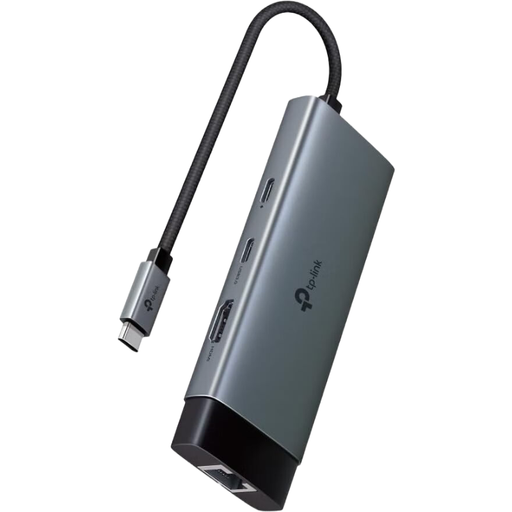
Why it's a good fit: Ideal for users who are often on the go and need a reliable, compact solution for presentations and basic connectivity. It covers the most important requirements without superfluous ports.
The hub clearly specifies an HDMI output with 4K at 60 Hz, thus avoiding the trap of choppy 30 Hz displays. As a product from an established networking manufacturer, the likelihood of connection issues under load is lower.
Offers a balanced combination of Gigabit Ethernet, fast USB ports (5 Gbps), and 100W Power Delivery in a portable form factor.
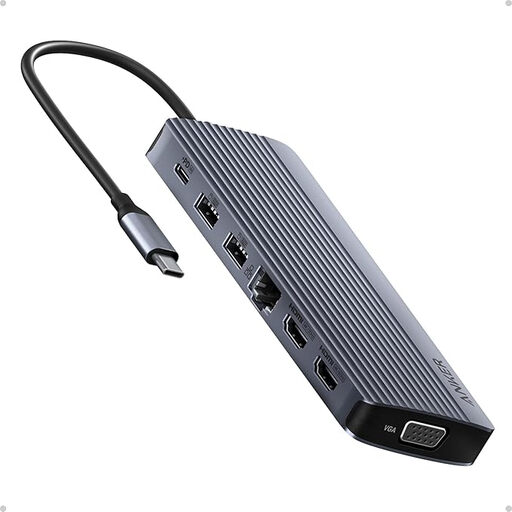
Why it's a good fit: For users who want to turn their laptop into a full-fledged workstation. With 14 ports, it's a comprehensive solution for complex setups with multiple monitors and numerous peripherals.
This model is designed as a full-fledged USB C Docking Station and directly addresses the requirements for dual-monitor or even triple-monitor setups. It offers clearly defined video outputs (2x HDMI, 1x VGA) and is built for the simultaneous operation of many devices, reducing the risk of instability.
Tremendous port variety, including support for three monitors, Gigabit Ethernet, an SD card reader, and a high number of USB ports. The pass-through charging power is designed for demanding work environments.
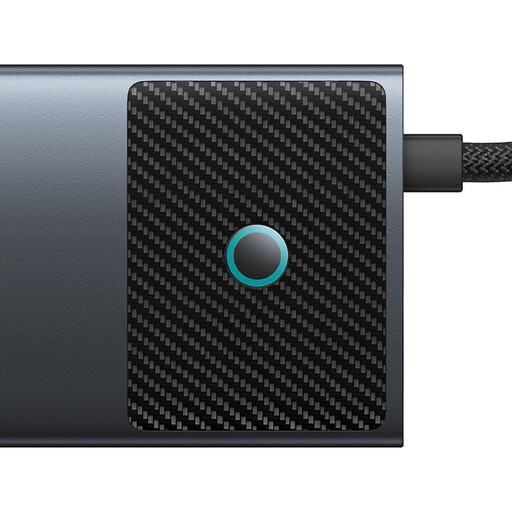
Why it's a good fit: Designed for users who depend on high data transfer rates and excellent image quality, such as videographers or designers. The aluminum housing aids heat dissipation during intensive use.
This model not only offers standard ports but also stands out with 10 Gbps USB ports and an HDMI output supporting 4K at 120 Hz. These specifications go far beyond the average, avoiding the performance bottlenecks of cheaper hubs.
The combination of very fast data ports (10 Gbps), an advanced 4K/120Hz video output, and integrated SD/TF card readers makes it a tool for data-intensive tasks.
If the models featured here don't exactly match your needs, you can find a wider selection of hubs in our full category, curated based on objective criteria.
A certain amount of warmth is normal for USB-C hubs, especially when multiple functions like Power Delivery, 4K video output, and data transfer are used simultaneously. The housing, often made of aluminum, acts as a heat sink to dissipate warmth. However, if the hub becomes too hot to touch comfortably, you should disconnect it from your device and check if it's being overloaded by too many power-hungry peripherals.
Most portable USB-C hubs are "bus-powered," meaning they draw their energy directly from the laptop. For setups with many peripherals or power-intensive devices like external 3.5-inch hard drives, a hub with Power Delivery (PD) Pass-Through is recommended. With this, the laptop's charger is connected to the hub, which then powers both itself and the laptop. Larger, stationary docking stations often come with their own external power adapter to ensure maximum stability.
While most USB-C hubs are generally compatible with a MacBook Pro, there's a significant limitation when it comes to dual-monitor setups. macOS does not support the technology known as Multi-Stream Transport (MST), which allows Windows systems to drive two independent, extended displays from a single USB-C port. As a result, many hubs with two HDMI ports will only show a mirrored image on both external monitors when connected to a Mac. To run two truly independent external displays, you need a hub with special DisplayLink technology or a more powerful Thunderbolt docking station. Always check the product description for explicit compatibility with macOS for extended multi-monitor displays.