What should you look for when buying?
First check how your platform transfers files, then work out how much archive space you need and what write speed suits your transfers. If your captures are important, plan to keep a second local copy too.
PS5: copy existing captures
A good fit if: You want to transfer screenshots or clips from the Media Gallery to an external USB drive.
Keep in mind: Copying existing captures doesn’t automatically mean you can change where new captures are saved. Also check the connection and available storage space.
Xbox: use an external drive as the capture location
A good fit if: You want to save Xbox captures directly to an external drive; Xbox Support specifies USB 3.0 and NTFS.
Keep in mind: According to Xbox Support, a drive formatted for Xbox games can’t also be used for captures. Check the menu path on your console, as the support guide referenced is for a different language region.
Nintendo Switch and Switch 2: transfer via a computer
A good fit if: You want to copy existing screenshots and videos to a USB stick via a computer; Nintendo explains how to connect the console directly to a computer with a cable.
Keep in mind: The USB ports on the dock don’t support this method. For captures on a Switch 2, Nintendo specifies a microSD Express card for storage, not a USB stick.
PC: archive local capture files
A good fit if: Your recording software already saves files locally on your PC and you want to copy them to USB afterwards.
Keep in mind: If you regularly transfer large files, the exact model’s write speed is more useful than its read speed. A manufacturer’s maximum speed doesn’t guarantee a particular copy time on your PC.
| What matters |
What to check when buying |
Who should consider this? |
| Transfer method and compatibility |
Check your platform and destination device. For Xbox, check the requirements for external captures; for Nintendo, plan to use a computer as an intermediary. |
If I want to transfer captures directly from my console, I’ll first check which method works with my platform; around 33% of consumers prioritise compatibility. |
| Space for your collection |
Check the size of typical clip files and existing folders, allow for future captures and make sure you have enough usable storage. |
If I want to store a growing clip archive, I’ll choose a capacity that suits my files; around 27% of consumers prioritise archive space. |
| Time spent copying |
Check the write speed for the exact model and capacity, and take the connection to the source device into account. |
If I regularly transfer large video files, I’ll look for a write-speed rating rather than just the read speed; around 20% of consumers prioritise shorter copy times. |
| Protection against data loss |
Plan to keep a separate local copy of important clips and check from time to time that you can still read them. |
If certain captures are particularly important to me, I don’t want to rely on a single USB stick; around 20% of consumers prioritise keeping important files safe. |
Joybuy products for local PC archives
This selection is for capture files already stored on a PC that you want to copy to a USB stick.
 No product image available
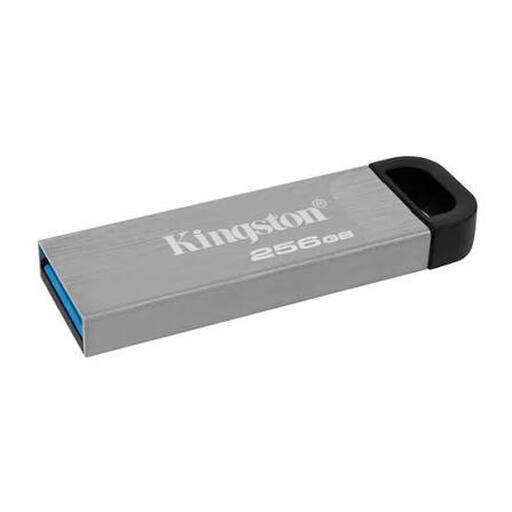
Kingston DataTraveler Kyson, 256 GB
For a local clip archive on your PC; the product name specifies a capacity of 256 GB.
View at Joybuy
 No product image available
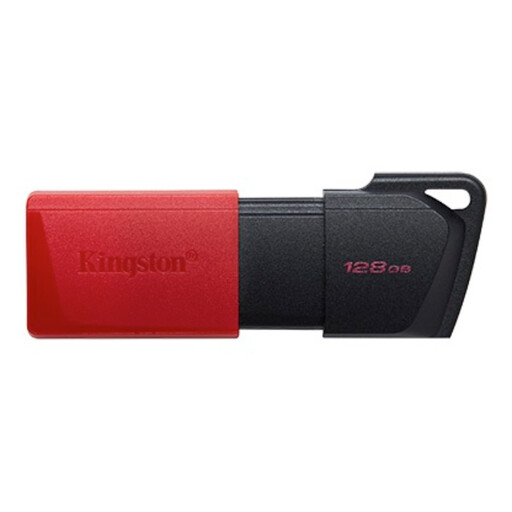
Kingston DataTraveler Exodia M, 128 GB
For storing video captures locally on your PC; the product name specifies 128 GB and USB 3.2 Gen 1.
Colour listed in the product name: black and red.
View at Joybuy
 No product image available
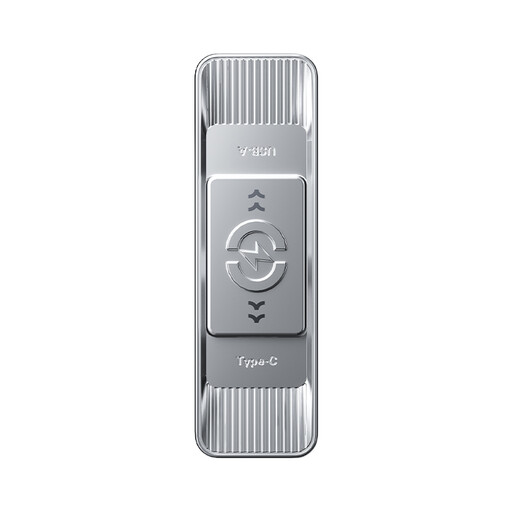
MOVESPEED YSUSP05-128GSR, 128 GB
For storing clips locally and switching between devices with compatible ports; the product name specifies 128 GB, USB 3.2 Gen 1 and Type-C.
View at Joybuy
 No product image available
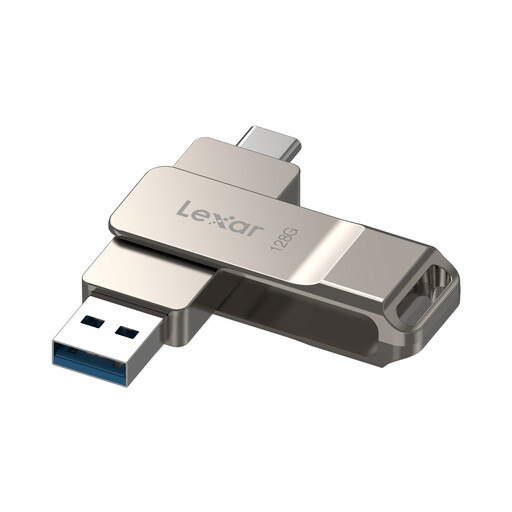
Lexar D40E LJDD40E128G-BNSNG, 128 GB
For local files and switching between devices with compatible ports; the product name specifies 128 GB and USB 3.2 Gen 1 Type-C.
View at Joybuy
 No product image available
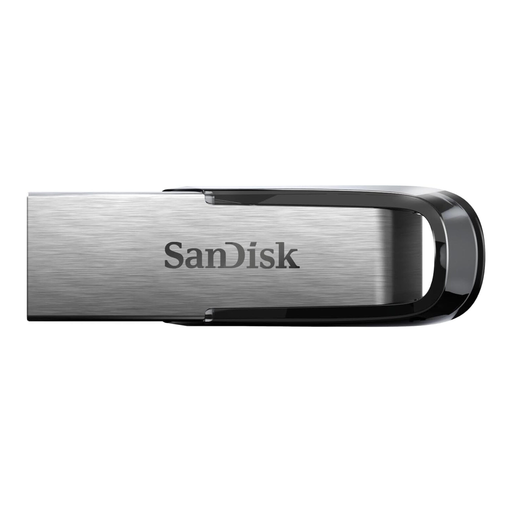
SanDisk Ultra Flair USB 3.0, 128 GB
For storing captures locally on your PC; the product name specifies 128 GB and USB 3.0.
Read speed listed in the product name: 150 MB/s. Read speed doesn’t tell you how quickly clips are written when saving them.
View at Joybuy
Frequently asked questions
Can I plug a USB stick straight into a Nintendo Switch or Switch 2 and copy captures to it?
The USB method described by Nintendo involves a computer: connect the console directly to the computer with a data-capable cable, then copy the files to your USB stick. The USB ports on the dock don’t support this feature. For captures on a Switch 2, Nintendo specifies a microSD Express card for storage, not a USB stick.
Can a drive formatted for Xbox games also store Xbox captures?
According to the Xbox Support guide, a drive formatted for Xbox games can’t also be used for captures. For external captures, the guide specifies USB 3.0 and NTFS, along with selecting the external capture location. Check the menu path on your console, as the guide referenced is for a different language region.
Do I need cloud backup for local game clips?
The USB and computer transfer methods described here don’t use the cloud as a storage destination. Still, keep important files on a separate local storage device too, and check that you can open them.
Who should I contact if my USB stick is faulty?
For consumer purchases in Germany, the seller is generally responsible for statutory consumer rights relating to faulty goods; the standard period is two years. This is separate from any voluntary manufacturer’s warranty. Neither replaces backing up lost files.
Can I save game captures to a USB stick for personal use in Germany?
Under certain conditions, § 53 Abs. 1 UrhG allows individuals to make individual copies for private, non-commercial use. This includes the requirement that the source wasn’t obviously produced or made publicly available unlawfully. This doesn’t amount to blanket permission to publish or commercialise gameplay containing other people’s protected content.


