For a game menu with two views, a keyboard with a layout and easily accessible keys that suit your computer and the editor commands you use most often should be all you need. Two menu views alone don’t call for a gaming keyboard or a second screen. If you want to customise shortcuts, check that the keyboard is programmable and its software is compatible with your setup. For long writing sessions or a limited amount of desk space, key feel, form factor and connectivity may matter more. You’ll also need to set up menu navigation and keyboard focus in your chosen engine, then test both there.
Which keyboard is right for you?
Menu developers who use lots of shortcuts
When switching between code, the editor and keyboard testing, a familiar layout and commands that are easy to reach or customise are important. Unity Documentation explains how to manage editor shortcuts; you’ll set up the menu navigation itself in your chosen engine.
Developers who do a lot of typing
If you spend long periods writing code and menu text, you can take key feel, noise and hand position into account when choosing a keyboard. Assess the switches and form factor for the specific model you’re considering.
Developers with limited desk space
If you need to leave room for a mouse or another work area, a compact layout could be a good fit. Weigh the space it saves against the keys you want to have within easy reach.
What should you look for when buying?
Start by checking the layout and which keys you need to access directly. Then consider customisation options, followed by the form factor, key feel and connectivity that suit your workspace.
| Priority |
What to look for |
Who is this important to? |
| Layout and direct access |
Check that the layout suits your system and that the arrow and function keys, as well as a number pad if needed, are easy to reach. |
If I don’t want to search for symbols or frequently used keys when switching between code, the editor and menu testing, I’ll check the layout against my workflow. Around 40% of consumers put a suitable layout and direct access first. |
| Customisable shortcuts |
Check which shortcuts your engine already manages and whether any additional key mapping works with your computer and operating system. |
If I use the same editor commands frequently, I want to be able to customise them when needed. Around 30% of consumers prioritise customisable shortcuts for editor work and menu testing. |
| Key feel and hand position |
Compare the specific switch type and form factor, and consider how the keyboard, your hands and the rest of your work area will be arranged. |
During longer writing sessions, I want to consider key feel and noise alongside my hand position, rather than relying on a general product description. Around 20% of consumers focus on key feel, noise or hand position. |
| Space and connectivity |
Measure the available space and decide whether you’ll use one computer or several, then check the keyboard’s size and connection type. |
If I want to leave room for my mouse or switch between computers, I’ll check which form factor and connection suit my setup. Around 10% of consumers put space requirements or connectivity first. |
Common buying mistakes
-
Confusing two menu views with multiple devices
Menu views, physical monitors and multiple computers are different things. Easy-Switch on the Logitech MX Mechanical switches between devices; you’ll set up navigation in the finished menu using your engine.
Clarify what “two views” means in your project. Switching between devices only matters when you actually work with more than one.
-
Choosing a compact keyboard based only on its footprint
A 75% or TKL layout doesn’t have an integrated number pad. That could be an issue if you often enter numbers directly.
Make a note of the keys you want to access directly during development and testing before comparing compact layouts with a full-size keyboard.
-
Assuming “mechanical” means a particular typing feel
Logitech offers the MX Mechanical with Tactile Quiet, Clicky and Linear switch options. So the word “mechanical” alone doesn’t tell you how the keys will feel or sound.
Check the switch type on the specific model and consider its noise rating in the context of how you’ll use it.
Key keyboard brands
Keychron
The V1 is a compact mechanical keyboard for workflows that use customisable commands.
- Keychron lists a 75% layout, DE-ISO variants and QMK/VIA support for the V1.
- It doesn’t have an integrated number pad. Check the specific layout, switch and keycap options, as well as whether the configuration software works on your computer.
Logitech
The MX Mechanical and MX Keys S offer different approaches to typing and customisable workflows.
- Logitech lists three switch types and Easy-Switch for up to three devices on the MX Mechanical. The manufacturer also lists programmable keys for the MX Keys S.
- The models differ in their switches and controls. Switching between devices is only relevant if you use more than one, so check the features of the specific model.
Sharkoon
The wired PureWriter TKL is worth considering for a workspace where you’re weighing up a compact size against having keys within easy reach.
- Sharkoon lists dimensions of 355 × 127 mm and two USB cables included with the PureWriter TKL.
- The TKL layout doesn’t have a number pad. Make sure the specific switch type suits your workflow.
CHERRY
The MX BOARD 3.0S range includes wired mechanical options that could also suit subsequent game testing.
- CHERRY lists Full-N-Key-Rollover for the range.
- Switches and lighting vary by model. These features aren’t automatically necessary for creating a menu, so check the exact version.
Keyboards at Joybuy
These keyboards at Joybuy cater to different needs, from compact layouts with a German key layout to ergonomic and full-size models.
 No image available
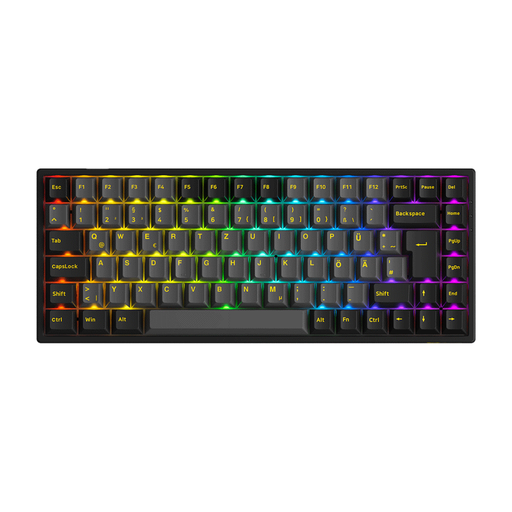
Akko 3084B Plus Tri-Mode, 75% ISO-DE, V3 Pro Cream Blue Switch
This compact layout with German keys is a good fit if you want to save desk space and are looking for a mechanical keyboard.
75% layout, ISO-DE, Bluetooth, 2.4 GHz wireless and USB-C; hot-swappable, with RGB and V3 Pro Cream Blue switches. Black and gold finish.
View at Joybuy
 No image available
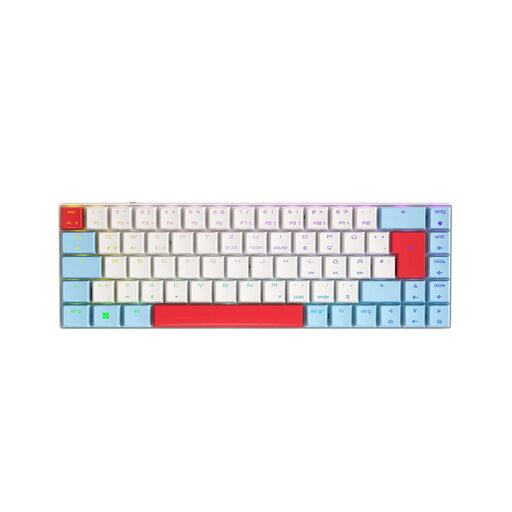
CHERRY MX-LP 2.1 Wireless, 65% German QWERTZ, White
This compact 65% model is worth considering if you want a German QWERTZ layout and more free space beside your keyboard.
Tri-mode connectivity with 2.4 GHz wireless, Bluetooth and USB-C; low-profile MX Speed switches and RGB. White finish.
View at Joybuy
 No image available
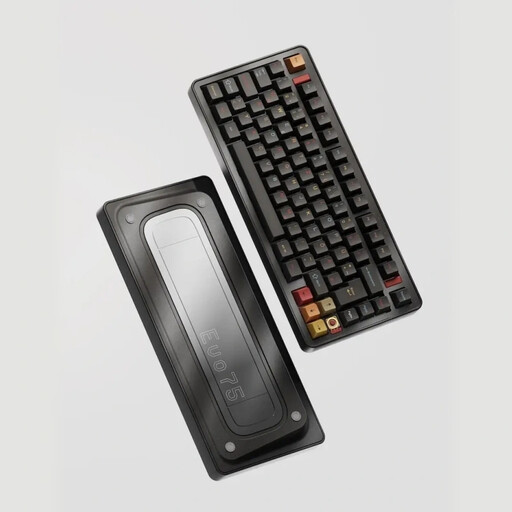
Ticktype EVO75 Custom Tri-Mode, 75% ISO-DE, Creamy Rye Switches
This 75% model is an option if you’re looking for a compact layout with German keys and programmable keys.
Tri-mode, hot-swappable and VIA-compatible; aluminium case, Leaf-Spring-Mount, 8000-mAh battery and RGB. Spray-Coated Nebula finish.
View at Joybuy
 No image available
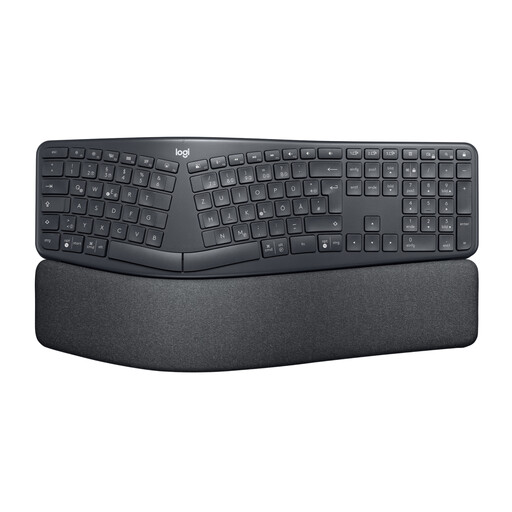
Logitech ERGO K860, QWERTZ, Graphite
This ergonomic design is worth considering if you want to take hand position into account when choosing a keyboard for longer typing sessions.
Split key layout, wireless connection via Bluetooth or USB receiver, and QWERTZ. The split, curved design may take some getting used to.
View at Joybuy
 No image available
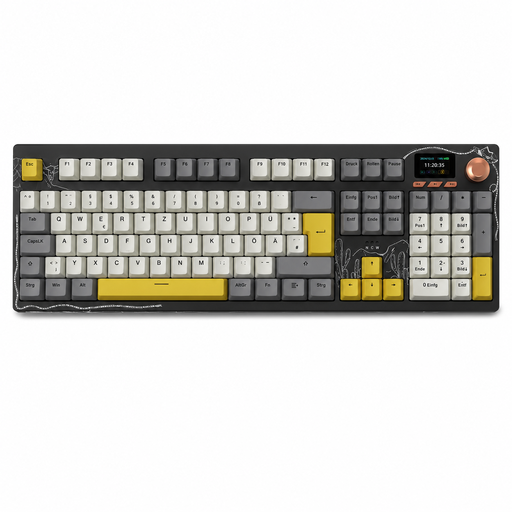
AJAZZ AK35I V4 Wireless, German QWERTZ
This full-size model is a good fit if you prefer a German layout with keys readily available.
Tri-mode connectivity with Bluetooth, 2.4 GHz wireless and USB-C; Gasket Mount, 10,000-mAh battery, 1.14-inch TFT colour screen and hot-swappable keys.
View at Joybuy
Frequently asked questions
Do I need a special keyboard or two monitors for two menu views?
No. Two menu views alone don’t mean you need a special keyboard. To control the menu with a keyboard, set up navigation and focus in your chosen engine; the Godot Engine Documentation describes specific features for UI navigation. If by two “screens” you mean physical monitors, that’s a separate requirement for your computer and display connections.
How do I set up keyboard shortcuts and menu navigation?
Treat editor commands and controls for the finished menu separately: Unity Documentation explains how to manage editor shortcuts, while navigation and focus in the game are set up in the engine. Test both menu views with the intended keyboard layout.
Do workplace ergonomics rules also apply to my personal game project?
Not simply because you’re developing a game menu for personal use. The Federal Institute for Occupational Safety and Health describes the scope of ASR A6 for computer workstations and, among other things, distinguishes computer use at home from work in the relevant workplaces or teleworking environments. Ergonomic guidance can still help you set up your workspace; how the rules apply under employment law depends on the actual workplace and employment relationship.
What ongoing costs and rights should I check when buying?
Check that the offer includes the version you want and any accessories you need. For consumer purchases in Germany, you have statutory rights against the seller if the goods are faulty; the German Federal Government says these generally last for two years. A voluntary guarantee is separate from these rights.


