Texture painters with a small PC desk
You already work at a computer and want a stylus input device that fits alongside your keyboard and monitor, and can be put away when you’ve finished drawing.


If you already work at a computer and are short on space, a screenless graphics tablet is a good place to start: you draw while looking at your monitor and can put the tablet away when you’re finished. A pen display is a good fit if you want to draw directly beneath the pen tip and have space for it and the right connections. A standalone tablet is best for drawing on the go, as long as its apps and file transfer options suit your game project.
You already work at a computer and want a stylus input device that fits alongside your keyboard and monitor, and can be put away when you’ve finished drawing.
You want to see the pen tip directly on the texture on screen, and can make room for a connected display and the right connections.
You want to draw away from your PC workspace too, and will need to check how your files can be transferred into your game project workflow.
The main differences between these types of device are where you draw and how much space you have to work with. The options and checks below can help you narrow down your choice.
A good fit if: You already use a suitable computer, look at its screen while drawing and want to put the tablet away when you’re finished.
Consider: Your hand and the image are in different places. Compare the active area and overall dimensions with the space on your desk.
A good fit if: You want to see the texture directly beneath the pen tip and have room for the display, computer and cables.
Consider: The display takes up desk space and needs a suitable connection for the image, input and, where applicable, power.
A good fit if: You mainly want to draw on the go and have checked that the app and file transfer options you need will work with your game project.
Consider: A tablet with a stylus does not automatically run desktop software. Also check that the stylus is compatible with the exact tablet model.
| Buying priority | What to check before buying | Who it matters most to |
|---|---|---|
| Space needed and stowable work surface | Compare the active area and overall dimensions separately; allow room for the device, your hand and cables. | If my desk is short on space, I want to be able to put the tablet away when I’ve finished drawing. Around 31% of consumers would prioritise the space needed when choosing a device. |
| Pen pressure in your texturing software | Check the driver and operating system; test in the software you use to see whether brush size or thickness responds to pressure. | If I want to use pressure control while drawing, the input needs to work in the software I actually use. Around 31% of consumers would put software and pen pressure first. |
| Drawing directly on the display | Check the display size, desk space, computer connections, and the cables and power supply included with the specific version. | If I want to guide the brush tip directly over the texture I can see, I need to have space and the right connections. Around 23% of consumers would prioritise drawing directly on screen. |
| Drawing on the go and transferring files | Check stylus compatibility with the exact tablet model, the drawing app, export format and how to import files into your project. | If I want to draw away from my desk, the app and file format need to fit into my game project workflow. Around 15% of consumers would put drawing on the go first. |
For Blender Texture Paint, the Blender Manual explains that you can enable pen pressure to control brush size or strength. The Krita Manual points out that drivers and, on Windows, the input protocol in use can affect whether pressure is registered correctly. So test your input in the software and with the brush you actually use.
With a pen display, the specific connection options matter as well as the screen size. XPPen lists an 11.9-inch drawing display for the Artist 12 (2nd Generation); its connection guide describes different ways to connect it and notes that additional accessories may be needed.
A high number of pressure levels does not replace the right driver setup and settings in your drawing software. In Krita, the pen may draw while pressure sensitivity still fails to register correctly.
Check the driver and compatibility before buying, then test the pressure curve with the brush you use.
You may need to spend extra time setting up the driver and troubleshooting.
A pen display needs to connect to a computer. Depending on the model and connection method, you may also need suitable cables or a power supply.
Check your computer’s connections, the image and data connection, the power supply and what’s included with the specific version.
Any extra cable or power supply you may need must be compatible with your setup.
The casing, your hand and cables also take up space. A large active area won’t automatically solve a lack of desk space.
Measure the space available on your desk before choosing, and allow for where you’ll rest your hand and how you’ll route the cables.
Active stylus compatibility depends on the exact tablet model. A standalone tablet also won’t automatically run the desktop version of the software you need.
Check the specific tablet and stylus combination, the drawing app and how your texture file will get into your game project.
Depending on the tablet you choose, you may need to buy a compatible stylus separately. Transferring files may also involve extra steps.
The One S is a compact graphics tablet for use with a computer you already own; the One 12 is a connected pen display.
The Deco 01 V2 is a screenless graphics tablet; the Artist 12 (2nd Generation) lets you draw on a connected display.
The Inspiroy 2 M is a screenless graphics tablet with extra controls on the device.
The S640 is a small graphics tablet for use with a computer, suited to a cramped or changing workspace.
An iPad with the Apple Pencil compatible with that model offers a standalone option for drawing on the go.
The following Joybuy products are tablets supplied with a stylus, for drawing on the go. Before choosing one, check that the app you need and its file transfer options will work with your game project.
 No image available
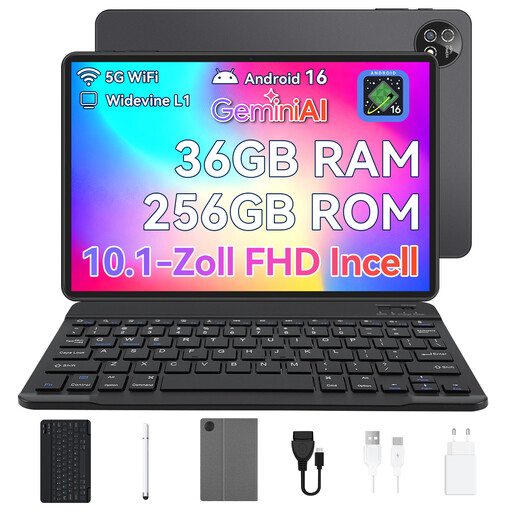
This set pairs an Android tablet with a stylus and keyboard for working on the go.
Android 16; 10.1-inch touchscreen; 36 GB RAM (6+30); 256 GB storage; octa-core processor; keyboard set and stylus; black.
 No image available
The supplied T-Pen is specified as offering 4096 levels of pressure sensitivity; check that your drawing app supports it.
12.7-inch 2K display; Android 15; Helio G99 (MT8781) octa-core processor; 20 GB RAM (8 GB + 12 GB virtual); 256 GB storage.
The set includes a stylus, a protective case and an English-language Bluetooth keyboard.
No. The feature described in the Blender documentation doesn’t make a graphics tablet a requirement for Texture Paint. If you want to control brush size or strength using pen pressure, enable the relevant brush option and test the input with your device.
First, check that you have the right tablet driver installed, then check the input settings in your drawing software. The Krita Manual lists drivers and, on Windows, the input protocol in use as possible causes. Then test the pressure response with the brush you use.
No. XPPen describes different ways to connect the Artist 12 (2nd Generation). According to the guide, the USB-C cable is sold separately, and some versions don’t include a power supply. Check your computer’s connection and what’s included with the specific version.
For a standard online consumer purchase, you generally have a 14-day right to cancel from the date of delivery; exceptions and possible return costs should be taken into account. The European Union’s Your Europe website also states that you have a legal guarantee of at least two years against the seller. This is separate from any additional manufacturer’s warranty advertised with the product.