Which type is right for you?

Texture artists using an existing PC

If you paint in a desktop application, check that the software and driver work together to recognise pen pressure. For Substance 3D Painter on Windows, Adobe says to enable Windows Ink in the tablet driver settings.

Artists who want to draw directly on screen

If you want to draw directly on the image on screen and have room for an additional display, consider a connected pen display. F.A.Z. Kaufkompass compared this type in an editorial test, while XPPen and Huion describe their own display models.

Space-conscious home workers

If your drawing area, keyboard and monitor all share the same desk, consider the casing, cables and any additional screen as well as the active drawing area. Huion and ugee offer different types of tablets and models to suit.

What should you look for when buying?

What matters What to check before buying Who is it most relevant to?
Pen pressure in your texturing software Decide which software and operating system you’ll use; check the driver and test a pressure-sensitive brush. For Substance 3D Painter on Windows, Adobe specifies Windows Ink in the driver settings. If I want to use pressure-sensitive brushes in my software, the application, operating system and driver need to work together. That’s why around 40% of consumers prioritise software and pen pressure compatibility.
Drawing directly on the image For pen displays, compare the screen size and resolution of the specific model, as well as the space available for tool panels. If I want to edit details directly on the visible texture, drawing on the display is key. Around 30% of consumers prioritise this direct drawing experience.
Space and connections Allow for the available desk space, including where the cables connect; check the instructions for the specific model to confirm the video signal and power requirements. If my desk also needs to accommodate a keyboard and monitor, the whole setup matters – not just the active drawing area. Around 20% of consumers prioritise space and connection requirements.
Device and accessories Check what’s included, and confirm that the pen and replacement nibs are compatible with the exact model generation; remember to allow for any connection or power accessories you need. If I want to plan for the device and any accessories I might need, I need to know what’s included and which replacement parts fit. Around 10% of consumers put the combined cost of the device and accessories first.

Common buying mistakes

  • More pressure levels automatically mean more precise game textures

    The stated number of pressure levels doesn’t tell you whether your texturing software recognises pen pressure and uses it with your chosen brush.

    Test a pressure-sensitive brush in your own software and check the driver settings before comparing devices based on pressure levels alone.

  • A USB-C port tells you everything about powering the display

    The setup guide for the XPPen Artist Pro 16 (Gen 2) specifies an additional power connection if the display doesn’t light up.

    Compare the instructions and contents of the box for the exact model with the connections on your computer.

    Depending on your setup, you may need additional power or connection accessories.

  • An Apple Pencil works with every iPad

    Apple lists which iPad models are compatible with each Pencil version; a stylus won’t automatically work with every iPad.

    Make a note of the exact iPad and Pencil versions, then check both against Apple’s compatibility information before buying.

Key brands to consider

Wacom

The Intuos Pro (2025) is a graphics tablet for working at an existing monitor, with no display beneath the pen tip.

  • Wacom lists the Pro Pen 3, customisable controls, and USB and Bluetooth connections for this range.
  • On 24 July 2026, F.A.Z. Kaufkompass named this model its top pick among the devices without a display that it tested; this doesn’t prove it will suit every texturing workflow.

XPPen

The Artist Pro 16 (Gen 2) is a connected pen display for drawing directly on the image on screen.

  • XPPen lists an X3 Pro stylus; F.A.Z. Kaufkompass named the model its top pick among the pen displays in its test.
  • The display connects to a computer. Its setup guide says an additional power connection may be needed if it doesn’t light up.

Huion

The Kamvas 16 (Gen 3) is a connected pen display, while the Kamvas Studio 16 is a standalone pen computer.

  • Huion lists a 15.8-inch screen, 2,560 × 1,440 pixels and the PW600L stylus for the Kamvas 16 (Gen 3).
  • For the standalone Kamvas Studio 16, Huion lists an Intel Core i7-1165G7 and Intel Iris Xe. These specifications don’t replace checking the requirements of your specific texturing software.

ugee

The M908 is a graphics tablet without a display, for use with an existing computer and monitor.

  • ugee describes the M908 as a drawing tablet and provides driver downloads for specific models.
  • Check that the specific combination of software and driver works with your operating system.

Apple

An Apple Pencil is designed for a compatible iPad, provided the device and app suit the drawing workflow you have in mind.

  • Apple publishes a list of which iPad models are compatible with each Pencil version. Apple specifies tilt sensitivity for Apple Pencil (USB-C).
  • Tilt sensitivity alone doesn’t confirm support for a pressure-sensitive brush you need, or compatibility with a desktop application.

Joybuy products to explore

The products below include touchscreen styluses for compatible tablets and an Android tablet with a stylus. Also check whether your texturing software and the pen features you need are supported on the device you choose.

Touchscreen stylus for compatible Android, Samsung, Huawei and Xiaomi devices

Touchscreen stylus for compatible Android, Samsung, Huawei and Xiaomi devices

For drawing in apps on compatible touchscreens; according to the product description, it isn’t designed for iPads, Microsoft devices or some Lenovo tablets.

1.5 mm copper tip, USB-C charging and magnetic side attachment for compatible tablets.

View at Joybuy

Touchscreen stylus for compatible Apple iPad models from 2018 to 2025

Stylus for compatible Apple iPads (2018–2025)

For drawing and sketching on a compatible iPad; check the exact iPad version before buying.

USB-C charging, magnetic attachment, palm rejection and tilt sensitivity.

View at Joybuy

Touchscreen stylus for compatible Android and iOS devices

Touchscreen stylus for compatible Android and iOS devices

For drawing and sketching on compatible capacitive touchscreens; check support for your exact device.

POM tip, LED indicator and USB-C charging. According to the product description, the magnetic attachment is for storage only, not charging.

View at Joybuy
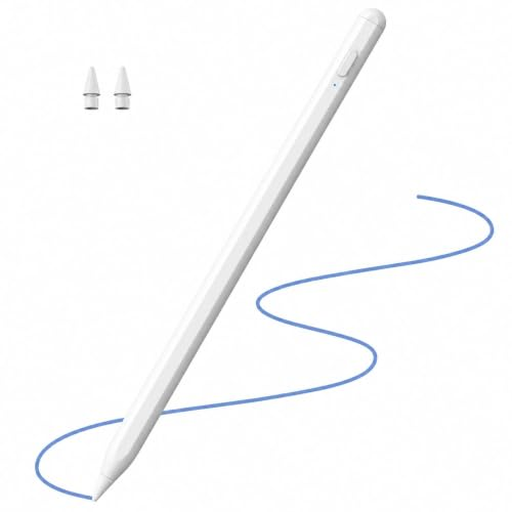
Stylus for compatible Apple iPads released between 2018 and 2026

Stylus for compatible Apple iPads (2018–2026)

For drawing and illustration on a compatible iPad; check which devices are supported for your model.

Palm rejection and tilt support.

View at Joybuy

TECLAST ArtPad Pro Android tablet with 12.7-inch display, stylus and accessories

TECLAST ArtPad Pro, 12.7 inches, 2K, 256 GB

Standalone Android tablet with an included stylus for drawing on the go. Check that your texturing app and the features you need are available on the device.

The product title lists 4,096 pressure levels, Android 15, 256 GB of storage, plus a protective case and Bluetooth keyboard included in the box.

View at Joybuy

Frequently asked questions

Why isn’t pen pressure working in Substance 3D Painter on Windows?

Adobe recommends enabling Windows Ink in your graphics tablet driver settings so that Substance 3D Painter can recognise pen pressure. The instructions give model-specific steps for finding the settings and recommend restarting the application after making a change; this doesn’t guarantee the feature will work with every device.

Can an iPad with Apple Pencil replace my computer for Substance 3D Painter?

Not on the basis of stylus compatibility alone: Adobe lists the desktop systems supported by Substance 3D Painter, while Apple matches Pencil versions to specific iPad models. Check separately whether the application you actually need, and its features, are available on your iPad.

Which connections should I check on a pen display?

Check the connections required for video and power on the specific model against the ports on your computer. The setup guide for XPPen’s Artist Pro 16 (Gen 2) specifies an additional power connection if the display doesn’t light up.

What costs and rights should I consider when buying online in Germany?

First, check what’s included and whether you’ll need any additional accessories. According to the European Union’s consumer information, consumers buying online from a trader generally have a 14-day withdrawal period from delivery; under the conditions set out there, you may have to pay return postage. There is also a statutory minimum guarantee of two years. This information applies to consumer purchases and shouldn’t automatically be applied to business purchases.