For a large clip archive that will mostly stay at home, an external HDD is likely to be the better choice. If you often transfer large files or take the drive with you, a portable SSD may suit you better. In its drive tests, CHIP describes external HDDs as slower and more susceptible to impact than SSDs. Also check how your console exports files: a USB drive set up for PS5 games is not automatically suitable for a full console backup (PlayStation Support). For irreplaceable clips, the German Federal Office for Information Security recommends keeping an additional backup, as it is difficult to predict exactly how long storage media will last.
Which option is right for you?
Building a large clip archive
If you want to store lots of gaming videos locally for the long term, and storage space matters more than frequent copying, compare the capacities of the specific HDD models. The German Federal Office for Information Security recommends keeping an additional copy of important files.
Editing clips regularly
If you regularly move large recordings between your recording device and PC, or take the drive with you, a portable SSD may be a better fit for your workflow, particularly if you transfer files often. CHIP describes HDDs as slower and more susceptible to impact than SSDs.
Playing on console without cloud storage
If you want to archive clips from a console, check how to export them from your specific model before buying. Nintendo describes transferring files from the Switch and Switch 2 to a computer via USB, rather than directly to an external HDD or SSD.
What should you look for when buying?
External HDD for archiving
A good fit if: you need plenty of storage more than fast copy times, and the drive will mostly stay at home.
The trade-off: CHIP describes HDDs as slower and more susceptible to impact than SSDs.
Portable SSD for frequent transfers
A good fit if: you regularly move large recordings or use the drive while out and about.
The trade-off: advertised peak speeds require a compatible port on the connected device; Kingston specifies this requirement for its XS models.
| Priority |
What to check before buying |
Who it matters most to |
| Space for a growing archive |
Estimate how much storage you need based on the clips you already have, and compare the capacity of the specific model. |
If my archive is growing, having enough space matters more than fast copy times. Around 33% of consumers prioritise capacity. |
| Transfer speed and portability |
Check the ports on your PC and drive, and make sure the supplied cable is compatible. |
If I often move large files or take the drive with me, I pay more attention to speed and portability. Around 25% of consumers prioritise these factors. |
| Usable console export |
Check how to export files from your console model, and distinguish individual clips from game storage or a full backup. |
If I want to archive clips without the cloud, the export method must work with my specific console. Around 25% of consumers prioritise console compatibility. |
| Protecting important recordings |
Plan to keep a separate second copy, and check from time to time that the files still open. |
If my clips are irreplaceable, I don’t want to rely on a single drive. Around 17% of consumers prioritise data backup. |
Common pitfalls
-
Assuming game storage and a drive for recordings are the same thing
For PS5, PlayStation Support distinguishes between extended USB storage for games and a full USB data backup. A drive set up for one purpose cannot automatically be used for both.
Before setting up the drive, decide whether you want to store individual clips, games or a full console backup, and copy any existing files elsewhere first.
-
Assuming you can connect a hard drive directly to export Switch recordings
Nintendo describes exporting files from the Switch and Switch 2 to a computer via USB. This is not the same as exporting them directly to an external HDD or SSD.
Check the transfer method for your Switch version. For USB transfers, you’ll need a data-capable cable and a computer that supports Media Transfer Protocol. Nintendo also lists a microSD card as a transfer method for the original Switch.
Using a computer or microSD card adds an extra step before you can save the clips in your external archive.
-
Relying on a single external SSD as a fail-safe backup
The German Federal Office for Information Security points out that it is difficult to predict exactly how long storage media will last. A portable drive cannot replace a second copy.
Keep important clips on a separate storage device as well, and check that you can still read the backup.
Brands to consider
The information below relates to the product ranges listed and does not replace checking the specifications of the specific model.
Toshiba
The Canvio Basics range includes portable HDDs for local storage.
- Toshiba lists models in the range with capacities of up to 4 TB and USB connectivity.
- The manufacturer’s claim that it works with Windows without additional software does not confirm that you can export directly from a console.
Seagate
Expansion Portable is a range of external HDDs for storing large files locally on a computer.
- Seagate lists USB 3.0 and compatibility with Windows, macOS and ChromeOS.
- These specifications do not confirm compatibility with direct exports of console recordings.
Samsung
The portable T7 Shield is an SSD range designed for use on the move.
- Samsung advertises water and dust resistance for the T7 Shield; its product page lists models with 1, 2 and 4 TB of storage.
- Manufacturer protection claims do not guarantee against data loss. Check the capacity and features of the model you choose.
Kingston
The XS1000 and XS2000 are portable SSD ranges with different USB interfaces.
- Kingston lists USB 3.2 Gen 2 for the XS1000 and USB 3.2 Gen 2x2 for the XS2000.
- The XS2000’s advertised maximum speeds require a compatible port on the host device and are not a measurement of performance on your device.
Joybuy products
The products below include an external HDD for a local archive and portable SSDs for storing files and videos locally. For the Switch and Switch 2, Nintendo’s USB export method first requires a computer that supports MTP.
 No image available
WD Elements Portable 4TB USB-C
For a local clip archive, if the stated capacity meets your storage needs.
4 TB; USB-C, as stated in the product name.
View at Joybuy
 No image available
KEXIN external SSD, USB 3.1 Type-C, 256 GB
A portable SSD option for a smaller local archive, if 256 GB is enough for your clips.
256 GB; USB 3.1 Type-C; advertised transfer speeds of up to 500 MB/s.
View at Joybuy
 No image available
Kexin M.2 SATA Portable SSD, 256 GB
For a local file and clip archive, if 256 GB is enough and the stated interface is compatible with your port.
256 GB; M.2 SATA; USB 3.1; advertised read speeds of up to 500 MB/s.
View at Joybuy
No image available
KEXIN external SSD, USB 3.1 Type-C, 512 GB
For a local video and file archive, if 512 GB suits your needs.
512 GB; USB-C and USB 3.2 Gen 1, as stated in the product name.
View at Joybuy
 No image available
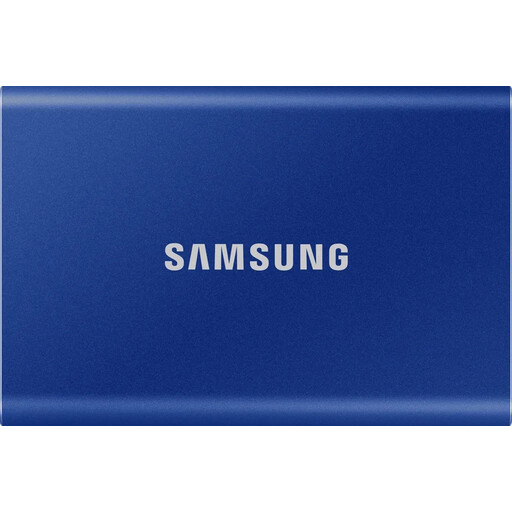
Samsung portable SSD T7, 1 TB
For a local 1 TB archive or frequent file transfers, if the capacity and connections suit your needs.
1 TB; portable SSD. Before buying, check that your device’s ports and your console’s export method are compatible.
View at Joybuy
Frequently asked questions
Can I copy PS5 recordings to USB without using the cloud?
Yes. PlayStation Support explains how to copy individual recordings from the PS5 Media Gallery to a connected USB device. A full console backup is a separate feature: a drive set up as extended game storage is formatted differently and, according to PlayStation Support, cannot be used for this purpose.
Can I transfer Switch or Switch 2 clips directly to an external hard drive?
The USB transfer methods described by Nintendo first send files to a computer that supports Media Transfer Protocol. Nintendo also lists a microSD card as a transfer method for the original Switch. Check the instructions for your specific console version.
Is one external drive enough for a long-term backup?
For irreplaceable clips, you should plan to keep a second local copy. The German Federal Office for Information Security points out that it is difficult to predict exactly how long storage media will last, and recommends checking that you can restore the backup.


