Built-in displays are a good fit if you often want to use your canvas and references at the same time while on the move. At a permanent workstation, a laptop with an external monitor or pen display gives you more freedom to choose your second device. First, check the ports on the specific laptop model and compatibility with your second device, then look at display profiles, RAM and GPU performance to suit your software. A high refresh rate alone tells you nothing about colour reproduction.
Which setup is right for you?
Game artists on the move
If you want to see your character and references at the same time while travelling, a laptop with two built-in displays could save you from needing a separate monitor. ASUS Germany lists two touchscreens and several setup modes for the Zephyrus Duo. The stated weight of 2.82 kg and the specific configuration of the model you choose should also factor into your decision.
Artists with a dedicated workspace
If you work in one place and want to use an external pen display or monitor, check the supported ports and how you can arrange your extended workspace. The Blender Foundation explains how to use multiple monitors, while Microsoft Support explains how to arrange them in Windows. The Krita manual recommends using display profiles for each connected screen.
Artists working in 2D and 3D
If you also work on 3D models as well as painting, the RAM and GPU you need will depend on the software and features you actually use. Adobe lists specific requirements for Photoshop and guidance on GPU use with multiple displays. These details cannot be applied universally to every painting or 3D application.
What should you look for when buying?
Two built-in displays
A good fit if: you want to see your canvas and references at the same time, even when you’re out and about.
Things to consider: check the weight, the space needed to set it up and whether the touchscreen suits your specific pen workflow.
Laptop plus external display
A good fit if: you mostly paint at a dedicated workstation or want to choose your drawing display separately.
Things to consider: you’ll need a second device, compatible ports and extra space. The colours on the two displays won’t automatically match.
| What to consider |
What to check before buying |
Who should consider this? |
| Second screen |
Choose between built-in displays and an external monitor or pen display. For an external device, check the video outputs on the exact laptop model and, if necessary, whether you’ll need an additional data connection. |
If I want to see my canvas and references separately, how my workspaces are arranged is my top priority. Around 31% of consumers say this is exactly what they need. |
| Colour and assessment |
Check the colour gamut for the exact display variant, and make sure you use the right profile or calibration for each screen. |
If I need to assess colours on both my drawing screen and second display, I pay particular attention to how they reproduce colour and to colour management. Around 25% of consumers prioritise colour assessment. |
| Software performance |
Match the RAM, GPU and storage to the requirements of your software and project sizes. For Photoshop 27.x on Windows, Adobe recommends 16 GB of RAM or more. For displays of 4K or higher, Adobe recommends 4 GB of GPU memory. These are not general minimum requirements for all software. |
If I’m working on large painting files or using 3D features as well, I choose specifications to suit that software. Around 25% of consumers put the performance of their chosen software first. |
| Transport and setup |
Consider the weight and setup of the specific device, including any accessories you’ll carry, rather than comparing laptop weights alone. |
If I want to take my drawing setup with me regularly, the weight of the complete setup matters most. Around 13% of consumers prioritise portability and transport. |
| Total cost and protection |
Include only the accessories you actually need in your setup, and distinguish between the seller, your statutory consumer rights and any additional warranties that may be available. |
If I’m weighing up the cost of the whole workspace, I include the extra devices and connections I need. Around 6% of consumers focus on the total cost and protection when making a purchase. |
Common misconceptions
-
Two displays don’t automatically mean two suitable drawing surfaces
ASUS lists two touchscreens for the Zephyrus Duo. That doesn’t mean it supports a particular pen workflow or comes with the right accessories.
Decide which screen you’ll draw on and which you’ll use for references. Check pen support and what’s included with the exact variant you want.
An external setup will also need a second device and, potentially, suitable connections.
-
A high refresh rate doesn’t guarantee accurate colour reproduction
Refresh rate doesn’t tell you how colours are reproduced. When switching between your drawing screen and reference display, different display profiles can affect how you assess colour.
Check the colour gamut for the exact variant and take account of the profiles for the displays you’ll actually use. The Krita manual explains display profiles for connected screens.
Key brands to consider
ASUS ROG
The Zephyrus Duo GX651 is a documented example of a gaming laptop with two built-in displays.
- ASUS lists two touchscreens and several setup modes.
- The stated weight is 2.82 kg. Touch support alone doesn’t confirm that it’s suitable for a particular pen workflow.
Lenovo Legion
The Legion Pro 5 range is an option if you’re looking for a gaming laptop and want to choose a separate second display.
- Lenovo lists variants with AMD processors and RTX 50 graphics on its German Gen 10 product page.
- Ports and display specifications can vary by configuration, so check the exact variant for your second screen.
Acer Predator
The Predator Helios Neo 16 AI PHN16-73-9816 shows why the specifications of the exact variant matter.
- For this model, Acer lists 32 GB of RAM, a matte display with a resolution of 2560 × 1600 pixels and an RTX 5070 with 8 GB of graphics memory.
- Acer doesn’t list a touchscreen for this variant. The display specifications alone don’t prove how accurately it reproduces colour in practice.
MEDION ERAZER
The Major 16 X1 is an example of a gaming laptop variant with a stated display colour gamut.
- For this variant, MEDION lists 100% sRGB, 32 GB of RAM and a 2 TB SSD.
- These specifications apply to the Major 16 X1 and shouldn’t be assumed to apply to other ERAZER models.
HP Victus
The Victus range is another option if you’re looking for a gaming laptop to use with an external screen.
- For the Victus 15-fb3770ng, HP lists 16 GB of RAM, a 1 TB SSD and a Full HD display with a 144 Hz refresh rate.
- Check the ports on the specific variant and whether it’s compatible with your chosen pen display. The specifications listed don’t confirm the colour gamut or whether this second device can be connected.
Joybuy products for an external screen
These gaming laptops are worth considering for a workstation with an external monitor or pen display. Check the ports on each model against the requirements of your second device.
 No image available
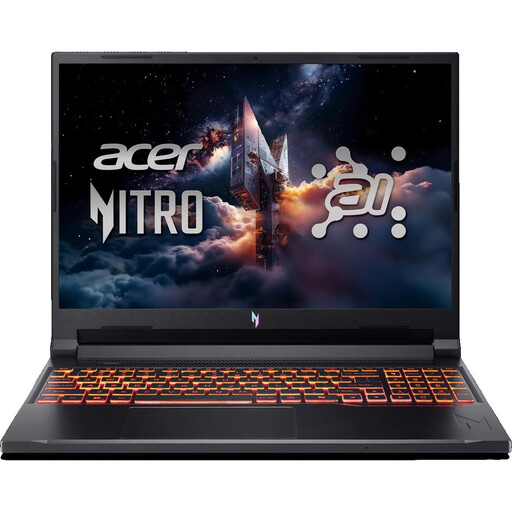
Acer Nitro V 16 AI ANV16-42-R1HB
USB4 with DisplayPort and HDMI 2.1 are listed as video outputs for connecting an external screen. Check that they’re compatible with your second device.
16-inch, IPS, 2560 × 1600 pixels, 16 GB DDR5, 1 TB SSD and RTX 5060 with 8 GB.
The matte display is useful for the mobile workspace described here, but it doesn’t confirm support for a pen workflow.
Joybuy
 No image available
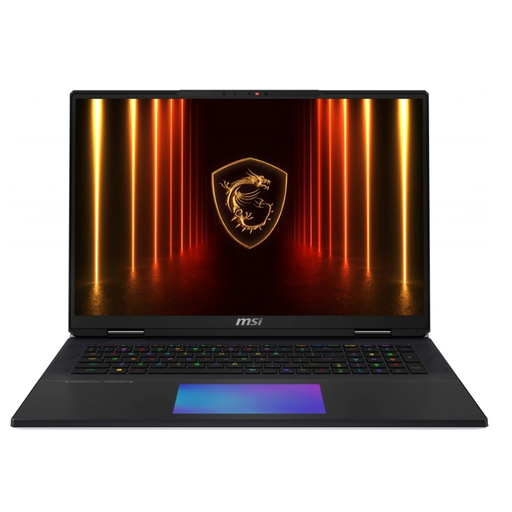
MSI Titan 18 HX AI A2XWJG-656
HDMI and Thunderbolt 5 are listed as ports for a dedicated dual-screen workspace. Check the connection to your chosen second device.
18-inch, UHD+, Mini-LED, 100% DCI-P3, 64 GB DDR5, 6 TB SSD and RTX 5090 with 24 GB.
The stated weight is 3.6 kg, which is worth bearing in mind if you’ll be carrying it regularly.
Joybuy
 No image available
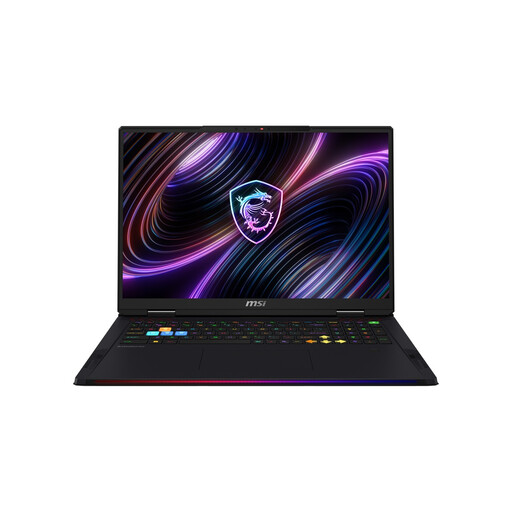
MSI Raider 18 Max HX A2WJ-1074
HDMI and Thunderbolt 5 are listed as ports for an external screen. Check the requirements of your monitor or pen display.
18-inch, UHD+, Mini-LED, 100% DCI-P3, 64 GB DDR5, 2 TB SSD and RTX 5090 with 24 GB.
The stated weight is 3.6 kg, which could be a consideration if you regularly take it with you.
Joybuy
 No image available
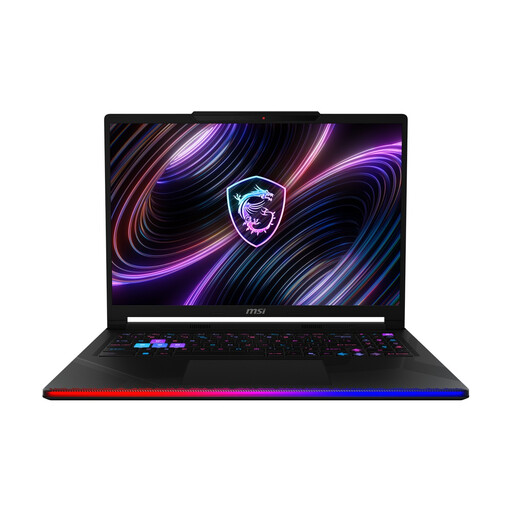
MSI Raider 16 Max HX B2WJ-071
HDMI and Thunderbolt are listed as ports for an external screen. Check that the connection is compatible with your second device.
16-inch, OLED, WQXGA, 32 GB DDR5, 2 TB SSD and RTX 5090.
Joybuy
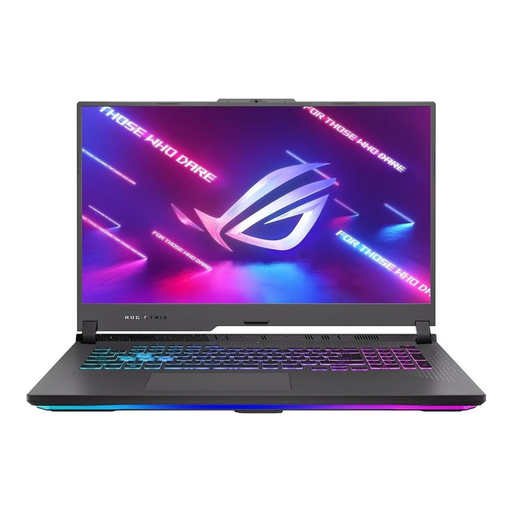 No image available
ASUS ROG Strix G17, 17,3 Zoll, Full HD, 144 Hz
HDMI 2.1 and two USB-C ports with DisplayPort are listed for connecting an external screen. Check that the connection will work with your second device.
17.3-inch, Full HD, 144 Hz, 16 GB DDR5 and RTX 4060 with 8 GB.
Joybuy
Frequently asked questions
How do I set up a second screen in Windows?
Connect the screen using a port that’s compatible with both your laptop and second device. In Windows display settings, you can arrange detected screens and set up an extended workspace. If you’re using a pen display, also check its data and pen requirements.
Do both screens need to use the same colour profile when painting?
Not necessarily. The Krita manual recommends using display profiles for each connected screen. Use the right profile for each screen and check the colour management settings in the specific software you’re using.
How much RAM do I need for Photoshop?
For Photoshop 27.x on Windows, Adobe recommends 16 GB of RAM or more, with 8 GB listed as the minimum requirement. Other applications and larger projects have their own requirements.
What rights apply when buying online in Germany?
For a consumer purchase from a business seller, your statutory consumer rights generally apply against the seller. Your Europe, the EU’s consumer portal, states that the minimum period is two years from receipt of the goods. According to the Verbraucherzentrale, online purchases generally come with a 14-day right to cancel from the date you receive the goods; exceptions and the specific terms of the contract should also be considered. A voluntary manufacturer’s warranty doesn’t replace these rights.


