If you want to view your design and preview on separate screens while you’re on the move, a gaming laptop with two built-in displays is the more straightforward option. If you mostly work at a desk, a laptop with the right video output and an external monitor could be more flexible, but you’ll need space and a compatible connection. For browser-based Figma alone, the Figma Help Center says that no specific dedicated gaming graphics card is required. Your choice of GPU should mainly depend on the games and additional software you actually use.
Which setup is right for you?
Designers who work on two screens on the move
You want to view your design and preview on separate, built-in workspaces while you’re out and about, and play games on the same laptop. ASUS describes the ROG Zephyrus Duo as having two built-in displays.
UI designers with a dedicated workspace
You mostly work at a desk and want to pair your laptop with a second monitor that suits your space, connections and display requirements. Microsoft Support explains how to arrange multiple monitors in Windows and use them as an extended desktop.
Designers who play demanding games
You design user interfaces, but mainly need extra graphics performance for certain games or other demanding applications. The Figma Help Center describes Figma’s basic graphics requirements as modest, while Dell notes that Alienware models offer different configuration options.
What should you look for when buying?
Gaming laptop with two built-in displays
A good fit if: You regularly need to view your design and preview side by side on separate screens while on the move, and you’ll actually use the gaming features.
The trade-off: You’re tied to the laptop’s display options. ASUS specifies OLED touchscreens for the ROG Zephyrus Duo, so be sure to follow the manufacturer’s care instructions too.
Gaming laptop with an external monitor
A good fit if: You mostly work in one place or want to choose your screen and laptop independently.
The trade-off: The monitor takes up space and needs a suitable connection. When you’re out and about, you won’t have that second workspace readily available.
Portable dual-screen laptop focused on productivity
A good fit if: Two built-in workspaces matter more to you than demanding gaming. ASUS’s Zenbook DUO UX8407 is an example of this product line.
The trade-off: Having two displays doesn’t mean a device is suitable for the games you play. Check the requirements for each game and the exact specifications.
| Buying priority |
What to check |
Who cares most about this? |
| Two workspaces |
Decide whether you need both displays while you’re on the move. If you’re using an external monitor, check the video output on the exact laptop model and make sure it matches the monitor’s input. |
If I want to view my design and preview side by side while I’m out and about, I need two usable workspaces. Around 33% of consumers put this need first. |
| Assessing image quality |
Compare the size, resolution, finish and explicitly stated colour specifications of the exact model. A high refresh rate alone doesn’t tell you whether the display meets your image assessment requirements. |
If I design interfaces and need to check that they look right for my work, I focus on the specifications of the displays I’ll actually use. Around 27% of consumers prioritise image assessment for UI design. |
| Performance for design and gaming |
Compare the requirements of the games and additional software you use with the CPU, GPU and memory in the exact configuration. Don’t assume every version in a product range has the same specifications. |
If I want to play demanding games as well as work on UI design, I choose a GPU to suit those games. Around 20% of consumers prioritise gaming performance. |
| Overall cost and portability |
Compare the laptop, any monitor you need and the connection equipment as a complete setup. Factor in weight, the power adapter and battery use. |
If I need to weigh up cost against the equipment I’ll have to carry, I compare complete setups rather than just the laptop. Around 20% of consumers focus mainly on overall cost and portability. |
Common buying mistakes
-
Assuming two screens means two built-in displays
A laptop with two integrated displays and one connected to an external monitor both give you two workspaces, but involve different considerations around where you use them and how they connect.
First, decide whether you need both displays while you’re on the move. If you’re using an external monitor, check the connections on the exact laptop model.
An external setup may also require a monitor and suitable connection equipment.
-
Choosing the most powerful gaming GPU just for UI design
The Figma Help Center describes Figma’s basic graphics requirements as modest. So a dedicated gaming graphics card shouldn’t be an automatic choice based on design work alone.
Check the graphics performance required by the games and other software you use. A dedicated GPU can also increase battery consumption.
-
Assuming a high refresh rate means the display is right for assessing images
A refresh rate specification alone doesn’t tell you whether a display meets your requirements for assessing your designs.
Check the display specifications for the exact model and, if colour decisions matter, look for the relevant information about the laptop or external monitor display.
-
Ignoring OLED care when UI elements stay on screen
ASUS notes that high-contrast images displayed for long periods at high brightness can cause image retention or burn-in.
Follow the manufacturer’s care instructions and use the available protection features. Avoid leaving static content on screen unnecessarily for long periods at maximum brightness.
Key brands at a glance
ASUS
ASUS offers two dual-screen ranges with different priorities: the ROG Zephyrus Duo and Zenbook DUO.
- ASUS specifies two OLED touchscreens for the ROG Zephyrus Duo and two 14-inch OLED displays for the Zenbook DUO UX8407.
- These manufacturer specifications apply to the respective product lines. They don’t mean the models have the same gaming performance or that every version has the same features. Follow ASUS’s care instructions for OLED displays.
Acer
The Predator Helios Neo 16 AI PHN16-73-9816 is an example of a gaming laptop with one built-in display that can be paired with an external monitor.
- For this version, Acer specifies a matte 16-inch IPS display with 2560 × 1600 pixels and 32 GB RAM.
- Check the connections for your planned monitor setup and the specifications of the exact model if you’ll be doing colour-critical work. These details don’t automatically apply to other Predator models.
Dell Alienware
The Alienware 16X Aurora AC16251 is a configurable gaming laptop that could be paired with a second, external display.
- Dell offers different CPU, GPU and RAM options for this model.
- Compare specific configurations like for like: specifications and performance can vary depending on the options you choose.
Lenovo
The Legion Pro 5 is another option: a gaming laptop with one built-in display, with a second screen to be chosen separately.
- This product range adds to the choice of laptops that can be used with an external monitor.
- Check the specifications of the exact model and its connections for your chosen monitor before deciding on a setup.
Gaming laptops at Joybuy
This selection includes gaming laptops for UI work and gaming, including models suited to a setup with an external monitor.
 No image available
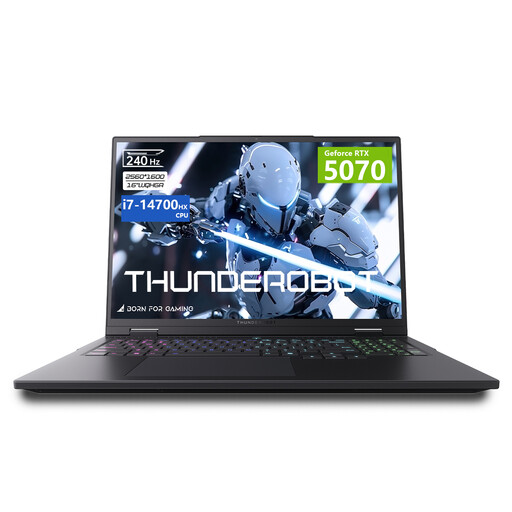
THUNDEROBOT Radiant 16
For UI work and gaming on one laptop; the matte display may be a factor when choosing a built-in screen.
16 inches, 240 Hz, RTX 5070, Intel Core i7-14700HX, 32 GB RAM, 8 GB GDDR7, 100% DCI-P3 and 500 nits, according to the product name.
View at Joybuy
 No image available
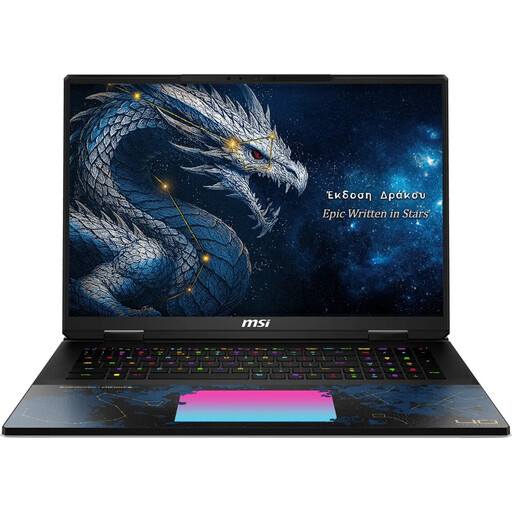
MSI Titan 18 HX Dragon Edition Draco Epic A2WJ-1218
For a setup with an external monitor: HDMI 2.1 is listed as a connection in the product specifications.
18 inches, UHD+ 240 Hz Mini LED, Intel Core Ultra 9 290HX Plus, RTX 5090 with 24 GB, 96 GB DDR5 and 4 TB SSD, according to the product name.
The product specifications also state 100% DCI-P3.
View at Joybuy
 No image available
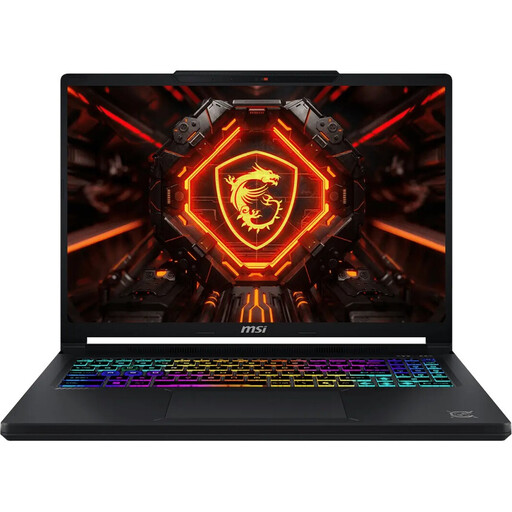
MSI Crosshair 16 Max HX E2WGXK-023
For a setup with an external monitor: HDMI is listed as a connection in the product specifications.
16 inches, QHD+ 165 Hz OLED, RTX 5070 with 12 GB, Intel Core Ultra 9 275HX, 16 GB DDR5 and 1 TB SSD, according to the product name.
View at Joybuy
 No image available
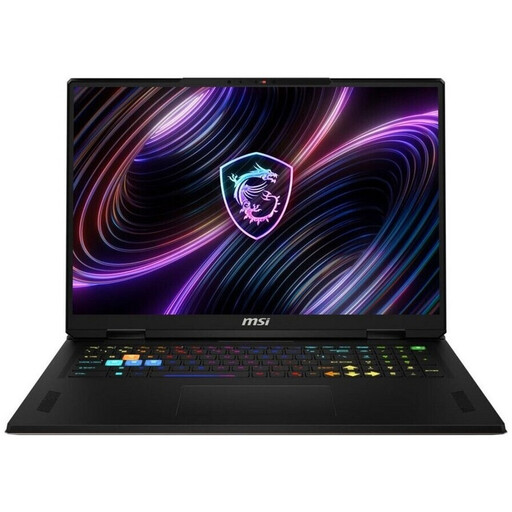
MSI Raider 18 HX A2WH-1088
For a setup with an external monitor: HDMI 2.1 is listed as a connection in the product specifications.
18 inches, QHD+ 240 Hz, RTX 5070 Ti with 12 GB, Intel Core Ultra 9 275HX, 32 GB DDR5 and 1 TB SSD, according to the product name.
View at Joybuy
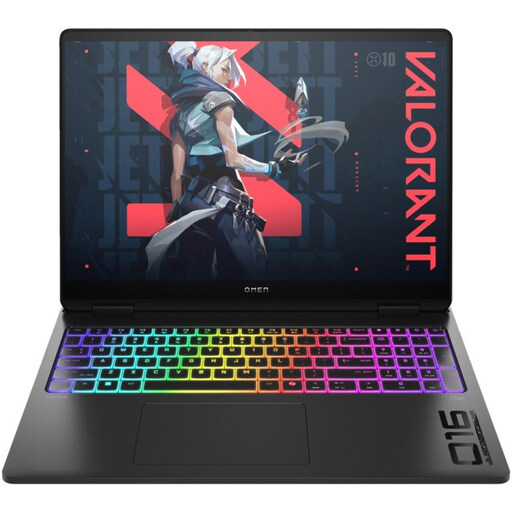 No image available
HP OMEN MAX 16-ak0693ng
For a setup with an external monitor: HDMI 2.1 and USB-C are listed in the product specifications.
16 inches, WQXGA 240 Hz, AMD Ryzen AI 9 HX 375, RTX 5070 Ti with 12 GB, 32 GB RAM and 1 TB SSD, according to the product specifications.
View at Joybuy
Frequently asked questions
Do I need a dedicated gaming graphics card for Figma UI design?
No, not for basic Figma use alone: the Figma Help Center describes its graphics requirements as modest and doesn’t rule out integrated graphics. A dedicated GPU can improve performance, but it can also increase battery consumption. Check the requirements for games and other design software separately.
How do I use an external monitor as a second workspace rather than mirroring my screen?
Connect a monitor that’s compatible with the output on your exact laptop model, then select ‘Extend’ in Windows. Microsoft Support also explains how to arrange detected displays in the display settings to match their physical positions.
What should I consider if toolbars are always visible on an OLED display?
ASUS notes that high-contrast images displayed for long periods at high brightness can cause image retention or burn-in. Follow the manufacturer’s care instructions, including setting a shorter time before the display turns off automatically and, if supported, using ASUS OLED Care.
What are my rights regarding returns and faulty goods when buying online as a private consumer in Germany?
Consumers generally have the right to cancel an online purchase, usually within 14 days, and must notify the seller of their decision. Statutory rights relating to faulty goods are against the seller and are separate from any voluntary guarantee. The Verbraucherzentrale explains these rights; the terms of the specific purchase still apply.
Is an energy efficiency label already required for every laptop in Germany?
The information from the European Commission does not indicate that a general labelling requirement is already in force for every laptop. The Commission says that laptops are covered by existing EU ecodesign legislation and describes additional energy efficiency labelling for computers as part of a review. Separate labelling rules apply to monitors.


