For grand strategy games on a large screen, a mouse with easy-to-reach controls and a scroll wheel that suits you matters more than having as many buttons as possible. A few extra buttons are enough if you use the keyboard for most commands; a large thumb button panel is more useful if it can accommodate plenty of regularly used actions and you can reach them easily. Pointer speed, display settings and whether a cable gets in the way or wireless use means having to recharge should also suit your gaming setup.
Which mouse suits you?
Navigating maps and menus
If you often switch between maps, lists and menus, look for a scroll wheel you can control easily and pointer speed that suits your screen. Microsoft Support explains how to adjust pointer speed separately from display resolution and scaling, while Logitech G lists specific scroll wheel and control features for its G502 models.
Lots of shortcut actions
If you want to assign frequently used in-game commands to your mouse, consider models with extra programmable buttons. Razer and CORSAIR list button panels for their respective models; the key thing is whether you can reach the buttons comfortably with your usual grip.
Changing desk setups
If you want to play without a mouse cable or switch between connection types, consider setup and power requirements as well as connectivity. CHERRY describes wired, 2.4 GHz wireless and Bluetooth connections for the M50 Wireless; CORSAIR explains the receiver and Bluetooth connection for the SCIMITAR ELITE WIRELESS.
What to look for when buying
When playing on a large map, start by checking pointer control and how easy the buttons are to reach. Then decide whether extra mouse commands or a wireless connection are worth the trade-offs for you.
| What matters |
What to look for |
Who is it important to? |
| Precise pointer control |
Adjustable pointer speed; in Windows, adjust display resolution and scaling separately from mouse movement. |
If you want to target small controls on a large map accurately, set pointer movement to suit your setup. Around 36% of shoppers prioritise pointer control above all else. |
| Easy-to-reach buttons and scroll wheel |
Check the shape of the mouse and the thumb buttons with your usual grip; make sure the scroll wheel functions suit you. |
If your hand often moves between the map, menus and scroll wheel, easy-to-reach controls matter more than a long list of features. Around 29% of shoppers prioritise comfort and ease of access above all else. |
| Useful in-game commands |
Make a note of the commands you use most often and compare the number and position of the buttons on the specific model. |
If you really want to trigger recurring actions with your thumb, check that the button panel suits your grip and the commands you use. Around 21% of shoppers prioritise assigning shortcuts above all else. |
| Connectivity and power |
Check the connection type, whether a receiver is needed, and the charging or battery setup for the specific model. |
If you want more freedom of movement without a mouse cable or need to switch between connection types, factor setup and power requirements into your decision. Around 14% of shoppers prioritise connection flexibility above all else. |
Avoiding common buying mistakes
-
Assuming the most buttons are automatically the best choice
A large number of programmable buttons gives you plenty of options, but they’re only useful if you actually need those commands in the game and can reach them with your thumb.
Before you buy, note the actions you use regularly and check that you can reach them on the button panel with your usual grip.
A large button panel can take time to get used to, and unused controls can make configuration unnecessarily complicated.
-
Trying to fix a cluttered display with higher DPI alone
In Windows, you can adjust pointer speed, display resolution and scaling separately. So changing your mouse settings alone won’t solve every problem with reading or selecting items on screen.
First adjust your display for good readability, then test the pointer speed on your own screen.
-
Treating similarly named Logitech G502 models as the same mouse
COMPUTER BILD’s external test list features the G502 Lightspeed and G502 Hero as different models; the wired G502 X is another version. Connectivity and features may differ.
When comparing a product listing, check the full model name, connection type and the specific features listed.
Key brands to consider
Logitech G
The G502 models are worth considering if you want to compare extra controls or different scroll wheel functions.
- Logitech G lists a scroll wheel with free-spin and ratchet modes, as well as an adjustable DPI shift button, for the wired G502 X.
- Logitech G lists 11 programmable buttons for the G502 HERO.
- The G502 X and G502 HERO are different models. Don’t assume features, cable types or specifications are the same across versions.
Razer
The Naga V2 HyperSpeed is an option if you want to assign lots of mouse commands that you’ll actually use to its buttons.
- Razer lists 19 buttons and a dual-mode scroll wheel for the Naga V2 HyperSpeed.
- Whether a large button panel suits grand strategy games depends on which actions you need and how the mouse feels in your hand.
CORSAIR
The SCIMITAR ELITE WIRELESS is designed for players who want to assign lots of commands to their thumb.
- CORSAIR lists 16 programmable buttons and an adjustable 12-button panel.
- For wireless use, you’ll need to consider setup and power. The CORSAIR manual describes 2.4 GHz wireless and Bluetooth connections.
SteelSeries
The Aerox 9 Wireless is another option if you’re considering a mouse with lots of side buttons.
- SteelSeries lists 18 programmable buttons for this model, including a 12-button panel, as well as a weight of 89 g.
- These manufacturer specifications don’t guarantee individual comfort or a gaming advantage; the mouse should feel right in your hand.
CHERRY XTRFY
The M50 Wireless is worth considering if you value a choice of connection types and side-to-side scrolling more than a large MMO thumb button panel.
- CHERRY describes wired, 2.4 GHz wireless and Bluetooth connections, as well as a scroll wheel that tilts from side to side, for the M50 Wireless.
- For wireless use, remember to factor in power requirements; the manufacturer’s description doesn’t replace checking that the shape and grip suit you.
Joybuy products for large screens
This Joybuy selection includes gaming mice with extra buttons or wireless connectivity options for grand strategy games on large screens.
 No image available
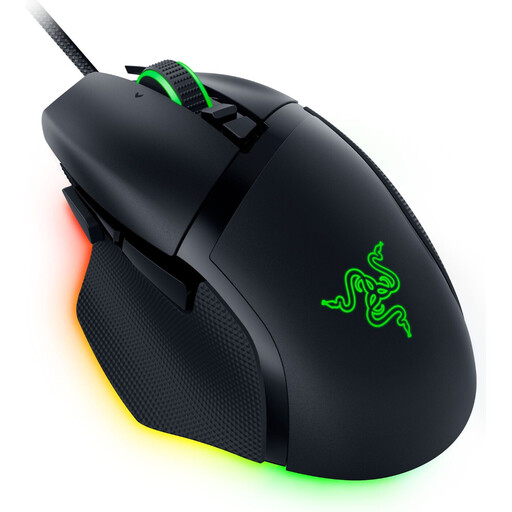
Razer Basilisk V3 35K
A wired option if you want to use extra programmable buttons.
Features listed in the product name: wired connection, optical sensor with 35,000 DPI and 11 programmable buttons.
Joybuy
 No image available
Logitech G502 X LIGHTSPEED
A wireless option if you don’t want a mouse cable on your desk while you play.
Wireless use requires charging the built-in battery.
Joybuy
 No image available
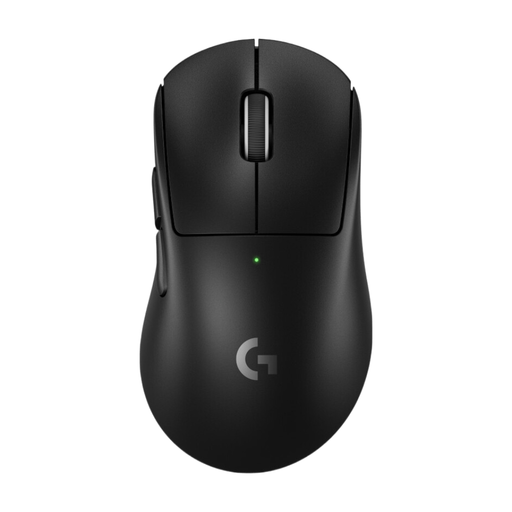
Logitech G PRO X Superlight 2 DEX
A wireless gaming mouse if you want to use extra mouse assignments without needing a large thumb button panel.
The product name describes an optical wireless mouse; according to the product description, wireless use requires charging the built-in battery.
Joybuy
 No image available
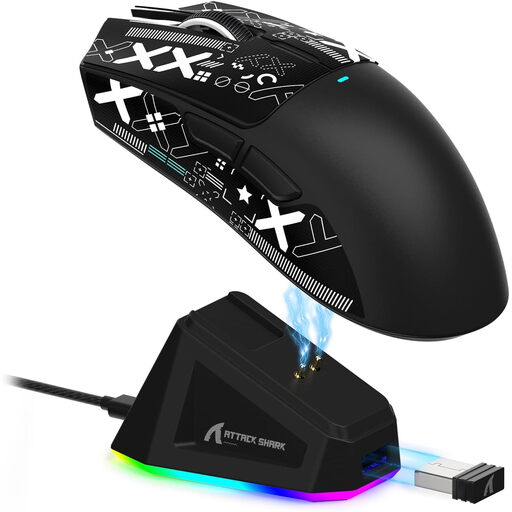
ATTACK SHARK X11
An option if you want to choose between wired and wireless use.
Features listed in the product name: PAW3311 sensor with 22,000 DPI, 2.4 GHz wireless, Bluetooth, USB-C, charging dock and five programmable buttons. Wireless use requires charging the battery.
Joybuy
 No image available
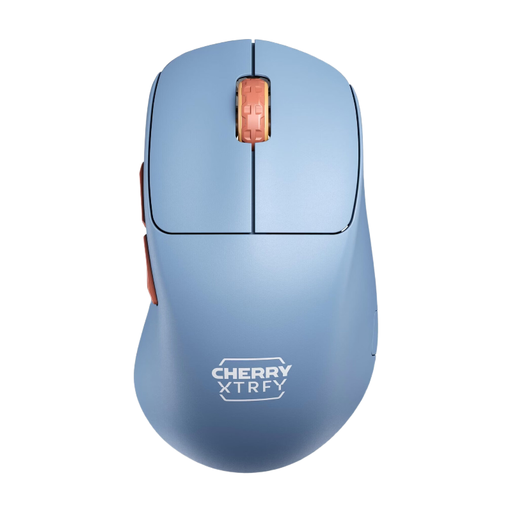
CHERRY XTRFY M64 Wireless
A wireless option if you’re looking for a lightweight mouse that can be used wirelessly or with a cable.
Features listed in the product name: 53 g, right-handed design and 2.4 GHz wireless. The product description also lists a wired mode; according to the description, the battery is not replaceable.
Joybuy
Frequently asked questions
Do I need the highest possible mouse DPI for a large screen?
No. A high maximum DPI alone won’t tell you which setting is right for you. Test pointer movement on your own screen; Microsoft Support explains how to adjust mouse pointer speed separately from display resolution and scaling in Windows.
How do I set up a wireless mouse for gaming?
It depends on the model and the connection you want to use. The CORSAIR SCIMITAR ELITE WIRELESS manual explains how to connect the USB receiver for 2.4 GHz wireless and how to pair the mouse separately for Bluetooth; it describes Bluetooth in particular for general computer use.


