Precision builders
When placing small elements, you’ll want to switch between quick pointer movements and fine adjustments. Microsoft Support explains how to adjust mouse pointer speed in Windows; the setting that feels right depends on your setup.


For virtual railway building, a mouse with adjustable pointer speed and a shape that suits your hand is a sensible starting point; screen size alone doesn’t determine the right DPI setting. If you zoom often or want to use extra commands, compare the scroll wheel and buttons, and check whether your game supports the controls you want. Then choose between wired and wireless based on your desk setup.
When placing small elements, you’ll want to switch between quick pointer movements and fine adjustments. Microsoft Support explains how to adjust mouse pointer speed in Windows; the setting that feels right depends on your setup.
If you zoom or move the view frequently, an easy-to-reach scroll wheel and suitable controls are important. The Transport Fever 2 manual explains that scrolling zooms the view, while pressing the scroll wheel rotates or tilts the camera; controls may differ in other games.
If you build for long periods or your computer is awkwardly positioned in relation to your mouse space, pay particular attention to the shape and connection. Wired and wireless models differ in how they’re set up, and a mouse’s shape description alone won’t tell you whether it will feel comfortable in your hand.
When building on a large screen, consider pointer control and how well the mouse fits your hand first, then map controls and finally how it connects at your desk.
| What matters | What to check before buying | Who should pay particular attention? |
|---|---|---|
| Precise pointer control | Adjustable mouse pointer speed and, where applicable, in-game sensitivity; try the controls with your screen resolution and scaling. | If I want to place small track pieces accurately while still covering large distances across the screen, I need pointer movement that can be fine-tuned. Around 36% of consumers prioritise precise placement. |
| Hand comfort | Check whether the mouse suits your dominant hand, hand size and grip, and whether you can reach the buttons comfortably. | During longer building sessions, I want to hold the mouse securely and reach the important buttons without forcing my hand into an awkward position. Around 29% of consumers put a suitable shape and easy-to-reach buttons first. |
| Map and command controls | Check the middle click, stepped scrolling, free-spin and side-to-side wheel movement separately; then check the controls in your game. | If I zoom or move the view often, I want to reach the necessary controls comfortably rather than rely on a particular wheel function that my game may assign differently. Around 21% of consumers prioritise map controls and extra commands. |
| Connection at your gaming setup | Check the cable route or USB receiver, Bluetooth support, charging options and the ports on your computer. | If a cable restricts my mouse space or I want to use different ports, I need a connection that suits my computer and charging habits. Around 14% of consumers focus mainly on the connection at their gaming setup. |
Resolution, scaling and pointer speed all affect how the mouse pointer moves across the screen. Microsoft Support explains how to adjust pointer speed in Windows.
First, try the controls with your screen resolution and scaling. Then check whether the mouse’s adjustment range suits both long pointer movements and small targets.
A wheel may scroll in steps, spin freely, tilt from side to side or click as a middle button. According to the Transport Fever 2 manual, scrolling zooms the view, while pressing the scroll wheel rotates or tilts the camera.
Check each wheel action you want against your game’s settings and the full model name.
Wireless models can differ in how they connect and how they’re powered. Check whether the specific model uses a receiver, Bluetooth or a cable, and how it’s charged or powered.
Make sure the connection options suit your computer and consider whether charging works for your gaming setup.
The Basilisk range includes wired models with extra controls and different scroll wheel functions.
When comparing G502 models, use the full model name to distinguish between wired and wireless versions.
The MC 3.1 is a symmetrically shaped wired mouse, while the M50 Wireless offers several connection options.
This selection includes gaming mice for adjustable pointer control, extra commands and a range of wired or wireless desk setups.
 No image available
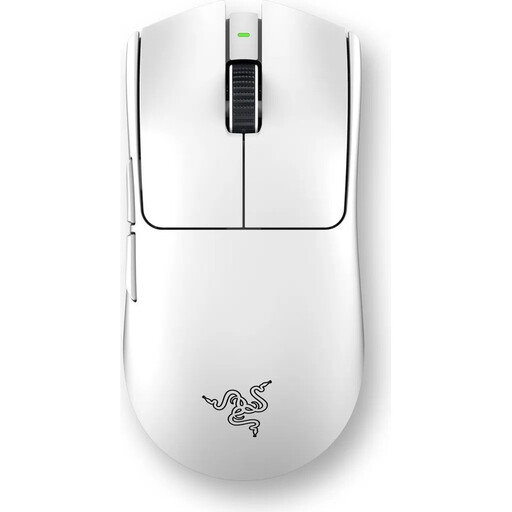
A wireless option if you’re looking for a symmetrical shape and programmable buttons.
The product title lists a Focus Pro 35K sensor, a weight of 54 g, six programmable buttons and a 2.4 GHz connection.
It’s designed to be charged via USB-C.
 No image available
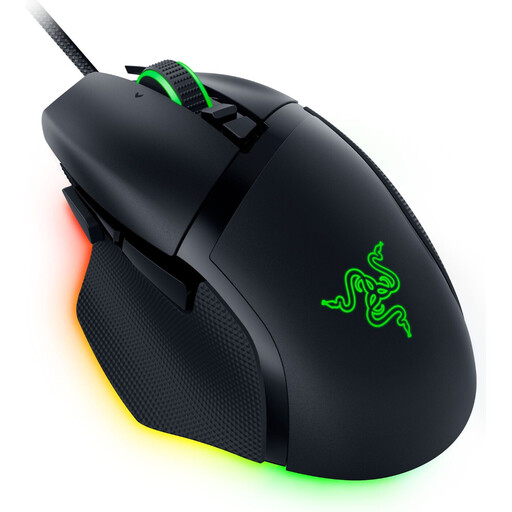
A wired option if you want extra controls and different scroll wheel modes.
The product title lists an optical sensor with 35,000 DPI and 11 programmable buttons. Razer describes this model as having a tilt wheel with stepped scrolling, free-spin and an automatic switching mode.
It’s specified as a right-handed design.
 No image available
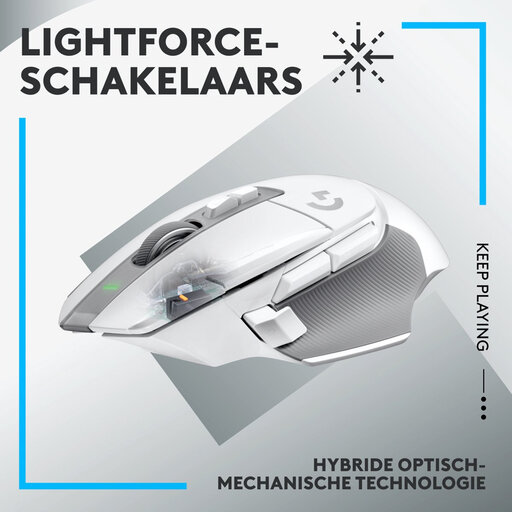
A wireless option if you’re looking for programmable controls and different scroll wheel modes.
The product details list a HERO 25K sensor, 13 programmable controls and a wheel with free-spin and stepped scrolling. You can save five profiles.
This right-handed model has a built-in battery that charges via USB-C; it can also be used with a USB-C cable.
 No image available
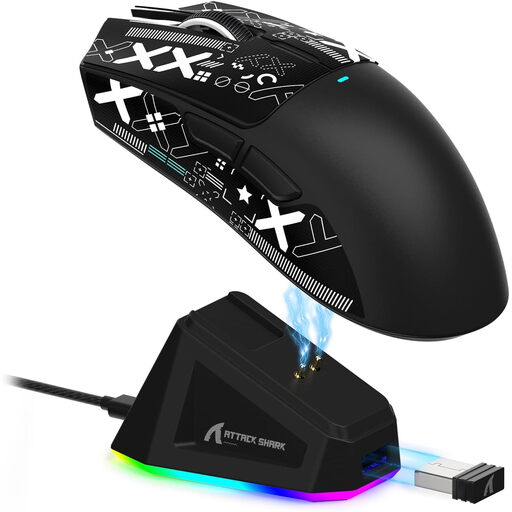
An option if you want to switch between different connection types and use programmable buttons.
The product details list a PAW3311 sensor with up to 22,000 DPI, five programmable buttons and a weight of 62 g. Connection options include 2.4 GHz wireless, Bluetooth and USB-C.
The product details state that an RGB charging dock is included; charging is part of using the mouse wirelessly.
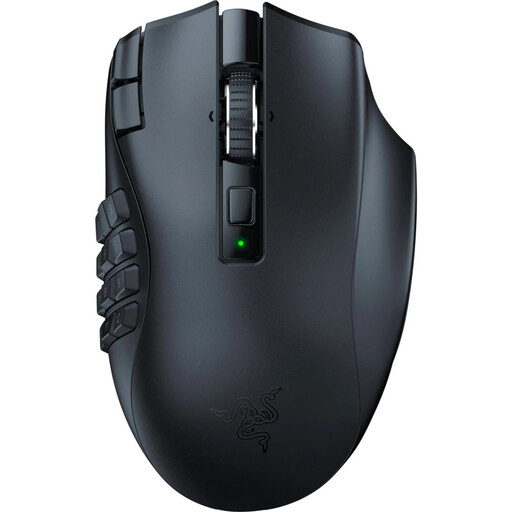 No image available
A wireless mouse for right-handed users if you’re looking for lots of programmable buttons and different scroll modes.
The product details list 19 programmable buttons, a Focus Pro 30K sensor, and stepped and free-spin modes. It connects via 2.4 GHz wireless or Bluetooth.
Battery life is stated as up to 250 hours. The model requires one AA battery.
No. Screen size alone doesn’t determine a particular DPI setting. Check your resolution and scaling, then adjust pointer and in-game sensitivity so you can control both long movements and small targets.
According to the Transport Fever 2 manual, scrolling the wheel zooms the view, while pressing the scroll wheel rotates or tilts the camera. Check the controls for any other railway game you play.
First, check the button assignments and options for changing them in the game you’re playing. For special features such as the Basilisk V3 35K’s Smart-Reel mode, Razer also specifies Synapse 4.
For eligible consumer purchases made at a distance, you generally have 14 days from delivery to withdraw from the contract. If goods are faulty, you’re generally entitled to at least two years of legal guarantee from the seller. Your Europe – European Union explains these rights for eligible EU purchases. A voluntary manufacturer’s warranty is separate, so check the terms of your specific purchase.
No. Under Section 10 of the German Electrical and Electronic Equipment Act (ElektroG), old appliances must be collected separately from unsorted household waste. Batteries that aren’t enclosed in the appliance must be removed without damaging them, subject to the conditions set out in the Act.