
Lieferung heute & morgen

Qualitätsgarantie

Willkommens-Angebote freischalten: KOSTENLOSE Lieferung | Bis zu 80 % RABATT | Kostenlose 30-Tage-JoyPlus-Testphase
App herunterladen
A gaming monitor needs to display fast motion cleanly, work in harmony with your graphics card, and fit the space you have available. In practice, however, misleading advertising claims, unsuitable connections, or a poorly chosen resolution often lead to unnecessary spending. Three points in particular are frequently overlooked: the actual refresh rate, the method used to measure response time, and the differences between HDR labels.
This guide from the Joybuy Product Recommendation Officer provides a clear, factual breakdown of the technical specifications and shows which monitor may be suitable for PC gaming, e-sports, console, streaming, or creative work.
A 240 Hz monitor can only reach its full frequency via DisplayPort, depending on the model. Lower limits may apply over HDMI. According to the product specifications, the Dell Alienware AW2524HF, for example, supports up to 480 Hz via DisplayPort, up to 500 Hz via overclocking over DisplayPort, and up to 255 Hz via HDMI.
It's also worth checking the ports on QHD and 4K models. For high resolutions with high refresh rates, DisplayPort 1.4 with DSC, DisplayPort 2.1, or HDMI 2.1 are the relevant standards. Also, make sure your graphics card can output the combination of resolution and refresh rate you want.
The stated 1 ms response time can refer to GTG, MPRT, or a particularly fast mode that isn't intended for continuous use. These values are therefore only comparable within the same measurement method. A monitor with 0.03 ms GtG, such as an OLED model, uses a different panel technology than a Fast-IPS display with 1 ms GTG.
Also, pay attention to visible side effects from overdrive modes. A setting that is too aggressive can produce bright afterimages or so-called overshoot artefacts. For FPS and racing games, smooth pixel transitions are more important than a single number on a spec sheet.
"HDR Ready", HDR10, and VESA DisplayHDR describe different levels of capability. What matters for the visual experience includes peak brightness, contrast, local dimming, black levels, and colour gamut coverage. An IPS monitor with VESA DisplayHDR 600, such as the TCL 27P2A with Mini-LED technology, uses a different backlighting system than an OLED monitor with DisplayHDR True Black.
With OLED displays, you should also follow the panel care instructions. Static content, such as permanently visible taskbars or channel logos, can increase the risk of permanent image retention. Integrated pixel refresh and OLED Care functions should be used according to the manufacturer's instructions.
A 27-inch gaming monitor offers a balanced working area on a desk. With Full HD, the image on a 27-inch screen may appear less sharp than with QHD. A QHD gaming monitor with 2560 × 1440 pixels is often a good choice for PC gamers who want more sharpness than Full HD without putting as much strain on the graphics card as 4K.
A 4K gaming monitor with 3840 × 2160 pixels shows fine details and suits powerful PCs, current consoles, and image or video editing. At 32 inches, the larger screen area can be useful for creative applications and single-player games. For competitive FPS games, however, some users prefer 24.5 to 27 inches because the entire image is easier to take in.
60 or 75 Hz is fine for office work, while 144 Hz, 165 Hz, 180 Hz, 240 Hz, or more display motion with shorter intervals between frames. A 240 Hz monitor is only worthwhile if your PC can deliver a correspondingly high number of frames per second in the games you play. A 480 Hz monitor or 500 Hz monitor is aimed at users with very high frame rates and a clear focus on competitive gaming.
AMD FreeSync, NVIDIA G-SYNC Compatible, and VESA Adaptive-Sync can synchronise the image output between your graphics card and monitor. Check which technology your graphics card supports and whether it can be activated on the connection you plan to use. The description "monitor with FreeSync and G-SYNC" should be verified against the specific product data and, if necessary, the manufacturer's compatibility list.
A height-adjustable stand, tilt, swivel, and pivot function improve how well the monitor adapts to your workspace. For long periods of use, it's also important to maintain a suitable viewing distance, take regular breaks, and position the monitor to avoid glare. Manufacturer claims about low blue light or flicker-free features do not constitute a medical guarantee of effectiveness.
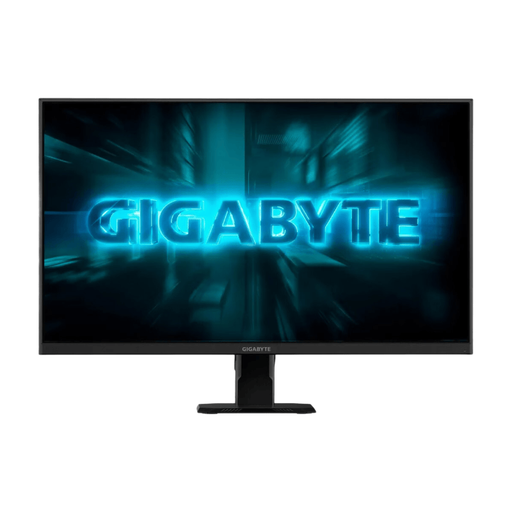
Why this product fits the profile: The combination of Full HD, 240 Hz, 1 ms GTG, and FreeSync offers an affordable entry point into fast-paced PC gaming, provided your graphics card can deliver high frame rates.
The ports are clearly listed as HDMI 2.0 and DisplayPort 1.4. Just remember that HDR Ready shouldn't be mistaken for full HDR backlighting.
27-inch format, 240 Hz, 1 ms GTG, 300 cd/m² typical brightness, and VESA 100×100 compatibility.
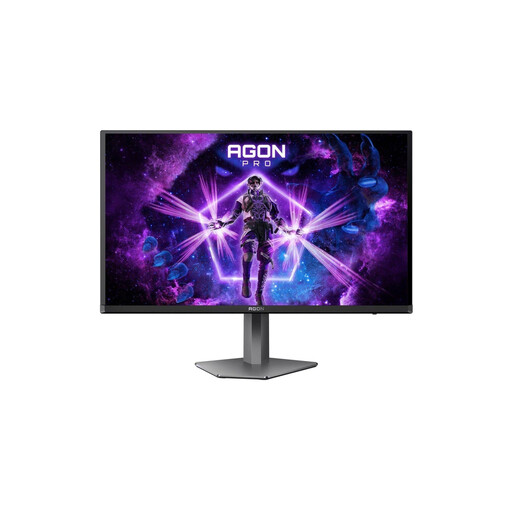
Why this product fits the profile: This model combines 4K resolution with QD-OLED, 240 Hz, and connections for both PC and current consoles. USB-C with 65 W Power Delivery and KVM support hybrid workstations.
The HDR specification is clearly listed as DisplayHDR True Black 400. For OLED users, the recommended panel refresh functions and how you handle static images remain important.
3840 × 2160 pixels, 240 Hz, 0.03 ms GtG, HDMI 2.1, DisplayPort 2.1, USB-C, and KVM.
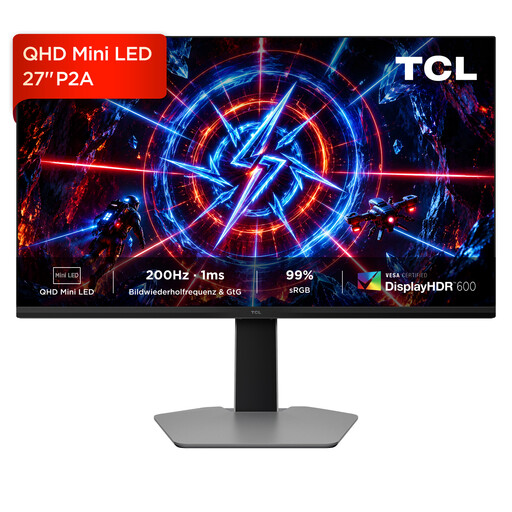
Why this product fits the profile: QHD, Mini LED, and a height-adjustable stand appeal to users who want to combine gaming, multimedia, and productive tasks on a single monitor.
The combination of VESA DisplayHDR 600, Mini LED, and a specific QHD resolution provides more verifiable information than a simple HDR Ready label.
2560 × 1440 pixels, 200 Hz, 1 ms GTG, Mini LED, IPS panel, DisplayHDR 600, and AMD FreeSync Premium.
We've put together a complete, regularly updated list of products that fully meet these strict selection criteria and the safety regulations in force in the EU.
For casual gamers, 144 to 180 Hz is often sufficient. 240 Hz is suitable for fast-paced PC games if your graphics card can consistently deliver high frame rates. 480 Hz or 500 Hz is aimed at e-sports players with correspondingly powerful hardware and a clear focus on low input latency.
That depends on the console and the connection. For 4K at 120 Hz, you'll generally need HDMI 2.1 ports and compatible cables. Also, check whether the monitor supports VRR, ALLM, and the signal formats used by your console.
Avoid displaying static content for long periods, allow automatic panel care to run, and don't disconnect the monitor from power during an active pixel refresh cycle. Follow the care and warranty conditions provided by the manufacturer.