For long city-building and colony-building sessions, a 27-inch WQHD monitor with a 16:9 aspect ratio is a sensible starting point, provided it suits your desk space, viewing distance and PC performance. TÜV SÜD identifies monitor size, viewing distance and computer performance as factors that need to be considered together. A wider display or 4K is only worthwhile if the specific game makes good use of the extra screen space or resolution. If you’re considering OLED, also bear in mind that menus may remain on screen for long periods, and check the care and warranty terms for the model you’re looking at.
Which monitor options suit different players?
Players who focus on menus and maps
If you play city-building games for long stretches, first check that maps, status displays and small text are easy to read from your usual viewing distance. TÜV SÜD highlights monitor size and viewing distance as important factors when choosing a monitor.
Headphone users who switch between devices
If you want to plug your headphones into your PC or monitor depending on the situation, check the audio connection on the exact model. A line-out socket isn’t automatically suitable for headphones.
Ultrawide and detail-focused players
If you’re considering ultrawide, 4K or OLED, weigh the extra screen space or detail against desk space, PC performance and menus that stay on screen for long periods. Also check how the specific game displays its picture and user interface.
What should you look for in a monitor for city-building games and headphones?
Monitor size, viewing distance and PC performance all matter when choosing a display, as TÜV SÜD explains in its gaming monitor buying advice.
| What matters |
What to check before buying |
Who will find this especially important? |
| Readable menus and a clear overview |
Check the screen size, native resolution and viewing distance, as well as the font and UI scaling in the game you play. |
If I want to make out maps and small menus during long sessions, a clear overview comes first for me. Around 33% of consumers prioritise readability and a clear overview. |
| Headphone connection |
Check the manual to distinguish between a headphone output and a line-out; if using HDMI or DisplayPort, also check the audio output settings on the connected device. |
If I want to connect my headphones to the monitor, the specific output needs to be suitable. Around 27% of consumers prioritise a suitable headphone connection. |
| Resolution and refresh rate to suit your PC |
Match your graphics card and the game’s requirements to the resolution and refresh rate supported by the specific video input. |
If I want my PC to handle my chosen resolution and refresh rate well in-game, I check that combination before buying. Around 20% of consumers prioritise suitable PC performance and smooth visuals. |
| Long sessions and desk setup |
Check the panel type and the model-specific OLED care and warranty terms, adjustability, desk space and EU energy label. |
If I play for long periods with menus constantly on screen, I pay particular attention to panel care and screen positioning. Around 20% of consumers put these considerations first when choosing a monitor. |
Which buying mistakes should you avoid?
-
Making the highest refresh rate your top priority
A high refresh rate alone doesn’t guarantee that your PC can achieve it at your chosen resolution in the game you play. TÜV SÜD recommends considering monitor size, viewing distance and computer performance together.
First, decide on the screen size, resolution and readability you need. Then compare the refresh rate and the limits of the specific model’s input.
-
Assuming every audio output is suitable for headphones
Dell points out that a monitor’s line-out socket isn’t intended for headsets. Connections vary by model.
Check the connection label and the manual for the exact monitor. Alternatively, you can use a suitable audio connection on your PC.
-
Assuming an ultrawide screen guarantees a wider in-game view
Extra horizontal pixels don’t guarantee that every city-building game will show more usable play area or a well-positioned user interface.
Check the aspect ratio support, menu positioning and scaling in the games you play. Also measure the space available on your desk.
-
Assuming OLED protection features eliminate all risk of burn-in
ASUS describes a potential risk of burn-in with static, high-contrast images displayed for long periods. Protection features don’t prove that this risk is eliminated in every situation.
If menus are often left on screen for long periods, weigh OLED against LCD and read the care guidance and warranty terms for the specific model.
Which brands and product ranges can help you choose?
Dell
The G2725D is a 27-inch WQHD monitor with a clearly specified headphone output.
- Dell specifies up to 180 Hz at QHD via DisplayPort and up to 144 Hz via the listed HDMI connections.
- According to Dell, the G2725D stand only tilts. These specifications apply to this model, not all Dell monitors.
LG
The UltraGear models mentioned include a 27-inch WQHD IPS monitor and a 34-inch OLED ultrawide option.
- LG specifies a resolution of 2.560 × 1.440 pixels and 180 Hz for the 27GS75QX-B; for the 34GX90SA-W, LG specifies 3.440 × 1.440 pixels and 240 Hz.
- Check the audio connections and warranty terms for the exact variant. Whether a game makes good use of a wide aspect ratio depends on the title.
Samsung
The Odyssey OLED G81SF S27FG814SU is a 27-inch 4K QD-OLED option with a high refresh rate.
- Samsung specifies a resolution of 3.840 × 2.160 pixels and OLED protection features for this model.
- Consider the resolution alongside your PC’s performance and whether you’ll use the monitor with menus on screen for long periods. The protection features are manufacturer claims, not independent proof that burn-in is impossible.
MSI
The MPG 271QRXDE QD-OLED combines WQHD with a nominal refresh rate of 360 Hz.
- For this model, MSI specifies OLED Care 2.0 and three years of OLED cover, including burn-in, subject to the applicable warranty terms.
- These are manufacturer claims. Read the specific warranty terms; for city-building games, a high nominal refresh rate isn’t automatically more important than readability and panel use.
LC-Power
The LC-M32UCO and LC-M49QCO offer different OLED screen formats: 31,5 inches at 4K and 49 inches with a 32:9 aspect ratio.
- LC-Power specifies a resolution of 3.840 × 2.160 pixels at 165 Hz for the LC-M32UCO, and 5.120 × 1.440 pixels at 144 Hz for the LC-M49QCO.
- Screen size alone doesn’t guarantee support from a particular city-building game. Desk space, your graphics card and how the user interface is displayed all remain important factors.
Which suitable monitors are available at Joybuy?
The selection mainly includes 27-inch QHD monitors, along with one 34-inch UWQHD option.
 No image available
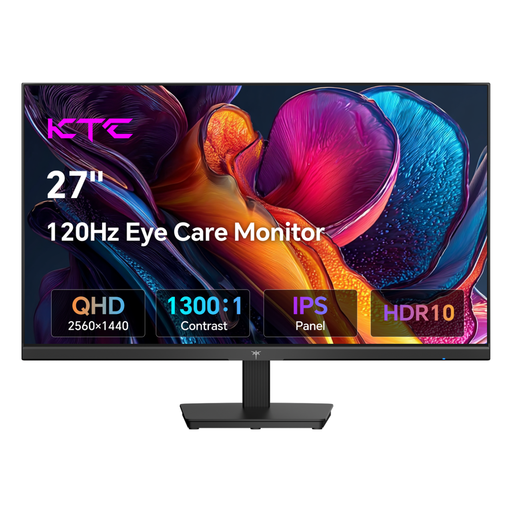
KTC H27D9 QHD monitor
The 27-inch screen and QHD resolution are worth considering if you want to keep maps and menus in view on a single screen.
27 inches; 2.560 × 1.440 pixels; IPS panel; 120 Hz; Adaptive Sync.
View at Joybuy
 No image available
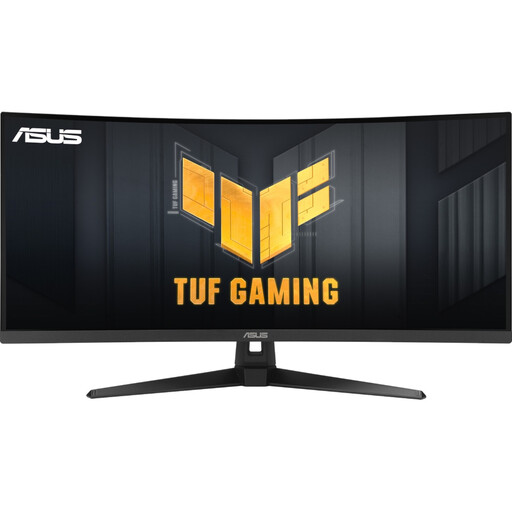
ASUS TUF Gaming VG34VQ3B
This 34-inch ultrawide model is worth considering if your game makes good use of the wide aspect ratio and you have enough desk space.
34 inches; 21:9; 3.440 × 1.440 pixels; 180 Hz; VA panel; DisplayPort and HDMI.
View at Joybuy
 No image available
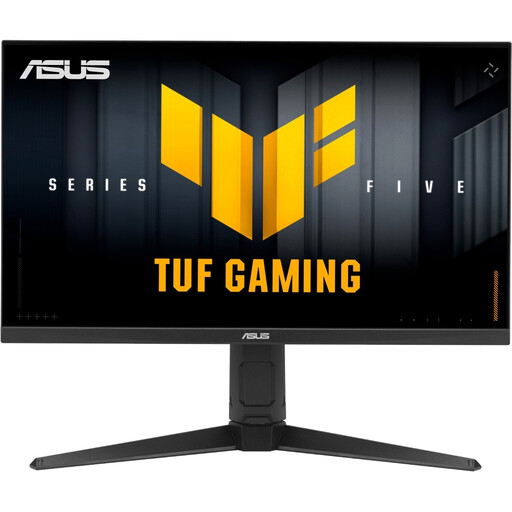
ASUS TUF Gaming VG27AQL5A
This 27-inch WQHD model is an option if you’d prefer a more compact screen over a wide format.
27 inches; 2.560 × 1.440 pixels; 16:9; Fast-IPS panel; 210 Hz.
View at Joybuy
 No image available
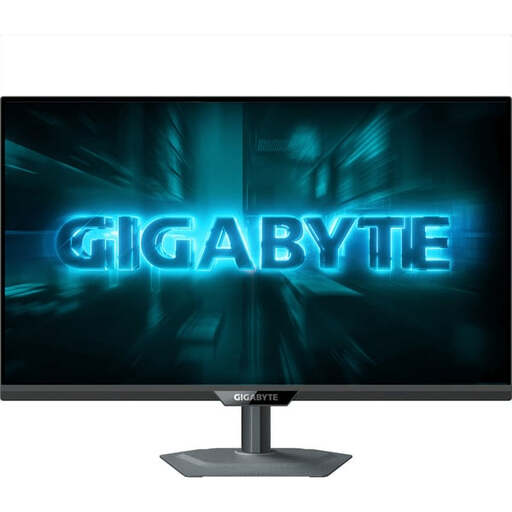
GIGABYTE G27Q20 QHD monitor
The 27-inch QHD screen could be a good fit if you want to keep maps and menus in view on a single monitor.
27 inches; 2.560 × 1.440 pixels; SS-IPS panel; 200 Hz, OC 210 Hz; height-adjustable.
View at Joybuy
 No image available
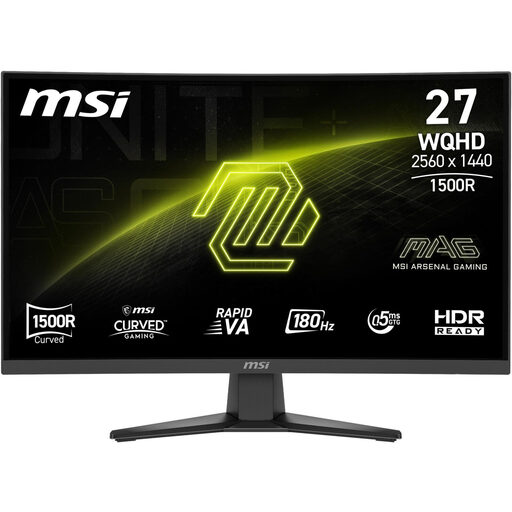
MSI MAG 275CQFDE E18
This 27-inch QHD model is another option for a single-screen setup. Check that its stand can be positioned to suit your seating position.
27 inches; 2.560 × 1.440 pixels; 16:9; Rapid VA; 0,5 ms; DisplayPort and HDMI.
View at Joybuy
Frequently asked questions
Do I need speakers in my monitor to use headphones?
No. What matters is having a suitable audio connection. You can connect your headphones to your PC or, if the specific monitor model has a suitable output and the audio signal is routed to it, to the monitor. A socket labelled line-out isn’t automatically suitable for headphones or a headset.
Why can’t I hear audio through my headphones via HDMI or DisplayPort?
First, check the selected audio output on your PC and the connections on the exact monitor model. LG notes that speakers and audio connections vary between models. How audio is routed via HDMI or DisplayPort also depends on the specific device configuration.
What should I bear in mind with OLED and game menus that stay on screen?
Static, high-contrast images displayed for long periods can cause burn-in on OLED screens, as ASUS explains. Read the care guidance and warranty terms for the specific model; a manufacturer’s protection features don’t automatically prove that the risk is eliminated in every situation.
What energy information should a monitor listing in Germany show?
EU energy labelling rules apply to covered electronic displays. The European Commission states that online retailers must show the labelling information close to the price. Compare the energy label and product information sheet for the exact model number; the label doesn’t replace checking the actual power consumption.
What rights apply when buying a new monitor online?
When you buy from a business seller in the EU, Your Europe’s consumer information states that you generally have a 14-day right to cancel from the date of delivery. New faulty goods are covered by a statutory minimum two-year guarantee. This is separate from a manufacturer’s warranty. You may have to pay return postage when cancelling, subject to the information provided and the terms of the contract.


