Fans of dark game worlds
If contrast and visible detail in dark sci-fi scenes matter more to you than an especially high refresh rate, compare OLED with Mini LED and local dimming.


If dark scenes are your priority, it’s worth comparing OLED with a Mini LED model that has local dimming. With OLED, also check the care guidance and warranty terms for the specific model. If desk space is limited or you need to be considerate of someone else, the monitor’s dimensions when fully assembled, a comfortable brightness setting and a well-planned audio solution all matter too. Check that your PC or console can output your preferred combination of resolution and refresh rate.
If contrast and visible detail in dark sci-fi scenes matter more to you than an especially high refresh rate, compare OLED with Mini LED and local dimming.
Measure the space available for the screen and stand, then compare it with the dimensions of the fully assembled monitor.
If you share your bedroom with someone else, look for a comfortable screen brightness and plan your audio to suit the room. Whether a model has speakers depends on the specific version.
A good fit if: dark RPG scenes are your priority and you check the model’s care guidance and warranty terms.
Things to weigh up: ASUS warns that static images displayed for long periods may cause burn-in; protective features do not guarantee that there is no risk.
A good fit if: you’re considering an LCD with a locally dimmable backlight rather than an OLED panel.
Things to weigh up: the number of dimming zones alone won’t tell you how bright objects against a dark background will look in your chosen game.
A good fit if: alongside gaming, you mainly want to compare dimensions, connections and practical setup options.
Things to weigh up: check the specific HDR features and plan your audio separately if the model doesn’t have speakers.
| Buying priority | What to check before buying | Who it matters most to |
|---|---|---|
| Dark scenes and contrast | Compare OLED with Mini LED and local dimming; with Mini LED, also assess how bright objects look against a dark background in your game. | If I prioritise detail in dark RPG scenes, I compare the panel types and take OLED care guidance into account. Around 36% of consumers put image contrast first. |
| Desk space and screen size | Check the monitor’s width and depth with its stand, as well as its adjustment range, against the space available. | If my desk has little free space, I measure the room needed for the fully assembled monitor rather than comparing screen size alone. Around 29% of consumers prioritise desk space. |
| Considerate evening use | Try the brightness in the room and check the speakers, audio connections and audio setup for your complete system. | If someone else is in the bedroom, I look for a suitable screen brightness and consider how the audio will be played. Around 21% of consumers put consideration for others first. |
| Resolution, refresh rate and connections | Check that your gaming device, connection and game support your preferred resolution and refresh rate in each mode. | If I want to use a particular output on my PC or console, I check that both the device and game support it. Around 14% of consumers prioritise compatibility with their gaming device. |
A monitor may list different refresh rates for different resolutions. LG specifies 720 Hz at HD and 540 Hz at QHD for the 27GX790B-B.
Compare the resolution and refresh rate for each mode, and check which output your connection and gaming device support.
ASUS warns that static, high-contrast images displayed for long periods may cause burn-in. MSI describes OLED Care 2.0 as reducing the risk, not proving that there is no risk.
Read the care guidance and warranty terms for the exact model version on offer.
With OLED, follow the care guidance and check what an additional manufacturer’s warranty covers.
The space you need also depends on the stand and how the monitor is positioned. Manufacturers may list dimensions both with and without the stand.
Measure the free desk space and compare it with the width, depth and adjustment options of the specific version.
LG lists no speakers for the 27GS75QN-B; the Dell AW2725DF is also listed as having no audio.
Check the audio connections across your whole setup and think about how you’ll listen without disturbing the other person.
If the model doesn’t offer suitable audio output, you’ll need to plan a separate solution for your setup.
The models listed here show two different LG options: a QHD IPS monitor and a QHD OLED monitor.
The versions listed here include IPS, Mini LED and OLED; features apply to the specific model in each case.
The QD-OLED models listed here differ mainly in resolution: the G61SH is QHD, while the G81SF is UHD.
The AW2725DF is a QHD QD-OLED model, so it’s worth checking its refresh rate and audio solution separately.
The XG27AQDMGR is a QHD OLED option with manufacturer-developed care features.
The following options include Mini LED, IPS and OLED models for dark gaming scenes and desk setups. Check the dimensions, your preferred resolution and refresh rate, and the audio solution against your setup.
 No image available
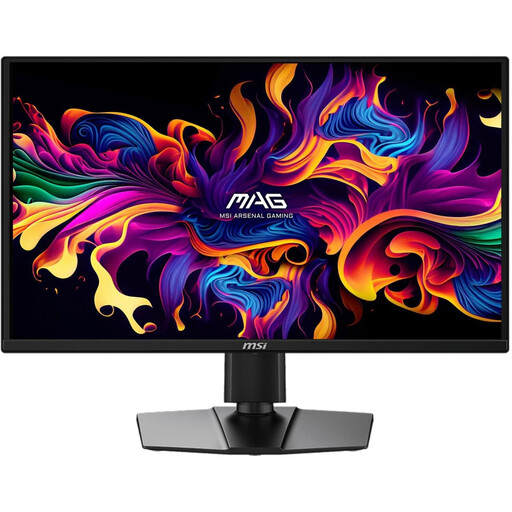
Worth considering if you want to compare local dimming and different resolution and refresh rate modes; check that your gaming device supports the mode you want.
Dual mode: UHD at 160 Hz or FHD at 320 Hz. Mini LED, Rapid IPS and Adaptive Sync.
 No image available
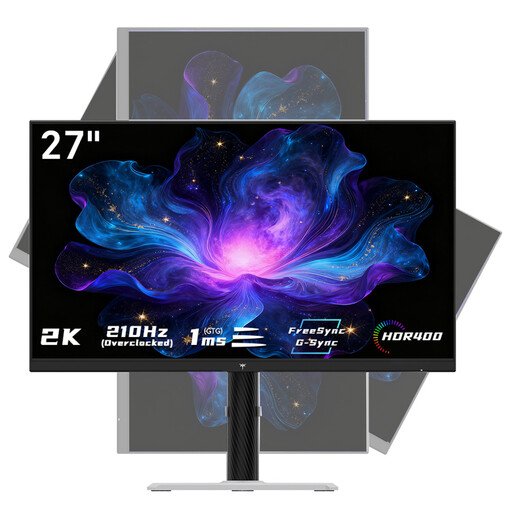
An option if you’re looking for QHD and an IPS panel for your desk; check the refresh rate your gaming device can actually output.
QHD at 2560 × 1440; 200 Hz, with overdrive up to 210 Hz. Fast IPS and Adaptive Sync.
 No image available
An option if you’re considering QD-OLED for dark RPG scenes; be sure to read the OLED care guidance too.
QHD at 2560 × 1440 and 240 Hz; Adaptive Sync, USB-C and 0.03 ms according to the product name. Burn-in remains a possible risk with static, high-contrast images displayed for long periods; check the care guidance and warranty terms for this model.
 No image available
An option if you want to compare QHD with local dimming; check how bright objects look against dark backgrounds in your games.
QHD, IPS and 1,152 local dimming zones; up to 275 Hz according to the product specifications. With built-in speakers.
 No image available
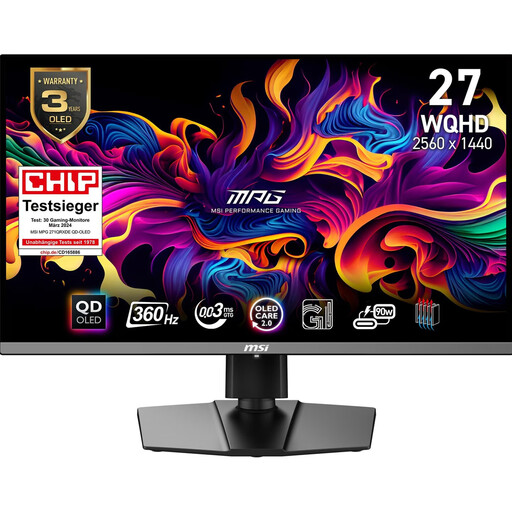
An option if you’re weighing up QD-OLED and WQHD for dark gaming scenes; take the care guidance into account if you display static images for long periods.
WQHD, 360 Hz, Adaptive Sync and HDMI 2.1 according to the product specifications. With OLED, burn-in from static, high-contrast images displayed for long periods remains a possible risk; check the care guidance and warranty terms.
No. The specification alone doesn’t tell you how a particular monitor’s backlight displays dark scenes. Compare the panel and local dimming on the specific model: MSI lists 1,152 Mini LED dimming zones for the MAG 274QPFDE X30MV, while LG lists HDR10 as a feature of the 27GS75QN-B.
First check the resolution and refresh rate actually being output, then adjust the brightness and audio to suit your shared room. PlayStation Support explains how to view video signal information and video output settings on a PS5; the output also depends on the connected device and game.
Follow the care guidance and read the warranty terms for the specific model. ASUS warns that static, high-contrast images displayed for long periods may cause burn-in; MSI describes OLED Care 2.0 as reducing the risk, not proving that the risk is eliminated.