See more of the cockpit
You want to see more of the cockpit and approach on a single screen, and can check in advance whether the format and width suit your game and desk.


If you want more horizontal cockpit space when docking, a 34-inch 21:9 monitor is a good place to start. A 32-inch 4K model is also worth considering if you need small HUD text to be easy to read and use 16:9 content. GIGABYTE lists the M32U at 3840 × 2160, while ASUS lists the TUF Gaming VG34VQL3A at 3440 × 1440. However, resolution alone won’t tell you how readable the display will be in a particular game or what frame rate you’ll get. Check your game and PC at the resolution you want, as well as the connection and desk space available. If you’re considering OLED, include the care guidance for the exact model in your comparison too.
You want to see more of the cockpit and approach on a single screen, and can check in advance whether the format and width suit your game and desk.
You want to make small instruments easier to see and also use your monitor for 16:9 content. A higher resolution needs to be a good match for your PC.
You play for long sessions with on-screen indicators that stay in the same place, and want to weigh up OLED’s picture characteristics against the care guidance and terms for the specific model.
Start by comparing the format and readability in the game you play. Then consider your PC’s performance, the connection, desk space and, for OLED, use with a HUD that stays on screen.
| Priority | What to check before buying | Who it matters most to |
|---|---|---|
| View of the cockpit from side to side | Check the format, the width of the monitor including its stand, and the HUD in your game at native resolution. | If I want to see more of the cockpit from side to side when docking on a single screen, width matters more to me than a particularly compact setup. Around 36% of consumers put a wider cockpit view first. |
| HUD and instrument readability | Check the text and HUD in your chosen game at native resolution and from your usual viewing distance. | If small instruments are hard to make out, I want to be able to read them clearly; extra screen width is a lower priority for me. Around 29% of consumers prioritise HUD and instrument readability. |
| Frame rate and PC performance | Check the target resolution and frame rate on your PC in the game, and note the connection and its refresh-rate limit. | If I want smooth gameplay, the resolution I choose needs to suit my PC. A high monitor refresh rate alone doesn’t answer that question. Around 21% of consumers put a frame rate their PC can handle first. |
| Long sessions with a fixed HUD | Check the panel type, as well as the model’s specific protection features and warranty terms. | During long gaming sessions with a cockpit HUD that stays in place, I want to weigh up OLED’s picture characteristics against the care guidance and terms for the specific model. Around 14% of consumers place particular importance on how static on-screen elements are handled. |
The monitor’s maximum refresh rate isn’t the same as the frame rate your PC actually renders in a game. Resolution, game settings and the connection you use can also affect the performance you get.
Check how your PC performs in your chosen game and confirm the refresh-rate limit of the connection you plan to use, rather than comparing only the highest refresh-rate figures.
32:9 and 21:9 have different space requirements and can display games differently. A monitor’s aspect ratio doesn’t prove that the HUD and field of view will be positioned correctly in every game.
Measure the space available and check the specific game at native resolution before choosing a format.
Samsung warns that its OLED monitors can be at risk of burn-in if static game elements remain on screen for long periods. Protection features and guidance can vary by model.
Read the care guidance and warranty terms for the exact model number, especially if your HUD stays in the same place for long periods.
The G34WQC2 and M32U offer two different single-monitor approaches: a wider 21:9 display or 16:9 with 4K resolution.
The TUF Gaming VG34VQL3A is a 34-inch 21:9 model and a wider single-monitor option.
The Odyssey G91F is a 49-inch option in the particularly wide 32:9 format.
The UltraGear 34GX900A-B is a 34-inch OLED option in the 21:9 format.
This selection includes extra-wide 32:9 monitors, 34-inch 21:9 models and 32-inch 4K monitors. The right option for you depends on whether a wider cockpit view, HUD readability or your PC’s requirements take priority.
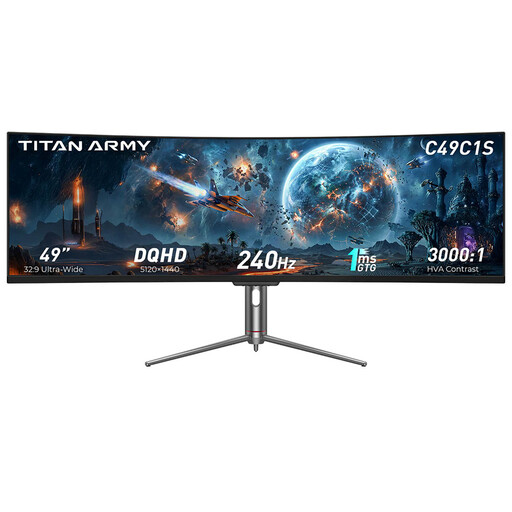 No image available
For an extra-wide single-screen view, if you have enough desk space and the game supports your preferred HUD and field-of-view layout.
32:9; 5120 × 1440; 240 Hz according to the product name.
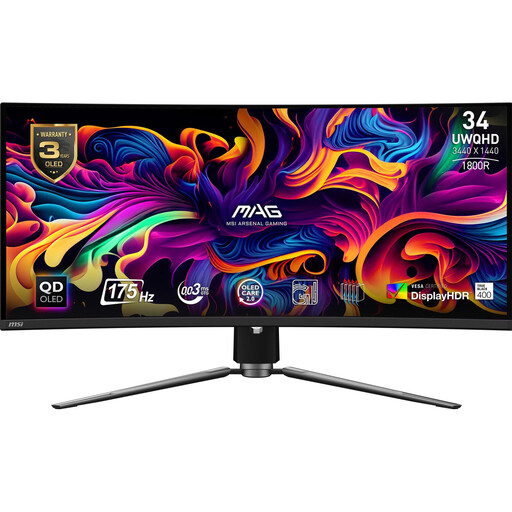 No image available
For a wider 21:9 OLED picture, if you want to take care guidance for long sessions with a fixed HUD into account.
QD-OLED; 3440 × 1440; 175 Hz according to the product name.
If your HUD stays on screen, follow the OLED protection guidance for the specific model and avoid displaying static images at maximum brightness for long periods.
 No image available
For detail-focused 16:9 use, if your PC can handle your preferred resolution and game settings in your chosen title.
QD-OLED; 3840 × 2160; 240 Hz; HDMI 2.1 and DisplayPort 2.1a according to the product name.
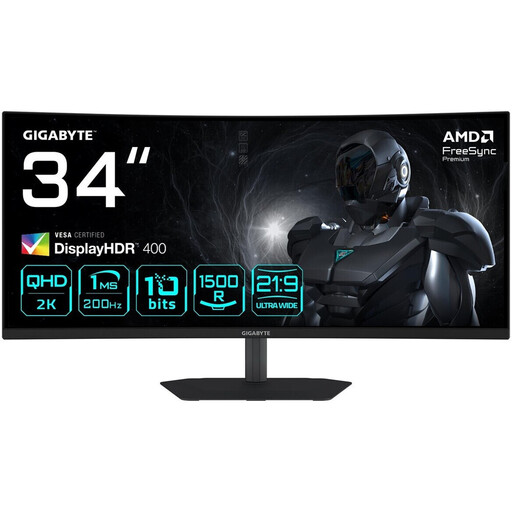 No image available
For more horizontal space on a single screen, if the 21:9 format suits your game and the desk space available.
VA; 3440 × 1440; 1500R; up to 200 Hz according to the product name.
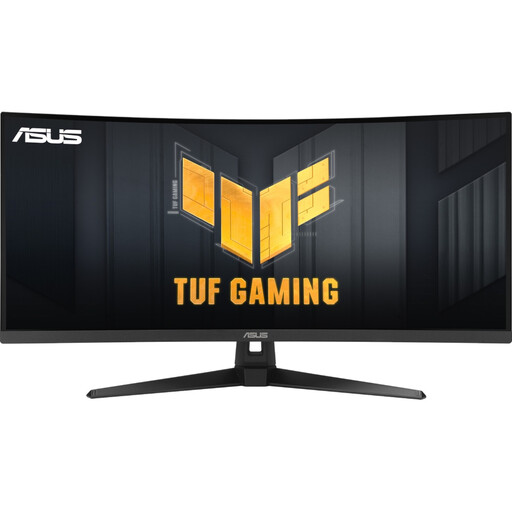 No image available
For a wider 21:9 single-screen view, if the format suits the cockpit in your chosen game and you’ve checked which connection you’ll use.
VA; 3440 × 1440; 180 Hz; FreeSync according to the product name.
No. 32:9 is an option if you want a particularly wide picture, but it isn’t proven to offer an advantage when docking in every game. Compare the HUD and field of view in your chosen title across 21:9 and 16:9 too.
The monitor’s maximum refresh rate and the frame rate your PC actually renders in a game are different things. ASUS lists up to 180 Hz via DisplayPort and up to 100 Hz via HDMI for the TUF Gaming VG34VQL3A. Check the connection, cable, PC and game settings for your model.
Follow the guidance for the specific model. For its OLED monitors, Samsung recommends features including Pixel Shift and warns about the risks of static content being displayed for long periods. Care features vary by model year.
Compare the energy labels and product information for the specific models using the same basis for energy consumption. The European Commission explains that energy labels for electronic displays also include information about HDR energy consumption. Actual costs also depend on how you use the monitor.
For a qualifying online purchase from a business seller, you generally have a 14-day right to cancel from the date of delivery; exceptions and possible return costs should be taken into account. Your Europe, the European Union’s information portal, also explains the legal guarantee of at least two years from receipt for faulty goods. These rights are separate from voluntary warranties.