City-builders with a home office
If you want to read game menus and work content on the same screen, look for a suitable display and a position you can adjust to suit your workspace.


For medieval city-building games and desk work, a well-positioned 27-inch QHD monitor is a sensible starting point, but not a one-size-fits-all recommendation. 4K displays more pixels, but requires more graphics power when running at native resolution; ultrawide gives you more horizontal space and needs a larger desk. Also check the refresh rate supported by the connection you plan to use, and how the specific model can be positioned.
If you want to read game menus and work content on the same screen, look for a suitable display and a position you can adjust to suit your workspace.
If fine detail is a priority, compare QHD and 4K, and check whether your PC can run your chosen game smoothly at the resolution you want.
If you want to view your city or work in several windows side by side, a wider screen may suit you. Factor in your desk width and whether the game supports the aspect ratio.
| Priority | What to check | Who is it important to? |
|---|---|---|
| Clear details and menus | Compare screen size, native resolution, scaling and PC performance with the game you want to play. | If you want to read icons, menus and work content clearly, the combination of screen size and resolution matters. Around 36% of consumers put clear detail first. |
| Ergonomic use for work and play | Check the adjustment options on the exact model and the space taken up by its stand; consider a suitable VESA mount if needed. | If you regularly work and play on the same screen, you should be able to adjust its position to suit you. Around 29% of consumers prioritise ergonomic use for work and play. |
| Space for wider views and windows | Check your desk width, viewing distance and whether the specific game supports the aspect ratio. | If you want a wider view of your city or several work windows side by side, extra horizontal space matters. Around 21% of consumers prioritise this need for more room. |
| Connections and refresh rate | Check the video output, monitor input and cable, and make sure the resolution and refresh rate work with that specific connection. | If you want to connect gaming and work devices with your preferred display settings, their video outputs must be compatible with the monitor. Around 14% of consumers prioritise this device compatibility. |
The refresh rate you can achieve may vary by connection. Dell lists up to 180 Hz over DisplayPort and up to 144 Hz over HDMI for the G2725D at QHD resolution.
Before buying, compare the connection specifications for your monitor and computer at the same resolution, and choose a suitable cable.
Adjustment options vary by model. AOC lists a height-adjustable stand for the Q27G4XF; Dell’s technical overview lists tilt adjustment for the G2725D.
Check the exact model’s height and tilt adjustments, stand dimensions and, if relevant, VESA specifications. A monitor arm is only suitable if it works with both the monitor and your workspace.
4K offers more pixels than QHD, while ultrawide gives you more horizontal space and takes up more room on your desk. Whether 4K is right for a game also depends on your graphics hardware and settings; with ultrawide, game support for the format matters.
Set your priorities for readability, PC performance, available desk space and game support.
ASUS warns that OLED monitors may suffer burn-in if high-contrast static content is displayed for long periods. This does not mean they are unsuitable for office work, but it is worth considering if on-screen controls will remain visible for extended periods.
Check the care and protection guidance, as well as the warranty terms, for the specific OLED model.
The AOC Q27G4XF is a 27-inch QHD IPS model. AOC lists a height-adjustable stand.
The G2725D is a 27-inch QHD option. Dell lists different refresh rates for its two connections.
The MAG 274QRFDE QD E2 is a QHD option with USB-C and DisplayPort Alternate Mode.
The Odyssey G7 G70D LS27DG702EUXEN is a 27-inch 4K option for buyers who prioritise detail.
These models offer different options for gaming and working from home: 27-inch QHD, 27-inch 4K and OLED.
 No image available
A QHD option for gaming and work content on one screen.
The product title lists 144 Hz, 1 ms MPRT, Fast IPS and a height-adjustable stand.
 No image available
A 4K-focused option for those who prioritise fine detail and want to check their PC can handle it.
The product title lists UHD at 160 Hz or FHD at 320 Hz, as well as Mini-LED and Rapid IPS.
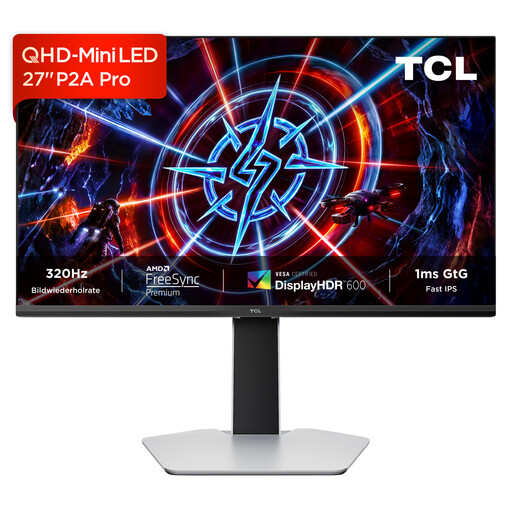 No image available
A 27-inch QHD option for gaming and desk work. Compare its resolution and footprint with your workspace.
The product title lists 2560 × 1440, 320 Hz, an HFS-IPS panel and Mini-LED.
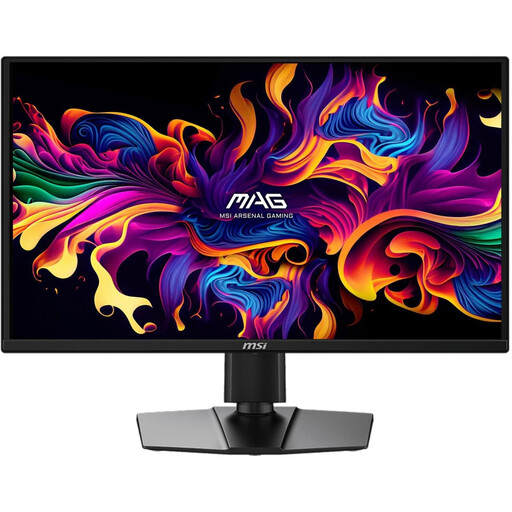 No image available
A QHD OLED option for gaming and work. If static content will remain on screen for long periods, check the care guidance for this specific model.
The product title lists 2560 × 1440, 240 Hz, 0.03 ms, Adaptive-Sync and USB-C.
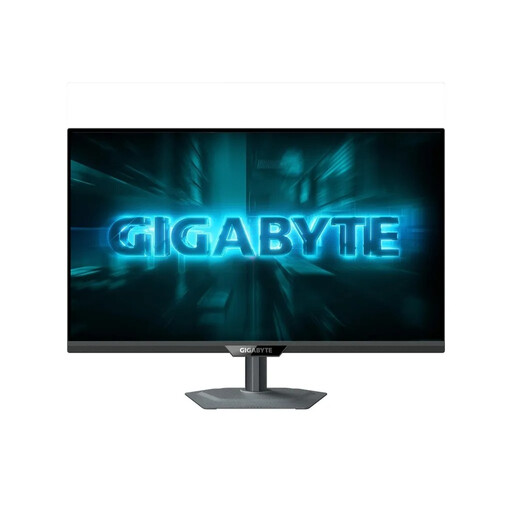 No image available
Another QHD option for gaming and work content. Check the refresh rate your computer can achieve with the connection you plan to use.
The product title lists 2560 × 1440, SuperSpeed IPS and 200 Hz, with 210 Hz when overclocked.
Set the screen size, display and position to suit your task and viewing distance, and check the adjustment options and footprint of the specific device. The ASR A6 from the Federal Institute for Occupational Safety and Health (BAuA) applies to screen-based workstations and teleworking within its defined scope; it does not apply to every form of personal use.
Not necessarily: Dell lists up to 180 Hz over DisplayPort and up to 144 Hz over HDMI for the G2725D at QHD resolution. Check the specifications for your model, your computer’s output and the cable.
ASUS warns that OLED displays may suffer burn-in if high-contrast static content is shown for long periods. Follow the care guidance and check the warranty terms for the model you’re actually considering.
Compare the EU energy label and product information sheet for the specific models on the same basis of use. The European Commission uses an A to G rating scale for electronic displays; your personal electricity costs also depend on how long you use the monitor and your electricity tariff.
According to the Verbraucherzentrale, online purchases generally come with a 14-day right to cancel, which you must exercise with the other party to the contract. Check the specific contract information, and distinguish the statutory right to cancel from any voluntary returns policy.