Map makers with lots of tool windows
If you keep the map view, properties and tools open at the same time, a clear, easy-to-read workspace matters.


If you want to keep the map view and toolbars visible at the same time, start by checking your editor’s screen size, resolution and scaling. A 27-inch WQHD IPS monitor can be a well-balanced choice for work and playtesting. 4K gives you more pixels, while OLED needs particular consideration during long sessions with static, high-contrast elements on screen.
If you keep the map view, properties and tools open at the same time, a clear, easy-to-read workspace matters.
If you work in the same interface for long stretches, consider the monitor’s position, adjustability and any controls that remain on screen.
If you regularly switch from editing to fast-moving gameplay, refresh rate, synchronisation and motion handling become more important.
| What matters | What to check before buying | Who is it important to? |
|---|---|---|
| Space and readability | Compare your editor layout at WQHD and 4K, including text size, scaling, screen size and the space available. | If I want to read the map and tool windows at the same time, usable screen space is essential. Around 29% of consumers prioritise workspace. |
| Ergonomics | Check the desk space available, the stand, height and tilt adjustment, and reflections in your workspace. | For long editing sessions, I want to position the screen to suit my desk and seating position. Around 23% of consumers put monitor positioning first. |
| Colour and dark details | Check the panel type and adjustment options. For important picture-quality questions, look for measurements of the exact model. | If I want to assess colours and dark map details, how the specific model displays them matters. Around 18% of consumers prioritise picture quality. |
| Smooth playtesting | Compare the refresh rate, Adaptive Sync and the modes supported by the connection you plan to use. | If I often switch to playtesting, I value smooth motion more than other features. Around 18% of consumers put playtesting first. |
| Running costs and cover | Compare the EU energy label and the EPREL entry for the exact model. Check the warranty terms separately from your statutory rights. | If I’m also considering the running costs and cover for the specific monitor, I want to compare both before buying. Around 12% of consumers make these their top priority. |
A gaming ranking doesn’t automatically show that a monitor is suitable for long map-editing sessions or makes editor windows easy to read.
Start by checking workspace and readability. Then look at the refresh rate you can actually use for playtesting and the connection mode you’ll need.
ASUS warns that static, high-contrast images displayed for long periods can cause burn-in on OLED screens.
Compare IPS and OLED based on how long your toolbars stay visible, and check the protective features and warranty terms for the exact model.
Claims about response time or HDR alone don’t prove colour accuracy or show how a monitor performs at every setting.
Check the technical specifications against the exact model, and look for suitable independent measurements for any important picture-quality questions.
The picture modes you can use may depend on the connection, and an unsuitable stand can make it harder to position the monitor on your desk.
Check your PC’s connections against the monitor’s modes, and measure the space available for the screen and stand.
The G274QPF E2 and MPG 271QRDE QD-OLED X50 offer different panel and refresh rate options. This doesn’t mean the brand is generally suited to map editing.
The TUF Gaming VG27AQ3A is an IPS option for WQHD gaming. Information about OLED protection features should be considered on a model-by-model basis.
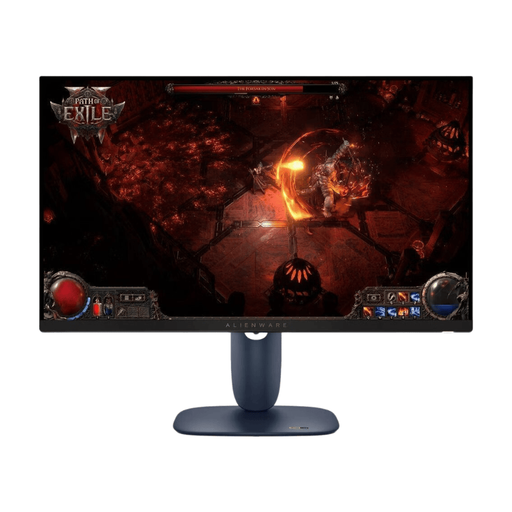
The AW2725QF combines a 4K option for map editing with a switchable mode for gaming.
The MOBIUZ EX3210U is a larger 4K IPS option, provided you have enough desk space.
The UltraGear 27GX700A-B is a QHD OLED option for users who prioritise dark gaming scenes and high refresh rates.
These monitors offer WQHD and 4K options for map editing and subsequent playtesting.
 No image available
A WQHD option for viewing maps and tool windows on a 27-inch screen, followed by playtesting.
Fast IPS; 144 Hz; FreeSync; height-adjustable stand.
 No image available
A 4K option for detailed map editing, with a specified mode for switching to playtesting.
UHD at 160 Hz or FHD at 320 Hz; Mini-LED; Rapid IPS.
 No image available
A WQHD option for working in the editor and regularly switching to fast-moving gameplay.
IPS; 2560 × 1440 pixels; 180 Hz.
 No image available
A QHD option for map editing and playtesting, provided you check the connection requirements for the refresh rate in advance.
Fast IPS; Mini-LED; 1,152 dimming zones; 275 Hz. According to the product specifications, the stated FreeSync range reaches up to 275 Hz via DisplayPort and 144 Hz via HDMI.
 No image available
A 4K option for detailed map views and switching between work and playtesting.
IPS; 3840 × 2160 pixels; 120 Hz; FreeSync; PIP and PBP; USB-C with 90 W Power Delivery.
Start with your actual layout of the map view and tool windows, and check how easy they are to read at your preferred scaling. 4K offers more pixels than WQHD, but whether that gives you more usable workspace also depends on screen size and scaling.
On your PC, choose a resolution and refresh rate supported by both the monitor and the connection you’re using, then check how it looks in the editor and during playtesting. Available modes can vary by connection; Dell lists different maximum supported QHD refresh rates for HDMI and DisplayPort on the AW2725DM.
Check the protective features and manufacturer guidance for the exact model. ASUS warns that static, high-contrast images displayed for long periods can cause burn-in on OLED screens. For supported models, it describes pixel shifting as one of the protective features.
Compare the EU energy label and the EPREL entry for the exact monitor model. In Germany, statutory consumer rights against the seller are separate from a voluntary manufacturer’s warranty. If a product is faulty, repair or replacement may be the first remedy.
No, not simply because you work from home. The Federal Institute for Occupational Safety and Health describes ASR A6 as setting out requirements under the Workplace Ordinance within its scope. Whether it applies to a particular workstation depends on how that workstation is classified. Regardless, positioning your screen appropriately is a sensible factor to consider when choosing a monitor.