For map labels and work documents, a well-positioned 27-inch QHD monitor is a useful starting point for comparison. If space is limited or your PC’s graphics output is restricted, a more compact Full HD model may be a better fit. For fast-paced matches, check the refresh rate your PC can actually deliver through the connection you plan to use, as well as how well the monitor handles motion. For long working days, also consider the stand, reflections and energy information. A manufacturer’s pixel response time figure alone doesn’t prove that you’ll play better.
Who this monitor comparison is for
Map and detail readers
If you want to make out routes, markers and labels on a multiplayer map, and use the same screen for documents, consider resolution, screen size and readability together from your usual seating position. PRAD describes 27-inch monitors with WQHD as sharp and detailed at typical viewing distances; ASUS lists the VG27AQ3A as a 27-inch QHD monitor.
Fast-paced multiplayer gamers
If you move around the screen a lot, don’t just look at the advertised refresh rate. Check your PC’s output, the connection and the settings too. PRAD highlights refresh rates and motion measurements as points to check; the modes available can vary depending on the connection, according to manufacturers’ specifications.
People sharing a desk for work and gaming
If you use one space for work and gaming, consider how much room the monitor takes up, how you can position the screen and how it handles content displayed for long periods. Stand features vary by model; Samsung’s guidance on images displayed for extended periods applies to OLED monitors.
What to consider when choosing
27-inch QHD IPS
A good fit if: You want map markers and work windows to be easy to read, and have room for the monitor and stand on your desk.
The trade-off: QHD requires a suitable graphics output, and the refresh rate you can achieve also depends on the connection and model.
Compact Full HD monitor
A good fit if: Desk space or your PC’s capabilities matter more than having extra pixels for maps and text.
The trade-off: Check how easy the map you play is to read from your usual seating distance; Full HD has fewer pixels than QHD.
OLED for higher image-quality demands
A good fit if: Image quality is an important consideration alongside practising maps.
The trade-off: If game or desktop elements stay on screen for long periods, check the care guidance and warranty terms for the specific OLED model. Samsung warns that its OLED monitors carry a risk of burn-in.
| Priority |
What to check before buying |
Who it matters most to |
| Map details and text |
Check the resolution, screen size, viewing distance and how easy the specific map is to read. |
If I want to read map markers and work documents on one screen, resolution and readability come first. Around 33% of consumers say map details and text readability are their top buying priority. |
| Smooth motion |
Check that the resolution and refresh rate you want are supported through your chosen input; motion measurements should be for the exact model. |
If I move quickly around the map during a match, I want smooth visuals and clearly defined movement. Around 25% of consumers prioritise motion when gaming. |
| One space for work and gaming |
Check height adjustment, tilt, footprint and, where relevant, VESA mounting on the specific model; if it’s OLED, check the care guidance too. |
If I use the same screen for work and gaming, I need to be able to position it comfortably on my desk. Around 25% of consumers put using a screen for both work and gaming first. |
| Desk space and PC |
Measure the available desk width and depth, then check your PC’s outputs against the monitor’s supported modes. |
If my desk or PC limits my options, I mainly want to know which resolution and refresh rate will actually work. Around 17% of consumers focus on space and PC limitations. |
Gaming monitor buying pitfalls
-
The highest advertised refresh rate won’t necessarily work through every connection
For the ASUS VG27AQ3A, the manufacturer lists up to 180 Hz via DisplayPort and up to 144 Hz via HDMI.
For the exact model, check that the resolution and refresh rate you want are supported by the monitor input you plan to use and your PC’s output.
-
A response time figure doesn’t tell you the full input lag
Samsung describes the Odyssey G50D’s 1 ms GtG figure as the result of internal testing in Extreme mode. Pixel transition time and total input lag are different measurements.
Read the test conditions and look for independent motion measurements for the exact model.
-
Screen size alone doesn’t tell you how the monitor will fit
According to the manufacturer, the ASUS VG27AQ3A does not have a height-adjustable stand. If you can’t achieve your preferred position another way, you may need a suitable mount.
Compare the available desk space and the screen position you want with the dimensions and adjustment options of the specific model.
Key brands to consider
ASUS
The TUF Gaming VG27AQ3A is a documented example of a 27-inch QHD Fast IPS monitor.
- ASUS lists up to 180 Hz via DisplayPort and up to 144 Hz via HDMI for this model.
- ASUS says the stand is not height-adjustable; VESA mounting at 100 × 100 mm is supported.
AOC
The Q27G4XF is an example of a QHD IPS model with a height-adjustable stand.
- AOC lists a 27-inch screen, 2560 × 1440 pixels, 180 Hz and a height-adjustable stand for this model.
- The advertised response time is a manufacturer’s figure, not proof that you’ll play better.
Dell
The G2725D is a 27-inch QHD Fast IPS example where the connection matters for the refresh rate you can achieve.
- Dell lists up to 180 Hz via DisplayPort and up to 144 Hz via HDMI.
- Dell describes the stand as tiltable, not height-adjustable; the German product page marks this model as unavailable.
Samsung
The Odyssey G50D is a 27-inch QHD IPS option for buyers considering a high refresh rate.
- Samsung lists the G50D at 180 Hz.
- Samsung says the 1 ms GtG figure is based on internal testing in Extreme mode and may vary depending on the content and settings. Samsung’s burn-in guidance applies to OLED monitors, not this IPS monitor.
LG
The UltraGear 27GS75QX-B is an example of a 27-inch QHD IPS monitor.
- LG lists 180 Hz as standard and 200 Hz when overclocked.
- LG marks this specific model as no longer available on its German product page; this doesn’t indicate its current availability from retailers.
Joybuy monitors for map practice and work
The Joybuy models below are 27-inch QHD monitors for gaming and shared desk use. They differ in refresh rate, panel and positioning options, among other features.
 No image available
Z-Edge AGEX QHD gaming monitor, 27-inch, white
Could suit you if you want to view maps and work documents in QHD and adjust the screen height.
27 inches, 2560 × 1440, 144 Hz, Fast IPS and height-adjustable stand. The product description says a compatible graphics card and DisplayPort are required for 144 Hz at QHD.
View at Joybuy
 No image available
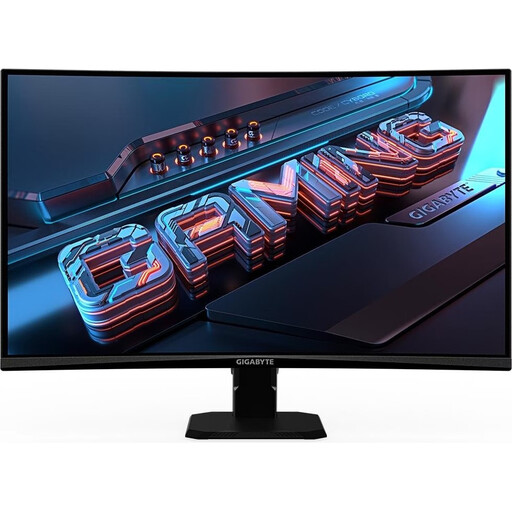
Gigabyte GS27QCA
Worth considering if you want to compare QHD with an advertised refresh rate of 180 Hz. Take the curved screen and how it will fit your workspace into account too.
27 inches, QHD, 180 Hz, VA panel and AMD FreeSync. The screen is curved; the product description says the stand is tiltable.
View at Joybuy
 No image available
INNOCN 2751S PLUS
Could be worth considering for maps and documents if you want QHD and an adjustable setup.
27 inches, QHD at 2560 × 1440, Mini LED, Fast IPS and height-adjustable stand. The product description lists up to 275 Hz via DisplayPort; the FreeSync range via HDMI goes up to 144 Hz.
View at Joybuy
 No image available
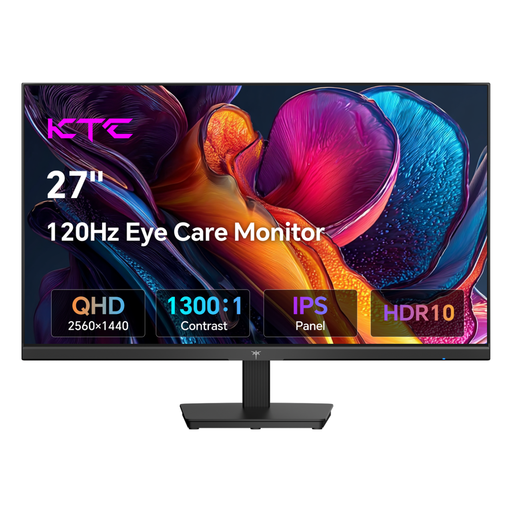
KTC H27D9
Could suit you if you want to combine QHD for maps and documents with a 120 Hz refresh rate.
27 inches, 2560 × 1440, IPS panel, 120 Hz and Adaptive Sync. The product name lists HDMI, DisplayPort and a VESA mount.
View at Joybuy
 No image available
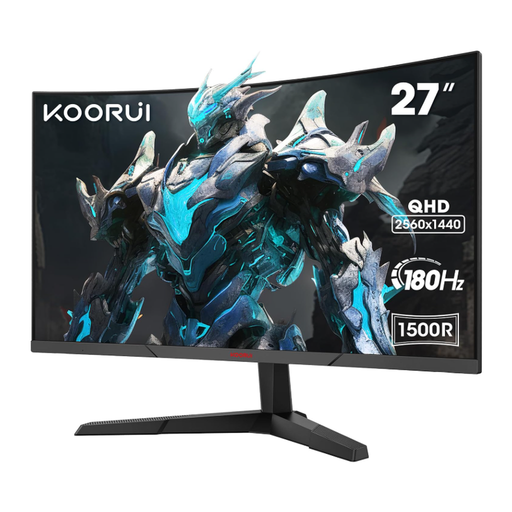
KOORUI MG27A12QV3
One to compare if you’re looking for QHD and 180 Hz, and a tiltable setup works for your desk.
27 inches, 2560 × 1440, 180 Hz, VA panel and curved screen. The product description recommends DisplayPort for 1440p at 180 Hz.
View at Joybuy
Frequently asked questions
How can I tell if my PC can reach the advertised refresh rate?
Check the resolution you want against the specific monitor input and your PC’s output. For example, ASUS lists up to 180 Hz via DisplayPort and up to 144 Hz via HDMI for the VG27AQ3A. Once connected, select your preferred mode in your PC settings too.
What should I bear in mind when leaving maps or work windows open on an OLED screen?
Samsung advises against displaying static images on its OLED monitors for long periods and describes care features that vary by model. Read the manual and warranty terms for your chosen model; this guidance doesn’t apply to IPS devices generally.
Does ASR A6 automatically apply to my home gaming setup?
No. ASR A6 applies within its stated scope to screen-based workstations at workplaces and teleworking workstations; the Federal Institute for Occupational Safety and Health excludes use in private homes outside such teleworking workstations. The scenario description alone isn’t enough to determine whether a specific home workstation legally counts as a teleworking workstation. Either way, being able to adjust your screen position can help when choosing a monitor.
How can I compare the power consumption of different monitors?
Compare the EU energy label and product information sheet for the exact model. The European Commission describes a scale from A to G for electronic displays; the label also includes information about HDR operation.
What rights apply when buying a monitor from a retailer in Germany?
According to information from Your Europe, consumer purchases are covered by a legal guarantee against defects from the seller for at least two years from receipt of the goods; this is separate from any voluntary guarantee. Online purchases generally come with a 14-day right to cancel, though exceptions and the specific contract terms should be checked. Verbraucherzentrale explains the right to cancel and its restrictions.


