What should you look for?
With multiple screens, decide how you want to use them before comparing refresh rates and other monitor specifications.
| Buying priority |
What to check before you buy |
Who is this important for? |
| One continuous view of the game |
Game support, graphics card outputs, monitor layout and overall resolution. With grouped displays, also consider possible interruptions caused by bezels. |
If I want an uninterrupted panoramic view, the game and graphics card must support the planned display setup. Around 33% of consumers put compatibility with this kind of game view first. |
| Separate secondary screens |
Extended desktop mode in Windows, available connections and the game’s ability to display additional information. |
If I want to use independent windows alongside the game, I need to be able to arrange the screens separately. Around 27% of consumers prioritise displays they can use independently. |
| Desk space and positioning |
The width of each monitor and the depth of its stand, plus height and tilt adjustment. Only plan to use a mount if it’s compatible with your devices. |
If I’m putting several monitors on my desk, the complete layout, including the stands, needs to fit. Around 20% of consumers focus mainly on desk space and positioning. |
| Picture quality and motion |
Native resolution, refresh rate via the intended input and compatibility between variable refresh rate technology and your setup. |
If clear, smooth gameplay matters to me, I want to compare resolution and refresh rate for the connection I’ll use. Around 20% of consumers prioritise picture quality. |
Joybuy products for gaming setups
The Joybuy products below are gaming monitors for single- or multi-screen setups. Before buying, check that the connections, resolution and game view you want are compatible with your PC and the game you’re playing.
 No image available
Z-Edge AGEX, 27-inch, QHD, 144 Hz, white
Could suit a QHD gaming setup if you want to adjust the screen position to suit your needs.
- 2560 × 1440 pixels, 144 Hz and Fast IPS panel
- FreeSync and HDR10
- 1 ms MPRT
- Height-adjustable stand
View at Joybuy
 No image available
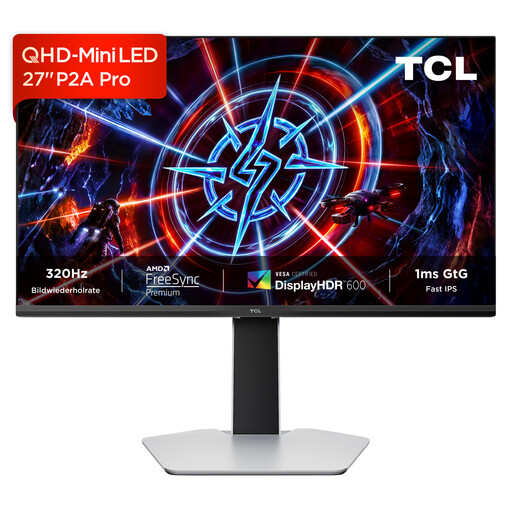
TCL 27P2A Pro, 27-inch, Mini LED, QHD, 320 Hz
An option for a QHD gaming setup if you want to check that the refresh rate stated in the product name is compatible with your PC and intended connection.
- 2560 × 1440 pixels and 320 Hz
- Mini LED HFS IPS panel
- DisplayHDR 600 and AMD FreeSync Premium
- 1 ms GTG
- Adjustable stand
View at Joybuy
 No image available
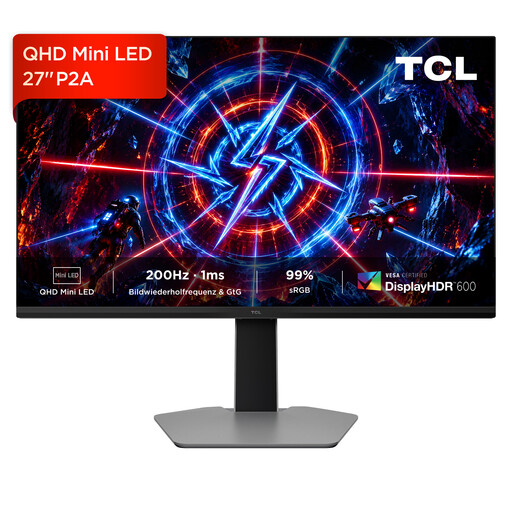
TCL 27P2A, 27-inch, Mini LED, QHD, 200 Hz
Could be worth considering for a QHD gaming setup if you want to check the 200 Hz specification against your planned connection.
- 2560 × 1440 pixels and 200 Hz
- Mini LED HFS IPS panel
- DisplayHDR 600 and AMD FreeSync Premium
- 1 ms GTG
- Multi-directional adjustable stand
View at Joybuy
 No image available
Gawfolk GF340C-H, 34-inch, UWQHD, 165 Hz, curved
Could be worth considering if you’re looking for one wide screen. Check separately whether the specific game supports this display format.
- 3440 × 1440 pixels and 165 Hz
- 1500R curvature and VA panel
- DisplayPort and tiltable stand
- VESA 75 × 75 mm
View at Joybuy
 No image available
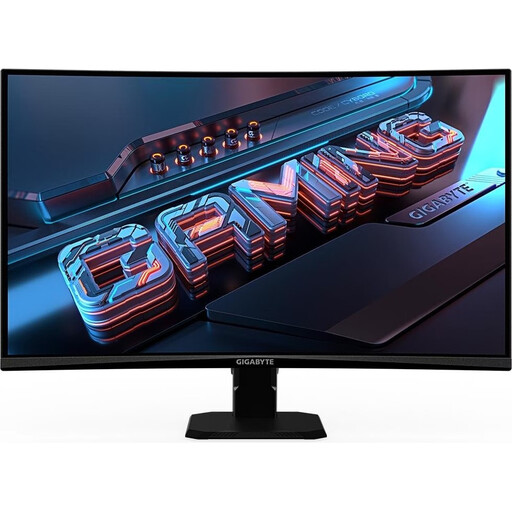
GIGABYTE GS27QCA, 27-inch, curved, QHD, 180 Hz
A QHD option for a gaming setup. Compare the curvature and connections with your planned layout.
- 2560 × 1440 pixels and 180 Hz
- 1500R curvature and VA panel
- DisplayPort 1.4 and two HDMI 2.0 inputs
- AMD FreeSync
- VESA 100 × 100 mm and tilt adjustment
View at Joybuy
Frequently asked questions
Is connecting several monitors enough to show the ship’s view across all of them?
No, connecting several monitors isn’t enough on its own. Windows can set up screens as separate desktop areas; AMD Eyefinity and NVIDIA Surround can group supported displays into one large screen area. Also check whether the specific game supports the view you want or separate instrument windows.
How do I set up separate secondary screens?
Set the connected screens to extended display mode in Windows display settings. Then check the resolution and refresh rate for each screen, as well as the window settings in the game you’re using.
What should I know about power consumption and care?
Compare the EU energy label and product datasheet for each monitor. The European Commission also explains the information provided for HDR operation. For cleaning and care, follow the instructions for the specific model you buy.
What should I know about my rights and possible extra costs when buying in Germany?
Distinguish between your statutory rights against the seller and a voluntary manufacturer’s warranty. According to the Verbraucherzentrale, for purchases made from 31 July 2026, the statutory warranty period may be extended from two to three years under the stated conditions if a fault that arises within the first two years is fixed by repair rather than replacement. To estimate potential electricity costs, compare the energy data for the specific monitors you’re considering.
Can I put an old monitor in the household rubbish?
No. Use an appropriate return point or collection facility for waste electrical equipment. The German Federal Ministry for the Environment describes retailers’ take-back obligations in certain circumstances. If you’re not buying a replacement, retailers with a take-back obligation only have to accept devices where each external dimension is no more than 25 cm. For a larger old monitor, check which return option is suitable.


