For squad survival matches on a small desk, a monitor around 24 to 25 inches is a sensible starting point, provided the screen and stand fit your available space. Choose between Full HD, which is less demanding on your PC, and QHD, which offers more detail, based on the frame rate your PC actually achieves in your games. RTINGS’ guidance on screen size and motion suggests assessing high refresh-rate figures alongside motion measurements, connectivity and VRR.
Which monitor suits you?
Players with limited desk space
You want to play squad matches, but have little room on your desk or sit close to the screen. Measure the screen and stand, and leave space for your mouse and keyboard. RTINGS notes that a larger screen isn’t a better fit for every workspace.
Players focused on fast-paced fights
You want to track fast movement clearly and aren’t choosing a monitor based solely on its highest advertised refresh rate. According to RTINGS, pixel response and overshoot matter too.
Players who want more detail
You want to see opponents and your surroundings in greater detail, and are checking whether your PC can achieve your desired frame rate at QHD resolution. RTINGS explains that QHD is more demanding on your graphics card than Full HD.
What to prioritise when buying
Compact Full HD monitor
A good fit if: You have limited desk space and prioritise a high frame rate without placing too much demand on your PC.
Trade-off: Full HD shows less detail than QHD, and a high refresh-rate figure alone doesn’t guarantee clear motion.
Compact QHD monitor
A good fit if: You want more detail on a smaller screen and your PC can deliver your desired frame rate.
Trade-off: QHD is more demanding on your graphics card than Full HD. Manufacturers’ claims about gaming benefits are not independent proof of better results.
Larger screen
A good fit if: You want to use several windows alongside your matches, and you have enough desk space and viewing distance.
Trade-off: A larger screen takes up more space. Its size alone doesn’t mean faster response times or better gaming results.
If you have a small desk, start by checking the available space and your viewing distance, then compare resolution and the frame rate your PC can achieve. RTINGS explains that VRR synchronises a monitor’s refresh rate with the frame rate of the source, which can reduce tearing when the frame rate fluctuates.
| What to consider |
What to look for when buying |
Who it matters most to |
| Space and viewing distance |
Compare the screen’s width and the stand’s depth with the free space on your desk. Remember to leave room for your peripherals, too. |
If my desk is short on space, I want to know whether the screen and stand will fit without taking up the room I need for my mouse and keyboard. That’s why around 36% of consumers put space requirements first. |
| Motion clarity |
Compare independent test results at high and lower frame rates, and check the refresh rate available through the connection you’ll use. |
In fast-paced fights, I want to track movement clearly rather than just see a high Hz figure. Around 29% of consumers prioritise motion clarity. |
| Resolution and PC performance |
Compare the model’s native resolution with the frame rate your PC achieves in your games and settings. |
If detail matters to me, I only want to choose QHD if my PC can deliver the frame rate I’m after. Around 21% of consumers put image detail first. |
| Connectivity and VRR |
For the specific monitor and source, check which resolutions, refresh rates and VRR functions are supported by the HDMI or DisplayPort input you’ll use. |
When connecting my PC or console, I want to know whether the specific input supports the refresh rate and VRR I need. Around 14% of consumers prioritise device compatibility. |
Common buying mistakes
-
Comparing only the highest refresh rate or “1 ms” claim
Refresh rate, pixel response, overshoot and connectivity all affect how motion looks. A single specification doesn’t guarantee a clear picture at the frame rates you usually play at.
Compare independent motion tests at both high and lower frame rates, and check the connection specifications for the exact model.
-
Confusing screen size with the space it takes up
Even a compact screen and its stand can take up space you need for your mouse and keyboard.
Measure the free space on your desk and compare it with the width of the screen and depth of the stand for the specific model.
If the supplied stand doesn’t fit on your desk, you may need to reposition the monitor or use a different mount.
-
Comparing Full HD and QHD without considering your PC
QHD displays more pixels than Full HD, but can reduce the frame rate you achieve in games.
Base your decision on the games you actually play, your settings and your hardware’s performance.
Brands to consider
BenQ ZOWIE
BenQ ZOWIE positions the XQ2566X as a compact QHD Fast TN monitor for competitive battle royale gaming. The German manufacturer’s website lists a 24.1-inch screen, QHD, 360 Hz and DyAc 3.
- According to the manufacturer, this 24.1-inch model combines QHD and 360 Hz.
- Claims about visibility and motion benefits aren’t independent proof of better gaming results. Your PC also needs to be able to deliver the frame rate you want.
ASUS
The TUF Gaming VG249Q3A is a compact Full HD Fast IPS monitor with a high refresh rate. ASUS lists a 23.8-inch screen, 1920 × 1080 pixels, 180 Hz and FreeSync Premium for this model.
- The manufacturer lists the screen size, resolution and refresh rate for this specific model.
- Before buying, check that the exact model is available for delivery to your location. The manufacturer’s specifications don’t prove a competitive advantage.
AOC
The 24G4X is a compact Full HD Fast IPS option. AOC lists a 23.8-inch screen, 1920 × 1080 pixels, 180 Hz and Adaptive Sync for this model.
- According to the manufacturer, this model combines a 23.8-inch screen with Full HD and 180 Hz.
- Check that the specific model is available for delivery to your location. These specifications aren’t independent motion test results.
Joybuy picks: compact Full HD gaming monitors
This selection features compact Full HD monitors for gaming. Compare how much space each takes up, and check which refresh rate your PC can output through the connection you’ll actually use.
 No image available
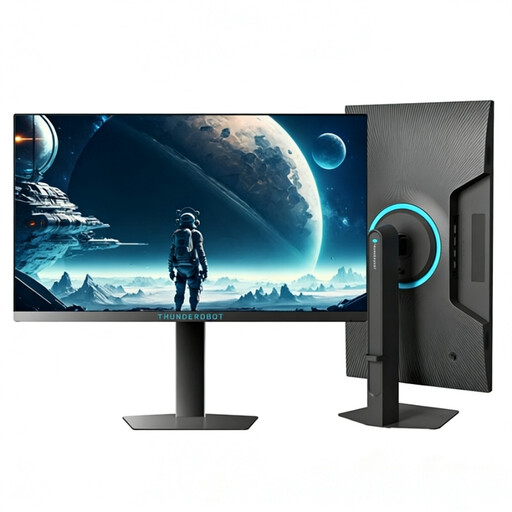
THUNDEROBOT CF25F300L, 24.5-inch Full HD gaming monitor
The 24.5-inch screen is a compact starting point for a small desk, but remember to measure the stand separately.
Listed in the product name: Full HD, 320 Hz, 1 ms and a stand that tilts and swivels. The refresh-rate figure alone doesn’t prove measured motion clarity.
View at Joybuy
 No image available
KOORUI MB24V29FS4, 24-inch Full HD IPS monitor
The 24-inch screen could suit a small desk, but check how much space the monitor will take up before choosing.
Listed in the product name: Full HD, IPS, 120 Hz, 5 ms, HDMI, VGA and a 100 × 100 mm VESA mount. Check that you have the right fitting if you want to use a VESA mount.
View at Joybuy
 No image available
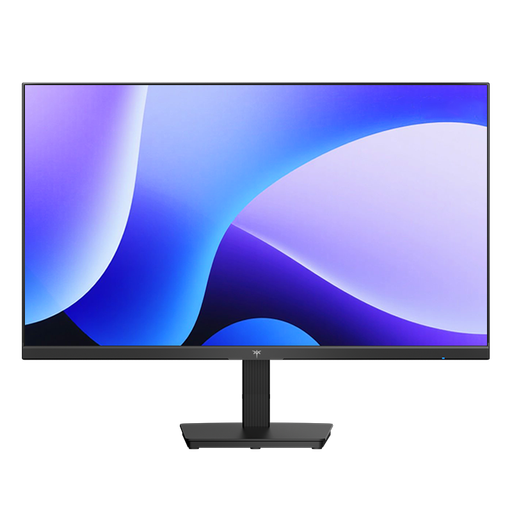
KTC H24B9S, 24-inch Full HD gaming monitor
A 24-inch model could be a compact choice if the screen and stand fit your workspace.
Listed in the product name: 1080p Full HD, IPS, 144 Hz, 5 ms MPRT, Adaptive Sync, HDMI and DisplayPort. Check which refresh rate your source supports through the input you’ll use.
View at Joybuy
 No image available
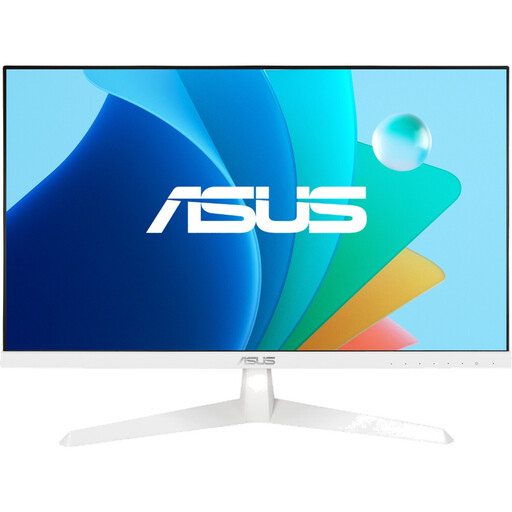
ASUS VY249HF-W, white 24-inch Full HD monitor
The 24-inch screen is a compact option if it suits your desk space and viewing distance.
Listed in the product name: IPS, 100 Hz, 1 ms MPRT, AdaptiveSync, 1920 × 1080 pixels, HDMI and VESA 100 × 100 mm. Check that the refresh rate suits your games and source.
View at Joybuy
 No image available
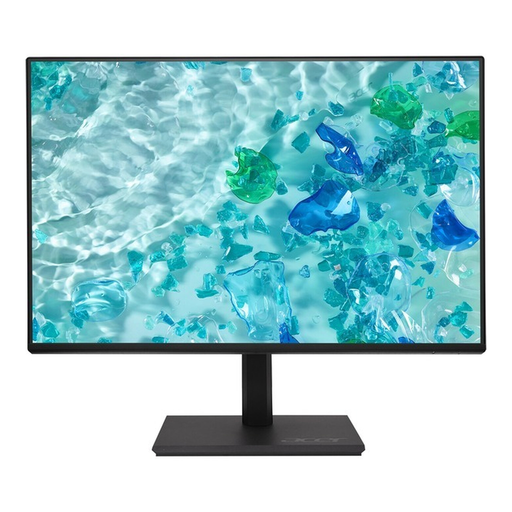
Acer Vero B247YGbmiqprx, 24-inch monitor
If a 24-inch screen suits your small desk and viewing distance, this model is a compact option. Measure the available space before choosing.
View at Joybuy
Frequently asked questions
Is the stated refresh rate enough to ensure clear motion?
No. Also compare independent measurements of pixel response and overshoot at the frame rates you play at. Check the maximum refresh rate supported through the connection you’ll actually use, too.
What should I check before setting up or connecting my monitor?
Measure your desk space and stand, and check your viewing distance and inputs. Once connected, set the supported refresh rate and only enable VRR if your source and the input you’re using support it.
How can I compare ongoing electricity costs?
Compare the EU energy label and stated energy consumption for the specific models. The European Commission also provides information on energy consumption for HDR content. To estimate your own costs, you’ll also need to know how long you use the monitor and your electricity tariff.
What are my rights if a monitor bought online is faulty or I change my mind?
The Verbraucherzentrale explains that consumers generally have a 14-day right to cancel standard online purchases. You must notify the retailer that you’re cancelling. If a product is faulty, your statutory rights against the seller are separate from any voluntary guarantee. For purchases made since 31 July 2026, the warranty period may be extended from two to three years, according to the Verbraucherzentrale, if you choose a repair rather than a replacement because of a fault within the first two years.
Does a gaming monitor need an energy label in Germany, and where should I take an old one?
The European Commission generally classifies computer monitors as electronic displays that require an energy label from A to G; relevant exemptions are subject to the applicable regulations. An old monitor should go to a separate collection point for electrical and electronic waste, not in household rubbish. The Umweltbundesamt notes that local collection centres generally accept electrical and electronic waste free of charge.


