Start by measuring the space available, then check which resolution and refresh rate your PC supports through the connection you plan to use. A 27-inch WQHD monitor could be a more space-friendly choice for easy-to-read displays, while a 34-inch 21:9 screen gives you more width if your desk and game can accommodate it. For dark scenes, consider VA or OLED. With OLED, though, take into account any HUD elements that remain on screen for long periods, as well as the conditions for the specific model variant.
Who is this selection for?
Gamers short on desk space
If you want cockpit and trading displays to be easy to read, but need your monitor to fit in a shared room, screen size, viewing distance and PC performance all matter. TÜV SÜD highlights these factors when choosing a monitor.
Cockpit fans with a wide desk
If you want more screen space to the sides, check first that your desk can accommodate it and that your particular game lays out the cockpit and HUD sensibly in 21:9.
Fans of dark scenes
If contrast and dark areas of the picture matter to you, weigh them against the lighting in your room. With OLED, also consider how long the HUD or other fixed displays will remain on screen.
What should you look for when buying?
First measure the space available, then check which screen size, resolution and refresh rate suit your viewing distance, game and PC. TÜV SÜD lists screen size, viewing distance and computer performance as important factors to consider.
| What matters |
What to check when buying |
Who it matters most to |
| Space and readability |
Measure the width and depth of the space available; check the native resolution from your usual viewing distance. |
If I need to read displays clearly but have limited desk space, choosing the right size is especially important; around 33% of consumers are likely to have space and readability as their main priorities. |
| Wide cockpit view |
Check the space required and how your game displays the HUD and menus in 21:9. |
If I want a wider view of my trading route, the game needs to display the format well; around 25% of consumers are likely to prioritise a wide cockpit view. |
| Dark scenes and HUD |
Weigh up your room lighting and panel type; for OLED, read the burn-in terms for the exact model. |
If I enjoy dark scenes but use fixed displays for long periods, I need to consider contrast and HUD longevity together; around 25% of consumers are likely to share this concern. |
| Refresh rate and PC compatibility |
Check the refresh rate available through the connection you plan to use, as well as compatibility with your graphics card and connection. |
If I want smooth motion, my PC needs to support the resolution and refresh rate I want; around 17% of consumers are likely to prioritise refresh rate and PC compatibility. |
Common buying mistakes
-
Focusing only on screen size
A large screen won’t automatically fit on a shared desk or be comfortable to view from every distance. TÜV SÜD recommends considering screen size and viewing distance together.
Measure your desk’s width and depth, then compare them with the dimensions of the specific monitor.
-
Confusing a quoted response time with input lag
Figures such as GtG and MPRT refer to different measurement methods and operating conditions. Samsung quotes MPRT for the Odyssey G5, while Dell gives a GtG figure for the AW3426DWM in ‘Extreme Mode’.
Don’t compare GtG and MPRT as if they were the same measure, and take note of the mode specified for each figure.
-
Choosing OLED contrast without considering a fixed HUD
On OLED screens, content that stays unchanged for long periods can cause burn-in. A HUD that remains in the same place during long gaming sessions is an important factor to weigh up.
Check the care guidance and warranty terms for the exact model variant. If fixed displays are a regular part of your gaming, consider VA or IPS too.
Key brands to consider
LG
The UltraGear 27GS75QN-B is a 27-inch WQHD IPS example for a more limited space.
- LG lists a 2560 × 1440-pixel resolution, 180 Hz refresh rate and IPS panel for this model.
- This model has no built-in speakers; these specifications don’t automatically apply to the entire UltraGear range.
Samsung
The Odyssey G5 LC34G55TWWPXEN is a 34-inch 21:9 VA example for a wider cockpit view.
- Samsung lists a 3440 × 1440-pixel resolution, 165 Hz refresh rate and 1000R curvature for this model.
- Make sure you have enough space. The quoted response time is MPRT, not an independent measurement of input lag.
Alienware
The AW3426DWM is a 34-inch VA ultrawide option with a higher quoted refresh rate.
- Dell lists a 3440 × 1440-pixel resolution and 240 Hz refresh rate for this exact model.
- The quoted 1 ms GtG response time applies in ‘Extreme Mode’ and doesn’t establish general superiority over other VA models.
MSI
The MAG 274QRFDE QD E2 and MPG 272URXDE QD-OLED represent different WQHD IPS and 4K OLED approaches.
- MSI lists 180 Hz at 2560 × 1440 pixels for the MAG model and 240 Hz at 3840 × 2160 pixels for the MPG model.
- OLED care guidance and burn-in cover are based on manufacturer information; check the terms for the exact variant.
Joybuy monitors for space trading
This Joybuy selection includes compact 27-inch WQHD models, 34-inch ultrawides and a QD-OLED monitor. Compare the space required, how your game is displayed and what your PC can handle.
 No image available
INNOCN E34A1R Curved UWQHD Gaming Monitor, 34-inch
An option if you want a wide cockpit view and your desk and game support the format.
34-inch, 3440 × 1440 pixels, VA, 200 Hz, 21:9, 1500R and FreeSync; built-in speakers are listed.
The 34-inch 21:9 format needs plenty of desk space. Also check whether your game lays out the HUD and menus sensibly in 21:9.
Joybuy
 No image available
INNOCN 2751S PLUS Mini-LED Gaming Monitor, 27-inch
A compact WQHD option if a 27-inch screen is a better fit for the space available.
QHD, IPS, 275 Hz and 1,152 local dimming zones are listed for this model; FreeSync, HDMI and DisplayPort are also specified.
Check whether your PC and the connection you plan to use support your preferred resolution and refresh rate.
Joybuy
 No image available
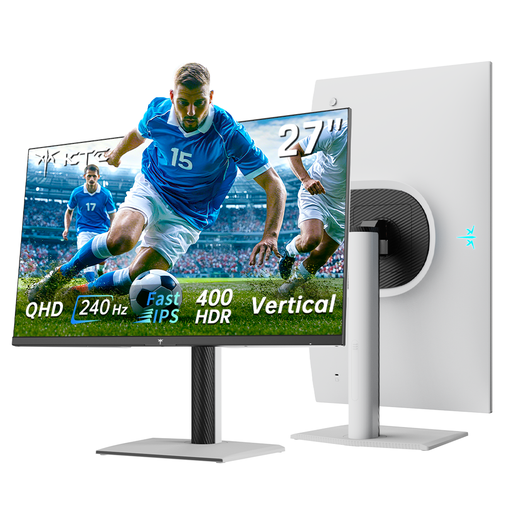
KTC H27E6S QHD Gaming Monitor, 27-inch
A 27-inch alternative if you prefer QHD and want a refresh rate that suits your PC hardware.
2560 × 1440 pixels, Fast IPS and 240 Hz; a refresh rate of up to 275 Hz is listed when overclocked. The title also mentions FreeSync and G-Sync compatibility, as well as HDMI 2.0 and DisplayPort 1.4.
Check compatibility with your graphics card and the connection you plan to use.
Joybuy
 No image available
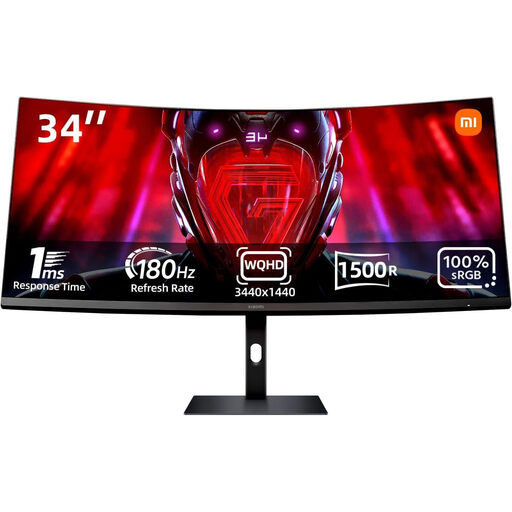
Xiaomi G34WQi Ultrawide Gaming Monitor, 34-inch
An ultrawide option if your desk has enough room and your game makes good use of the wider format.
34-inch, VA, 180 Hz, 1500R, FreeSync and a quoted contrast ratio of 4000:1.
The 34-inch 21:9 format needs plenty of desk space. Also check whether your game lays out the HUD and menus sensibly in 21:9.
Joybuy
 No image available
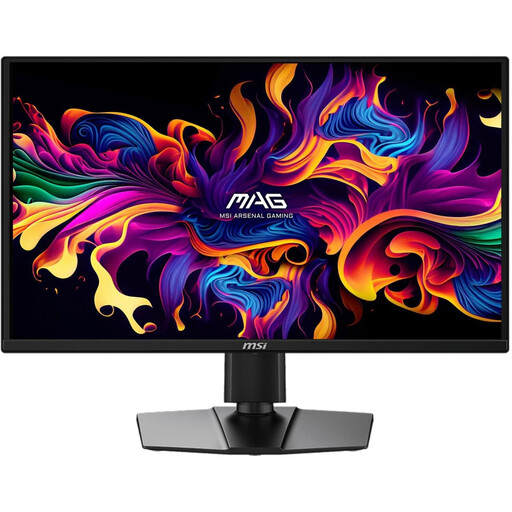
MSI MAG 272QPDE QD-OLED X24 QHD Gaming Monitor, 27-inch
A QD-OLED option if how dark scenes look matters to you, and you’re also taking the risk of a persistent HUD into account.
2560 × 1440 pixels, 240 Hz, Adaptive-Sync and USB-C are listed for this model.
On OLED screens, content that stays unchanged for long periods can cause burn-in. Care features haven’t been shown to eliminate this risk completely; check the terms for the specific model.
Joybuy
Frequently asked questions
Do I need an ultrawide monitor for a space game?
No, an ultrawide monitor isn’t essential. Choose 21:9 if you have the space and your particular game displays the cockpit and HUD well in that format. If space is limited, a 27-inch monitor with a 2560 × 1440-pixel resolution is an alternative.
How do I set up a variable refresh rate?
First check that your monitor, graphics card and chosen connection are compatible. AMD describes FreeSync as synchronising with compatible Radeon graphics over a supported connection; setup depends on your hardware.
What should I consider when gaming for long sessions with a fixed HUD?
On OLED screens, content that stays unchanged for long periods can cause burn-in. Where possible, vary what’s displayed and follow the care guidance and warranty terms for the specific model. According to RTINGS.com, this OLED-specific burn-in risk doesn’t affect IPS and VA panels.
How do I compare monitors’ power consumption?
Compare the EU energy label and product data sheet for the specific models. The European Commission explains that energy labels for displays also include information about HDR operation; for a cost comparison, your usage and the relevant consumption figures also matter.


