Players who rely on lots of status indicators
If you often check the map, indicators or team information while practising, make sure they’re easy to read in the game and with the settings you actually use.


When choosing a monitor for practising support roles, first check whether you can clearly read the game interface and status indicators on the screen, and whether the monitor and stand will fit on your shared desk. AOC lists the 24G4X as 23.8 inches with Full HD resolution; LG and ASUS offer 27-inch QHD models with more pixels, but neither resolution alone nor screen size guarantees readability in your game. Next, check the refresh rate for the connection you plan to use and agree on audio with the other person. If you choose OLED, also consider the risk from prolonged static images and check the care guidance for that specific model.
If you often check the map, indicators or team information while practising, make sure they’re easy to read in the game and with the settings you actually use.
If your monitor and stand need to fit alongside other items, compare the full dimensions of each model. A smaller screen doesn’t necessarily mean a more compact stand.
If you share a bedroom, plan your audio and screen use with the shared space in mind. Built-in speakers are only useful if playing sound in the room works for everyone.
First, check that you can read the game interface and indicators on the screen size you’re considering. Then think about the space available, the stand, an audio setup that works for everyone, and the refresh rate your device can actually deliver through the connection you plan to use.
A good fit if: space is your priority and you can comfortably read the game interface on a smaller screen. AOC lists the 24G4X as 23.8 inches with a resolution of 1,920 × 1,080 pixels.
Trade-off: Full HD has fewer pixels than the QHD models listed here.
A good fit if: you want more pixels for maps, indicators and text, and your desk space and gaming device’s video output can accommodate it.
Trade-off: ASUS lists a maximum of 180 Hz over DisplayPort and 144 Hz over HDMI for the VG27AQ3A, so the refresh rate you can achieve also depends on the input.
A good fit if: you prioritise OLED features and high advertised refresh rates, and are happy to follow the care guidance for frequently displayed static images.
Trade-off: MSI describes burn-in from prolonged static images as a risk. The manufacturer says its protective features reduce the risk, but they can’t eliminate it.
| Priority | What to check before buying | Who is this important to? |
|---|---|---|
| Readability of the game interface | Native resolution, screen size and the game’s scaling options; the gaming device’s video output. | If I want to read the map and status indicators quickly while practising, I check them in my game and with my settings. Around 31% of consumers put readability first. |
| Desk space and adjustability | The monitor’s width and depth, plus the features of the specific stand. | If I share a desk, the monitor and stand need to fit in the available space. Around 25% of consumers prioritise the space available. |
| Being considerate in a shared room | How audio is played and the energy information shown on the energy label for the specific display. | If someone else is in the bedroom, I want to agree with them on audio and screen use. Around 25% of consumers put consideration for others first. |
| Refresh rate and connection | Refresh rate specifications for each input and resolution; the rate you can actually select once connected. | If smooth motion matters to me when practising, I check that the connection and gaming device support the setting I want. Around 19% of consumers prioritise motion performance. |
The ASUS VG27AQ3A’s German specification sheet lists different maximum rates for HDMI and DisplayPort.
Check the rate for the input and resolution you plan to use. Once connected, check which setting your device actually offers.
MSI describes burn-in from prolonged static images as a risk, and its own protective features as ways to reduce that risk, not a guarantee against burn-in.
If indicators stay on screen unchanged for long periods, weigh up OLED against IPS LCD and read the care guidance and warranty terms for the specific model.
Screen size doesn’t tell you how much room the stand needs or what adjustments it offers. For example, ASUS says the included stand for the VG27AQ3A isn’t height-adjustable.
Before you decide, compare the monitor’s full dimensions and stand features with the space available.
The compact 24G4X is the model featured here, with a 23.8-inch screen and Full HD resolution. The product page referenced is from AOC UK.
The UltraGear models listed differ in panel type and resolution. They include a 27-inch QHD IPS LCD and a 27-inch QHD OLED.
The TUF Gaming VG27AQ3A featured here is a 27-inch QHD Fast IPS model.
The MOBIUZ EX2510S featured here combines a 24.5-inch screen and Full HD resolution with built-in speakers.
The MPG 271QRXDE QD-OLED featured here combines QHD resolution with a high stated refresh rate.
The Odyssey OLED G8 G81SF LS27FG814SUXEN featured here is a 27-inch 4K OLED model.
The options below include compact Full HD IPS models and 27-inch QHD monitors. Before choosing, compare the space required, the connections and the video output that suits your gaming device.
 No image available
A 27-inch QHD option if the extra pixels work for your desk space and your gaming device’s video output.
2,560 × 1,440 pixels; Fast IPS; 144 Hz; height-adjustable stand.
 No image available
A compact Full HD option if you have limited desk space and the resolution is sufficient for your game interface.
120 Hz; 5 ms response time; HDMI and VGA; VESA 100 × 100 mm; tilt-adjustable.
Full HD has fewer pixels than QHD if you prioritise extra resolution for maps and status indicators.
 No image available
A 27-inch QHD option if you want more pixels and have room for the monitor and stand on your desk.
IPS; 275 Hz; 1,152 zones; HDMI and DisplayPort; height-adjustable.
The product title lists built-in speakers; playing audio through them isn’t automatically a good fit in a shared bedroom.
 No image available
A 27-inch QHD option if you want extra pixels for in-game indicators and have enough desk space.
2,560 × 1,440 pixels; 120 Hz; IPS; Adaptive Sync.
 No image available
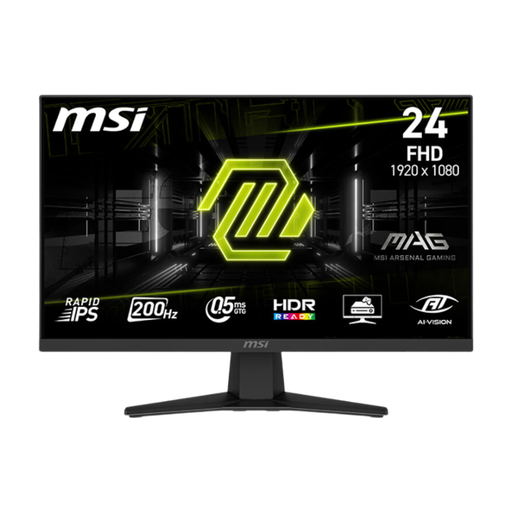
A compact Full HD option if space is limited and Full HD is enough for your game interface.
23.8 inches; 200 Hz; Rapid IPS; DisplayPort and HDMI.
Full HD has fewer pixels than QHD if you prioritise extra resolution for maps and status indicators.
Once connected, check the advanced display settings in Windows to see which refresh rates are available for your current setup. Microsoft says these depend on the display and configuration. The ASUS VG27AQ3A also has different documented maximum rates for HDMI and DisplayPort.
Follow the care guidance and use the protective features of your specific model, and avoid leaving static elements unchanged at high brightness for unnecessarily long periods. MSI describes burn-in from prolonged static images as a risk and OLED Care as a way to reduce it, not a guarantee against it.
Compare the energy information on the EU energy label for the monitors you’re considering; it also includes efficiency information for HDR content. The Verbraucherzentrale distinguishes between your statutory rights against the seller and a voluntary manufacturer’s warranty.
Electronic displays are covered by EU energy-labelling rules. In its market surveillance guidance, the Bundesnetzagentur highlights requirements including CE marking, product identification and accurate manufacturer information. According to the Verbraucherzentrale, online consumer purchases generally come with a 14-day right to cancel from the date you receive the goods; you need to notify the seller that you wish to cancel.