Work and play on the same screen
You spend long hours using text and windows on your monitor, then want to play survival games. Readability, setup and smooth visuals all need to suit your workspace and PC.


For a screen you’ll use for text-based work during the day and gaming in the evening, a QHD IPS model with clear, easy-to-read text, the right connections and an adjustable stand is a sensible starting point. If dark game worlds matter more to you, consider VA with Mini LED or OLED. With a VA model, check motion handling and VRR; with OLED, also consider how it handles office windows left on screen for long periods and check the specific warranty terms.
You spend long hours using text and windows on your monitor, then want to play survival games. Readability, setup and smooth visuals all need to suit your workspace and PC.
You care especially about contrast and dark scenes, and want to weigh up Mini LED or OLED without overlooking potential drawbacks for motion or office content left on screen for long periods.
You often move the camera quickly or play other fast-paced titles too. So, alongside the refresh rate, motion handling, VRR and your PC’s performance all matter.
First, check how well the monitor suits your working day and desk. Then compare its display, your PC’s performance and its connections with the games you play and the devices you use.
| Priority | What to check before buying | Who this matters most to |
|---|---|---|
| Text comfort and setup | Assess the resolution and size at your usual viewing distance; check how adjustable the stand is. | If you spend many hours working with text and windows, a display that suits your desk is important. Around 33 % of consumers put working comfort and setup first. |
| Dark gaming scenes | Check the contrast and dimming on the specific model; with OLED, also consider static content left on screen for long periods. | If visibility and atmosphere in dark game worlds matter most to you, compare the display quality and any potential drawbacks. Around 25 % of consumers prioritise dark scenes. |
| Motion handling | Look at independent tests of pixel response and VRR on the exact model; consider the frame rate your PC can achieve. | If you often pan the camera, you’ll want to see motion clearly even when the frame rate varies. Around 17 % of consumers put motion handling first. |
| PC performance and energy use | Match your desired resolution and frame rate to your graphics performance; compare the EU energy label for specific models. | If you’re weighing up resolution, gaming performance and running costs together, it helps to check your PC’s actual requirements. Around 17 % of consumers prioritise performance and running costs. |
| Connections | Check the inputs and signal modes for your work device and gaming PC; look closely at the USB-C features. | If you want to connect both devices to the same screen, its connections need to match the outputs on each one. Around 8 % of consumers put device connectivity first. |
In its test of the AOC Q27G3XMN, RTINGS observed some dark smearing and distracting VRR flicker when the frame rate varied, despite the fast headline specifications.
Look for independent tests of motion handling and VRR performance on the exact model, rather than relying on the millisecond figure alone.
According to Samsung’s OLED monitor support guide, static content displayed for long periods can contribute to burn-in. This matters for office windows that stay in the same place on screen for a long time.
Consider how long work windows or game displays remain visible, and check the specific model’s protective features and written warranty terms.
LG lists 165 Hz for the 27GP850P-B, or 180 Hz with overclocking. ASUS documents USB-C with DisplayPort Alt Mode on the XG27ACS; this does not confirm that it can charge a laptop.
For the exact variant, check the standard refresh rate, available signal modes and the USB-C features explicitly listed.
The UltraGear 27GP850P-B is a documented QHD IPS option for a screen shared between work and gaming.
The Q27G3XMN/BK is a VA Mini LED option for buyers who place a high priority on dark game worlds.
The AW2725DF is a QHD QD-OLED option for buyers who prioritise deep blacks and a high refresh rate.
The XG27ACS is a QHD Fast IPS option if you need a USB-C video input for a compatible work device.
The Odyssey OLED G6 G60SD is a QHD OLED option with a matte screen.
This selection includes QHD, 4K and UWQHD monitors with a range of panel types and listed features. Check that the resolution, space required and stated connections suit your desk and devices.
 No image available
The QHD resolution and tilt adjustment may suit a desk used for both work and gaming.
VA panel, 2560 × 1440 pixels, 180 Hz, Adaptive Sync, matte screen and stated contrast ratio of 5000:1.
 No image available
The stated QHD resolution and height-adjustable stand are useful features for a screen shared between work and gaming.
IPS panel, 2560 × 1440 pixels, 180 Hz, HDR10 and FreeSync; also listed are an anti-glare screen and a height-adjustable stand.
 No image available
The 4K resolution may suit you if you’re considering a higher resolution for work and image detail, and your PC can deliver the gaming performance you want.
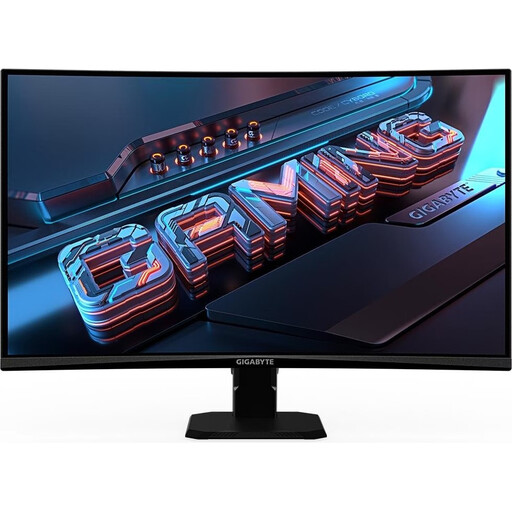
VA panel, 3840 × 2160 pixels, 3000R curvature, HDR10 and Adaptive Sync; 100 % sRGB is also listed.
 No image available
The 21:9 format and listed PIP/PBP modes may suit a wide workspace or content from two sources. Check that you have enough space and the right connections.
VA panel, 3440 × 1440 pixels, 200 Hz, 1500R curvature, FreeSync and a height-adjustable stand.
 No image available
Mini LED dimming and QHD may appeal to buyers weighing up a screen for work and gaming, with dark scenes in mind.
Fast IPS panel, 2560 × 1440 pixels, 1152 dimming zones, up to 275 Hz and FreeSync; the stand is height-adjustable.
No, the refresh rate alone isn’t enough to guide your choice. Compare pixel response and VRR performance too, and consider the frame rate your PC can achieve. In its test of the AOC Q27G3XMN, RTINGS observed some dark smearing despite the 180 Hz refresh rate, as well as distracting VRR flicker when the frame rate varied.
Check that the inputs on both devices match the monitor, and consult the manual for the signal modes you want to use. ASUS documents USB-C with DisplayPort Alt Mode on the XG27ACS; this does not confirm that it can charge a laptop.
Avoid leaving still images on screen for longer than necessary, and check the specific model’s protective features. Samsung recommends this for its OLED monitors; individual care features may vary by model and software version.
No. In Germany, consumers can exercise their statutory rights against the seller for up to two years after buying a new product; a manufacturer’s warranty is an additional voluntary service with its own terms. Check the relevant written terms to see whether a particular case of OLED burn-in is covered by the warranty.
Ordinary computer monitors are covered by the relevant EU rules for electronic displays, including energy labelling requirements. The label lets you compare the efficiency figures shown, but it does not require a particular efficiency class. As part of its market surveillance, the German Federal Network Agency checks electrical products for things including CE marking, product identification and conformity documents; a label alone does not prove that an individual listing has been checked.