Map and menu readers
If you play turn-based tactics at your desk, you’ll want to be able to make out the map, unit stats and text clearly. Whether QHD or Full HD is a better fit also depends on in-game scaling and your viewing distance.


For turn-based tactics at your home-office desk, a 27-inch QHD LCD is a sensible starting point if your desk space and viewing distance allow; AOC lists a 2560 × 1440 resolution and height-adjustable stand for the Q27G4XF. If space is limited, a 23.8-inch Full HD model is a distinct alternative. OLED is also worth considering, but if office windows remain on screen for long periods, check the care guidance and warranty for the specific model. ASUS explicitly recommends using its protection features on supported ROG OLED devices.
If you play turn-based tactics at your desk, you’ll want to be able to make out the map, unit stats and text clearly. Whether QHD or Full HD is a better fit also depends on in-game scaling and your viewing distance.
If you use the same screen for office windows and games, consider how you’ll position it and which connections you need, rather than judging it solely by its high refresh rate.
A compact Full HD screen may fit better on a small desk. If you’d like more pixels for maps and menus, remember to check the dimensions of both the monitor and its stand.
First, check that the screen size and display suit your desk and the games you play. Then consider the stand, connections and your picture preferences.
| What matters | What to check before buying | Who is it particularly important to? |
|---|---|---|
| Readability | Compare screen size, native resolution and viewing distance, as well as the in-game scaling for text and the user interface. | If I want to read maps, unit stats and work documents without constantly rearranging things, readability comes first; around 29% of consumers give this priority. |
| Positioning | Check height adjustment, tilt, stand dimensions and, where relevant, VESA mounting for the specific model. | If you regularly use the screen for work and games, you’ll want to position it comfortably; around 23% of consumers put positioning first. |
| Desk space | Compare the available desk width and depth with the dimensions of the monitor and stand. | If my desk is short on space, I need to know that the screen and stand will actually fit; around 18% of consumers give space requirements the greatest weight. |
| Device connections | Check the video inputs and the resolution and refresh rate needed for each device; check USB and charging features separately. | If you want to use a work computer and gaming PC with the same monitor, you’ll need suitable connections for both; around 18% of consumers put this first. |
| Picture contrast | Check the panel type, care features and warranty terms if static content will often be on screen. | If high-contrast gaming scenes matter to me, but I also spend long periods looking at office windows, I want to weigh up both; around 12% of consumers prioritise picture contrast. |
More pixels alone don’t guarantee that menus and text will be easy to read in your game. Scaling, viewing distance and positioning also matter.
Check your games’ UI scaling and measure the available space, including the stand. AOC’s specifications for the Q27G4XF and 24G4XE illustrate the different screen size and resolution options.
A USB-C port doesn’t automatically mean that a laptop will receive the video signal, USB features and power supply you need.
Check video transmission, USB features and charging requirements separately against the specifications for your monitor and computer.
Depending on your computer and the features you need, you may need extra cables or a separate power supply.
Care features and warranty terms vary by model. ASUS recommends using its protection features on supported ROG OLED devices, but that doesn’t mean other models have the same features or terms.
Check the care instructions and warranty for the specific device. Your Europe, the European Union’s information portal, distinguishes statutory consumer rights from an additional manufacturer’s warranty.
There’s no evidence that turn-based tactics require a particular minimum refresh rate. A high refresh rate shouldn’t automatically take priority over readability, desk space and connections.
Consider the refresh rate in light of whether you also play fast-paced games, and first check the needs of your desk and devices.
The Q27G4XF and 24G4XE illustrate the choice between 27-inch QHD and a more compact 23.8-inch Full HD screen.
The MAG 274QRF QD E2 is an example of a 27-inch QHD monitor with a range of connection types and a height-adjustable stand.
The TUF Gaming VG27AQ3A is a 27-inch QHD example; information about ROG OLED care applies to supported OLED models in that product line.
The MOBIUZ EX240 and EX271UZ are examples of different sizes and panel types.
This selection includes monitors for desks shared between work and gaming, from QHD and 4K models to a 34-inch ultrawide display.
 No image available
An option for maps and office windows if a 27-inch QHD format suits your desk.
Fast IPS panel; 2560 × 1440 pixels; 144 Hz; height-adjustable stand; HDMI and DisplayPort; white.
 No image available
QHD is one option if you’re looking for a larger monitor for gaming and work.
Mini LED; IPS panel; 2560 × 1440 pixels; 275 Hz; height-adjustable stand.
 No image available
A 4K option for a shared workspace, provided the resolution and switching modes suit your devices.
Fast IPS panel; 4K at 160 Hz or Full HD at 320 Hz; USB-C with 65 W Power Delivery; KVM; height-adjustable stand.
 No image available
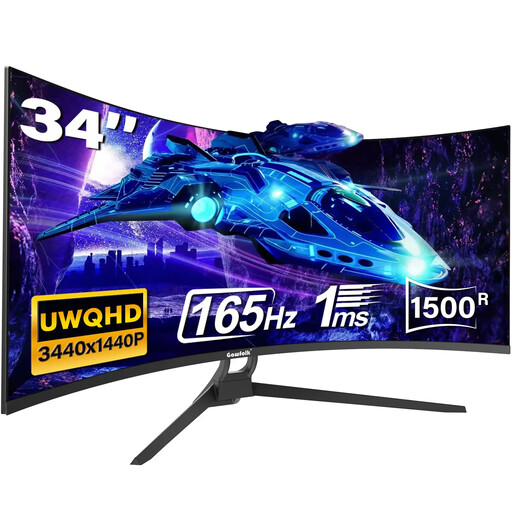
The wide format may suit multiple work windows and a broader map view, if you have enough desk space for a 34-inch screen.
3440 × 1440 pixels; 21:9; 1500R; 165 Hz; HDMI 2.1 and DisplayPort 1.4.
 No image available
An option for work and gaming if you’re looking for a 27-inch WQHD monitor with extra device features.
IPS panel; 2560 × 1440 pixels; 100 Hz; USB-C with 98 W Power Delivery; KVM.
Check that USB-C, power delivery and KVM are compatible with your specific computers.
No, there’s no evidence that turn-based tactics require this minimum refresh rate. First check readability, positioning and the resolution your computer can support; a high refresh rate may matter more if you also play fast-paced games.
Check that the video outputs on both computers match the inputs on your specific monitor. Check USB-C video, peripheral switching and charging power separately, rather than assuming that a USB-C port supports every feature.
Check the care guidance for your exact model and use its protection features where recommended by the manufacturer. ASUS recommends this for supported ROG OLED monitors; that doesn’t mean other models have the same features or warranty terms.
For an online distance purchase from a business seller, you generally have 14 days from delivery to cancel the contract. According to the European Union’s Your Europe portal, return costs may be your responsibility if the seller told you this before purchase and doesn’t cover them. Faulty goods are covered by a statutory guarantee of at least two years from the seller; an additional manufacturer’s warranty doesn’t replace it. These rules don’t apply in the same way to purchases from private individuals.
No. ASR A6, issued by the Federal Institute for Occupational Safety and Health, applies to certain screen-based workstations in workplaces and teleworking environments. It excludes, among other things, use outside workplaces or teleworking environments. Whether a particular setup falls within its scope depends on how it is actually classified.