Players who value map and menu detail
If you want to make out small game icons and labels, and perhaps use work windows alongside your game, compare resolution, screen size and readable scaling together.


If you use the same screen for work and tower defence, first check that maps, menus and text are easy to read from where you sit, and that you can position the monitor comfortably. A 27-inch QHD LCD could be a good fit. More important than the highest advertised refresh rate is whether the connections and frame rate match what your computer can actually output. If you keep office windows on screen for long periods, you should also consider the residual risk of burn-in with an OLED monitor.
If you want to make out small game icons and labels, and perhaps use work windows alongside your game, compare resolution, screen size and readable scaling together.
If you spend long hours working and then gaming, a comfortable setup matters, as does how you manage content that stays on screen for extended periods.
If you want to connect a work laptop and a gaming PC, check that the video connections and charging requirements of both devices match the features of the specific monitor.
Start by checking readability and positioning at the desk where you plan to use the monitor. Then compare the connections you need and the frame rate your computer can achieve at your chosen resolution.
| What matters | What to check before buying | Who is it important to? |
|---|---|---|
| Reading maps and text | Consider resolution and screen size together; check scaling and viewing distance with your own setup. | If you want to read small map, menu and text details clearly, readability is your priority. Around 36% of consumers say readability is their most important consideration. |
| Getting the right position | Check the stand, height adjustment, tilt and the space available on your desk. | If you regularly work and play in the same spot, you should be able to position the screen comfortably. Roughly 29% of consumers put their workspace setup first. |
| Connecting a laptop and PC | Check that the video inputs and, where relevant, charging power are compatible with both devices and the cable you use. | If you often switch between a work laptop and a gaming PC, the connections need to work with both. Around 21% of consumers prioritise device connections. |
| Displaying movement | Check the frame rate achievable at your chosen resolution; MPRT and GtG figures are not directly comparable. | If smooth motion matters more to you than the other considerations, the refresh rate your setup can actually achieve is key. Around 14% of consumers name it as their top priority. |
A high maximum refresh rate doesn’t tell you what frame rate your computer can actually output at your chosen resolution. Readability and positioning are separate considerations.
First, check maps, text and desk space. Then make sure your computer can achieve the frame rate you want at your chosen resolution.
The shape of the connector alone doesn’t tell you whether it supports video or whether the monitor can provide the right amount of power for your laptop.
Before buying, compare the specifications for your laptop, the monitor input and the cable. Depending on the connection setup, you may need a different cable, power supply or dock.
Stand features vary between LCD models. With OLED, content that stays unchanged for long periods can cause burn-in. LG says the risk cannot be ruled out completely, even with proper use.
Check the adjustment options on the specific LCD monitor. With OLED, consider how you’ll use it and check the current warranty terms for the model you’re interested in.
A monitor without suitable height adjustment may need a separate mount.
The models mentioned here show how QHD options can differ in their focus on refresh rate and connections.
The Q27G4XF is an example of a 27-inch QHD gaming monitor with an adjustable stand.
The GS27Q is a QHD option with HDMI and DisplayPort connections.
MSI offers QHD models with Rapid IPS, as well as OLED models for different display priorities.
LG OLED monitors may suit you if you value image quality more than the convenience of using static office content on screen for long periods.
This selection includes gaming monitors for your home-working desk, including QHD and UWQHD models.
 No image available
If you want to use maps and menus on a QHD screen, check that the size and positioning suit your desk.
27 inches; QHD (1440p); 144 Hz; Fast IPS; height-adjustable stand; DisplayPort and HDMI.
 No image available
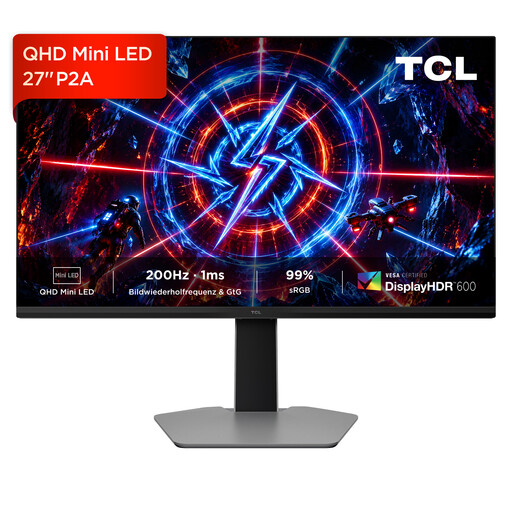
Its QHD resolution and listed refresh rate may work well for games and work windows. Check that your computer can achieve the output you need.
QHD (2560 × 1440); 200 Hz; HFS (IPS); DisplayHDR 600; 1 ms GtG.
 No image available
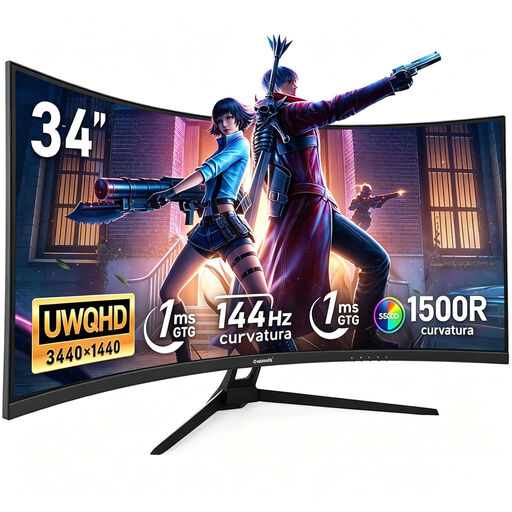
If you want to combine games and work windows on a wide screen, check that you have enough desk space and that your devices have the right connections.
UWQHD (3440 × 1440); 144 Hz; 1500R curvature; Fast VA; no speakers.
 No image available
If you’re looking for QHD for gaming and work, consider the screen size and available desk space as well as the resolution.
2560 × 1440; IPS; 180 Hz; 1 ms; HDR10.
 No image available
The listed QHD resolution is worth considering if you want to assess game and menu details on a 27-inch screen.
QHD; 275 Hz; IPS; 1 ms; 1152 dimming zones.
If small map and menu details, as well as work windows, matter to you, compare QHD at your planned screen size and scaling setting. Full HD may be a better fit if desk space or graphics performance is limited. Check readability in your game and from your usual viewing distance.
At your chosen desk, check the screen height, tilt, available space and any distracting reflections. The BAuA sets out requirements for screen-based work in ASR A6 within its relevant scope; according to its wording, private use alone isn’t covered.
This only works if your laptop, the monitor input and the cable support the video connection you need, and the power supplied is suitable for your laptop. A USB-C connector alone doesn’t guarantee these features.
For eligible online purchases in Germany, consumers generally have a 14-day right to cancel. The Verbraucherzentrale explains this right and the conditions that apply. Your statutory rights against the seller and a voluntary warranty are two different things. Check the warranty terms for the specific model.