If desk space is limited, or you haven’t yet checked how your game looks in ultrawide, a 16:9 monitor that’s easy to position is a sensible starting point. A 21:9 display gives you more horizontal space, but also takes up more room. Check how the specific game handles its HUD and menus, and make sure your PC can run it. OLED is worth considering for darker scenes, provided you also follow the care guidance for the model you choose.
Who is this selection for?
Gamers who keep an eye on their instruments
If you want to see your instruments and the game view at the same time, first check how the specific game arranges its HUD and menus in a wider format. More horizontal screen space alone doesn’t guarantee a more readable display.
Gamers sharing a desk
If you share a bedroom desk, the monitor’s dimensions, stand and your seating position matter more than screen size alone. The specifications for LG and Dell models show why it’s worth checking the dimensions against your available desk space.
Gamers who focus on dark scenes
If dark scenes are especially important to you, OLED models are worth considering. Include the care guidance and energy information for the specific monitor in your comparison.
What should you look for when buying?
First, check that your chosen format fits on the shared desk and that your game makes good use of the display. Then compare the resolution and refresh rate with the connection and gaming device you’ll be using.
| What matters |
What to check before buying |
Who is it most relevant to? |
| Readable instruments and game view |
Check the resolution, scaling, HUD and menus in your own game, then compare the aspect ratio with the native resolution. |
If I want to keep an eye on my instruments and the action at the same time, the way they’re actually arranged in the game matters to me. Around 33% of consumers prioritise readable instruments. |
| Space and positioning |
Measure the available desk space and compare it with the monitor’s dimensions, including the stand; consider how adjustable it is. |
If I share a desk, I want to be able to fit the screen in and position it to suit where I sit. Around 27% of consumers focus primarily on the space it takes up. |
| Motion handling |
Check the refresh rate for your desired resolution and the input you’ll be using; consider overclocking and PC performance separately. |
If smooth motion matters to me, the connection needs to work with my gaming device. Around 20% of consumers prioritise motion handling. |
| Dark scenes and day-to-day use |
Check the panel type, care guidance and energy label for the specific model; compare SDR and, where applicable, HDR figures. |
If dark scenes are a priority for me, I also want to consider how to care for the monitor and how much energy it uses. Around 20% of consumers focus on this. |
Common buying mistakes
-
Comparing screen size alone
A wide casing and stand can take up more room on a shared desk than the screen size in inches might suggest.
Measure the available space and compare it with the full dimensions of the specific model. If you’re considering a mount, check its compatibility and weight capacity too.
-
Assuming the highest refresh rate applies in every situation
The refresh rate you can achieve may depend on the input and operating mode. Dell lists up to 180 Hz over DisplayPort and up to 144 Hz over HDMI for the G2725D at QHD; LG specifies that the 34GN850-B’s 160 Hz requires overclocking.
Compare the figures for your target resolution and the exact connection you’ll use. Also consider the display output your gaming device can actually achieve.
-
Expecting ultrawide to give you a better view automatically
The format alone doesn’t tell you how a particular game will arrange its HUD and menus. Extra width doesn’t guarantee that the instruments will be displayed in a way that suits you better.
Check the desired resolution and the game interface in the title you play before choosing 21:9 or 32:9 for a wider picture.
-
Overlooking OLED care and energy information
On some models, pixel refresh can temporarily interrupt use. Energy consumption should also be assessed for the specific monitor.
Read the model’s care guidance and compare its energy label rather than basing your decision solely on the picture quality you’re looking for.
Key brands at a glance
LG
The UltraGear 34GN850-B is an example of a 34-inch 21:9 IPS monitor to consider if you’re looking at a wider LCD format.
- LG lists a resolution of 3440 × 1440 pixels and a casing width of 819,2 mm without the stand for the 34GN850-B.
- The listed 160 Hz requires overclocking; the model specifications don’t show how a particular game will display its HUD.
Dell
The G2725D and AW3423DWF represent different options: a 27-inch 16:9 LCD and a 34-inch 21:9 QD-OLED.
- Dell lists up to 180 Hz over DisplayPort and up to 144 Hz over HDMI for the G2725D at QHD. The AW3423DWF is listed at 3440 × 1440 pixels, with different refresh rates depending on the connection.
- Dell describes a pixel refresh function for the AW3423DWF. Information about these specific models doesn’t apply to all Dell monitors.
Samsung
The 27-inch Odyssey OLED G8 G81SF is an example of a compact 16:9 QD-OLED model with 4K resolution.
- Samsung lists a resolution of 3.840 × 2.160 pixels and a maximum refresh rate of 240 Hz for model LS27FG814SUXEN.
- Check the model code and screen size together: a 32-inch model also called G81SF is a different monitor.
MSI
The models featured range from a 16:9 WQHD IPS monitor to a QD-OLED model.
- MSI lists a resolution of 2560 × 1440 pixels and a refresh rate of 180 Hz for the MAG 274QRF QD E2, and 2560 × 1440 pixels and 360 Hz for the MPG 271QRX QD-OLED.
- These figures relate to different models and aren’t a general performance guarantee for MSI monitors.
LC-Power
The LC-M32UCO and LC-M49QCO illustrate the range of sizes and formats in the documented model line-up.
- LC-Power lists the LC-M32UCO as 31,5 inches with a resolution of 3.840 × 2.160 pixels; the LC-M49QCO is listed as 49 inches with a resolution of 5.120 × 1.440 pixels.
- The LC-M49QCO’s 32:9 format in particular needs to be checked against your available desk space, game and HUD. Manufacturer claims about picture quality aren’t independent measurements.
Joybuy monitors for orbital manoeuvres
This selection features 27-inch gaming monitors with QHD specifications, so you can compare the game view, connections and available desk space.
 No image available
Z-Edge AGEX 27-inch QHD gaming monitor
Compare the listed QHD resolution with how your game displays its instruments.
27 inches; 2560 × 1440 pixels; 144 Hz; Fast-IPS panel; height-adjustable stand; HDMI and DisplayPort.
View at Joybuy
 No image available
INNOCN 2751S PLUS 27-inch Mini-LED QHD gaming monitor
If you want to adjust the position on a shared desk, the height-adjustable stand is one practical feature to check.
27 inches; 16:9; 2560 × 1440 pixels; up to 275 Hz according to the product specifications; Mini-LED; height-adjustable stand.
View at Joybuy
 No image available
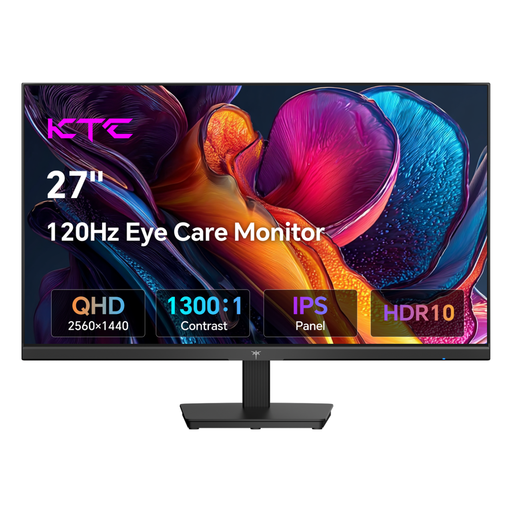
KTC H27D9 27-inch QHD monitor
If your gaming device supports Adaptive Sync, you can include the listed synchronisation feature in your setup checks.
27 inches; 2560 × 1440 pixels; IPS panel; 120 Hz; Adaptive Sync; HDMI and DisplayPort; VESA mounting.
View at Joybuy
 No image available
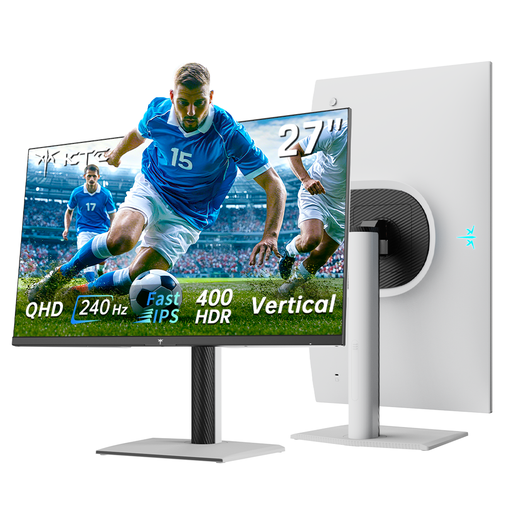
KTC H27E6S 27-inch QHD gaming monitor
Compare the listed refresh rate with the resolution, connection and display output of your gaming device.
27 inches; 2560 × 1440 pixels; 240 Hz, overclocked to 275 Hz; Fast-IPS panel; HDMI 2.0 and DisplayPort 1.4; VESA 100 × 100.
View at Joybuy
 No image available
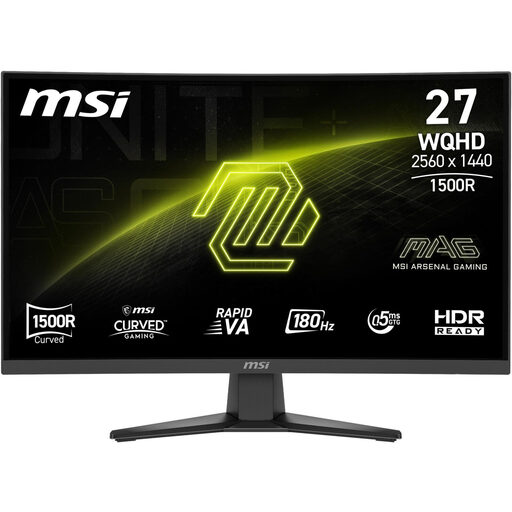
MSI MAG 275CQFDE E18 27-inch QHD monitor
The format and connection details can help you check how the monitor will fit your desk and work with your gaming device.
27 inches; 16:9; 2560 × 1440 pixels; 180 Hz; Rapid-VA panel; HDMI 2.0b and DisplayPort 1.4a; tilt adjustment.
View at Joybuy
Frequently asked questions
How can I check whether my PC can reach the refresh rate I want?
Compare the monitor specifications for your target resolution and the input you’ll actually use. Dell lists up to 180 Hz over DisplayPort and up to 144 Hz over HDMI for the G2725D at QHD; the frame rate your game achieves also depends on your gaming device and its output.
What should I bear in mind when using an OLED monitor?
Follow the care guidance for the specific model. Dell describes a pixel refresh for the AW3423DW and AW3423DWF, during which the screen is switched off for around seven minutes. This information doesn’t automatically apply to other OLED monitors.
How can I compare a monitor’s energy consumption?
Compare the EU energy label and the specifications for the specific model, including any HDR figures. To estimate your own costs, you’ll also need to know how long you use it for and your electricity tariff.
What are my rights when buying a monitor online in Germany?
According to the Verbraucherzentrale, online orders generally come with a 14-day cancellation period from the date you receive the goods. Your statutory rights against the seller and a voluntary manufacturer’s guarantee are different things, so check the terms of the specific offer.
Is there an EU energy label for computer monitors?
Yes. The European Commission includes computer monitors among the electronic displays covered by energy labelling; the scale runs from A to G. For comparison, the specifications of the model actually being offered are what matter.


