What should you look for when buying?
First decide whether a more compact 16:9 display or the extra horizontal space of a 21:9 screen is a better fit for your desk and games. Then compare the panel, connection and refresh rate you want against how you’ll actually use the monitor.
| What matters |
What to check before buying |
Who should pay particular attention? |
| Usable overview |
Check the field of view, HUD position and readability in the game you play, and measure the space the monitor and stand will take up. A post on the Factorio forum describes controls positioned far towards the edges on an ultrawide display, but this does not establish how every game or version will behave. |
If I want to see production routes at a glance, the right field of view matters more to me than screen width alone. Around 33% of consumers put a clear, usable overview first. |
| Workspace and connections |
Compare the dimensions of the casing and stand, height adjustment or mounting options, and the connection specifications for the input you’ll actually use. |
If I use the same desk for work and gaming, I look for dimensions that fit, a suitable position and a connection that works with my computer. Around 27% of consumers prioritise how well the monitor fits their workspace and the connections available. |
| Static content and panel |
Read the care guidance and warranty terms for the exact OLED model, and check whether they suit your use of game displays and work windows that stay on screen for long periods. MSI describes OLED Care 2.0 on the MPG 271QRXDE as a way to reduce risk, not to rule out burn-in. |
If menus or work windows stay on screen for a long time, I want to understand the display care requirements and the specific warranty cover before choosing a panel. Around 20% of consumers prioritise how static content is handled. |
| Refresh rate and connection |
Check the resolution and refresh-rate mode you want against the input, cable and computer you’ll actually use. ASUS lists a maximum of 144 Hz over HDMI and 180 Hz over DisplayPort for the VG27AQ3A; LG lists 160 Hz for the 34GN850P-B only with overclocking. |
If I want smooth visuals that suit my games and computer, I compare the modes supported by the whole connection rather than relying on a single maximum figure. Around 20% of consumers put suitable motion performance first. |
Joybuy products for gaming and working from home
The Joybuy models below include compact 27-inch QHD displays and 34-inch ultrawide options for gaming and working at the same desk.
 No image available
INNOCN 2751S PLUS, 27-inch QHD Mini LED
This 27-inch QHD display is a compact option for gaming and working at your desk.
Mini LED with 1,152 zones, IPS panel, 275 Hz, FreeSync and height-adjustable stand.
Joybuy
 No image available
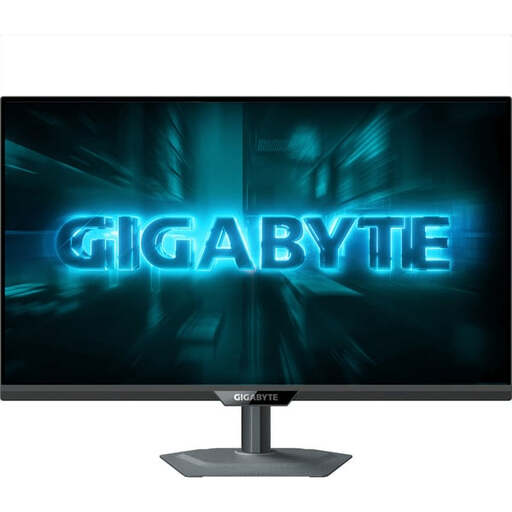
GIGABYTE G27Q20, 27-inch QHD SS-IPS, 200 Hz (OC 210 Hz)
This 27-inch QHD model is a more compact display option for a shared gaming and working space.
SS-IPS panel, 200 Hz (OC 210 Hz) and a stand with 130 mm of height adjustment.
Joybuy
 No image available
INNOCN E34A1R, 34-inch 21:9, 3440 × 1440
The wide format may suit you if you want extra horizontal screen space and have room for it on your desk; check the HUD and menus in the game you play.
Curved VA panel, 200 Hz, FreeSync and height-adjustable stand.
Joybuy
 No image available
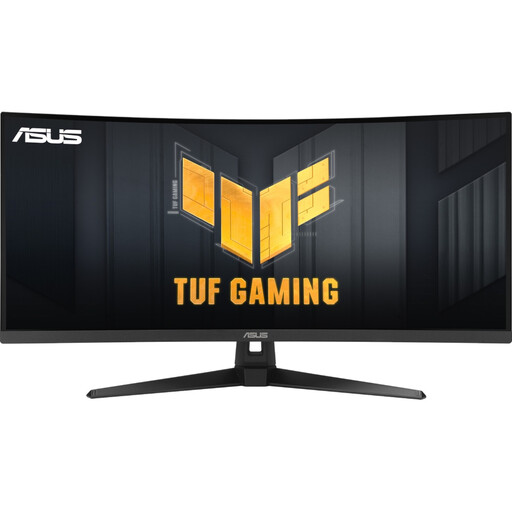
ASUS TUF Gaming VG34VQ3B, 34-inch UWQHD, 21:9
This 34-inch ultrawide model offers a wider area for gaming and work, provided it suits your desk and the game you play.
3440 × 1440 pixels, VA panel, 180 Hz, FreeSync and ergonomic stand.
Joybuy
 No image available
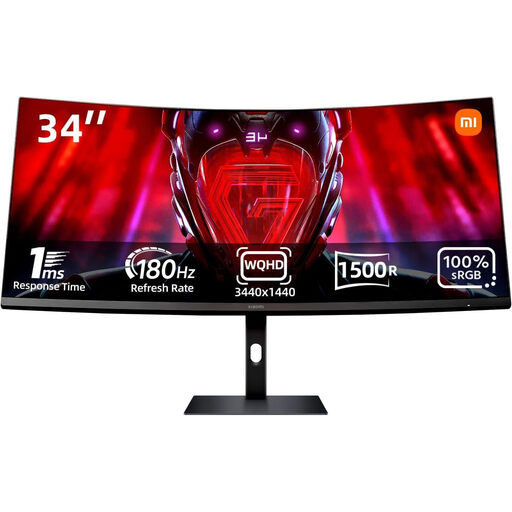
Xiaomi G34WQi, 34-inch ultrawide WQHD
This 34-inch ultrawide display is an option if you want more horizontal screen space and have room for the extra width in your workspace.
WQHD resolution, 180 Hz and FreeSync.
Joybuy
Frequently asked questions
Does a gaming monitor in a private home office have to meet ASR A6?
Not all screen use at home falls within its scope. The Federal Institute for Occupational Safety and Health describes ASR A6 as a rule for screen workstations in workplaces and teleworking workplaces; private screen use outside such workplaces is explicitly excluded. Whether a place used for work counts as a teleworking workplace under the rule cannot be determined from the term ‘working from home’ alone.
How can I check whether my computer can use the advertised refresh rate?
Compare the connection specifications for the exact model with your computer’s output and the cable you’re using. ASUS lists a maximum of 144 Hz over HDMI and 180 Hz over DisplayPort for the VG27AQ3A; LG describes the 34GN850P-B’s 160 Hz as requiring overclocking.
What should I bear in mind when using OLED with windows open frequently?
Read the care guidance and warranty terms for the specific model. MSI says OLED Care 2.0 on the MPG 271QRXDE reduces the risk of burn-in; this does not guarantee that static content will have no lasting effects.
How can I compare the running costs of two monitors?
Compare the EU energy label or EPREL details for the exact models, and take your usage time into account. The European Commission explains that monitor labels include, among other things, an efficiency class and information for SDR and HDR. To calculate your own costs, you’ll also need your usage hours and electricity tariff.
Is a manufacturer’s warranty the same as your statutory rights?
No. If you buy in Germany, your statutory rights when goods are faulty generally apply against the seller; a warranty is an additional voluntary service with its own terms. For an OLED model, check in particular what the specific warranty says about burn-in.


