What should you look for when buying?
First, check that maps and menus are easy to read from your usual seating distance. Then compare the footprint, lighting conditions, panel technology and connections with the needs of your shared space.
| Buying consideration |
What to look for |
Who is most affected? |
| Map and menu readability |
Consider resolution and screen size together; check the scaling and text size in your own game. |
If you spend a long time looking at maps, figures and menus, you’ll want to see the details without small text becoming difficult to read. Readability is the top priority for around 36% of consumers. |
| Desk space, reflections and lighting |
Measure the width and depth, including the stand; check the screen surface and brightness settings for your setup. |
If you share a bedroom desk, there needs to be room for the monitor and stand, and light sources shouldn’t get in the way. Around 29% of consumers prioritise fitting the monitor into their space. |
| Panel choice for fixed game elements |
Weigh up LCD and OLED according to your preference for contrast; with OLED, read the care instructions and warranty terms for the specific model. |
If you often play for long periods with the same menus on screen, you’ll want to weigh your preference for contrast against the guidance on images displayed for extended periods. Panel durability is the top priority for around 21% of consumers. |
| Connections and operation |
Check your computer’s HDMI and DisplayPort modes; compare the headphone output and EU energy label if needed. |
If you connect your own computer and don’t want to disturb others while gaming, check for compatible connection modes and, if needed, a headphone output. Around 14% of consumers prioritise connection and operating requirements. |
Joybuy monitors for maps and menus
The Joybuy monitors below come in different sizes and resolutions for displaying maps and menus. Before choosing, check that the dimensions and stand will fit on your shared desk.
 No image available
Z-Edge AGEX, 27-inch, QHD, white
The listed QHD resolution may be useful for maps with more pixels; check the text size in your game.
27-inch; 2560 × 1440 pixels; Fast IPS; 144 Hz; height-adjustable stand and VESA mounting.
View at Joybuy
 No image available
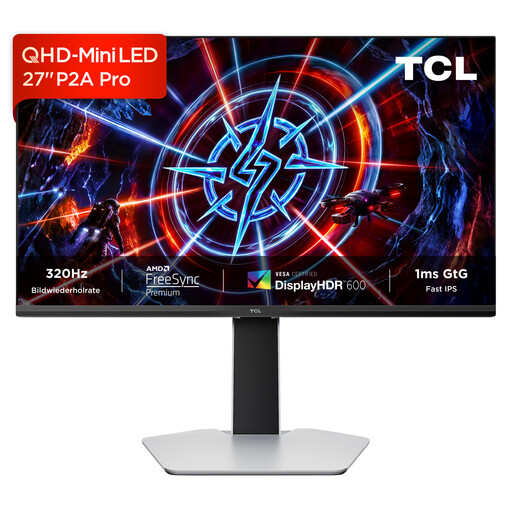
TCL 27P2A Pro, 27-inch, QHD, Mini LED
This 27-inch QHD model is an option if you want to display maps and menus on a screen of this size.
2560 × 1440 pixels; HFS (IPS) panel; 320 Hz; adjustable stand.
View at Joybuy
 No image available
Gawfolk GF340C-H, 34-inch, UWQHD, curved
The wide UWQHD format may be useful for a more expansive map view; measure your available space before choosing.
3440 × 1440 pixels; VA panel; 1500R curvature; 165 Hz; tilt-adjustable stand and VESA compatibility.
View at Joybuy
 No image available
Samsung Odyssey G5 G50F, 32-inch, QHD
This 32-inch QHD model gives you a larger option for maps and menus; check that the screen and stand will fit on your desk.
2560 × 1440 pixels; Fast IPS; 180 Hz; anti-glare surface; height adjustment, tilt and swivel.
View at Joybuy
 No image available
KOORUI MB24V29FS4, 24-inch, Full HD
Full HD on a 24-inch screen is an alternative if you prefer a smaller screen and a larger display of menus.
1920 × 1080 pixels; IPS panel; 120 Hz; HDMI and VGA; tilt-adjustable stand and VESA mounting option.
View at Joybuy
Frequently asked questions
Do I need a particularly high refresh rate for grand strategy games?
Not just because of the genre. First, check that you can read menus clearly at your chosen resolution, then see which display mode your computer supports through the intended connection. Dell lists different maximum refresh rates for DisplayPort and HDMI on the G2725D.
How should I position a monitor in a shared bedroom?
Check the space available for the stand, your viewing angle and any distracting reflections, and adjust the brightness to suit the conditions. The German Federal Institute for Occupational Safety and Health recommends avoiding glare and reflections in screen-based workplaces; this is a practical guide, not a legal requirement for private gaming rooms.
How should I deal with fixed menus on an OLED monitor?
Don’t leave fixed images on screen for longer than necessary, and follow the care instructions for the specific model. Samsung describes images displayed unchanged for long periods as a possible cause of burn-in; the protection features available depend on the model.
What does a monitor’s EU energy label tell me?
The European Commission’s labelling scheme covers electronic displays, including computer monitors, and assigns an efficiency class. Compare the energy labels for the specific models rather than assuming their energy use from the panel type or refresh rate alone.
Are a warranty and statutory consumer rights the same thing?
No. Statutory consumer rights apply when you have a problem with a product and are dealt with by the seller; a warranty is a voluntary offer with its own terms. In particular, check the terms of the specific warranty for OLED and don’t confuse it with your statutory rights.


