Gamers with very little desk space
If your monitor and stand need to fit around other items, the overall width and depth of the setup are crucial.


First, measure the available width and depth of your desk, then compare them with the monitor’s full dimensions, including the stand. Screen size alone won’t tell you whether it will fit. Next, choose the refresh rate, resolution and connections to suit the game you play and the device you’re using. A fast Full HD monitor, a QHD model and built-in speakers each suit different priorities; manufacturer specifications are not independent tests of gaming performance.
If your monitor and stand need to fit around other items, the overall width and depth of the setup are crucial.
A high refresh rate may be an important factor in your choice. Check what frame rate your PC and the specific game can actually output.
Compatibility depends on the exact console model. Nintendo, for example, notes that the Switch Lite does not support TV mode.
Start by checking the space you have available. Then you can weigh up refresh rate, resolution and audio features to suit your game and device.
| What matters | What to look for | Who is it important for? |
|---|---|---|
| Desk space | Measure the available width and depth. Compare them with the monitor’s overall dimensions, including the stand, and allow room for cables. | If the monitor has to fit around other things, I look at the whole setup rather than just the screen size. Around 40% of consumers prioritise the space it takes up. |
| Motion clarity | Compare the refresh rate and synchronisation specifications for the exact model with the output supported by your game, device and chosen input. GtG and MPRT figures refer to different measurements. | If I want to follow fast-paced kart races, I first check the frame rate the game can actually achieve. Around 30% of consumers prioritise motion clarity. |
| Connecting to your gaming device | Check the device model, dock, cable and monitor input, as well as the image output supported by the game. Nintendo says the Switch Lite does not support TV mode. | If I’m playing on a console, I want to know before buying whether my exact model can output a picture through the connection I plan to use. Around 20% of consumers prioritise device compatibility. |
| Resolution or built-in audio | Compare the native resolution with your device’s output. If the monitor has built-in speakers, also check how your device sends audio. | If I want to avoid separate speakers or enjoy a higher resolution, I choose based on my setup rather than a feature label. Around 10% of consumers prioritise picture or audio features. |
The screen diagonal doesn’t tell you how much space the whole stand will take up. For example, LG Deutschland lists a depth of 291.2 mm with the stand for its 23.8-inch 24GS65F-B monitor.
Before planning to use an alternative mount, compare the exact model’s width, height and depth, including the stand, with the space you have available.
An alternative stand or mount also takes up space and needs to be compatible with your desk.
The refresh rate in hertz describes a feature of the monitor, not the frame rate of a particular game. The gaming device and connection used also affect the output you can actually achieve.
Check the specifications for your game and device. Don’t treat manufacturer figures as independent performance tests, and only compare response-time figures if they use the same measurement standard.
A higher resolution and built-in speakers meet different needs. Whether you can use them also depends on the picture and audio output of your device.
Decide which features you actually need, then check the exact monitor and gaming device. If you rely on built-in audio, make sure the model you’re considering has speakers.
AOC lists two 23.8-inch models with different native resolutions: the 24G4HRE and the Q24G4RE.
The MOBIUZ EX240 is worth considering if separate speakers would take up valuable space on your small desk.
The TUF Gaming VG249Q3A is a documented example of a 24-inch Full HD monitor.
The UltraGear 24GS65F-B shows why stand depth should be part of your space planning, even with a 23.8-inch model.
The G2422HS is another example of a 23.8-inch Full HD monitor with an adjustable-height stand.
This selection features 24-inch Full HD monitors with different refresh rates, connections and features for desk-based kart racing.
 No image available
An option if you’re looking for a 24-inch Full HD monitor with a specified refresh rate of 120 Hz.
Specifications include an IPS panel, Adaptive Sync, HDMI, VGA and VESA 100 × 100 mm. The product description says it has no built-in speakers.
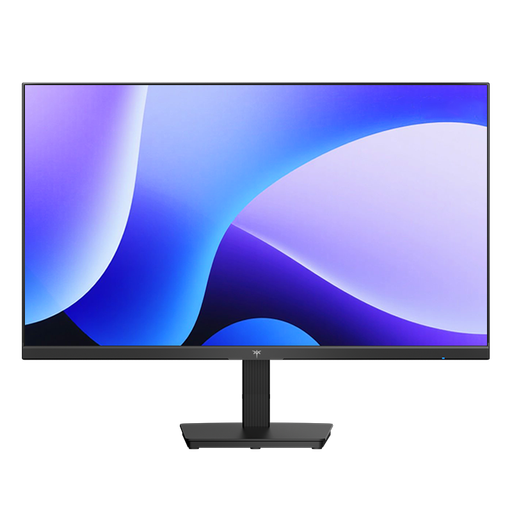 No image available
Worth considering if you’re looking for a 24-inch Full HD screen specifically described as a gaming monitor.
The product specifications list an IPS panel, Adaptive Sync, HDMI and DisplayPort. For space planning, check the dimensions of the complete stand in the specific product listing.
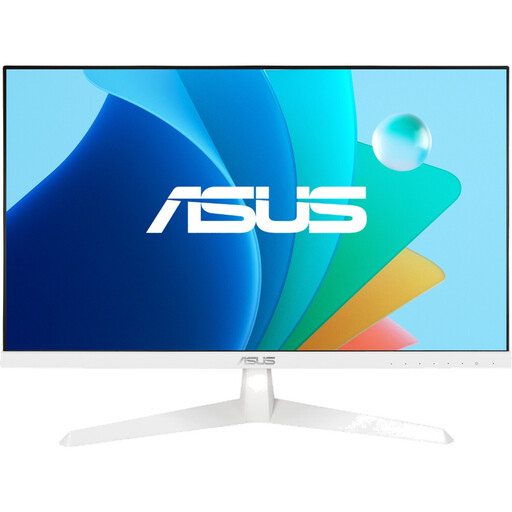 No image available
This model is worth considering if you’re comparing 24-inch Full HD monitors with Adaptive Sync.
Specifications include an IPS panel, HDMI 1.4, a headphone output and VESA 100 × 100 mm. The description says the stand is tilt-adjustable.
 No image available
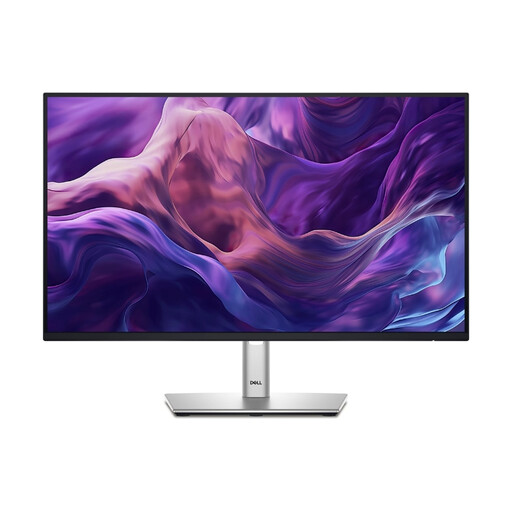
An option if built-in audio and a range of connection options matter for your desk setup.
The description lists two 2 W speakers, HDMI, DisplayPort and USB-C. The stand offers height adjustment, pivot and tilt; VESA 100 × 100 mm is also specified.
 No image available
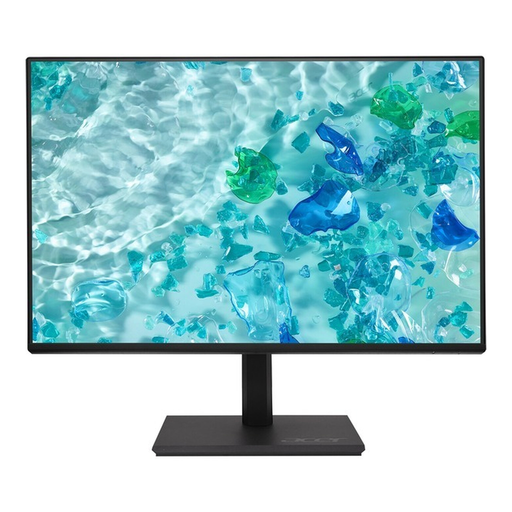
This model may appeal if you’re looking for built-in speakers as well as Full HD and 120 Hz.
The description lists an IPS panel, two 2 W speakers, HDMI 1.4 and DisplayPort 1.2. The stand offers height adjustment, tilt, swivel and pivot, among other features.
Measure the available width and depth, allowing for cables, and compare them with the manufacturer’s dimensions including the stand. LG Deutschland and Dell list different overall dimensions for their respective 23.8-inch models, so check the specifications for the exact model you’re considering.
No. Nintendo says the Nintendo Switch Lite does not support TV mode. For other Switch models, check the dock, cable and compatible monitor input for your setup.
No. 180 Hz describes a feature of the monitor; it doesn’t guarantee the frame rate of a particular game. Nintendo specifies up to 120 fps for selected Nintendo Switch 2 outputs at 1920 × 1080 or 2560 × 1440. The actual output still depends on the game and setup.
Connect your gaming device to the intended input, then select that input on the monitor. Next, check the resolution and refresh rate in your device’s output settings. For a docked Switch, Nintendo describes connecting via HDMI and selecting the correct input.