For an external view stretched across several displays, first check whether the specific game and graphics card support the display grouping mode you want. Monitors with similar alignment make it easier to plan the resolution, bezels and positioning. If a continuous view without monitor gaps matters more to you, an ultrawide could be a good fit, but it won’t automatically replace separate instrument displays.
Which setup is right for you?
Pilots building a panoramic setup
If you want to stretch the external view across several screens, check whether your game and graphics card support a combined gaming view. AMD describes Eyefinity as a way to combine multiple displays into one large desktop, while NVIDIA also explains how to correct visible bezel gaps.
Pilots using separate instrument displays
If you want to show maps or instruments in separate windows, this largely depends on whether the specific game supports that output. An extended desktop provides separate display areas, but that alone doesn’t mean the game supports them; AMD explains the distinction in its guide to display modes.
Pilots with room for an ultrawide
If you prefer a wide main view without gaps between individual monitors, an ultrawide could be a good option. Samsung lists the Odyssey G9 G95C as a 49-inch 32:9 model. Check its width and whether the game supports your preferred aspect ratio before buying.
What should you look for when buying?
Multiple monitors for a panoramic view
A good fit if: You want to stretch the external view across multiple displays, and your game, graphics card and connections support the combined mode you want.
The trade-off: More displays need desk space, connections and setup time, and the bezels remain visible between screens.
An ultrawide as your main display
A good fit if: You prefer a wide, continuous view, have enough space and the game displays the aspect ratio well.
The trade-off: An ultrawide won’t automatically replace additional displays for instruments or maps.
A main monitor plus instrument displays
A good fit if: Your game or additional software can output instruments in separate windows, and you value being able to read them clearly.
The trade-off: This depends on the specific game. If you choose OLED, consider permanently visible elements and the model’s care guidance.
| Criteria |
What to check before buying |
Who it matters most to |
| Panoramic view and alignment |
Game support and display grouping mode, bezel width, and monitor adjustment options. |
If I want to stretch the external view across several screens, a well-matched layout matters just as much as the right game mode. Around 36% of consumers put a seamless panoramic view first. |
| Connections and refresh rate |
Graphics card outputs, plus the resolution and refresh rate supported by the input you’ll actually use on each monitor. |
If I want to connect several displays at once, the PC outputs and monitor inputs need to suit the planned configuration. Around 29% of consumers prioritise connectivity and performance. |
| Instruments and panel choice |
Text clarity, panel type and OLED care guidance; also check whether the game supports separate instrument windows. |
If maps or controls stay visible for long periods, I care more about being able to read them than about a high peak refresh rate. Around 21% of consumers prioritise instrument readability. |
| Space and setup |
Screen and stand dimensions, plus enough room for additional displays and cables. |
If my desk space is limited, I need to plan for the screen width, stand and seating position. Around 14% of consumers prioritise desk space and a straightforward setup. |
Avoid common buying mistakes
-
Confusing an extended desktop with a combined gaming view
An extended desktop provides separate display areas. To show a game across multiple screens, the game and graphics card also need to support the display grouping mode you want.
Before buying a monitor, check the display options in the specific game and what your graphics card can do.
-
Assuming every connection supports the highest refresh rate
The refresh rate you can use may vary depending on the input. For the G2725D, Dell lists up to 180 Hz at QHD via DisplayPort and up to 144 Hz via the HDMI inputs listed.
For each model, compare the monitor input you plan to use with your PC’s output, and check which resolution and refresh rate combinations are supported.
-
Choosing OLED solely for dark space scenes
When instruments stay on screen, text clarity and care matter too. ASUS describes OLED Care Pro as a feature that helps reduce the risk of burn-in; it doesn’t eliminate that risk.
Weigh text clarity and how long static displays will be on screen against the care guidance for the specific OLED model.
Key brands at a glance
MSI
The G274QPF E2 is a flat 27-inch QHD IPS monitor worth considering for a side-by-side display setup.
- MSI lists a resolution of 2560 × 1440 pixels, 180 Hz, Adaptive Sync and slim bezels for this model.
- Check that your graphics card and inputs support the configuration you want; slim bezels don’t guarantee support from a particular game.
Samsung
The Odyssey G9 G95C is a 49-inch 32:9 option for a wide main view.
- Samsung lists Dual QHD and a maximum refresh rate of 240 Hz for this model.
- Check that you have enough desk space and that your game supports the aspect ratio you want; a wide screen won’t automatically replace separate instrument displays.
LG
The 34GS95QE-B shows what a 21:9 OLED setup can offer between a standard widescreen monitor and a 32:9 display.
- LG lists a resolution of 3440 × 1440 pixels and a maximum refresh rate of 240 Hz for this model.
- If you choose OLED, consider permanently visible instruments and the care guidance; also check that your game supports the format.
ASUS ROG
The ROG Strix OLED XG27AQWMG is a QHD OLED option for a fast main display.
- ASUS lists a 26.5-inch visible diagonal, 280 Hz and OLED Care Pro.
- ASUS describes the protective feature as a way to reduce the risk of burn-in, not eliminate it.
KTC
The H27E6S is a 27-inch QHD Fast IPS option. Its connections and positioning can be checked against the rest of your setup.
- KTC lists a native refresh rate of 240 Hz and 275 Hz in overclocking mode, as well as an adjustable stand.
- Check the connection and stand specifications for the exact variant, along with the delivery and warranty terms that apply where you live.
Joybuy monitors for these setups
The Joybuy products below include QHD monitors for a multi-screen setup and a 21:9 ultrawide for a wide main display.
 No image available
Z-Edge AGEX QHD Gaming Monitor, 27-inch
For side-by-side displays, the near-borderless design and adjustable stand are useful features to consider.
QHD, Fast IPS, 144 Hz, FreeSync, HDMI and DisplayPort; the stand is height-adjustable.
Joybuy
 No image available
Samsung Odyssey G5 G50F, 32-inch
For a multi-screen setup, the QHD resolution and adjustable stand are useful features to consider.
QHD at 2560 × 1440 pixels, FAST IPS, 180 Hz and FreeSync; the stand is height-, tilt-, swivel- and horizontally adjustable.
Joybuy
 No image available
INNOCN 2751S PLUS Mini-LED Gaming Monitor, 27-inch
The 16:9 format and three-sided, near-borderless design are useful for side-by-side displays.
QHD, Fast IPS and up to 275 Hz; listed connections include two HDMI 2.1 and two DisplayPort 1.4 inputs, plus a height-adjustable stand.
Joybuy
 No image available
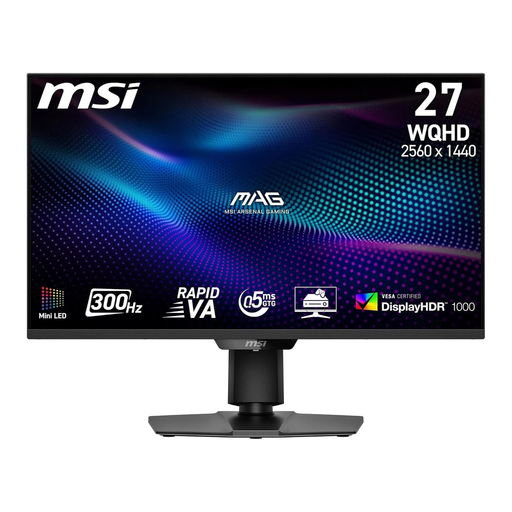
MSI MAG 274QPF X30MV Gaming Monitor, 27-inch
The 16:9 QHD format is an option for a setup with several matching monitors.
QHD at 2560 × 1440 pixels, Rapid VA Mini-LED with 1,152 dimming zones and 300 Hz; HDMI 2.1 and DisplayPort 1.4a are listed.
Joybuy
 No image available
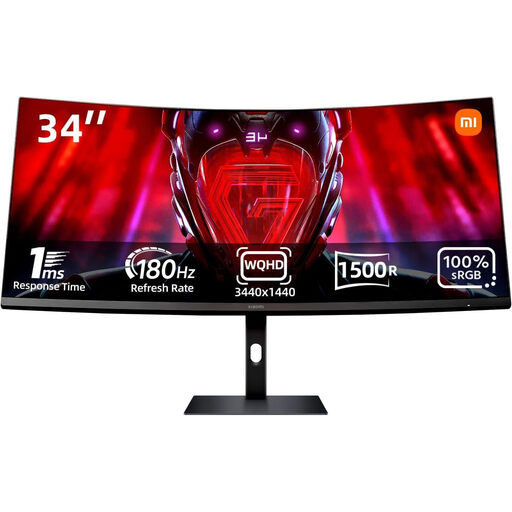
Xiaomi G34WQi Ultrawide Gaming Monitor, 34-inch
The 21:9 format and UWQHD resolution are useful criteria for a wide main view without gaps between multiple monitors.
34 inches, 1500R curvature, 180 Hz and FreeSync. An ultrawide won’t automatically replace separate instrument displays; whether those can be shown depends on the game.
Joybuy
Frequently asked questions
Is extending the displays in Windows enough to make the game run across all the monitors?
No. ‘Extend’ provides separate desktop areas; a combined gaming view may also require a supported game mode or suitable display grouping. Whether it works depends on the specific game.
Can I simply daisy-chain monitors using DisplayPort?
Not just because a monitor has a DisplayPort input. For daisy-chaining, DisplayPort describes monitors with DisplayPort inputs and outputs, as well as compatible Multi-Stream support. Also check which signal modes are supported across the entire connection.
How do I set the order of multiple displays?
Start by arranging the detected displays in Windows. With a supported AMD Eyefinity or NVIDIA Surround configuration, you’ll also find settings for display arrangement and, where available, correcting visible bezel gaps.
What are the rules in Germany on energy labelling and faulty monitors?
EU energy labelling and ecodesign rules generally apply to electronic displays too, so compare the information for the specific model. The Verbraucherzentrale distinguishes between statutory consumer rights for faulty goods and a voluntary warranty. Online purchases also generally come with a 14-day right to cancel; the start of the cancellation period and any exceptions should be checked for each individual case.


