Detail-focused world builders
If you want a clear view of your builds, inventory and menus, weigh up resolution and screen size against the output your computer can handle. AOC lists Full HD for the 24G4XE, while ASUS lists QHD for the VG27AQ3A.


For long building sessions, a clear picture, a screen size that suits your setup and the right audio connection for your headphones matter more than a high refresh rate alone. Full HD may be enough if space is limited; with suitable hardware, QHD offers more pixels, while OLED requires particular care and consideration if menus often stay on screen unchanged. Also check which resolution and refresh rate your device can output through the input you plan to use, and how much space the screen and stand will take up.
If you want a clear view of your builds, inventory and menus, weigh up resolution and screen size against the output your computer can handle. AOC lists Full HD for the 24G4XE, while ASUS lists QHD for the VG27AQ3A.
Decide whether you want to connect your headphones directly to your device or to the monitor. ASUS lists a headphone jack for the VG27AQ3A; MSI also specifies a headphone output for the MPG 271QRXDE QD-OLED.
Allow for both the screen and stand, rather than choosing by screen size alone. The examples here range from the 23.8-inch AOC 24G4XE to ASUS 27-inch models.
First, compare your preferred resolution with the output your gaming hardware can support. Then check the audio connection for your headphones and measure the available space, including room for the stand.
| Criterion | What to check before buying | Who it matters most to |
|---|---|---|
| Clear worlds and menus | Compare resolution and screen size together; check that your game and hardware support the output you want. | If I want to see the world, inventory and menus clearly, I check the resolution against the output my device can handle. Around 33% of consumers put clear world details first. |
| Headphone audio connection | Choose your headphone type and intended connection; if you plan to connect them to the monitor, check specifically for a headphone output. | If I want my headphone cable to plug into the monitor, I want to be sure of the audio connection before I buy. Around 25% of consumers prioritise having the right headphone connection. |
| Refresh rate and input | Check the resolution and refresh rate supported by the specific input; take your computer or console's output into account. | I want smooth motion, but only in a mode my device can actually output. Around 17% of consumers prioritise a suitable refresh rate. |
| Space and positioning | Measure the available width and depth; check the stand's dimensions and adjustability. | If desk space is limited, I measure the room needed for the screen and stand before choosing a screen size. Around 17% of consumers put the space required first. |
| OLED contrast and care | Consider menus that often stay on screen unchanged; read the care guidance and warranty terms for the specific model. | If OLED contrast matters to me, I also want to know how to manage on-screen controls that stay visible for long periods. Around 8% of consumers prioritise this contrast, while keeping care guidance in mind. |
The refresh rate you can achieve may depend on the input and resolution mode. LG lists 540 Hz at QHD and 720 Hz at HD for the 27GX790B-B; ASUS specifies up to 144 Hz over HDMI and up to 180 Hz over DisplayPort for the VG27AQ3A.
For your game, check the combination of resolution, input and refresh rate supported by your device.
Speakers and a headphone jack are separate features. A listed headphone output also doesn't confirm that there's a microphone input.
If you want to plug your headphone cable into the monitor, check its audio output and confirm the microphone connection separately.
Depending on the audio connection you want, you may need a different connection or additional accessories.
MSI warns of a burn-in risk if on-screen elements remain unchanged for long periods. Care features don't guarantee that this risk is eliminated.
If menus or other elements often stay visible for a long time, read the care guidance and warranty terms for the specific model, and consider an IPS alternative.
The 24G4XE is an example of a compact 23.8-inch Full HD IPS monitor.
The TUF Gaming VG27AQ3A is an example of a 27-inch QHD IPS monitor with a listed headphone jack.
The MPG 271QRXDE QD-OLED is a 26.5-inch QHD QD-OLED model with a headphone output.
The Odyssey OLED G81SF, model S27FG814SU or LS27FG814SUXEN, is an example of a 27-inch QD-OLED monitor with 4K resolution.
The UltraGear 27GX790B-B is an example of a 27-inch QHD OLED monitor with switchable refresh rate modes.
This selection includes QHD gaming monitors for exploring game worlds and viewing menus. Before buying, check that your device can output the resolution you want and that its audio connection suits your headphones.
 No product image available
QHD is an option for building worlds and viewing menus if your computer or console can output this resolution. Check that the connections support the audio setup you want for your headphones.
32 inches; 2560 × 1440 pixels; 180 Hz; IPS.
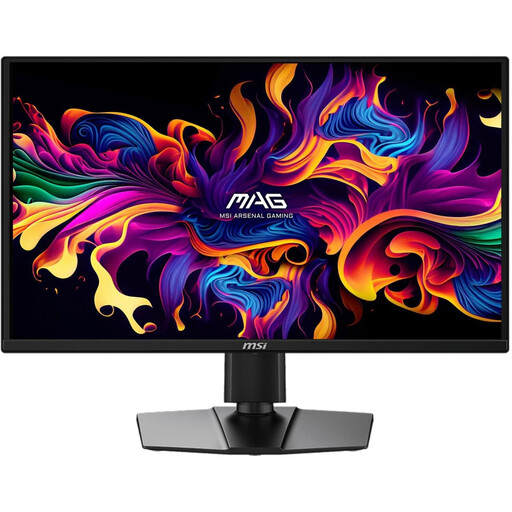 No product image available
If OLED contrast matters to you, remember to take the model's care guidance into account during long building sessions when menus remain unchanged.
QD-OLED; 2560 × 1440 pixels; 240 Hz.
MSI warns of a burn-in risk if on-screen elements remain unchanged for long periods; care features don't eliminate it.
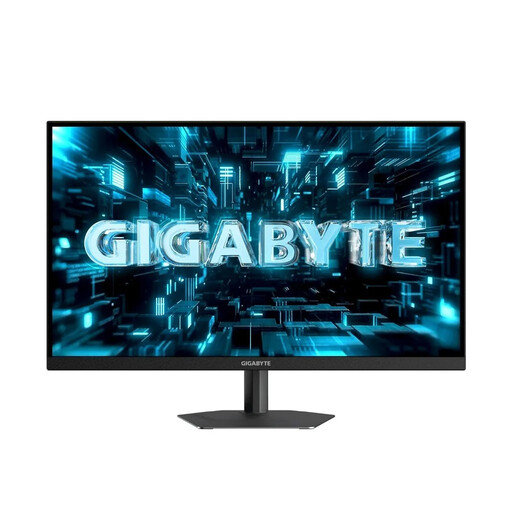 No product image available
A QHD option for game worlds and menus, provided your hardware supports this resolution. Check that the connections support the audio setup you want for your headphones.
SuperSpeed IPS; 2560 × 1440 pixels; 260 Hz, up to 275 Hz in OC mode.
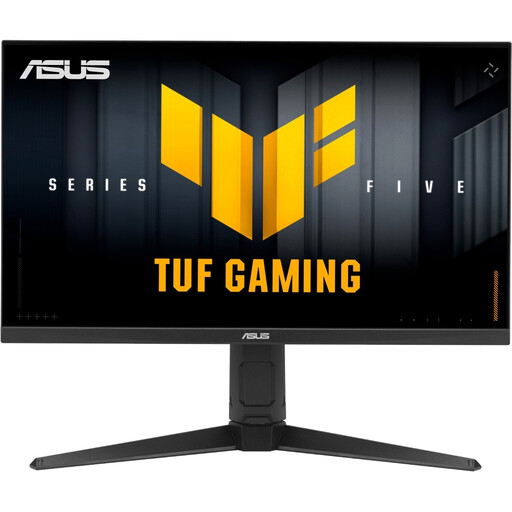 No product image available
If you're looking for QHD for game worlds and menus, check that your device can output the resolution and refresh rate you want through the input you plan to use.
Fast IPS; 2560 × 1440 pixels; 210 Hz in OC mode.
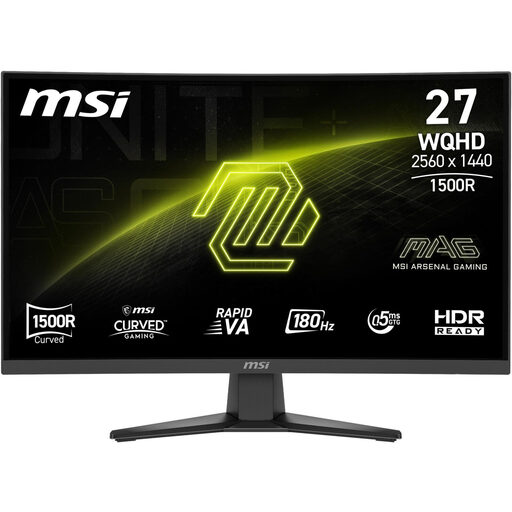 No product image available
A curved QHD option if this format suits your desk and the picture you want. Check the connections to make sure they support the audio setup you want for your headphones.
Rapid VA; 2560 × 1440 pixels; 180 Hz.
No, not if you can connect your headphones to a suitable output on your computer or console. If you want the cable to plug into the monitor, check specifically for a headphone output; ASUS and MSI list one for the models mentioned. A headphone output doesn't confirm that there's a microphone input.
It depends on the resolution, input and device you're connecting. ASUS lists up to 144 Hz over HDMI and up to 180 Hz over DisplayPort for the VG27AQ3A; LG specifies 540 Hz at QHD and 720 Hz at HD for the 27GX790B-B. Check which mode you can use with your game and hardware.
OLED may suit you if contrast matters and you follow the care guidance for menus that often stay visible for long periods. MSI warns of a burn-in risk if on-screen elements remain unchanged for a long time; care features don't guarantee protection against this risk.
Check that the picture and audio connections you need are compatible with your computer or console, and make sure you have the right cables. If you want to use a mount or a particular audio setup, check that it's compatible with the monitor too.
Don't put it in household waste, packaging waste, bulky waste or scrap metal. The German Environment Agency recommends taking electrical equipment to an authorised separate collection point.