First, decide whether the game itself should span several screens, or whether a main monitor with separately positioned maps and instruments will do. For a panoramic view, the game, graphics card, connections and total resolution all need to work together. An ultrawide avoids the joins between multiple displays, but it won’t automatically replace independently usable secondary screens. Then compare the space required, frame rate and panel care – especially if static on-screen elements will remain visible on an OLED.
Which setup is right for you?
Players who want a panoramic view
If you want the game view to span several screens, check that the specific game supports it, along with your graphics outputs and total resolution. NVIDIA Surround and AMD Eyefinity let you combine displays into one continuous screen area.
Players who use cockpit views and maps
If you want to keep the game on a main monitor while displaying maps or instruments on other screens, set up the displays as independent extended screens. Microsoft Support explains how to adjust individual displays in Windows.
Players who prioritise image quality
If contrast in dark game scenes matters to you, OLED may be worth considering. Factor in any elements that remain on screen for long periods, and check the care guidance and warranty terms for the specific model.
What should you consider when choosing?
Seamless multi-screen panorama
Best if: The game displays the wide format well, and your PC and connections support the planned number and resolution of displays.
Bear in mind: Each additional display increases the total number of pixels to render, and game support isn’t guaranteed.
Main monitor with secondary displays
Best if: You want to play on one screen while keeping maps or instruments visible separately.
Bear in mind: An extended desktop won’t automatically combine displays into a panorama for the game.
Single ultrawide monitor
Best if: You want a wide game view without the bezels between multiple monitors, and the game supports the aspect ratio.
Bear in mind: A wide model needs space and won’t automatically replace independently usable secondary displays.
| Buying priority |
What to check before buying |
Who is most affected? |
| View and layout |
Does the game support a panoramic view? Also check the number and layout of the graphics outputs. |
If I want the star system view to span several displays, I need a suitable game and connection setup. Around 33% of consumers prioritise a seamless game view. |
| Resolution and frame rate |
Match the total resolution and desired frame rate to your PC and the connection you’re using. |
If smooth visuals matter to me, I want to know what frame rate my PC can achieve through the connections I’ll actually use. Around 27% of consumers prioritise graphics demands and achievable frame rates. |
| Panel and care |
Consider any elements that remain on screen for long periods, and check the OLED care guidance and warranty terms for the specific model. |
If dark space scenes are my priority, I weigh image contrast against using static maps or bars on screen. Around 20% of consumers put image quality and panel care first. |
| Space and ongoing costs |
Measure the space available; check the stand or VESA size, and compare the EU energy labels of the models you’re considering. |
If I want to fit several monitors on my desk, the whole setup needs to fit and the ongoing costs need to stay manageable. Around 20% of consumers prioritise space and running costs. |
Gaming monitor buying pitfalls
-
Assuming a series name without a size identifies one specific product
The G81SF name doesn’t necessarily refer to the same variant: the 27-inch S27FG814SU and a 32-inch G81SF differ in screen size.
Before buying, compare the full model number and screen size, not just the series name.
-
Comparing the highest refresh rate without considering resolution and connection
For the LG 27GX790B-B, 720 Hz applies to HD mode, not QHD. ASUS lists different refresh rate ranges for HDMI and DisplayPort on the VG27AQ3A.
Check the exact model to see which refresh rate is available at your chosen resolution and through your intended input.
-
Assuming OLED care features eliminate all risk
Long periods of static content remain a burn-in risk to consider with OLED. Care features and a voluntary warranty don’t guarantee that it won’t happen.
Read the care guidance and warranty terms for the specific model, especially if maps or instruments will remain visible for long periods.
-
Considering only screen size when planning your setup
Case width, stand and VESA mount vary by model, affecting whether several monitors will fit on your desk or on a mount. You may also need a suitable monitor mount.
Measure the space available, and check the VESA size of each monitor before buying a mount.
Key brands at a glance
ASUS
The TUF Gaming VG27AQ3A is a flat 27-inch QHD IPS monitor and an example of a model suited to a multi-screen setup.
- ASUS lists up to 180 Hz over DisplayPort and a 100 × 100 mm VESA mount.
- ASUS lists a signal range of up to 144 Hz over HDMI. This model’s stand isn’t height-adjustable.
Samsung
The range includes, among other options, a curved QHD model and a 27-inch 4K OLED monitor.
- For the 32-inch Odyssey G5 G55C, Samsung lists 1000R curvature and 165 Hz.
- The G55C’s quoted 1 ms figure is MPRT under the manufacturer’s test conditions and shouldn’t be confused with GtG. The 27-inch G81SF is a different model from the 32-inch G81SF.
MSI
The MAG 274QRFDE QD E2 is an adjustable QHD IPS option; the MPG 271QRXDE QD-OLED is an alternative for those who prioritise contrast.
- MSI lists height and pivot adjustment, as well as VESA 75 × 75 mm, for the MAG. For the MPG, the manufacturer lists 360 Hz and OLED Care 2.0.
- OLED care features don’t eliminate the risk from static images. Consider how you’ll use the specific model and check its warranty terms.
LG
The UltraGear 27GX790B-B is an OLED option for those who prioritise image quality and high refresh rates.
- LG lists 540 Hz at QHD and 720 Hz in HD mode. The model is height-adjustable and designed for wall mounting.
- The 720 Hz figure applies to HD, not QHD.
LC-Power
The LC-M32UCO is a large 4K single monitor, while the LC-M49QCO offers a 49-inch ultrawide format as an alternative to a multi-monitor panorama.
- LC-Power lists 3840 × 2160 pixels and 165 Hz for the LC-M32UCO, and 5120 × 1440 pixels and 144 Hz for the LC-M49QCO.
- The wide 49-inch model needs plenty of space and won’t automatically replace independently usable secondary displays.
Joybuy products for gaming and multi-screen setups
The product options below include QHD gaming monitors and an ultrawide monitor for a broad single-screen view. Check that your chosen option suits your specific game, PC and available space.
 No image available
Z-Edge AGEX QHD gaming monitor, 27-inch
A QHD option if you’re looking for a single gaming monitor with an adjustable position. Whether it’s suitable for a multi-screen panorama will also depend on the game and your PC.
2560 × 1440; 144 Hz; Fast-IPS; FreeSync; height-adjustable stand.
View at Joybuy
 No image available
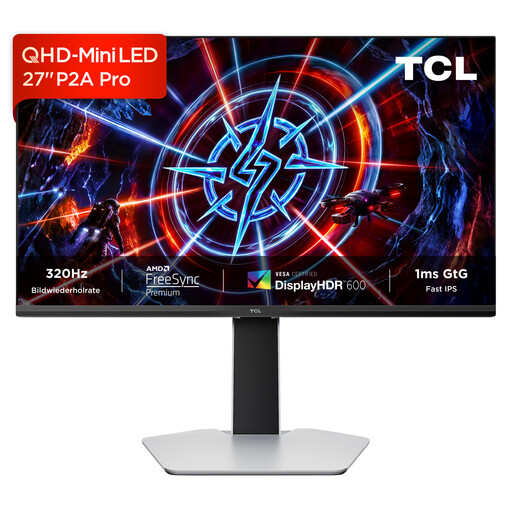
TCL 27P2A Pro Mini-LED monitor, 27-inch
A QHD gaming option with a high stated refresh rate. Check that your PC can support your desired resolution and refresh rate in your planned setup.
2560 × 1440; 320 Hz; Mini-LED; HFS (IPS); VESA DisplayHDR 600; 1 ms GTG; AMD FreeSync Premium.
View at Joybuy
 No image available
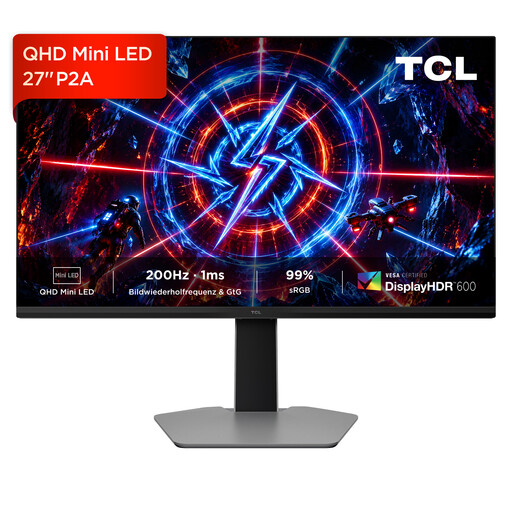
TCL 27P2A Mini-LED monitor, 27-inch
A QHD gaming option. Check the stated refresh rate against your PC’s performance and connections.
2560 × 1440; 200 Hz; Mini-LED; HFS (IPS); VESA DisplayHDR 600; 1 ms GTG; AMD FreeSync Premium.
View at Joybuy
 No image available
Gawfolk GF340C-H curved gaming monitor, 34-inch
An ultrawide option for a broad single-screen view instead of a multi-monitor panorama. Check that your specific game supports the aspect ratio and that the monitor will fit on your desk.
3440 × 1440; 165 Hz; 1500R curvature; VA panel; VESA 75 × 75 mm.
View at Joybuy
 No image available
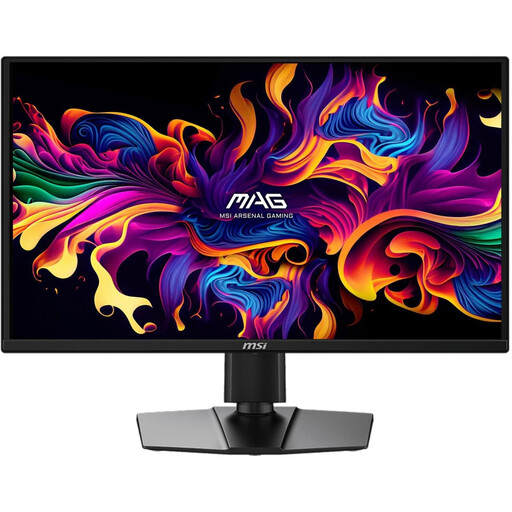
MSI MAG 272QPDE QD-OLED X24, 27-inch
A QHD QD-OLED option if image contrast matters to you. OLED burn-in remains a risk to consider if maps or instruments stay visible for long periods; care features don’t eliminate it.
2560 × 1440; 240 Hz; 0,03 ms; Adaptive-Sync; USB-C.
View at Joybuy
Frequently asked questions
Are several connected monitors enough for a continuous star system view?
No. Simply connecting several monitors won’t create a panoramic view in the game. Windows can extend displays separately, while NVIDIA Surround and AMD Eyefinity offer modes that combine them into one screen area. Also check whether your specific game supports the wide format and the layout you want.
How do I arrange my main and secondary displays?
Set the screens as extended displays in Windows display settings, then adjust their positions. This extended mode is required first for the AMD Eyefinity setup described here; the steps available depend on your graphics system.
What should I bear in mind when keeping maps or instruments visible on an OLED?
Static elements displayed for long periods can pose a burn-in risk on OLED. Check the care features and warranty terms for the specific model, and follow the manufacturer’s guidance. Care features don’t guarantee that burn-in won’t occur.
Why does the EU energy label matter when buying a monitor in Germany?
The European Commission includes electronic displays such as computer monitors within the scope of energy labelling. The label shows the efficiency class and comparison information; further model details are available in EPREL. This doesn’t mean you have to choose a particular efficiency class.
Are a manufacturer’s warranty and statutory consumer rights the same thing?
No. Verbraucherzentrale distinguishes between statutory consumer rights against the seller if a product is faulty and an additional, voluntary manufacturer’s warranty with its own terms. For Germany, it states that the statutory period is generally two years. Online orders also usually come with a 14-day right to cancel, starting from delivery. The relevant conditions and exceptions apply in each case.


