Gamers with limited desk space
If you share your desk, consider how much room the screen and stand take up together.


If space is limited, a compact Full HD monitor of up to around 24 inches is a sensible starting point; TÜV SÜD recommends this combination for small desks. If you have enough desk space and PC performance, a 27-inch WQHD model gives you more pixels. OLED is also worth considering for dark scenes, but you’ll need to weigh up the care requirements and risk of burn-in.
If you share your desk, consider how much room the screen and stand take up together.
If dark scenes matter to you, weigh up image quality and contrast alongside screen size and the potential care requirements of OLED.
If other people use the room too, the screen position, brightness and audio output should suit the shared space.
Start with the available space and your seating position, then match image quality and refresh rate to your gaming device. TÜV SÜD recommends Full HD at up to around 24 inches as a good guide for small desks.
| Consideration | What to check when buying | Who is this especially important to? |
|---|---|---|
| Desk space and seating position | Compare the width and depth, including the stand, with your viewing distance and height adjustment needs. | If I share my desk, I want to know how much room the screen and stand take up together. Around 31% of consumers put desk space first. |
| Dark scenes and contrast | Check the panel type and brightness settings; with OLED, also read the care guidance and warranty terms for the exact model. | If dark gaming worlds matter to me, I compare image quality and take potential OLED care requirements into account. Around 25% of consumers prioritise dark scenes. |
| Smooth motion | Match the resolution, refresh rate and connection to the performance your gaming device can actually deliver. | If I prioritise smooth visuals in combat and while moving through the game world, I want to know what frame rate my device can output through the connection I plan to use. Around 19% of consumers put motion handling first. |
| Consideration for others in a shared room | Check the stand, brightness settings and available audio connections or speakers. | If I share a bedroom with others, I look for an adjustable screen position and audio output that suits the room. Around 25% of consumers prioritise consideration for others and ease of use in the room. |
You can only make use of a high refresh rate if your gaming device and connection can output the signal you want. TÜV SÜD points out that high frame rates require a sufficiently powerful PC.
Check the resolution, gaming device and intended input together with your desired refresh rate.
Without a suitable frame rate from your gaming device and the right connection, the extra refresh rate may go unused in your setup.
Game elements that stay on screen for long periods make the risk of burn-in an important factor. MSI describes OLED Care 2.0 on the MPG 271QRXDE as a way to reduce the risk, not eliminate it.
Read the care guidance and warranty terms for the exact model before you decide.
Following the care guidance for a specific model may mean extra work during everyday use.
The stand and screen position also affect whether a monitor will fit your shared desk and seating area.
Measure the desk’s width and depth, as well as your seating position, then compare them with the device dimensions, including the stand.
Depending on your setup, you may need to rearrange the desk or use a suitable mount.
LG lists no built-in speakers for the 27GS75QX-B, and Dell lists none for the AW2725DF. An HDR label alone also doesn’t tell you everything about the picture.
Check the audio features and display specifications for the exact model before choosing it for a shared room.
If a model has no speakers, you’ll need a separate audio solution.
The TUF Gaming VG249QL3A is an example of a compact, height-adjustable 23.8-inch Full HD monitor.
The G274QPF E2 is a WQHD IPS option, while the MPG 271QRXDE QD-OLED is a differently equipped OLED option.
The UltraGear 27GS75QX-B is an example of a 27-inch WQHD IPS monitor.
The Odyssey G55C is a curved WQHD model, while the Odyssey OLED G81SF is a technically different 4K OLED option.
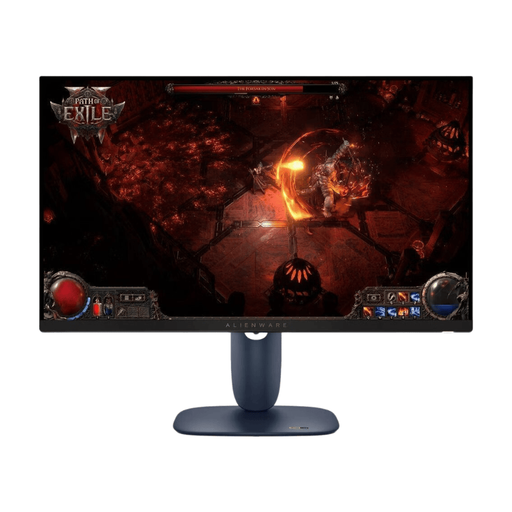
The AW2725DF is a QHD QD-OLED model in the 27-inch class.
The following Joybuy models range from compact Full HD monitors to 27-inch WQHD options with IPS, Mini-LED or QD-OLED.
 No image available
A WQHD option if you have enough desk space and your gaming device can handle a 27-inch screen.
The model is listed as having a 27-inch screen, 2560 × 1440 resolution, 144 Hz, Fast IPS and FreeSync. The height-adjustable stand lets you find a suitable position; according to the product description, DisplayPort is required for the maximum refresh rate at QHD.
 No image available
A 27-inch WQHD option if your desk and gaming device are suited to this size and resolution.
The model is listed as having WQHD, IPS, 180 Hz and Adaptive Sync. The stand is described as height-adjustable, tiltable, swivel and pivot.
 No image available
A Mini-LED option for dark gaming scenes, if a 27-inch WQHD monitor fits your desk.
The description lists QHD, 275 Hz, Fast IPS and 1152 local dimming zones. It also lists up to 450 cd/m² in SDR mode and built-in speakers.
 No image available
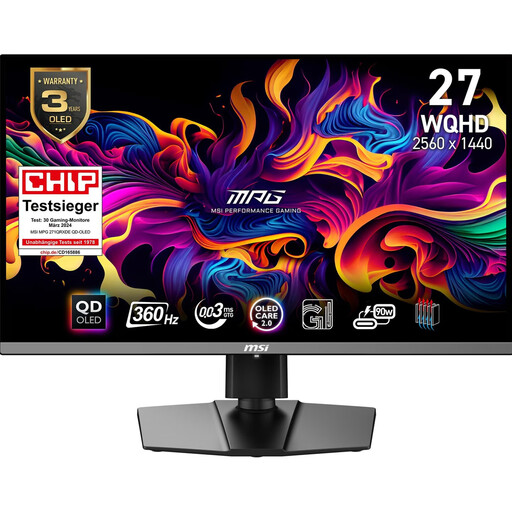
A QD-OLED option if dark gaming scenes matter to you and you’re happy to follow the care guidance for the model.
The model is listed as having 2560 × 1440 resolution, 360 Hz, Adaptive Sync, HDMI 2.1 and DisplayPort. MSI describes OLED Care as a way to reduce the risk of burn-in, not eliminate it.
 No image available
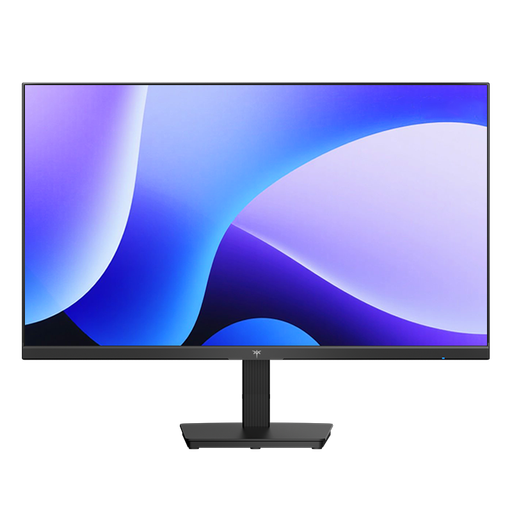
A compact option if there’s less desk space available to share.
The title lists a 24-inch screen, Full HD and 144 Hz; the description mentions an IPS panel, Adaptive Sync, HDMI and DisplayPort. The stand is described as tiltable.
If desk space or PC performance is limited, Full HD at up to around 24 inches is a sensible starting point; TÜV SÜD recommends this combination for small desks. If you have enough space and graphics performance, WQHD at around 27 inches gives you more pixels. Remember to measure the depth of the stand too.
Bear in mind any game elements that stay on screen for long periods, and read the care guide for the exact model. MSI describes OLED Care 2.0 on the MPG 271QRXDE as a way to reduce the risk of burn-in, not a guarantee that it won’t happen.
Only if your gaming device and the connection you’re using can output the resolution and frame rate you want. TÜV SÜD points out that high refresh rates require a sufficiently powerful PC, so check your specific setup.
Compare the monitor’s dimensions, including the stand, with the available desk space, and check how much it can be adjusted. Also check whether the exact model has speakers or needs a separate audio solution.