What to look for when buying
The following figures relate to consumers choosing a gaming mouse for long sandbox-building sessions followed by work at the same desk. Each person’s most important buying consideration is shown.
| Consideration |
What to check before buying |
Who it matters most to |
| Comfort during long sessions |
Compare the dimensions and shape of the mouse with your hand and grip; check that the side buttons are within reach in your usual hand position. |
If I’m building for a long time and then working in the same place, I want a mouse that’s comfortable to hold and has buttons I can reach without changing my grip. Around 31% of consumers put comfort for gaming and work first. |
| Access to building commands |
List your frequently used actions and check whether the game, operating system and configuration software support the button layout you want. |
If you want to trigger recurring building actions directly, you need buttons that are easy to reach, rather than as many unused inputs as possible. Around 31% of consumers prioritise access to frequently used commands. |
| Freedom of movement at your desk |
Plan for the cable route or receiver you’ll need, the USB ports available, and your charging or battery routine. |
If I share my mouse space with work equipment, the connection and the space on my desk need to suit my computer and setup. Around 23% of consumers prioritise freedom of movement and their choice of connection. |
| Controlled cursor movement |
Match sensitivity to your movements and the space available for your mouse; don’t compare maximum figures in isolation. |
If you want to control your viewpoint precisely while building, look for movement that’s easy to control rather than focusing only on a high DPI figure. Around 15% of consumers prioritise this level of control. |
Gaming mice at Joybuy
The models below include wired and wireless gaming mice with different button and connection options for building commands at a shared desk.
 No image available
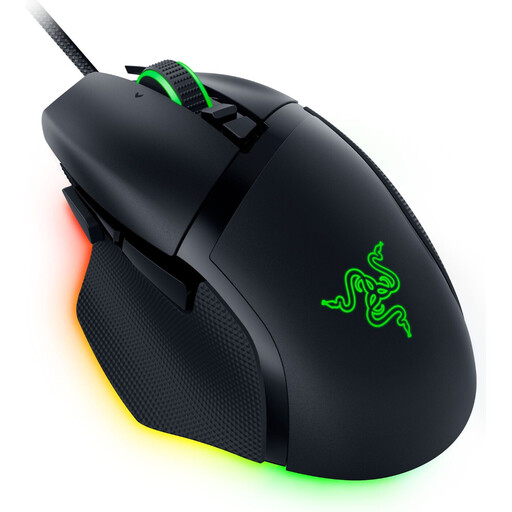
Razer Basilisk V3 35K, wired, black
A wired option if you want to assign frequently used building commands to mouse buttons and have room for a cable on your mouse mat.
11 programmable buttons; 35,000 DPI optical sensor. The wheel offers adjustable resistance and tilt-click. According to the product description, Razer Synapse is required to fully customise the buttons and scroll wheel.
View at Joybuy
 No image available
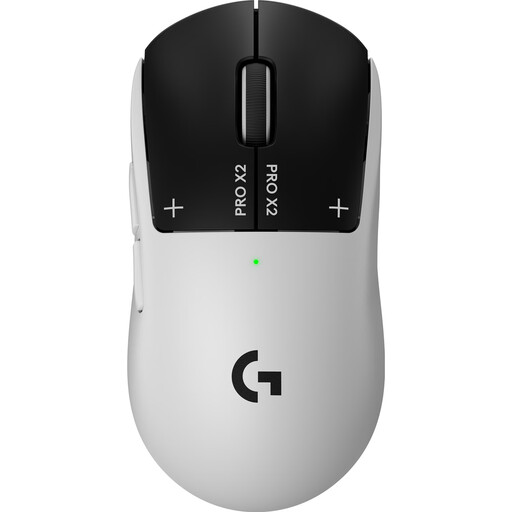
Logitech G PRO X2 SUPERSTRIKE LIGHTSPEED
A wireless option if you want to use extra commands and do without a mouse cable at a shared desk.
Five programmable buttons; LIGHTSPEED wireless and USB-C operation; stated weight: 61 g.
View at Joybuy
 No image available
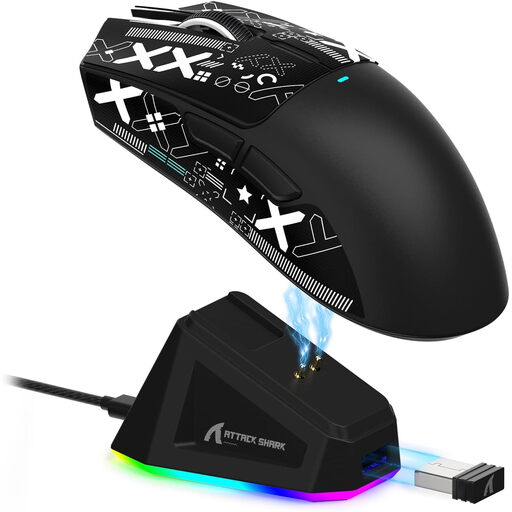
ATTACK SHARK X11, wireless, black
A wireless option if you want a choice of connection types and several programmable buttons for gaming or work commands.
Five programmable buttons; 2.4 GHz wireless, Bluetooth and USB-C; stated weight: 62 g. The product name also specifies an RGB charging dock.
View at Joybuy
 No image available
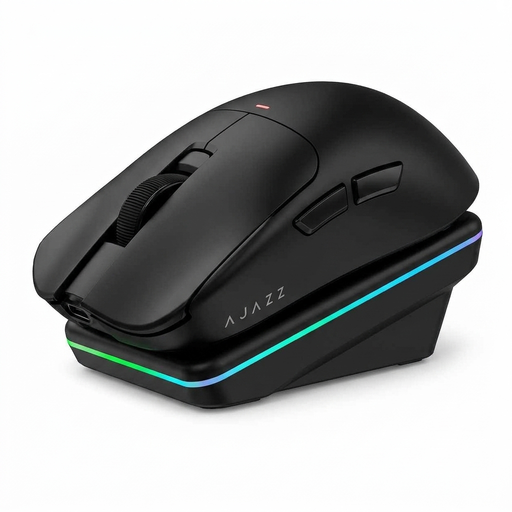
AJAZZ AJ200 AI MC, wireless, with charging dock
A wireless option if you want to set up button assignments and macros using the driver software.
PAW3311 sensor with 24,000 DPI; Bluetooth, 2.4 GHz wireless and USB-C; stated weight: 63 g. According to the product description, button assignments and macros are configured through the driver software.
View at Joybuy
 No image available
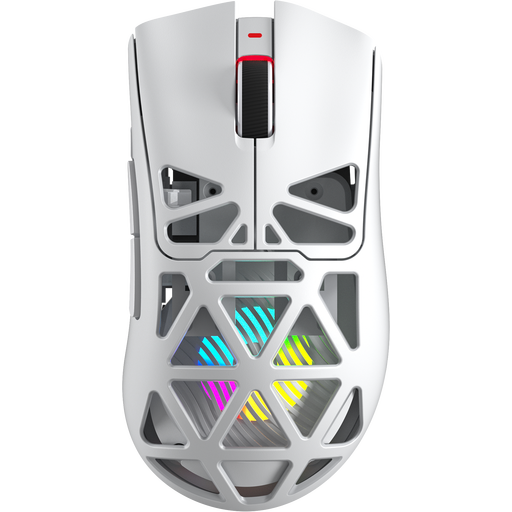
AULA SC620, wireless, white
A wireless option if you want a choice of connection types and extra programmable buttons for a shared desk.
Seven programmable buttons; Bluetooth, 2.4 GHz wireless and USB-C; stated weight: 67 g. The title also specifies a 400 mAh battery and a PAW3311 sensor with 12,000 DPI.
View at Joybuy
Frequently asked questions
How can I tell whether extra buttons will really help when building?
First, note down the commands you use most often and compare the number with the buttons you can reach comfortably. Check that your game and operating system support the layout you want; a high button count alone doesn’t guarantee this.
What should I bear in mind when setting up and maintaining a wireless mouse?
Check the connection type and what’s included with the specific model, and plan for charging or replacing the batteries. Position your mouse and keyboard so you have enough room to keep your hand and arm relaxed; follow the model’s instructions for cleaning and charging.
What are my rights if a mouse bought online doesn’t fit or is faulty?
For online orders in Germany, you generally have a 14-day right to cancel, starting from when you receive the goods; you must notify the retailer that you wish to cancel. If a product is faulty, statutory rights against the seller are separate from any voluntary guarantee. The Verbraucherzentrale explains these rights separately.
What should I look for on the labelling of a wireless mouse?
For products that require CE marking, make sure the marking applies to the specific mouse. The Federal Network Agency lists CE marking, manufacturer details, German instructions and a declaration of conformity among the points it checks during market surveillance. According to the European Commission, the manufacturer uses the CE mark to declare that the product complies with the relevant EU rules. It isn’t an independent quality mark.
Can I put an old mouse in household rubbish?
No. The Federal Environment Agency says that old electrical equipment must be collected separately. You can take an old mouse to a recycling centre, for example; if its batteries can be removed, you should dispose of them separately where possible.


