For a map editor on a large screen, your mouse should suit the navigation and tool commands you actually use – not the highest advertised DPI figure. If you pan and zoom frequently, check the scroll wheel, middle button and adjustable pointer speed. If you want to trigger lots of tools directly, look for buttons that are easy to reach and can be customised. Whether a wired or wireless mouse is a better fit also depends on your workspace, support from your editor and operating system, and how you prefer to use it.
Who uses a gaming mouse for map editing?
Map creators who navigate frequently
You pan and zoom often, and want control over the scroll wheel, middle button and pointer speed. The Godot Engine documentation describes panning and zooming in the TileMap editor as specific mouse actions; other editors may use different controls.
Editor users who rely on lots of tools
You want to assign frequently used commands to easy-to-reach mouse buttons, and are weighing up a compact layout against a larger set of side buttons. Logitech G, SteelSeries and HyperX describe programmable buttons on specific models in their ranges.
People who work on maps for long sessions
For longer sessions, a shape that suits your hand and a tidy workspace matter. Logitech G and SteelSeries list the weights of individual models, but these manufacturer specifications don’t tell you whether a mouse will suit you personally.
Which type of mouse suits your map editor?
Wired mouse with a versatile scroll wheel
A good fit if: You work at a fixed desk and frequently navigate around map views. Logitech G describes the G502 X as having a switchable scroll wheel, while Razer says the Basilisk V3 35K has configurable wheel modes.
Consider: The cable takes up space on your desk. Whether free-spin scrolling or wheel tilt is useful in your editor depends on how its controls are mapped.
Wireless mouse with a large set of side buttons
A good fit if: You regularly use lots of different tools and can reach the buttons comfortably. SteelSeries says the Aerox 9 Wireless has 18 programmable buttons, 12 of them on the side.
Consider: It takes time to get used to the button layout. You’ll also need to consider the wireless connection, power supply and whether the configuration software is suitable.
A simpler mouse with fewer buttons for shortcuts
A good fit if: You only want to assign a few extra commands. HyperX lists seven programmable buttons for the Pulsefire Core.
Consider: There are fewer buttons to assign commands to than on a mouse with a large set of side buttons. Also check that the configuration software works with your system.
Which features are useful also depends on how your editor maps inputs. The Godot Engine documentation lists mouse buttons for panning and the scroll wheel for zooming in the TileMap editor.
| What you’re looking for |
What to check before buying |
Who will find it useful? |
| Panning and zooming the view |
How the editor maps the scroll wheel and buttons; adjustable pointer speed |
If I switch between map areas often while drawing, I want to pan and zoom the view precisely. Around 36% of consumers put this navigation feature first. |
| Triggering tools directly |
Customisable buttons; support from the editor and configuration software |
If you want to access frequently used tools without extra steps, you need suitable button assignments that are easy to reach. Around 29% of consumers prioritise direct access like this. |
| Comfort during longer sessions |
Shape and button positions that suit your hand and grip; the weight of the specific model |
If I work in a map editor for longer periods, I want a mouse that feels comfortable to hold and has buttons I can reach securely. Around 21% of consumers put handling first. |
| A workspace without a mouse cable |
Compatibility of the connection and receiver; battery or rechargeable battery power |
If you want to use your mouse wirelessly, check that its connection and power supply will work with your computer. Around 14% of consumers prioritise a workspace without a mouse cable. |
Avoiding common mistakes when buying a gaming mouse
-
Assuming the highest DPI means more accurate map placement
A sensor’s maximum DPI figure doesn’t tell you whether you can control the pointer at your chosen speed or navigate the view comfortably.
First compare the adjustable sensitivity, scroll-wheel controls and the inputs your editor actually uses.
-
Choosing a large set of buttons just because there are lots of them
Lots of side buttons are only useful if you need the commands, can assign them as required and can reach the buttons reliably.
Make a note of the tools you use regularly, then compare their number with a button layout you can operate confidently.
Setting up button assignments and getting used to a larger set of buttons can take extra time.
-
Assuming wireless means maintenance-free
A wireless mouse needs a compatible connection and power supply.
Before buying, check that the receiver and connection are compatible with your computer, and whether the specific model uses a rechargeable battery or disposable batteries.
Brands to consider
The examples below refer to specific product ranges. Their features and specifications don’t necessarily apply to every model from the same brand.
Logitech G
According to Logitech G, the wired G502 X combines a switchable scroll wheel with an adjustable DPI button. G HUB offers device and application profiles.
- The G502 X may be worth considering if you want different navigation and button assignment options.
- The listed weight of 89 g and the sensor specifications apply to the G502 X. They don’t mean it will suit everyone’s hand or tell you how other G502 versions perform.
Razer
Razer describes the wired Basilisk V3 35K as having a tilting scroll wheel with different modes, which can be configured using Synapse 4.
- Worth considering if wheel tilt or a particular scrolling mode suits the way your editor is configured.
- The wheel functions and sensor specifications apply to the V3 35K. Check that the software and mouse work with your system and editor.
SteelSeries
SteelSeries describes the Aerox 9 Wireless as having 12 side buttons and 18 programmable buttons in total.
- The button layout offers plenty of options if you regularly use lots of different commands.
- The buttons need to suit your hand. Weight and battery-life figures are manufacturer specifications for this specific model, not independent test results.
HyperX
HyperX lists seven programmable buttons for the wired Pulsefire Core. According to the manufacturer, DPI settings and macros can be configured using NGENUITY.
- A possible option if a few extra button assignments are all you need.
- There are fewer buttons for direct assignments than on a mouse with a large set of side buttons. Check that the software is compatible with your system.
Gaming mice at Joybuy
This selection includes wired and wireless gaming mice with customisable buttons or different scroll-wheel functions for working in a map editor. Check that your editor and operating system support the button assignments.
 No image available
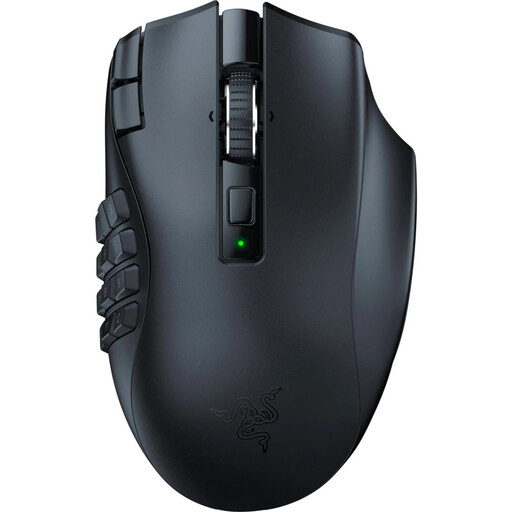
Razer Naga V2 HyperSpeed wireless MMO gaming mouse, black
If you want to assign lots of tools to buttons, the product description lists 19 programmable buttons and tactile and free-spin modes for the scroll wheel.
Connect wirelessly using a USB receiver or Bluetooth; power comes from an AA battery.
View at Joybuy
 No image available
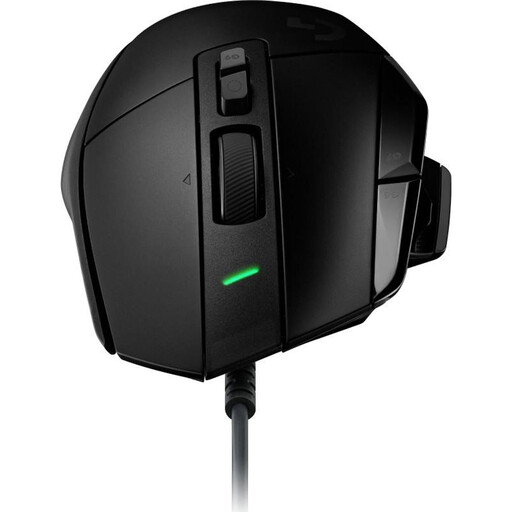
Logitech G502 X + G240 Mouse Pad, black, 991-000489
If you want to customise button assignments and scrolling, the product description lists 13 programmable buttons and a two-mode scroll wheel with left and right tilt.
The mouse is wired; the G240 Mouse Pad is listed as part of the set in the product title.
View at Joybuy
 No image available
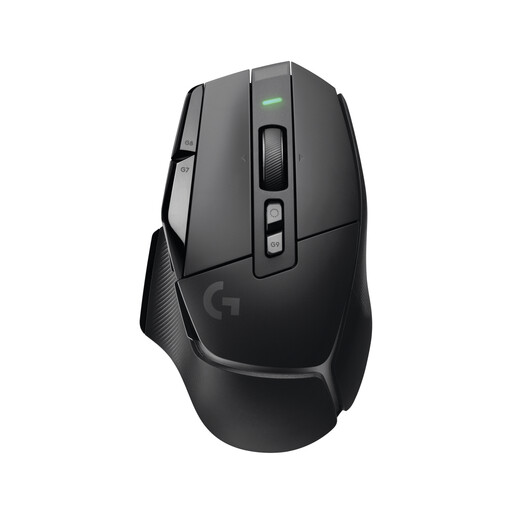
Logitech G G502 X LIGHTSPEED Wireless Gaming Mouse
If you want to assign frequently used commands and customise scrolling, the product description lists 13 programmable controls, five profiles and a scroll wheel with free-spin, ratchet and tilt functions.
The mouse connects wirelessly using a USB receiver, and its battery can be charged via USB-C.
View at Joybuy
 No image available
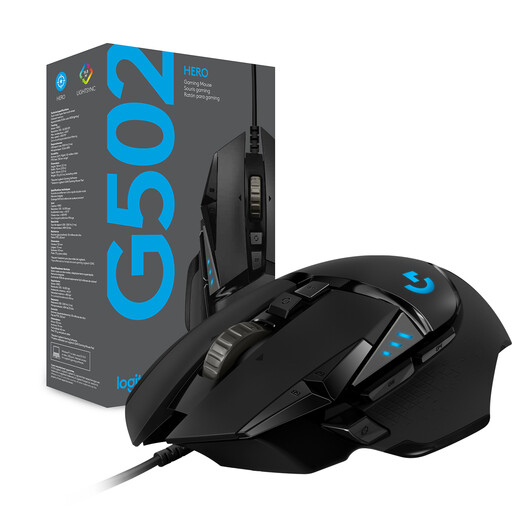
Logitech G G502 HERO High Performance Gaming Mouse
If you want to assign extra commands for your editor, the product description lists 11 programmable buttons and a two-mode scroll wheel.
The mouse connects via USB; the cable takes up space on your desk.
View at Joybuy
 No image available
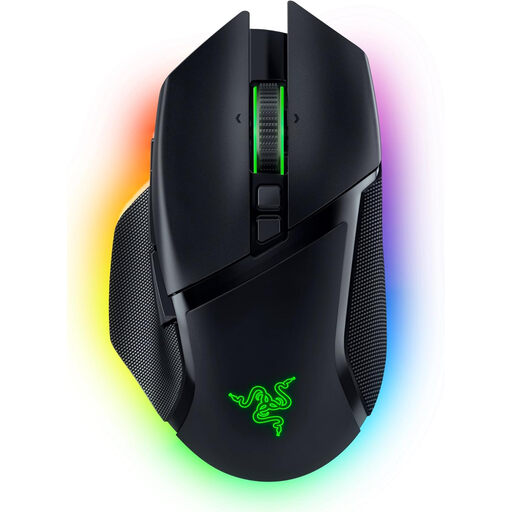
Razer Basilisk V3 Pro wireless gaming mouse, black
If you want to customise the wheel functions and assign extra commands, the product description lists several scroll-wheel modes with tilt, plus 10+1 programmable buttons.
The mouse supports wireless operation and USB-C; wireless use is powered by its rechargeable battery.
View at Joybuy
Frequently asked questions
Do I need the highest DPI setting for a large map?
No. First check what pointer speed lets you place and select items accurately, and how your editor moves the view. The Godot Engine documentation lists mouse buttons for panning and the scroll wheel for zooming in the TileMap editor; a high advertised maximum sensor figure is no substitute for checking how the controls work.
How do I set up mouse buttons for a map editor?
First find out which keyboard shortcuts or mouse commands your editor uses, then assign only the actions you use regularly. Logitech G describes button assignments and app and game profiles for G HUB; check that the assignment you want works in your specific editor.
What should I look for when working on a map for long periods?
Choose a pointer speed you can control, and check that you can reach the buttons without straining your hand. Manufacturer specifications for weight or ergonomics don’t tell you whether a mouse will suit your individual hand.
Who can help if a product develops a fault after I buy it in Germany?
For a consumer purchase, the seller – not the manufacturer – is generally responsible for the statutory guarantee. The Verbraucherzentrale states that the period is two years and distinguishes the statutory guarantee from a voluntary manufacturer’s warranty. It also describes a possible one-off 12-month extension for sales contracts from 31 July 2026 if you choose repair when a fault occurs.
What should I know about wireless mice and disposing of them later?
For a specific product, check for CE marking and German-language instructions. The Bundesnetzagentur lists both as formal points for market surveillance, but this doesn’t confirm that a particular product listing complies with the rules. The Umweltbundesamt recommends taking old mice to an appropriate collection point rather than putting them in household waste. Remove easily removable batteries or rechargeable batteries before handing the device in.


