Strategy players with a large screen
You often switch between areas of the map, zooming and selecting small targets, and want to adjust pointer speed to suit.


For historical strategy games on a large screen, choose a mouse that suits your hand and lets you adjust pointer speed. Extra buttons are most useful if you want to assign frequently used commands to them. A large thumb button panel takes some getting used to, while wireless models give you more freedom of movement but require a suitable receiver and reliable power.
You often switch between areas of the map, zooming and selecting small targets, and want to adjust pointer speed to suit.
You want to assign frequently used in-game commands to easy-to-reach mouse buttons and choose between a few extra buttons and a large thumb button panel.
You want to use your mouse from further away or without a cable getting in the way, so you pay attention to the connection type, receiver and power supply.
First, check that you can adjust the pointer speed and that the shape suits your game and grip. Then choose a button layout and connection to match the actions you use most and your screen setup.
| Buying priority | What to look for | Who is this important to? |
|---|---|---|
| Pointer and camera control | Check the adjustable sensitivity and how easy it is to reach the scroll wheel and middle button. Then set the speed to suit your screen and game. | If I want to navigate a large map quickly while selecting small targets accurately, I need the right pointer settings. Around 31% of consumers put pointer control first. |
| Commands within easy reach | Count the commands you use most and check that the game supports the bindings you want and that you can reach the buttons securely with your grip. | If I want to trigger recurring commands with my thumb, the buttons should be easy to distinguish and reach. Around 25% of consumers prioritise commands within easy reach. |
| A comfortable shape and feel | Consider hand orientation, dimensions, weight and the position of the scroll wheel and side buttons. If possible, try the shape with your usual grip. | If I play for long periods, the shape and button positions need to suit my hand. Around 25% of consumers prioritise a comfortable fit. |
| Connection and power | Check the available connections, USB receiver or Bluetooth, and how the specific model is powered and charged. | If a cable gets in the way of my screen setup or I want to connect my mouse flexibly, the right type of connection matters. Around 19% of consumers prioritise flexible connectivity. |
Higher sensitivity makes the pointer travel further with the same hand movement. Logitech describes this relationship; when selecting small targets, a well-adjusted speed can matter more than the maximum DPI value.
Check the adjustable range and try a speed that suits your screen and game.
Extra buttons are only useful if you actually use their functions and can reach them securely with your grip. A large button panel also takes some getting used to.
Make a note of your frequently used commands, then compare a moderate button layout with a 12-button side panel.
Similar model names can refer to different connection types or features. The G502 HERO and G502 LIGHTSPEED, for example, are different models and should not be confused with the G502 X LIGHTSPEED.
Before buying, compare the full model name, connection type and features of the specific variant.
Available connection types and power options vary by model. Depending on the variant, you may need to buy batteries or check whether the charging accessories you need are sold separately.
Check what’s included, which connections your gaming device has and how the mouse you’ve chosen is charged.
The wired G502 HERO and wireless G502 LIGHTSPEED offer different connection types and assignable buttons.
Basilisk models and the Naga V2 HyperSpeed are aimed at players who want extra controls within easy reach.
The Aerox 9 Wireless and Aerox 5 Wireless differ in several ways, including the number of programmable buttons.
According to CHERRY, the M50 Wireless offers several connection options for different setups.
The Scimitar Elite Wireless is an option for players looking for an adjustable 12-button side panel.
This selection includes gaming mice with adjustable pointer control, extra commands and wireless or flexible connection options.
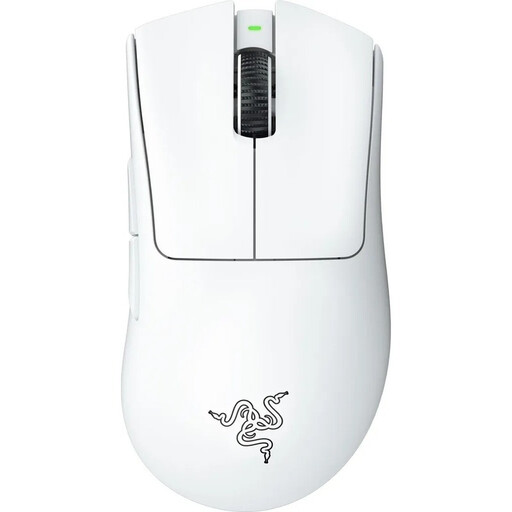 No image available
A good choice if you want wireless use and on-the-fly switching between DPI profiles.
64 g; Focus Pro 30K sensor; 2.4 GHz wireless and Bluetooth; powered by an AA battery.
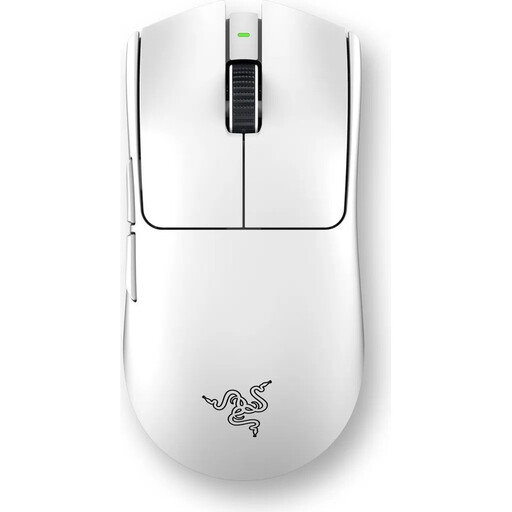 No image available
A good choice if you’re looking for a wireless mouse with adjustable DPI settings and programmable buttons.
54 g; Focus Pro 35K sensor; 2.4 GHz wireless with USB receiver; six programmable buttons; rechargeable battery.
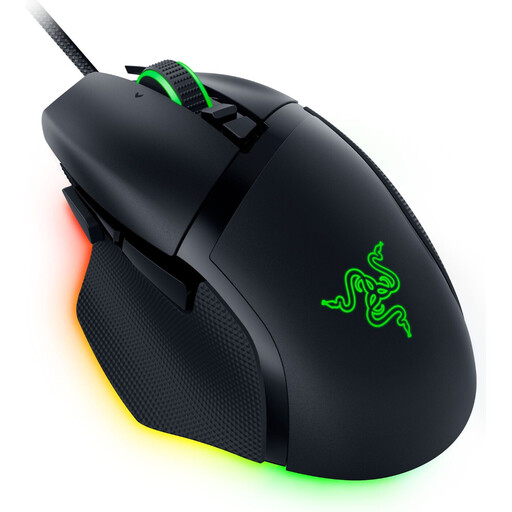 No image available
A good choice if you prefer programmable buttons and a scroll wheel with several scrolling modes, and a wired connection suits your setup.
Optical sensor with 35,000 DPI; 11 programmable buttons; wired USB connection.
 No image available
A good choice if you want programmable controls and adjustable pointer settings in a wireless mouse.
13 programmable controls; adjustable DPI; scroll wheel with free-spin and ratchet modes; USB receiver and rechargeable battery.
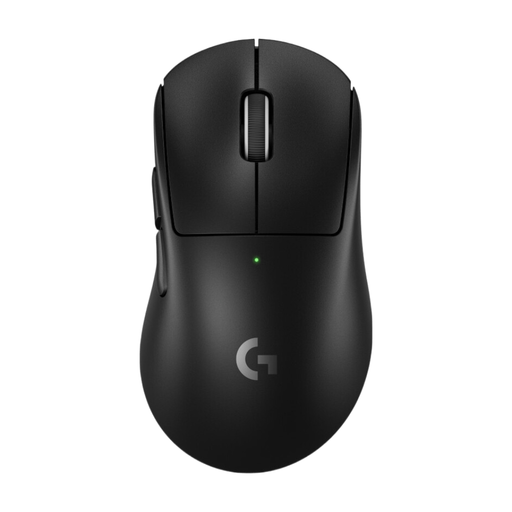 No image available
A good choice if you’re looking for a wireless mouse with adjustable DPI settings and programmable buttons.
Five programmable buttons; LIGHTSPEED wireless with USB receiver; rechargeable battery.
No. What matters is being able to adjust the pointer speed to suit your screen setup and how you select targets in the game. Higher sensitivity makes the pointer travel further with the same hand movement.
Check the controls for the specific game you play. The manual for a historical Total War campaign describes, among other things, using the middle mouse button to move the camera, the scroll wheel to zoom, and left- and right-click for selecting and issuing commands.
First, check that the game supports the input you want. Button mapping and profile options vary by model, so check the manufacturer’s information for the exact mouse you’re considering.
Check whether you need a USB receiver or Bluetooth, and make sure you have a suitable charging option or power supply. Advertised battery life is based on manufacturer claims and depends on how the mouse is used.