What should you look for when buying?
First, check your internet connection and the combined load of your game and OBS. Then consider the needs of your particular setup, such as local recording, microphone position or limited desk space.
| What matters |
What to check before buying |
Who should pay particular attention? |
| Stable streaming |
Test your upload speed using your planned stream profile; check for an Ethernet port and whether you can connect by cable at your desk. |
If I don’t want my livestream to be let down by an unreliable connection, I’ll test my upload speed using the profile I plan to use. Around 29% of consumers put connection stability first. |
| Running a game and OBS together |
Check the processor, graphics card and memory in the exact model against your game; test the game and planned scenes together. |
If I want to play and stream on the same computer, I’ll test both together rather than compare the individual specs alone. Around 23% of consumers prioritise performance when gaming and using OBS at the same time. |
| Clear speech |
Plan the microphone position and distance from the computer; record a voice test under the load you expect during the stream. |
If I want my voice to remain clear at a shared home-office desk, I’ll check the sound directly through the microphone. Around 18% of consumers put clear stream audio first. |
| Local recording |
Check the SSD capacity and upgrade options for the exact model; test your stream and recording together using your planned settings. |
If I also want to save a recording, I’ll factor in both the storage I need and the combined system load. Around 18% of consumers prioritise local recording. |
| Space and ports |
Check the case dimensions, including room for cables; use the full model number to check the ports you need. |
If my desk is short on space, the tower needs to fit in the planned spot with its cables and connected devices. Around 12% of consumers focus first on the space available. |
Joybuy products for gaming and streaming
The Joybuy products below are gaming computers for gaming and streaming. Some configurations are also worth comparing if you want to record locally as well.
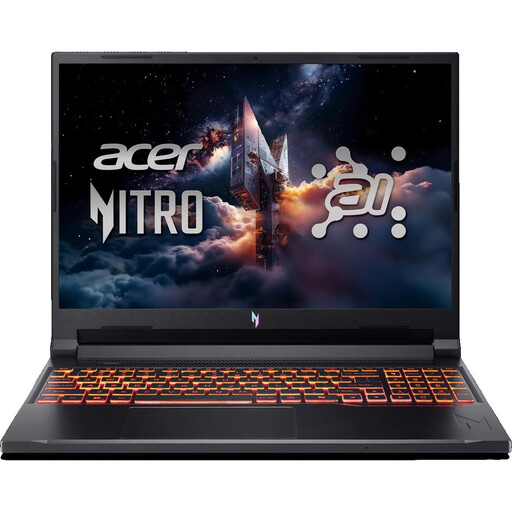 Image unavailable
Acer Nitro V 16 AI ANV16-42-R1HB
A laptop option to compare if you want to run a game and OBS on one device; test it with your specific game and profile.
16 Zoll; R7; 16 GB RAM; 1 TB; RTX 5060; Windows 11 Home.
Keep the ventilation openings clear.
Joybuy
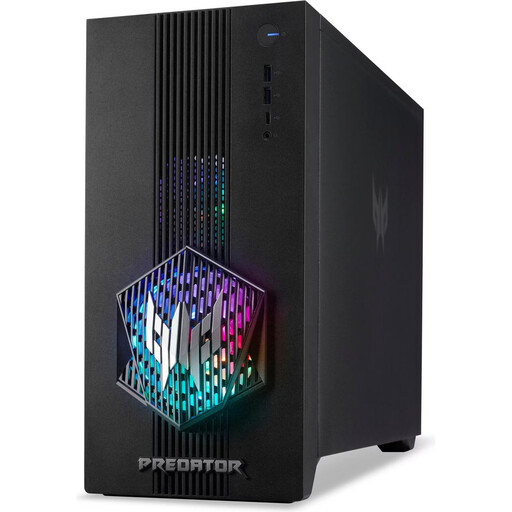 Image unavailable
Acer Predator Orion 3000 Desktop i5 Ultra
A tower option to compare if you want to run a game and OBS at a fixed home-office desk; check the combined load before streaming.
16 GB; 512 GB; RTX 5060; Windows 11 Home.
Allow at least 10 cm of clearance on all sides and keep the power supply’s exhaust area unobstructed.
Joybuy
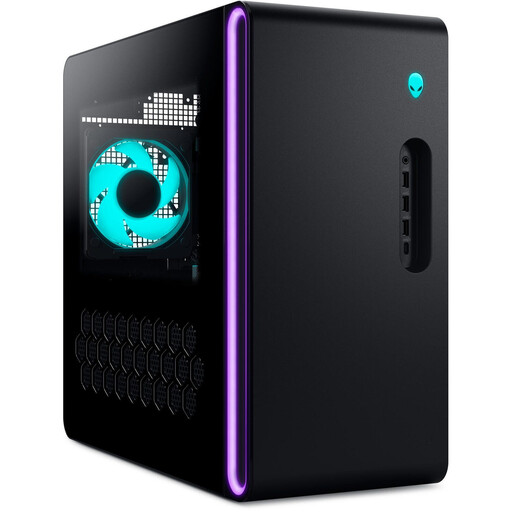 Image unavailable
Dell Alienware Aurora ACT1250 1J3N5
A configuration to compare if you’re planning a local recording as well as a livestream; test both tasks using your settings.
Core Ultra 9-285K; 32 GB; 2 TB SSD; RTX 5080; Windows 11.
Keep the ventilation openings clear.
Joybuy
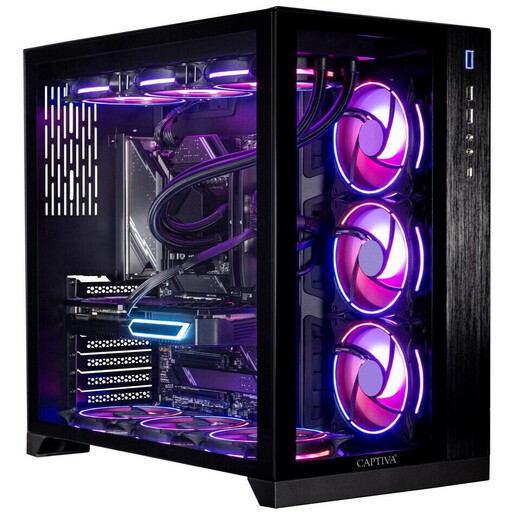 Image unavailable
Captiva Highend Gaming R89-085 R7-9800x3D
This configuration is worth comparing if you’re considering a local recording as well as your stream; test whether it suits your profile by running both together.
64 GB; 2 TB SSD; RTX 5080; Windows 11.
Allow at least 10–15 cm between the back of the PC and the wall, and keep the ventilation grilles clear.
Joybuy
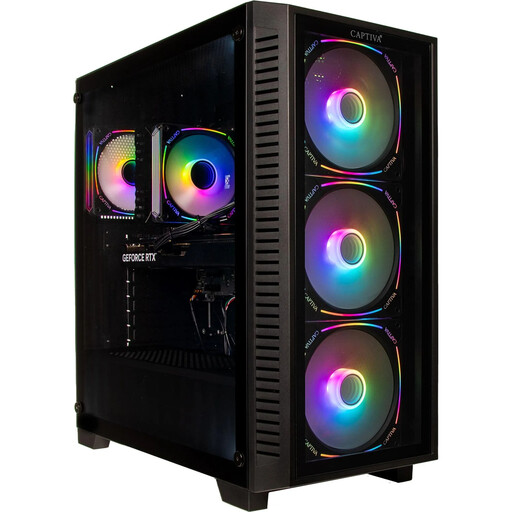 Image unavailable
Captiva Highend Gaming PC R89-503
A tower configuration to compare if you want to save a local recording as well as stream; test your planned settings together.
AMD Ryzen 7 7800X3D; RTX 5070 Ti 16 GB; 32 GB DDR5; 2 TB SSD; Windows 11 Home.
Allow at least 10–15 cm between the back of the PC and the wall, and keep the ventilation grilles clear.
Joybuy
Frequently asked questions
Do I need a specific gaming PC to use OBS?
No. OBS Project lists the basic requirements, but points out that a compatible system alone doesn’t automatically mean it’s suitable for streaming or recording. Your encoder, resolution, frame rate, scenes and specific game all affect what you’ll need.
What should I test before my fundraising stream?
Run your game and planned OBS scenes together, then check the picture, audio and stream using your actual internet connection. If you have problems, Twitch recommends checking your settings and local network connection. A cable connection can reduce the impact of local Wi-Fi interference.
Which file format should I use for an additional local recording?
OBS Project recommends MKV because an unexpected interruption won’t necessarily make the entire file unusable. You can convert the recording to MP4 afterwards if needed. Recording at a different quality from your stream can use additional system resources.
Can any Twitch account use the integrated charity tool?
No. According to Twitch, the integrated tool is available to Affiliates and Partners, and the organisation you select must also be registered with PayPal Giving Fund. These requirements apply to the platform tool, not your choice of PC or every fundraising stream.
What should I know about a music stream if a donation is required to access it?
For paid livestreams featuring music on YouTube, GEMA generally requires a livestreaming licence. According to GEMA, this also applies when access requires a donation of any amount chosen by the donor. For freely accessible streams with entirely voluntary donations, GEMA describes a different basis through platform agreements. Check the rights for the music and platform you plan to use in advance.


