Choose a monitor based on your main day-to-day task. If you work with code alongside a browser preview, a clear, readable workspace and suitable scaling matter. For plant photography, look for clear colour specifications and colour modes. Also check that the monitor will fit your desk, can be adjusted to suit you and has the right connections for your laptop. Even a 4K screen is no substitute for testing different browser viewports and checking your site on a real mobile device.
Which monitor is right for you?
Code and preview creators
When you create text and layouts, you’ll often switch between your editor and browser. MDN Web Docs explains responsive web design for different screen sizes. Chrome for Developers points out that browser device simulation is an approximation, so if in doubt, it’s worth testing on a real mobile device.
Image editors working on gardening content
If you edit plant photos and page graphics yourself, compare the colour-space specifications and colour modes for the particular model. ASUS and BenQ publish these details for certain monitors, but they don’t show how colours will look on the devices used by visitors to your website.
Laptop users at a permanent workstation
If your laptop stays connected to a monitor, check the video signal, power delivery and screen adjustability. EIZO lists USB-C with DisplayPort Alt Mode and up to 94 W power delivery for the FlexScan EV2740X. Whether this suits your laptop depends on its connections and power requirements.
Which monitor features matter for your gardening website?
| Priority |
What to check when buying |
Who is it important to? |
| Workspace for code and previews |
Compare screen size, native resolution, desk space and readability at your intended scaling. |
If I use my editor, text and preview side by side, I need a workspace that’s easy to read at my chosen scaling. Around 40% of consumers put space for code and previews first. |
| Colour for images and design |
Check the sRGB specification and colour modes for the particular model; don’t assume the manufacturer’s figures are the same as a measurement of the unit you receive. |
If I edit plant photos myself, I want to compare the colour specifications for the exact model rather than rely on general claims about its picture quality. Around 30% of consumers prioritise colour assessment. |
| Workstation ergonomics |
Consider height adjustment, tilt, reflections and readability in your intended workspace. |
If I spend a long time working at a screen, I want to adjust its position and text size to suit my workspace and viewing distance. Around 20% of consumers put ergonomics first. |
| Laptop connectivity |
Check your laptop’s video output, power requirements and the USB-C features of both the monitor and cable. |
If I want to use my laptop with the monitor and keep cables to a minimum, I check video and power delivery together. Around 10% of consumers prioritise laptop connectivity. |
A USB-C port alone doesn’t tell you whether the monitor can display your laptop’s picture or charge it sufficiently. The ASR A6 from the Federal Institute for Occupational Safety and Health sets out requirements for screen-based workstations within its scope; it doesn’t establish a single mandatory standard for every home workspace.
You should also check responsive layouts at different browser viewports. Chrome for Developers describes device simulation as an approximation and recommends testing on a real mobile device if you’re unsure.
Which common misconceptions should you avoid?
-
4K is no substitute for testing on a smartphone
A desktop monitor’s resolution won’t automatically show you how a page behaves on a real smartphone. Chrome for Developers describes browser device simulation as an approximation.
Check how your layout adapts across different viewports, and test important interactions on a mobile device too.
-
USB-C doesn’t automatically mean you can use a single cable
The connector type, video signal and charging power required are separate features. A monitor connection will only work with your laptop if both devices and the cable support the functions you need.
Check the connection details for both devices and the cable specification. If necessary, allow for an extra cable or a separate power supply.
Depending on the combination, you may need an extra cable or a separate power supply at your workstation.
-
Colour-space figures don’t guarantee identical colours
A manufacturer’s specifications for a particular monitor don’t tell you how your website will look on every device visitors use. A wide colour gamut also doesn’t prove that the individual unit you receive has been calibrated.
Compare the specifications for the exact model, and check your images and page design on other devices too.
Which brands are worth considering?
ASUS
The ProArt PA279CRV is a 27-inch 4K option for a spacious workspace and colour-focused design.
- ASUS lists 100% sRGB, an sRGB mode, 96 W USB-C Power Delivery and height adjustment for this model.
- The manufacturer’s specifications don’t show how the screen will look on visitors’ devices or confirm that your individual unit has been calibrated.
BenQ
The DesignVue PD2705U is designed for colour-focused work, while the RD320UA is a larger 4K monitor for programming.
- BenQ lists 99% sRGB and Delta E ≤ 3 for the PD2705U; for the RD320UA, the manufacturer lists 4K resolution and a flexible arm.
- These are manufacturer specifications, not independent measurements of the individual device.
Dell
The UltraSharp U2724DE is a 27-inch QHD monitor with hub features for a workstation that needs plenty of connections.
- Dell lists IPS Black technology and a maximum height adjustment of 150 mm for this model.
- QHD is different from 4K; resolution alone doesn’t justify a general claim about readability or productivity.
LG
The UltraFine 27UP850K-W is a 27-inch 4K IPS monitor with USB-C and an adjustable stand.
- LG lists 95% DCI-P3 as a typical value for this model.
- The DCI-P3 figure doesn’t directly describe the sRGB accuracy of the individual unit you receive.
EIZO
The FlexScan EV2740X is a 27-inch 4K office monitor with USB-C docking.
- EIZO lists DisplayPort Alt Mode, up to 94 W power delivery, a network connection and an sRGB mode for this model.
- Whether you can use all the docking features also depends on the computer you connect.
Monitors for workspace, colour and laptop use
The Joybuy monitors below cover wide working views, colour-focused design and laptop workstations. Before choosing, compare their dimensions and connections with your desk and computer.
 No image available
MSI PRO MP273UPDE E6, 27-inch 4K UHD IPS monitor
The detailed 27-inch display could work well for code and browser previews. Check that both windows remain easy to read at your chosen scaling.
27 inches, 3,840 × 2,160 pixels, IPS and 60 Hz, according to the product specifications. The description also lists an sRGB picture mode and a stand that can be adjusted for height, swivel, tilt and pivot.
View at Joybuy
 No image available
INNOCN 40C1U, 40-inch 5K ultrawide monitor
The wide format could suit several windows arranged side by side. Before buying, check that the 40-inch monitor will fit on your desk.
40 inches, 5,120 × 2,160 pixels, 21:9, IPS and 100 Hz, according to the product specifications. Also listed are 99% sRGB, USB-C with 65 W Power Delivery and a height-adjustable stand.
View at Joybuy
 No image available
INNOCN CB27U1, 27-inch 4K UHD monitor
The stated colour specifications give you a useful point of comparison when editing plant photos and website colours, but they’re no substitute for checking how images look on other devices.
27 inches, 3,840 × 2,160 pixels, IPS and 120 Hz, according to the product specifications. Also listed are 100% sRGB, Delta E < 1, USB-C with 90 W Power Delivery and height adjustment.
View at Joybuy
 No image available
KTC M27P6, 27-inch 4K Mini LED monitor
If you want to arrange code and previews on a detailed display, compare the listed resolution modes with how you actually work.
27 inches and 3,840 × 2,160 pixels, according to the product specifications. Also listed are 4K at 160 Hz or FHD at 320 Hz, Type-C with 65 W, KVM, and a stand that can be adjusted for height, tilt and swivel.
View at Joybuy
 No image available
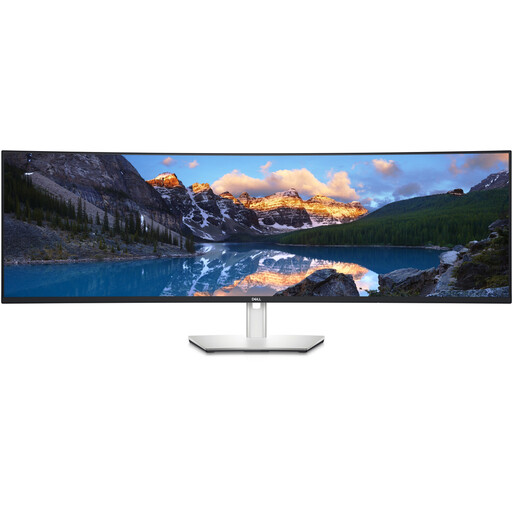
DELL UltraSharp U4924DW, 49-inch monitor
The wide display could suit several work windows open side by side. Before buying, check that your desk has enough space and can support the monitor’s weight.
49 inches, 5,120 × 1,440 pixels and 32:9, according to the product specifications. Also listed are USB-C with 90 W Power Delivery and a stand that can be adjusted for height, tilt and swivel. With the stand, the display is 1,214.9 mm wide and weighs 16.3 kg.
View at Joybuy
Frequently asked questions
Will a 4K monitor reliably show me how my gardening website looks on smartphones?
No. Check how your layout adapts across different browser viewports, and test important interactions on a real mobile device too. Chrome for Developers describes device simulation as an approximation and recommends testing on a real device if you’re unsure.
How should I set up my monitor for long periods of reading and image editing?
Adjust the text size and screen position so that content is easy to read at your viewing distance, and watch out for distracting reflections. The Federal Institute for Occupational Safety and Health sets out requirements for screen-based workstations within the scope of ASR A6; it doesn’t establish a single mandatory standard for private buyers.
What does the energy label mean, and who is responsible if there’s a fault?
The European Commission’s energy label rates electronic displays on a scale from A to G. Check the label for the particular model. If there’s a fault, the retailer is responsible for putting it right, as the Verbraucherzentrale explains; this is separate from any voluntary manufacturer’s guarantee.
Can I put an old monitor in my household rubbish?
No. The German Environment Agency recommends collecting electrical equipment separately. You can take it to a recycling centre, for example; the conditions for returning it to a retailer vary.


