For genealogy research on a small desk, an adjustable monitor around 24 inches is a sensible starting point, provided its full dimensions, including the stand, fit the available space. A 16:10 model with a resolution of 1920 × 1200 pixels offers more vertical screen space than 1920 × 1080, but no extra horizontal resolution. If scans are difficult to read, the image viewer’s zoom and contrast tools can also be useful; FamilySearch describes these features for historical records.
Who researches on a small desk?
Researchers with limited desk space
If there’s little room left beside your keyboard and papers, the monitor’s actual footprint, including its stand, matters. PRAD and Lenovo provide model details and specifications that can help you check dimensions and mounting options.
Readers of historical handwriting
Church register pages are often enlarged and compared with search results or transcriptions. ARCHION notes that reading handwritten entries can take practice, while FamilySearch describes tools for adjusting images.
Laptop researchers
If you want to use a laptop, monitor and, where needed, input devices without repeatedly swapping cables, check that the connections on both devices match. Make sure the monitor has the video input you need and, if required, can provide suitable power.
What should you look for when buying?
First, measure the available desk space and work out what kind of view you need to read and transcribe church register entries. Then compare the stand, display and connections on the specific model you’re considering.
| Criterion |
What to check when buying |
Who should prioritise it? |
| Footprint and placement |
Compare the available width and depth with the monitor’s full dimensions, including the stand. If using a VESA mount, check the mounting points and desk too. |
If I want to keep papers beside the screen, I’d measure the stand’s depth first. Around 36% of consumers put the available desk space first. |
| Scan readability and screen height |
Try a typical scan alongside your notes at the magnification you want to use. FamilySearch describes ways to adjust images; the best view also depends on the original document. |
When enlarging church register pages and comparing them with my notes, I need a display that makes the document easy to view as a whole. Around 29% of consumers prioritise scan readability. |
| Seating position and adjustment |
Check the height adjustment, tilt and, for portrait-format sources, pivot function. The BAuA recommends adjusting the screen position to suit your body measurements and eyesight. |
During longer reading sessions, I want to adjust the screen to suit my posture and, if necessary, my glasses. Around 21% of consumers prioritise a suitable position and adjustability. |
| Laptop connection |
Check that your laptop’s video output matches the monitor’s input. For single-cable use, check that both devices support USB-C video and that the charging power is sufficient; depending on the port, USB-C may only transfer data. |
When I’m researching on a laptop, I want to avoid swapping cables wherever possible. Around 14% of consumers put a suitable laptop connection first. |
Which assumptions should you avoid?
-
Comparing only the screen size with the available space
The stand takes up extra desk space, and you may also want room for papers beside it.
Before buying, compare the full dimensions of the specific model with the space available on your desk.
A monitor arm may require a suitable desk mount; otherwise, you may need to rearrange your desk.
-
Assuming every USB-C port supports video input from a laptop
The USB-C downstream port on the Dell P2425 is specified for data and up to 15 W of power. The separate P2425E is a USB-C hub model; ports and charging power vary by model.
For the exact model you choose, check the video input, Power Delivery and compatibility with your laptop.
Depending on the connections on your devices, you may need an extra video or charging cable.
-
Assuming more pixels guarantee that old scans will be readable
The quality of the original document and the image viewer’s zoom and contrast settings also affect what you can make out.
Try a typical scan at your preferred magnification and text scaling instead of choosing based on resolution alone.
Which brands are worth considering?
Dell
The P2425 models offer different compact 16:10 options: one with conventional video inputs and another, the USB-C hub model, for compatible laptops.
- Dell specifies a resolution of 1920 × 1200 pixels and an adjustable stand for the P2425.
- For the separate P2425E, Dell specifies USB-C docking with up to 90 W of power.
- The P2425E’s docking specification does not automatically apply to the P2425.
BenQ
The GW2490T is a 23.8-inch Full HD model designed for a compact workspace.
- BenQ specifies a resolution of 1920 × 1080 pixels, a 100 Hz refresh rate and Eye-Care features.
- The manufacturer’s claims about Eye-Care features don’t prove that historical handwriting will be easier to read or that discomfort will be avoided.
EIZO
The FlexScan EV2400R is a compact Full HD option, while the EV2495 is a separate 16:10 model with USB-C docking.
- EIZO specifies a 23.8-inch Full HD display for the EV2400R. For the EV2495, EIZO specifies a 24.1-inch screen, a resolution of 1920 × 1200 pixels and up to 70 W of USB-C power.
- The EV2400R’s features and specifications don’t automatically apply to the EV2495.
Lenovo
The ThinkVision T24i-30 is a compact Full HD option with an adjustable stand and VESA mounting.
- Lenovo specifies a 23.8-inch screen, HDMI, DisplayPort and a USB hub.
- The listed video inputs don’t include USB-C docking, so they don’t indicate whether it’s suitable for single-cable use with a laptop.
Philips
According to Philips, the 24B2G5301/00 combines a 23.8-inch Full HD display with USB-C docking.
- Philips lists video, data and laptop power delivery over USB-C as features of this model.
- According to Philips, PowerSensor 2 requires Windows 11. Claims about the benefits of a blue-light filter are not an independent guarantee against eye discomfort.
Joybuy picks for compact research spaces
This selection includes compact Full HD desktop monitors and a model with USB-C docking for compatible laptops.
 No image available
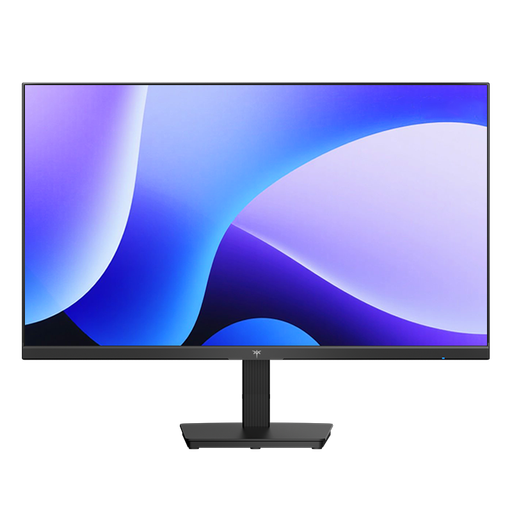
KTC H24B9S 24-inch Full HD monitor
A compact option if Full HD and a tiltable screen suit your workspace.
24 inches, Full HD and IPS; HDMI and DisplayPort; tilt from −5° to 15°.
View on Joybuy
 No image available
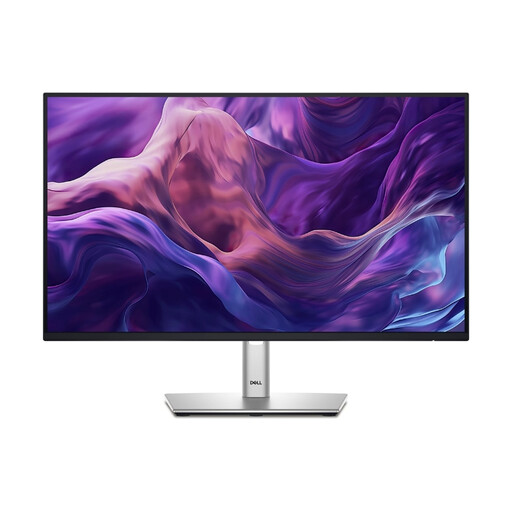
DELL P2425HE 24″ FHD IPS USB-C (3-year warranty)
For laptop workspaces where you want to use USB-C for video, data and power.
24 inches, Full HD and IPS; height-adjustable stand; USB-C with up to 90 W of power delivery.
View on Joybuy
Frequently asked questions about monitors for genealogy research
Will a high-resolution monitor automatically make a hard-to-read church register entry legible?
No. Start by trying the zoom and, if necessary, the brightness and contrast settings in your image viewer on the scan itself. FamilySearch documents these tools, but what they can reveal depends on the original document.
How should I set up my monitor for longer reading sessions?
Adjust the height, distance and tilt to suit your sitting position and, if necessary, your glasses. The BAuA explains these factors for screen-based work; its office recommendations are a guide, not a blanket legal requirement for private family history research.
What rights and ongoing costs should I consider when buying a monitor in Germany?
For a typical online purchase by a consumer, there is generally a 14-day right to cancel. If new goods are faulty, you may have statutory rights against the seller for two years after receiving them. The Verbraucherzentrale distinguishes these rights from a voluntary guarantee. To compare electricity use, the EU energy label shows the efficiency class and other product details; your annual cost will also depend on how long you use the monitor and your electricity tariff.
Does a monitor sold online in Germany need an energy label, and do workplace health and safety rules apply to private genealogy research?
The European Commission lists computer monitors as electronic displays that require an energy label. For products that must carry one, the required information must also be shown when they are sold online. The BAuA explains that ASR A6 does not apply to use outside workplaces or teleworking settings. This does not create a general requirement for a private research desk.


