If you already create your flyers on a computer and mainly draw motifs, masks or decorative details, a pen tablet without a display will fit your workflow. If you’d rather draw directly onto your illustration, consider a pen display. The key things to check are compatibility between the pen, driver and drawing software, and having enough room for your artwork and controls. Layers and print preparation are handled by your design software, not by the graphics tablet alone.
Who is a graphics tablet for?
Flyer designers with their own computer
You bring dance motifs, text and other elements together on a computer, and want more precise pen input for illustrations and edits. The Krita documentation and Adobe explain how to work with layers and layered PDF files in design software.
Illustrators
You regularly draw figures or fine decorative details and are deciding whether you’d prefer to work on a separate tablet or directly on a display. Golem.de and Huion describe different types of device and ways of working.
Club members who sketch on the go
You’d like to start designs away from your usual workspace, then see how they’ll fit into the final flyer layout. Golem.de and XPPen describe connected and standalone drawing solutions.
What should you look for when choosing one?
For a flyer with separate layers for motifs, colour and text, first make sure your design software supports the layers and editing workflow you need. Then choose a tablet based on whether you want to draw on your existing computer, work directly on a display or sketch independently.
Pen tablet without a display
Best if: You work with your existing computer and monitor and want to use a separate drawing surface.
Bear in mind: You look at the monitor rather than the pen tip as you draw. Driver installation and getting used to the setup are part of the process.
Pen display connected to a computer
Best if: You’d rather draw figures and decorative details directly onto the illustration on screen.
Bear in mind: Check the video signal, power supply, cables and desk space needed for the additional display.
Standalone drawing tablet
Best if: You want to start or develop motifs away from your desk.
Bear in mind: Check that the apps you need and file transfer will fit in with your flyer workflow later on.
| What you need |
What to check before buying |
Who will value this? |
| Layers and edits |
The software’s layer and masking features, plus suitable pen buttons or keyboard shortcuts. |
If I want to edit motifs, colour and lettering separately, a suitable software workflow is essential. Around 36% of consumers would put layers and repeated edits first when considering this. |
| Precise drawing |
Active drawing area or display area, pen and desk space; then test the pressure response in your own software. |
If I want to draw dance figures and fine ornamentation with control, the drawing area, pen and app need to suit the way I work. Around 29% of consumers would name precise drawing as their top priority. |
| Computer and software |
Check the operating system, driver, app, video output and, for displays, USB-C capabilities, power supply and what’s included. |
If I want to connect the tablet to my existing computer, the whole setup needs to work with my system and software. Around 21% of consumers would consider computer and software compatibility first. |
| Sketching on the go |
Check the drawing app you need, its layer features and how files can be transferred to your computer. |
If I want to start motifs away from my usual workspace, it also matters how I’ll bring them into the flyer document later. Around 14% of consumers would choose sketching on the go as their main priority. |
Common buying mistakes
-
Using pressure levels as the only measure of quality
The number of pressure levels quoted on its own doesn’t tell you whether the pen, driver and drawing software will suit your style.
Check the type of device and drawing area, then test the pressure response in your app after setup. Treat pressure levels as a manufacturer’s specification, not proof that your flyers will look better.
-
Checking only the USB-C plug on a pen display
A USB-C port doesn’t guarantee that the device can transmit the required video signal or provide enough power.
Check the capabilities of your specific computer or mobile device against the display’s requirements, and check the cables and power supply too.
-
Assuming the graphics tablet makes your artwork print-ready
Layers, colour management and the exported file are part of your software and print workflow, not the hardware alone.
Plan your drawing software, editable project file and printer’s requirements separately from your choice of tablet.
Key brands at a glance
Wacom
The product range includes pen tablets without displays and pen displays that connect to a computer.
- Wacom lists USB and Bluetooth connectivity, along with customisable controls, for the Intuos Pro (2025).
- The Intuos Pro (2025) doesn’t have its own drawing display. For the Cintiq 16, check the model generation: the manual for model DTK-1660 lists a 3-in-1 cable and power adapter.
XPPen
The range includes Deco Pro pen tablets, connected displays from the Artist series and the standalone Magic Drawing Pad.
- For the Artist 15.6 Pro V2, XPPen lists a 15.4-inch display, a Red Dial and eight customisable keys.
- These are manufacturer specifications and don’t predict the results you’ll get with your flyers. Check the connection and model version for the specific device.
Huion
The Kamvas range includes connected pen displays for drawing directly onto your illustration.
- Huion describes the Kamvas 13 as having a laminated 13.3-inch FHD display.
- According to Huion, USB-C use and power supply depend on the capabilities of the connected device and the type of connection.
Xencelabs
The product range includes pen tablets without displays. The Pen Tablet Medium Bundle v2 is designed for a desk-based workflow with Quick Keys.
- For the v2 bundle, the manufacturer lists separate Quick Keys and two pens.
- The bundle contents don’t automatically apply to every Pen Tablet Medium. Xencelabs also distinguishes between pen compatibility for the original series and the v2 series.
ugee
With the M908, ugee offers a drawing surface without a display for use with a computer.
- ugee lists an active area of 10 × 6.25 inches, a scroll wheel and eight shortcut keys for the M908.
- These are manufacturer specifications; they don’t prove measured superiority in pen precision.
Joybuy products for drawing on the go
This Joybuy selection features standalone Android drawing tablets for sketching and developing motifs on the go.
 No image available
TECLAST ArtPad Pro, bundle with Bluetooth keyboard
This standalone Android drawing tablet could be a good option if you want to start motifs on the go and check which drawing apps you’ll need in advance.
12.7-inch 2K display, Android 15 and T-Pen drawing with 4096 pressure levels. This bundle also includes a Bluetooth keyboard.
View at Joybuy
 No image available
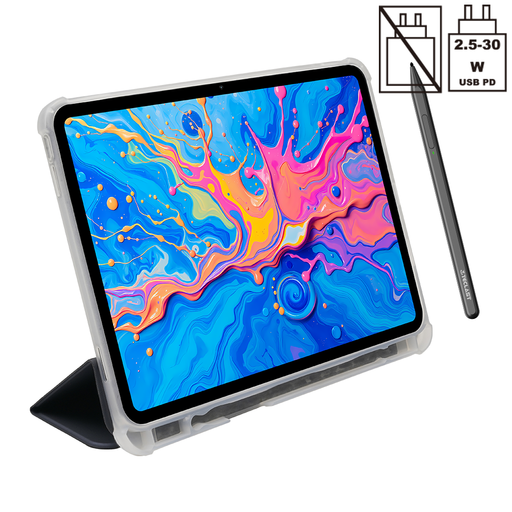
TECLAST ArtPad Pro, bundle with protective case
This standalone Android drawing tablet could suit a mobile sketching workflow. Check that the apps you need and file transfer are right for your flyer project.
12.7-inch 2K display, Android 15 and T-Pen drawing with 4096 pressure levels. This bundle includes a protective case.
View at Joybuy
Frequently asked questions
Do I need a particular graphics tablet for image layers?
No, you work with layers in your design software. The Krita documentation explains how to use separate colour and line layers, as well as masks. Also check that the device driver works with your app.
What should I test after connecting the tablet?
Install the driver that matches your model and operating system, then check that pen pressure and the buttons you need work in your drawing app. The Krita documentation notes that a lack of pressure response can be down to the driver or input protocol.
Is a wide colour gamut on a pen display enough to make a flyer print-ready?
No, the display’s colour gamut alone won’t determine the printed result. Check that your colour management and export settings meet your printer’s requirements.
What rights do I have when buying from a commercial online retailer?
According to consumer information from the European Union, goods are generally covered by a legal guarantee of at least two years from the date you receive them. For eligible distance purchases, you generally have 14 days from delivery to withdraw from the contract. Exceptions and rules on return costs apply.
What should I know about safety and using other people’s images?
The relevant product safety regulations apply to the specific electrical device; whether CE marking is required depends on the applicable rules. If you want to use someone else’s drawings or photos in your flyer, check that you have the necessary rights: the German Patent and Trade Mark Office lists reproduction and distribution among the relevant exploitation rights.


