If you already work on a computer and want to keep your plan and references on screen, a graphics tablet without a display could be a good fit; Wacom requires an extended desktop to map the pen to multiple screens. If you want to draw directly on the visible sketch, check a connected pen display and its connections. For working without a computer, consider a standalone tablet or pen computer. For accurately scaled beds and multiple references, the scale and window features of the apps you choose, along with the available drawing space, matter just as much as the pen itself.
Who plans garden beds with a drawing device?
For planners working with lots of references
If you want to keep your garden-bed plan, planting information and reference images in view while you draw, check how you can arrange the drawing area and references. The Krita manual explains how to load multiple reference images, while Samsung describes a split-screen app view for Galaxy tablets.
For planners who need accurate bed measurements
For clear, consistent spacing and bed dimensions, look for scale and measuring tools in your drawing app. Concepts describes setting a project scale and adding measurements as steps in creating a plan drawing.
For planners working in the garden
If you want to edit sketches on site without an additional computer, consider a standalone device. The key is whether it runs your chosen drawing app and leaves enough room for your plan alongside your references.
What should you look for when buying?
Start by choosing how you want to work: drawing on a computer, directly on a connected display, or independently on a device of your own. Then check the scale features in your app, the available drawing space and the connections you need.
Graphics tablet without a display
A good fit if: you want to use your computer and monitor for your plan and references, and are happy to draw on a separate surface.
The trade-off: You look at the monitor rather than directly at the drawing surface as you work. Wacom says that mapping the pen across multiple monitors requires an extended desktop.
Connected pen display
A good fit if: you want to draw directly on the sketch on screen and have room on your computer for additional references.
The trade-off: The display is not automatically a standalone computer. Check the connections, video output, USB, power supply and desk space required for the specific model.
Standalone tablet
A good fit if: you want to take your design with you and make changes in the garden without a connected computer.
The trade-off: Your drawing and reference apps share the device’s screen. Try the specific combination of apps and check which pen is compatible with your exact model.
Standalone Windows pen computer
A good fit if: you want to work without an additional PC and use a planning or drawing app available for Windows.
The trade-off: Huion’s Kamvas Studio 16 is a pen computer with Windows built in; this feature does not automatically apply to other Kamvas drawing displays.
| Buying consideration |
What to check |
Who is this important for? |
| See multiple references |
Reference image features in the drawing app or a multi-window view; the drawing space left over. |
If I want to see my garden-bed plan and planting information at the same time as I draw, I don’t want to keep switching between references. Around 33% of consumers give having multiple references visible the highest priority. |
| Plan beds to scale |
The app’s scale and measuring tools; the file format for the finished plan. |
If I need to record bed spacing clearly, a planning app with the right measurement and scale features matters more to me than extra pen features. Around 27% of consumers put accurate measurements first. |
| Make better use of an existing computer |
Whether you want to work with or without a display; compatible cables, video output, USB and power supply. |
If my computer already shows the plan and references, I want to make good use of it and avoid unnecessary devices. Around 20% of consumers prioritise adding to their existing computer. |
| Work in the garden without a computer |
A standalone operating system, a compatible pen and support for the apps you need. |
If I want to change my plan on site, I need a device that works without an additional computer and can run my drawing and reference apps. Around 20% of consumers put standalone use first. |
Avoid common buying mistakes
-
Confusing a pen display with a standalone tablet
A connected drawing display needs a computer; Huion’s Kamvas Studio 16, by contrast, is a pen computer with Windows built in.
Check the full model name and whether the device has its own operating system.
-
Assuming a pen or cable is included
What’s in the box varies by model and offer. Apple does not list a Pencil as included with the iPad (A16); Wacom notes that its configurable Wacom One pen tablet does not include a USB-C cable for the main unit.
Check the box contents and pen compatibility for the exact model and offer variant.
Depending on the model, you may need to buy a compatible pen or suitable cable separately.
-
Assuming pressure levels mean accurate scaled planning
Pen features do not determine the scale or spacing of your beds. To record measurements accurately, you need the right features in your planning app.
Start by testing a small plan with a known measurement and the file format you need.
-
Assuming split screen leaves enough room for all your references
When two apps share a tablet screen, there is less room for your drawing. Whether you can work comfortably on your garden-bed plan and references at the same time depends on the layout.
Try your drawing app, plan and most important references in the window layout you intend to use.
Relevant brands at a glance
Wacom
Pen tablets for working with a computer you already own.
- Wacom lists an active area of 263 × 148 mm for the Intuos Pro Medium PTK670K0B.
- The PTK670K0B does not have its own drawing display. Wacom says mapping the pen across multiple monitors requires an extended desktop.
XPPen
Connected Artist pen displays for drawing directly on the sketch on screen.
- XPPen lists a fold-out stand and several connection options for the Artist Pro 16 (Gen 2).
- The pen display is not automatically a standalone computer. Check that it connects to your computer.
Huion
The Kamvas range includes connected drawing displays and standalone pen computers.
- Huion lists a 15.8-inch display with 2,560 × 1,440 pixels for the Kamvas 16 (Gen 3).
- Windows built in is a feature of the Kamvas Studio 16 pen computer and does not automatically apply to other Kamvas models.
Samsung
Galaxy tablets with pen input for working without a connected computer.
- Samsung lists an included S Pen and a 13.1-inch display for the Galaxy Tab S10 FE+.
- Samsung’s Multi Window guide demonstrates the feature on a Galaxy Tab S9 Ultra. Check that your chosen model supports the combination of apps you need.
Apple
iPads as standalone drawing devices, if the planning app you need is available.
- Apple lists support for Apple Pencil (USB-C) and Apple Pencil (1st generation) for the iPad (A16).
- Apple says the Pencil is not included with the iPad (A16). Check compatibility with your exact iPad model.
Joybuy products for simple garden sketches
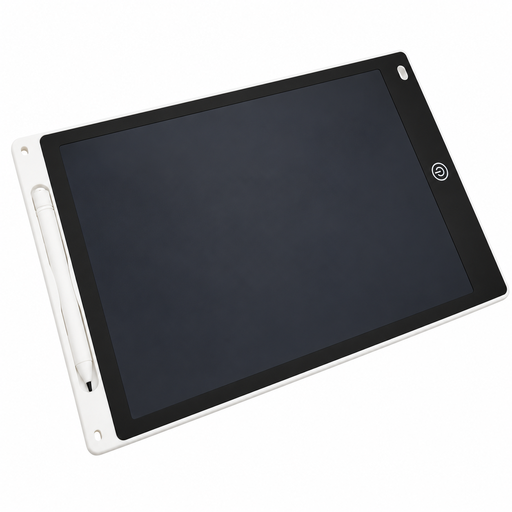
This selection includes an LCD drawing tablet for simple freehand sketches and notes.
 No image available
12-inch LCD drawing tablet with pen and erase function
For simple freehand sketches or notes on a reusable LCD drawing surface.
Includes a pen, erase function, one-button clearing and a lock slider.
Battery-powered.
View at Joybuy
Frequently asked questions
Are lots of pressure levels enough for a planting plan to scale?
No. Pen features affect how you draw; you set the scale and measurements in a suitable app. Concepts describes these steps for plan drawings.
How can I use multiple references without constantly switching windows?
If you use Krita on a computer, you can load several image references onto the drawing area. On a Galaxy tablet, you can use a split-screen app view; Samsung’s guide demonstrates this on a Galaxy Tab S9 Ultra. Check that your drawing app is supported on your chosen device.
What should I consider when buying a connected drawing display?
Check that the connections on the specific display are compatible with your computer. If you use multiple monitors, setting up an extended desktop and mapping the pen may also be relevant; Wacom explains this requirement for switching displays.
What are my rights when buying online in Germany?
When you buy online as a consumer, you generally have a 14-day right to cancel. If an item is faulty, the seller is generally responsible for the statutory two-year warranty. The Verbraucherzentrale distinguishes between cancellation and making a complaint; a voluntary manufacturer’s guarantee is separate.


