If you share a desk and already have a suitable monitor, a compact graphics tablet without a display is a sensible place to start. A pen display may suit you better if you want to see your strokes directly beneath the pen tip and have room for another screen and the necessary connections. The key things to consider are the working area, pressure input in your software and – for a display – the full connection setup.
Which type is right for you?
Texture artists who use a shared desk
If you already use a computer monitor and want to clear your workspace after painting, a graphics tablet without a display could be a good option. Compare its dimensions with the space available and check how you’ll store the tablet and cables.
Artists who want to draw directly on screen
If you want to see your strokes directly beneath the pen tip, consider a pen display. Make room for the display and check that its connections are compatible with your computer.
Workflow-focused texture artists
If you often change brush sizes or switch between other functions, look for buttons or dials you can customise. Whether they work well for your workflow also depends on your driver and software setup.
What should you look for when buying?
Graphics tablet without a display
A better fit if: you can look at an existing monitor and want to put your pen away after work.
The trade-off: You draw on the tablet surface and see the result on your monitor. This hand–eye coordination is different from drawing directly on a display.
Pen display
A better fit if: placing your strokes directly is a priority and you have enough room for the display and cables.
The trade-off: A pen display needs a suitable video signal and data connection, and may also need a power connection. A USB-C connector alone doesn’t guarantee that video output is supported.
| Priority |
What to check before buying |
Who it matters most to |
| Space and storage |
Check the device dimensions, active area and cable routing separately; also take your existing monitor and storage space into account. |
If I need to clear the desk after painting, the whole setup, including cables, matters. Around 33% of shoppers are likely to prioritise space. |
| Placing strokes directly |
Decide whether you’d rather draw on a separate tablet surface while looking at a monitor, or directly on a display; if you choose a display, check its overall dimensions too. |
If I want to see each stroke directly beneath the pen tip, I pay particular attention to the display. Around 25% of shoppers are likely to prioritise direct stroke placement. |
| Software, pressure and connections |
Check that the operating system and driver work with your painting software; test pressure input and, for displays, check the video, data and any required power connections. |
If I want to paint with pressure sensitivity and use my existing device, the input needs to work in my software. Around 25% of shoppers are likely to prioritise this feature in their setup. |
| Controls |
Check which buttons or dials you can customise and whether they work with your software once set up. |
If I often switch functions while painting, I want the controls I need to be easy to reach. Around 17% of shoppers are likely to prioritise customisable shortcuts. |
Common misconceptions
-
Having USB-C doesn’t automatically mean a display will work with a single cable
For the XPPen Artist 12 3rd, the manual distinguishes between a USB-C connection with video output and a setup using HDMI and USB-A. Depending on the setup, an additional power connection may be needed.
Before buying, check your computer’s video output, the connections on the specific display and what’s included in the box.
Factor in the connection and power requirements of your chosen setup.
-
The active drawing area isn’t the same as the desk space you’ll need
For the ugee S640, the active area and the device dimensions are two different measurements. The drawing area doesn’t show how much room the tablet and cables will take up on a shared desk.
Measure the space it will occupy, including the cable route, rather than relying only on the active area’s size in inches.
-
A pen display isn’t automatically a standalone tablet computer
XPPen describes the Artist 12 3rd as requiring a connection to a compatible device; it can’t be used on its own.
Before choosing, check which computer you have and decide whether you want to work directly on a display or on a separate tablet surface.
A guide to notable brands
Wacom
The One by Wacom Medium is a graphics tablet without an integrated display.
- Wacom says the model connects to a Mac or PC via USB, followed by driver installation.
- You draw on the tablet surface and need a screen to see the result.
Huion
The Inspiroy 2 S and Inspiroy 2 M are graphics tablets without displays, and differ in features including their controls.
- Huion says the Inspiroy 2 S has six buttons and a scroller. The manufacturer lists eight programmable buttons, three group buttons and a scroller for the Inspiroy 2 M.
- These features don’t guarantee that the controls will work as you’d like with every driver setup or painting application.
XPPen
The Artist 12 3rd and Artist 15.6 Pro V2 are pen displays with different screen sizes.
- XPPen lists an 11.9-inch display and configurable controls for the Artist 12 3rd; the Artist 15.6 Pro V2 has a 15.4-inch display.
- According to the manufacturer, the Artist 12 3rd needs to be connected to another device. For USB-C, the computer port must support video output; having the right connector alone isn’t enough.
ugee
The S640 is a compact graphics tablet without a display.
- The ugee EU shop lists device dimensions of 21.53 × 16.25 × 1.21 cm, an active area of 6.3 × 4 inches and ten buttons.
- Compare the device dimensions with the space you have available and check what driver setup your application needs.
Joybuy products
The products below are Android tablets with an integrated display and a pen for drawing. Before buying, check that your texture software and the features you need are compatible with Android 15.
 No image available
TECLAST ArtPad Pro, 12.7-inch, 2K
This Android tablet is described as having a display and T-Pen for drawing. Check that your texture software runs on Android 15.
12.7-inch 2K display; T-Pen with 4096 pressure levels.
Joybuy
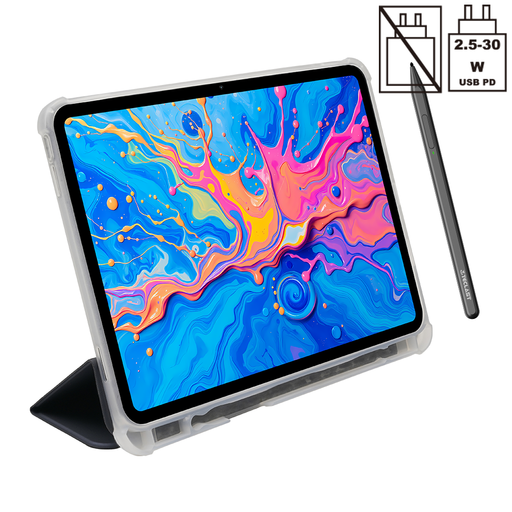 No image available
TECLAST ArtPad Pro, 12.7-inch, 2K, with tablet protective case
This Android tablet is described as having a display and T-Pen for drawing. Check that your texture software runs on Android 15.
12.7-inch 2K display; T-Pen with 4096 pressure levels; tablet protective case mentioned in the product name.
Joybuy
Frequently asked questions
Do I need lots of pressure levels for texture brushes?
The number of pressure levels listed on its own doesn’t tell you whether pressure input will work as you’d like in your programme. Blender describes pressure as a setting you can enable to control brush strength; the Krita manual highlights the need for correctly configured drivers and the right input protocol. Test the pressure function in your application.
Is USB-C enough for a pen display?
Not necessarily. For the XPPen Artist 12 3rd, the USB-C instructions require a computer port with DisplayPort video output. XPPen also describes a setup using HDMI and USB-A; depending on the power supply, an additional power connection may be needed. Always check the instructions for the specific model.
What should I check if my brush isn’t responding to pressure?
Check the driver for your model, your application’s tablet settings and, if needed, the brush’s pressure settings. The Krita manual explains the role of operating system drivers and input protocols; Blender documents a pressure option for brush strength.
How should I dispose of an old graphics tablet in Germany?
An old graphics tablet shouldn’t go in your household rubbish. The German Environment Agency lists recycling centres and retailer take-back schemes as options, subject to the applicable conditions.


