If you already work at a computer and can draw while looking at its monitor, a pen tablet without a display could suit you. If you’d rather draw with the lines directly beneath your pen tip, consider a connected pen display. As well as the space it takes up, check the connections and features supported by your drawing app, particularly for shapes, arrows and later edits. If you don’t have a suitable computer, a standalone drawing device is an alternative; check that it has the apps you need and that you can transfer files easily.
Which device is right for you?
For creating editable diagrams
If you want to edit shapes, arrows and labels in teaching diagrams later, check what your drawing app can do as well as its pen input features. Microsoft Support describes features in Whiteboard such as freehand arrows and tools for refining shapes.
For drawing at a small desk
If you already use a monitor and want to put your device away after work, consider the active area and overall dimensions separately. The Wacom eStore lists the Intuos Pro Small as measuring 215 × 163 mm overall, with an active area of 187 × 105 mm; XPPen lists the Deco 01 V2 as having an active area of 10 × 6,25 inches.
For drawing directly on screen
If you want to move the pen tip directly over the lines you can see while explaining, a connected pen display could be a good option. Wacom eStore and XPPen offer models of this kind; the connections you need and the space required for the display depend on the device.
What should you consider when choosing?
Pen tablet without a display
A good fit if: You have a suitable computer and monitor, and are happy to look at the monitor while you draw.
Bear in mind: Your hand and the diagram on screen are on separate surfaces, so compare the active area with the device’s overall dimensions.
Connected pen display
A good fit if: You want to work directly on the drawing on screen and have room for the display, pen and cables.
Bear in mind: A pen display does not automatically replace your computer. Check the connections and what’s included with the specific version.
Standalone drawing device
A good fit if: You don’t have a suitable computer where you draw, or want to create designs independently of one.
Bear in mind: Check that the apps you need are available and that you can transfer files to your usual workflow and continue editing them.
These percentages are a rough guide for consumers choosing devices for drawing teaching diagrams at home. Each row matches a main buying priority with a separate group.
| Buying priority |
What should you check before buying? |
Who is this most relevant to? |
| Editing diagrams |
Try out shapes, arrows, labels and later edits in the app you plan to use. Microsoft Support documents relevant tools for Whiteboard; check the features available in the specific app and version you use. |
If I want to change shapes and labels later, the software matters just as much as the pen input. Around 33% of consumers in this guide have this as their main priority. |
| Drawing space when room is limited |
Measure your available desk and storage space, then compare it with the overall dimensions of the specific model, not just its active area. |
I want enough room to draw at a small desk, then put the device away afterwards. Around 25% of consumers in this guide say space is the deciding factor. |
| Drawing directly on screen |
Check the device type, computer connection, power supply and what’s included in the box. According to the Wacom eStore, connecting the Wacom One 12 with a single cable depends on the computer having a USB-C port. |
If I want the lines to appear directly beneath the pen tip, I need a suitable display and connection. This is the main priority for around 25% of consumers in this guide. |
| Fitting into your workflow |
Check the operating system, driver installation and the app you need. The Wacom eStore lists several supported operating systems for the One S, but that alone does not guarantee compatibility with every app. |
If my device, computer or standalone system needs to work with my software, compatibility is essential. Around 17% of consumers in this guide have this as their main priority. |
Common buying misconceptions
-
Assuming pressure sensitivity guarantees better diagrams
Pen input alone does not guarantee that an app supports the shapes, arrows or later edits you need.
Test your planned workflow using the shapes, arrows and labels you intend to create in your chosen software.
-
Assuming a pen display is a standalone computer
A connected display and a standalone drawing device meet different needs. A display needs a suitable computer connection, while a standalone device depends on the apps available for it.
First check whether you have a suitable computer, then check the connections, power supply and what’s included with the exact version.
-
Confusing the active area with the space the device needs
The active area is where you use the pen, not the overall dimensions of the device.
Measure the space available on your desk and compare it with the dimensions of the specific model.
Key brands at a glance
Wacom
The models mentioned range from a pen tablet for use with an existing screen to a connected display and a standalone Android drawing device.
- The Wacom eStore lists several supported operating systems for the One S and describes the MovinkPad 11 as a standalone device.
- According to the Wacom eStore, connecting the One 12 with a single cable depends on the computer having a USB-C port. Also check that the MovinkPad 11 has the apps you need.
XPPen
The Deco 01 V2 is a pen tablet, while the Artist 12 (2nd Generation) is a connected pen display.
- XPPen lists the Deco 01 V2 as having an active area of 10 × 6,25 inches and eight customisable keys. The Artist 12 (2nd Generation) also has eight customisable keys.
- Whether the key settings and connections suit your workflow depends on the model and software you use.
Huion
The Inspiroy 2 M is a pen tablet for use with an existing screen; the Kamvas Studio 16 is a standalone pen computer.
- Huion lists the Inspiroy 2 M as having eight customisable press keys, group keys and a scroll wheel.
- The Kamvas Studio 16 is not the same as a connected pen tablet. The suitability of the specific software remains important when creating teaching diagrams.
ugee
The S640 is a compact pen tablet, while the M908 is described as having a larger drawing area. Both require suitable software.
- The manufacturer lists the M908 as having an active area of 10 × 6,25 inches.
- The ugee product page explicitly states that the S640 does not support iOS. Check compatibility for the specific device and your workflow.
Joybuy products for hand-drawn designs
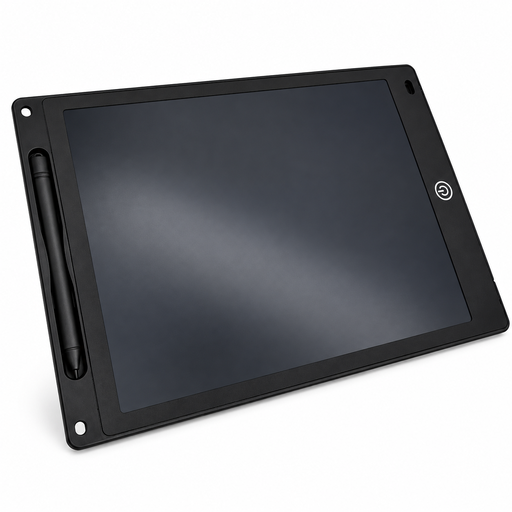
This selection includes an LCD writing tablet with a pen for hand-drawn designs and notes at home.
 No image available
12-inch LCD writing tablet with pen, erase and lock functions, black
For hand-drawn designs and notes at home. If you want to edit diagrams digitally afterwards, first check that the device supports your software workflow.
12-inch LCD writing surface with pen; the product description lists erase and lock functions.
Described as a reusable writing surface, 5 mm thin and finished in black.
View at Joybuy
Frequently asked questions
Will a graphics tablet automatically turn a freehand sketch into an editable diagram?
No, not through the hardware alone. Microsoft Support documents features in certain apps for converting freehand drawings into shapes. Check the features available in the app and version you actually use.
What should I check when setting up a pen display?
Check the specific model’s video and data connections, along with the cables and power supply it needs. According to the Wacom eStore, connecting the Wacom One 12 with a single cable depends on the computer having a USB-C port; a deal that does not include the required accessories may mean you need to buy extra components.
What should I do if my pen is faulty?
If there’s a fault, distinguish your statutory rights with the seller from any voluntary guarantee. The Verbraucherzentrale describes repair or replacement as remedies for bringing a product into conformity; the details depend on the specific circumstances.
Can I return an item bought online if the input doesn’t suit me?
According to the Verbraucherzentrale, consumers who buy online generally have a 14-day right to cancel; you must notify the other party to the contract. Check the specific contract and any applicable exceptions, rather than treating a voluntary returns offer as the same as the statutory right to cancel.
How should I dispose of an old graphics tablet in Germany?
According to the Umweltbundesamt, electrical and electronic waste must not go in household rubbish. It should be taken to a separate collection point, such as a recycling centre or an appropriate take-back point. Removable batteries should be taken out and collected separately before disposal.


