If you already own a tablet, a stylus specifically approved for it is usually the obvious place to start; pressure sensitivity is important for lettering with variable line weight. If you work at a computer, a small graphics tablet without a screen can give you a separate drawing surface, but you’ll still need to use your computer screen and have the right connections. Also check whether your design software supports card sizes, safe margins, bleed and print previews.
Which setup is right for you?
Designers who already own a tablet
If you’d like to design greeting cards directly on your iPad or Galaxy Tab, first check that the exact device series is approved for the stylus. Apple Germany and Samsung Germany list compatible devices and stylus ranges.
Designers working at a compact computer desk
If you already work at a computer, a small separate drawing surface could fit alongside your keyboard and other tools. Compare the overall dimensions with the active area; Wacom eStore Germany and XPPen Germany list these measurements for their respective models.
Lettering and print-template designers
For lettering and illustrations with variable line weight, you’ll need the right stylus features and a compatible drawing tool. For printing, margins, bleed and preview options in your design software also matter, as explained by the Canva Help Centre.
What should you look for when buying?
Stylus for an existing iPad
A good fit if: You own an iPad that’s specifically listed as compatible and don’t want to buy an additional screen.
Bear in mind: Apple says the Apple Pencil (USB-C) doesn’t have pressure sensitivity; the Pencil Pro is only compatible with the iPad models listed by Apple.
Replacement stylus for a Galaxy Tab FE
A good fit if: You’re looking for a replacement stylus for a Galaxy Tab S9 FE or S10 FE.
Bear in mind: Samsung lists pressure and tilt recognition for the FE stylus; the Galaxy Tab S10 FE already comes with an S Pen, according to Samsung.
Small graphics tablet without a screen
A good fit if: You can draw on your existing computer and look at its screen while you work.
Bear in mind: The graphics tablet doesn’t have its own screen; with the Wacom One Small, you should also check which components are included in your chosen package.
Pen display for a computer
A good fit if: You want to draw directly beneath the stylus tip and have room for an additional screen.
Bear in mind: The Wacom One 14 needs a suitable computer connection; check that the display will fit on your desk before buying.
| Buying criterion |
What to check before buying |
Who is this important to? |
| Device compatibility |
Check the exact tablet generation and full stylus variant against the official compatibility list. |
If I want to replace the stylus for my existing tablet, I need to be sure my exact model is supported; around 33% of consumers put device compatibility first. |
| Desk space and setup |
Check the overall dimensions, active area, existing screen and cable routing against the space available. |
If there’s very little room on my desk, I need to allow for the screen and other work equipment; around 27% of consumers prioritise desk space and the type of setup. |
| Control over your strokes |
Check pressure and tilt recognition, as well as the tools designed to work with them in your design app. |
If I want to create lettering or illustrations with variable line weight, I need the right stylus features and app tools; around 27% of consumers prioritise control over their strokes. |
| Preparing artwork for print |
Check whether the app and printing process support card sizes, safe text margins, bleed and previews. |
If I want to have a greeting card printed or print it myself, I need to avoid text being cut off; around 13% of consumers prioritise print preparation. |
Common buying and design mistakes
-
Assuming any “tablet stylus” is compatible
Stylus ranges and approvals vary by device model and generation. So a product described simply as a tablet stylus won’t necessarily work with your device.
Before buying, check the full stylus name against the official compatibility list for your tablet.
If the model isn’t compatible, you’ll have to look for a suitable stylus again.
-
Assuming every stylus has pressure sensitivity
The stylus tip alone doesn’t tell you whether it supports pressure-sensitive strokes. Apple lists this feature for the Pencil Pro, but not for the Apple Pencil (USB-C).
Check the features explicitly listed and whether your drawing app supports the tools you want to use.
-
Assuming a configurable package includes everything you need
With the Wacom One configurator, the components you get depend on the package you choose; Wacom says the main device doesn’t come with a USB-C cable.
Compare what’s in the package with the stylus and cables you already own.
If the stylus or cable is missing, you’ll need to select the components you need separately.
-
Printing your file without checking it first
Even a precise stylus can’t stop text being placed too close to the edge or a background image from being cut off at the bleed.
Before printing, check the card size, safe text area, bleed and print preview in your design software.
Relevant brands and product ranges
Apple
The Apple Pencil (USB-C) and Pencil Pro are options for iPads that are specifically listed as compatible.
- Apple lists pressure sensitivity and magnetic charging for the Pencil Pro.
- The Apple Pencil (USB-C) doesn’t have pressure sensitivity; pairing and charging are done using a USB-C cable. Compatibility varies by iPad model.
Samsung
The FE-specific S Pen is a relevant replacement for a Galaxy Tab S9 FE or S10 FE.
- Samsung describes the FE stylus as having pressure and tilt recognition.
- Samsung says the Galaxy Tab S10 FE comes with an S Pen, so check whether you actually need a replacement.
Wacom
The Wacom One Small is a compact graphics tablet without a screen; the Wacom One 14 is a pen display for a computer.
- Wacom lists the One Small’s dimensions as 188 × 141 × 8 mm.
- Check which stylus and cable components you’ve selected in the configurator. The One 14 needs a computer and a suitable USB-C connection.
XPPen
The Deco mini7 V2 is a graphics tablet without a screen, supplied with a P05D stylus for a supported computer system.
- XPPen lists eight shortcut keys, along with the tablet’s overall and active-area dimensions.
- The stated 16.384 pressure levels are a manufacturer specification, not an independent comparison of drawing quality.
Huion
The Inspiroy 2 S is a compact option without a screen, with a battery-free stylus for the device workflow described by the manufacturer.
- Huion lists a scroll wheel, programmable keys and 8.192 pressure levels.
- Claims about comfort and efficiency are the manufacturer’s descriptions, not the result of an independent comparison test.
Related products at Joybuy
This selection includes touchscreen styluses, with models for specific iPad models as well as styluses for Android and HarmonyOS touchscreens.
 Image unavailable
Touchscreen stylus for Android, Samsung, Huawei and Xiaomi
For drawing and navigation on Android or HarmonyOS touchscreens; according to the product details, it isn’t suitable for iPad, Microsoft devices or some Lenovo tablets.
The description lists a 1,5 mm copper tip, USB-C charging and double-tap operation.
Joybuy
 Image unavailable
ZSPEED stylus for iPad
For the iPad Pro 11" (4th, 3rd, 2nd and 1st generation), iPad Pro 12,9" (6th, 5th, 4th and 3rd generation), iPad Air 4/5 and iPad mini models listed in the product title.
The title lists tilt sensitivity and palm rejection; magnetic charging is also specified.
Joybuy
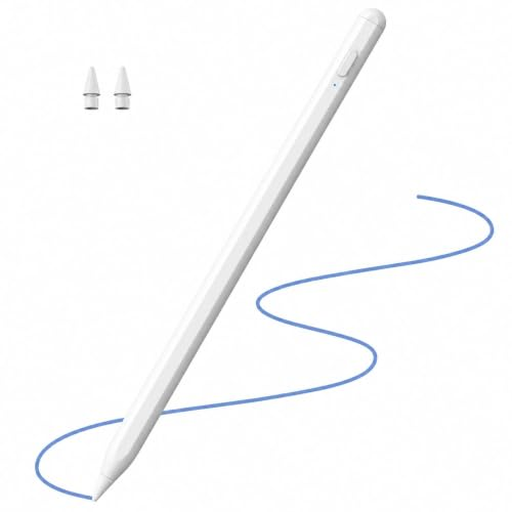 Image unavailable
Stylus for Apple iPad, models 2018–2026
For drawing on the iPad models listed in the product title; check your exact iPad model before buying.
The title lists tilt support, palm rejection and fast charging.
Joybuy
 Image unavailable
iPad stylus with USB-C charging and tilt recognition
For sketching and illustration on selected iPad models listed in the product description; check your exact model before buying.
Tilt recognition and palm rejection are listed. The magnetic attachment is for storage and doesn’t support wireless charging.
Joybuy
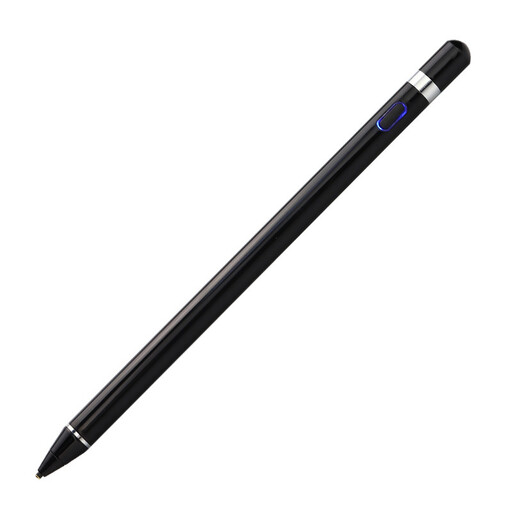 Image unavailable
VoxorAI HL-U05 Active Stylus
For drawing on capacitive touchscreens; the product title lists iOS, iPad, Android and computer devices.
The description lists pressure sensitivity and a built-in battery. According to the description, a QR code and the instructions are provided for downloading the app and pairing.
Joybuy
Frequently asked questions
Will any touchscreen stylus work for fine lettering on greeting cards?
Not necessarily. Check that it’s compatible with your exact device and supports the pressure sensitivity you want; for pressure-sensitive strokes, the drawing tool in your app needs to be suitable too.
What should I check before using a small graphics tablet for the first time?
You’ll need a suitable computer screen and the right connections. Also check what’s included in your chosen package: a USB-C cable may not be included if you don’t select it in the Wacom One configurator.
How can I stop text being cut off when printing a card?
Keep important text within the safe margins, extend background images into the bleed area and check the print preview. These steps relate to the design and printing process, not the stylus features.
What legal guarantee applies to online purchases in Germany?
When you buy from a business seller, statutory consumer rights generally apply for at least two years from the date you receive the goods. The European Union’s Your Europe website distinguishes these rights from a voluntary manufacturer’s guarantee.
Can I cancel an online stylus purchase in Germany?
When you enter into a distance contract with a trader, you generally have the right to cancel; the period is usually 14 days from the date you receive the goods. The Verbraucherzentrale notes that exceptions and the circumstances of the specific contract should be taken into account, and that you must notify the trader of your cancellation.


