When choosing a stylus for greeting cards, first check that it’s compatible with your exact device model. Then consider the features your drawing app actually supports. Apple, Samsung, STAEDTLER, Microsoft and Wacom each make stylus models for specific devices or input standards. If you plan to print your cards, also check the format and file export requirements of your chosen printer. A stylus alone won’t make your design print-ready.
Which stylus is right for you?
Artists with a tablet they already own
If you want to keep using your iPad, Galaxy Tab or stylus-compatible Windows device, start by checking the exact tablet and stylus models. Apple Support Germany, Samsung Germany, STAEDTLER, Microsoft Support and Wacom Support all provide device-specific guidance.
Lettering and illustration enthusiasts
For handwritten greetings and drawn designs, check whether your device and app support the input you want to use. Apple Germany, Samsung Germany, STAEDTLER and Wacom describe features for specific stylus models and device combinations.
Designers planning to print their work
If you’re designing greeting cards at home, think about more than just drawing. You’ll also need to plan how to get your design into a file that’s suitable for your chosen printer.
What should you look for when buying?
First, check that the stylus works with your existing tablet. Then weigh up its drawing features, how it fits into your desk-based workflow and any steps you’ll need to take before printing.
| What matters when buying |
What to look for |
Who is it important to? |
| Compatibility with your tablet |
Check the exact tablet and stylus models, along with any required device version or input technology. |
If I want to keep using my existing tablet, the stylus needs to be a precise match. Around 36% of consumers put device compatibility first. |
| Variable lines |
Check pressure and tilt input separately for the specific stylus and device combination, and for your drawing app. |
For lettering or illustrations, I want to shape my strokes rather than just draw uniform outlines. Around 29% of consumers prioritise variable linework for lettering and designs. |
| Drawing without unnecessary interruptions |
Check the charging method, palm rejection and what’s included; if you need replacement nibs, make sure they’re the right type. |
If I spend long periods drawing at my desk, I want a workflow that suits how the stylus charges and handles. Around 21% of consumers particularly value an uninterrupted workflow. |
| Getting your design ready to print |
Check in advance whether your app supports the card format you want and lets you export the file you need. Check the printer’s requirements for the specific product. |
If I want to get my card printed, a good drawing isn’t enough: the format and file need to suit the job too. Around 14% of consumers put the process of preparing a print-ready file first. |
Common buying mistakes
-
“For tablets” doesn’t mean “for my tablet”
Stylus models may be designed for specific devices or input technologies. So a general product description alone won’t tell you whether a particular combination will work.
Check the full model names of your tablet and stylus against the details provided by their respective manufacturers.
-
Tilt, pressure and a fine tip aren’t the same thing
These inputs can serve different purposes. Whether they’re useful for lettering or drawing also depends on the specific device and app combination.
Check pressure and tilt support separately for the stylus model and drawing app you want to use.
-
Magnetic storage doesn’t necessarily mean charging
Apple says the Pencil (USB-C) attaches magnetically for storage and charges via cable. Microsoft lists charging options for the Surface Slim Pen, depending on the device.
Before buying, check the charging method for the exact version and what’s included.
Depending on the model, you may also need a charging cable or compatible charging accessory.
-
Don’t send your drawing file to the printer without checking it first
Print requirements may include file format, bleed, resolution or fonts, and can vary depending on the print product.
Choose your print product first, then set up your layout and export the file to meet its current requirements.
Key brands at a glance
Apple
Apple Pencil models are designed for specific iPad models, making them worth considering if you already use an iPad.
- Apple lists features including rotation and magnetic charging for the Pencil Pro.
- The Apple Pencil (USB-C) pairs and charges via cable. The right version depends on your iPad generation.
Samsung
S Pen models may be suitable for compatible Galaxy Tabs; compatibility depends on the specific model.
- Samsung lists pressure and tilt detection, as well as magnetic attachment, for the S Pen EJ-PX710.
- According to Samsung, remote and gesture features require additional BLE and charging conditions. These details don’t apply to every S Pen.
STAEDTLER
The Noris digital classic and jumbo are designed for compatible displays that use electromagnetic resonance (EMR).
- STAEDTLER lists 4,096 pressure levels, replaceable nibs and no need to charge for the Noris digital classic.
- According to STAEDTLER, pressure-sensitive line width depends on the app you use; a compatible EMR display is also required.
Microsoft
The Surface Slim Pen is worth considering for supported Surface devices and compatible Windows workflows.
- Microsoft lists stylus features and charging options for the relevant Surface models.
- Not all Surface laptops support the Slim Pen or Surface Pen. Depending on your device, you may need to buy charging accessories separately.
Wacom
The Bamboo Ink Plus may be suitable for compatible Windows devices with AES or MPP pen input.
- Wacom lists AES and MPP support, along with up to 4,096 pressure levels, for this model.
- According to Wacom, integration can vary depending on the hardware and software. The manufacturer also states that this model isn’t compatible with Apple products.
Joybuy products for drawing and lettering
The Joybuy products below are styluses for Android touchscreens and iPad use. Check each model’s compatibility with your exact device.
 No image available
Stylus for Android touchscreens, compatible with Samsung, Huawei and Xiaomi
Described as a stylus for Android touchscreens; check that it works with your specific device.
According to the product details, it isn’t designed for iPad or Microsoft devices, or some Lenovo tablets.
Joybuy
 No image available
ZSPEED Wireless Charging Stylus Pen for iPad, White
Designed for iPad use; check your device generation before buying.
The product title lists tilt sensitivity, palm rejection and wireless charging. Compatible ranges listed are iPad Pro 11" 4/3/2/1, Pro 12.9" 6/5/4/3, Air 4/5 and Mini.
Joybuy
 No image available
Stylus for iPad (2018–2025), USB-C fast charging
Designed for drawing on iPad; check the listed model range against your device.
The product title lists USB-C fast charging.
Joybuy
 No image available
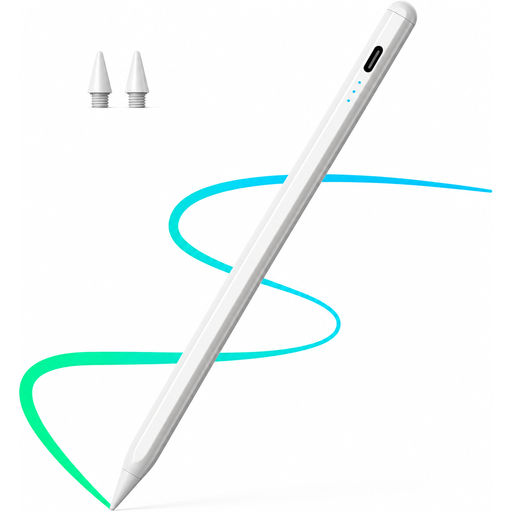
Stylus for iPad (2018–2026), fast charging, palm rejection and tilt support
Designed for iPad use; check that the listed model range matches your device.
The title lists fast charging, palm rejection and tilt support.
Joybuy
 No image available
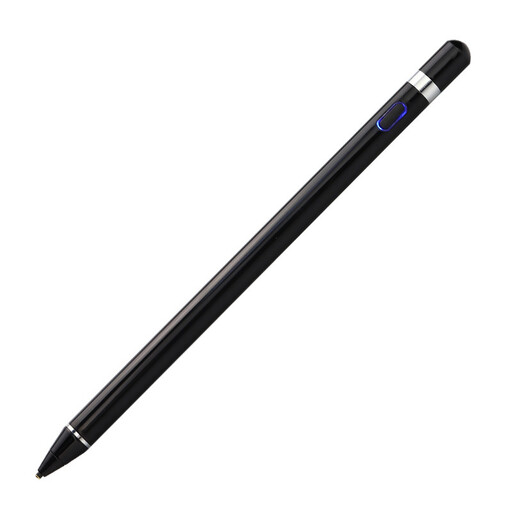
VoxorAI HL-U05 Black Pen
The title lists iOS, iPad, Android and computers as compatible use cases; check support for your specific device.
According to the product details, setup is done via an app and its pairing instructions.
Joybuy
Frequently asked questions
How can you tell whether a stylus will work with your tablet?
Check your tablet’s exact model name against the manufacturer’s details for the specific stylus version. The Noris digital requires a compatible EMR display; for the Bamboo Ink Plus, check for AES or MPP support and make sure it works with your particular Windows device.
Does a tablet stylus need charging or setting up?
It depends on the model. The Apple Pencil (USB-C) pairs and charges via cable, while the Noris digital classic requires neither charging nor pairing, according to STAEDTLER. Microsoft lists charging options for the Surface Slim Pen by device.
What should you check before printing your greeting card?
Check the requirements for the specific print product before exporting your file. Format, bleed, resolution and fonts may all matter when preparing your design for print, so follow the latest guidance from your chosen printer.
Can you use other people’s images on greeting cards you sell?
If you want to use someone else’s protected design on cards for sale, check that you have the necessary usage rights first. The German Patent and Trade Mark Office explains rights of exploitation such as reproduction and distribution. The exception for individual private copies under § 53 Abs. 1 UrhG doesn’t apply to copies made directly or indirectly for commercial purposes. Whether a specific design is protected or licensed must be checked on a case-by-case basis.


