Choose a laptop that suits your workflow for scanning, indexing, linking source files and backing everything up. Microsoft Support explains that OneNote can use OCR on images and link to documents, but recognised text needs checking and linked files must remain accessible. A Windows laptop is a good fit if you mainly work with a keyboard; a convertible is worth considering if you’ll actually use the touchscreen. A MacBook could also work, provided your scanner and indexing software are compatible with macOS.
Who is this workflow for?
Handwriting archivists
You want to keep paper recipes as original images and find them again by title or ingredients using a text index. Microsoft Support notes that OCR accuracy depends on image quality, so check important details against the original.
Collectors who value their sources
You keep index entries and source files separately, and want to be able to trace their connection after a backup or when changing devices. Microsoft Support distinguishes between linking to a file and attaching a copy of it.
Scanner users
You want to keep using your existing scanner. Before choosing a laptop, check that your scanner model is supported by the operating system you’ve chosen and find out how it connects.
What should you look for?
First, consider how you’ll capture scans and check handwriting. Then look at how you’ll link and back up source files, and whether the laptop works with your scanner.
| Priority |
What to look for |
Who is it important to? |
| Making handwriting searchable |
Test a typical scan in the software you plan to use, and keep the original image alongside the corrected index entry. Microsoft Support says OCR accuracy depends on image quality. |
I want to find recipe names, ingredients and quantities more easily without replacing the handwritten original. Around 29% of consumers put searchable handwriting first. |
| Linking source files |
Decide where to store the original scans and index, then test links and recovery using a file. Microsoft Support explains that attaching a file in OneNote stores a copy in the note. |
I want an index entry to lead to an accessible original file, with the link preserved after a backup. Around 29% of consumers prioritise keeping source files linked over time. |
| Connecting a scanner |
Check the scanner model, operating system support and ports on the specific laptop configuration. A matching plug alone doesn’t prove that the right drivers are available. |
I want to keep using my existing scanner without running into an incompatible port or software. Around 24% of consumers prioritise scanner compatibility. |
| Viewing and editing scans |
Compare the screen size, keyboard and design of the specific configuration. If you plan to use touch or a stylus, check that these are supported too. |
When comparing the original with the index, I want a screen and input method that suit the way I work. Around 18% of consumers focus on comfortable viewing and editing. |
Common pitfalls
-
Assuming OCR will transcribe a recipe perfectly
Microsoft Support notes that recognition depends on image quality. You may need to check ingredients and quantities against the original.
Keep the original and check important details before using them as index text.
Checking and correcting the text can take extra time.
-
Treating a file link and an attached copy as the same thing
A link points to another storage location; according to Microsoft Support, attaching a file in OneNote saves a copy in the note. A link therefore depends on the file remaining accessible.
Decide whether you need a link or a copy, then test your backup and recovery process.
Keeping copies of files can require extra storage and backup space.
-
Assuming a USB plug means your scanner is compatible
Microsoft Support and Apple Support describe supported ways to scan, but a matching port alone won’t tell you whether your scanner model works with the operating system.
Before buying, check your scanner model, its operating system support and how it connects.
You may need additional compatible hardware or another way to scan.
-
Assuming a convertible comes with a power adapter
HP lists a power adapter as included with the OmniBook 5 Flip 14-fp0765ng. Dell explicitly states that no power adapter is included with the Inspiron 7440 configuration; details for one model don’t automatically apply to other configurations.
Check what’s included with the exact version on offer before you decide.
You may need to buy a compatible power adapter separately for the Dell configuration mentioned.
Brands and model ranges to consider
HP
The OmniBook 5 Flip 14-fp0765ng is a Windows convertible for anyone who wants to use a touchscreen as well as a keyboard.
- For this configuration, HP lists a 14-inch touchscreen, 16 GB RAM, a 512 GB SSD and an included power adapter.
- These specifications don’t demonstrate any particular ability to recognise handwritten recipes.
Dell
The Inspiron 14 2-in-1 7440 is another Windows touchscreen option; specifications and what’s included depend on the configuration.
- Dell lists a 14-inch touchscreen, 16 GB RAM and a 512 GB SSD for the configuration described.
- No power adapter is listed as included with this configuration.
Apple
A 13-inch MacBook Air with M5 could suit a scanning and indexing workflow on macOS, provided your scanner and software are compatible.
- Apple lists 16 GB unified memory, a 512 GB SSD and two Thunderbolt 4/USB-C ports for the base model. Apple Support documents scanning on a Mac and using Live Text to recognise text in photos.
- This doesn’t guarantee reliable recognition of every handwritten recipe. You’ll also need to check that it connects to your scanner.
Lenovo
The IdeaPad Flex 5 14ABR8 is an example of a convertible design with a range of connection options.
- Lenovo lists USB-A, USB-C and a card reader for this model range.
- Lenovo lists the range as “Withdrawn”, so this doesn’t tell you whether a particular version is currently available to buy in Germany.
Laptops available on Joybuy
This selection includes MacBooks for scanning and indexing on macOS, as well as Windows laptops with specifications that may be useful when viewing scans and connecting a scanner. Before buying, check that your scanner and software work with the relevant operating system.
 No image available
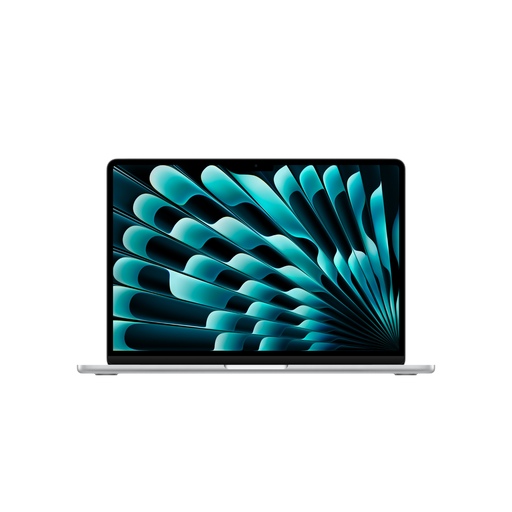
Apple MacBook Air 13-inch (M5, 2026), 10-core CPU, 8-core GPU, 16 GB, 512 GB SSD, Silver, German QWERTZ keyboard
For a scanning and indexing workflow on macOS, provided your scanner and software are compatible.
- 16 GB unified memory and 512 GB SSD
- Two Thunderbolt 4/USB-C ports
- No power adapter included; you may need compatible connection hardware for a USB-A scanner. The port alone doesn’t confirm scanner compatibility.
Joybuy
 No image available
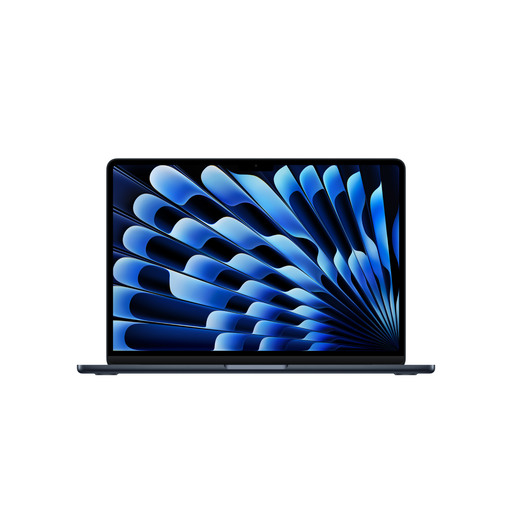
Apple MacBook Air 15-inch (M5, 2026), 10-core CPU, 10-core GPU, 16 GB, 512 GB SSD, Midnight, German QWERTZ keyboard
For a macOS-based scanning and indexing workflow, provided your scanner and software work with macOS.
- 15.3-inch display, 16 GB unified memory and 512 GB SSD
- Two Thunderbolt 4/USB-C ports
- No power adapter included; you may need compatible connection hardware for a USB-A scanner. The port alone doesn’t confirm scanner compatibility.
Joybuy
 No image available
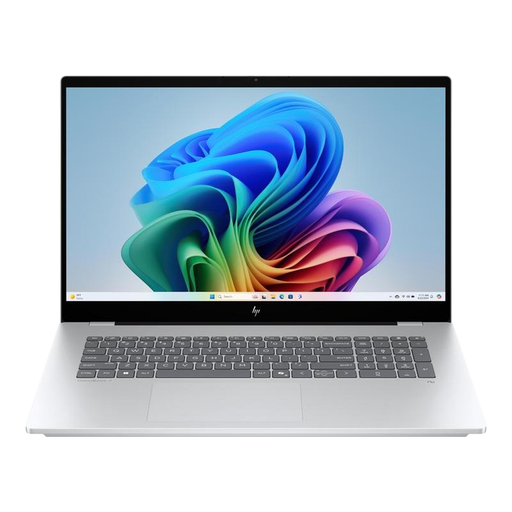
HP OmniBook 7 17-dc0477ng, 17.3-inch Full HD touchscreen, 32 GB RAM, 1 TB SSD
A Windows laptop option if you want a larger touchscreen for viewing scans and would like to connect a scanner via USB-A; check scanner support separately.
- Windows 11 Home
- Three USB-A ports, one USB-C port and one Thunderbolt 4 port
- 32 GB RAM and 1 TB SSD
Joybuy
 No image available
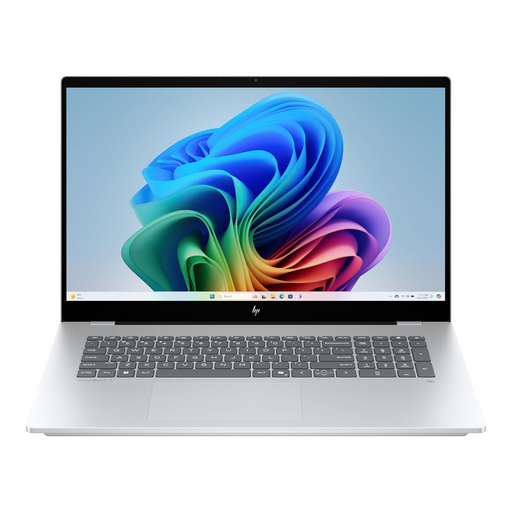
HP OmniBook X Flip 16-inch, WUXGA touchscreen, 16 GB RAM, 512 GB SSD
For a Windows-based scanning and indexing workflow if you’ll actually use the touchscreen or convertible modes; check that your scanner is supported.
- Windows 11 Home
- USB-A, USB-C and HDMI
- 16 GB RAM and 512 GB SSD
Joybuy
Frequently asked questions
Is a touchscreen enough to make handwritten recipes searchable?
No. A touchscreen describes how you interact with the display; it doesn’t guarantee handwriting recognition. Microsoft Support explains that OCR can be used on images and file printouts. Recognition depends on image quality, so check the results against the original.
How do I link an index entry to the original recipe file?
In OneNote, you can link to a file or attach a copy to a note. Microsoft Support explains the difference between these options. Check that the link still opens the file and that your backup restores the connection.
Can I use my existing scanner with Windows or macOS?
It depends on the scanner model, operating system support and connection type. Microsoft Support and Apple Support explain how to scan using supported devices; check that your particular scanner is compatible before buying.
What should I bear in mind when backing up my recipe archive?
Back up both the index and the source files, and test that you can restore the links between them. Microsoft Support explains how to use File History with an external drive or network storage; Apple Support documents Time Machine with an external storage device.
When should I choose a Windows laptop, convertible or MacBook?
A Windows laptop is a good fit if you mainly work with a keyboard and your scanner and software are supported on Windows. Choose a convertible only if you’ll actually use the touchscreen; a MacBook could work if your scanning and indexing workflow is compatible with macOS. Whichever you choose, check OCR results and make sure your source files remain accessible.


