What should you look for when buying?
The right specifications for a laptop used to archive handwritten recipes depend on which part of the process matters most to you.
Traditional laptop with a larger display
A good fit if: you mainly work at a desk, editing the original and the record side by side. Acer lists a 15.6-inch display for the Aspire Go 15 NX.JW5EG.006; HP lists a 16-inch display for the ProBook 4 G1a 16, AD2N1ET#ABD.
Trade-off: A larger workspace doesn’t mean better handwriting recognition; check the specific keyboard and screen against the way you work.
Compact traditional laptop
A good fit if: you often work in different places and mainly edit recipe images using the keyboard. Dell lists a 14-inch display with 1920 × 1200 pixels for the documented DC14250 configuration.
Trade-off: There’s less room to view the original and the record side by side; Dell also states that this configuration doesn’t include a power adapter.
Convertible with a pen
A good fit if: you want to write new notes digitally or view originals in tablet mode. Lenovo lists a touchscreen and Yoga Pen Gen 2 for one Yoga 7a configuration.
Trade-off: A pen for new entries won’t automatically improve recognition of old recipe cards; also check what’s included with the specific variant.
| Requirement |
What to check before buying |
Who is this most important to? |
| Accurately transcribe handwriting |
Test your own recipe cards in the OCR application you plan to use; keep the original image so you can check it. |
If I’m digitising old cards, I want to check the ingredients and quantities against the original. For around 25% of people, checking transcribed handwritten text is the top priority. |
| Custom fields and search |
Create a test recipe with the fields you want and try a search or filter. |
If the source, occasion or categories need to be searchable separately, the application must be able to store them as fields. Around 25% of people prioritise custom searchable recipe fields. |
| Transfer originals into your archive |
Test the process from your mobile phone or scanner to the application; check that the ports on the specific laptop model match your existing devices. |
If you want to use cards and devices you already own, check the whole transfer process in advance. For around 20% of people, digitising originals and having the right ports are the main priorities. |
| Working setup and extended typing |
Open the original scan and record side by side; assess the display, keyboard and, if relevant, pen input where you’ll be working. |
If I’m switching between the original and the entry form for long periods, screen space and a suitable input method matter to me. For around 15% of people, comfort while working comes first. |
| Back up your archive |
Back up original images and exportable records separately, and test that you can restore them. |
If you want to keep images and corrected records, plan how you’ll restore them. Around 15% of people put backing up and checking their archive data first. |
Joybuy products
The products below include traditional laptops and 2-in-1 devices for entering, checking and organising recipes.
 No image available
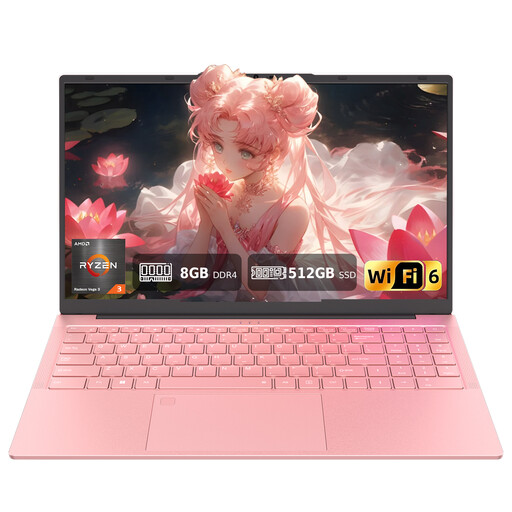
Auusda T156A laptop, 15.6 inches, pink
For manual entry when you want to work on the original recipe and the record on a larger laptop display.
15.6-inch Full HD display, AMD 3250C, 8 GB DDR4 RAM and 512 GB SSD. A wired mouse is listed as included in the product name.
View at Joybuy
 No image available
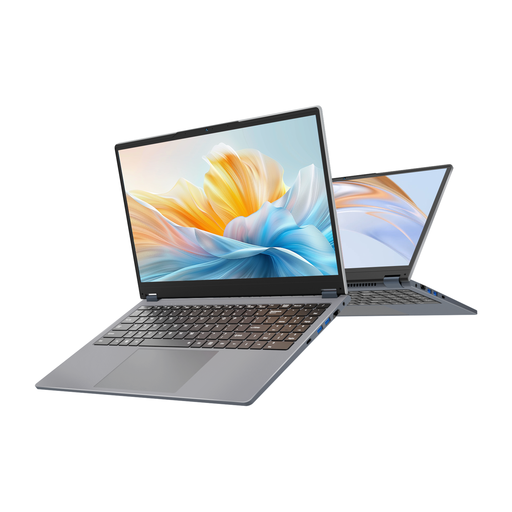
Ninkear YBook15 2-in-1, 15.6 inches
For a workflow where you want to switch between laptop and tablet modes.
15.6-inch FHD touchscreen with a 360° hinge, 8 GB DDR4 RAM and 512 GB SSD.
View at Joybuy
 No image available
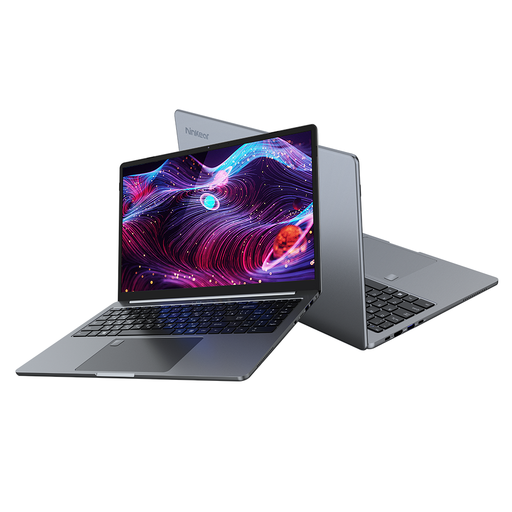
Ninkear A15 Pro, 16 inches
For entering recipes manually when you want a larger display and storage space for images and records.
16-inch FHD display, 16 GB DDR4 RAM, 1 TB SSD and 1.8 kg, according to the product name.
View at Joybuy
 No image available
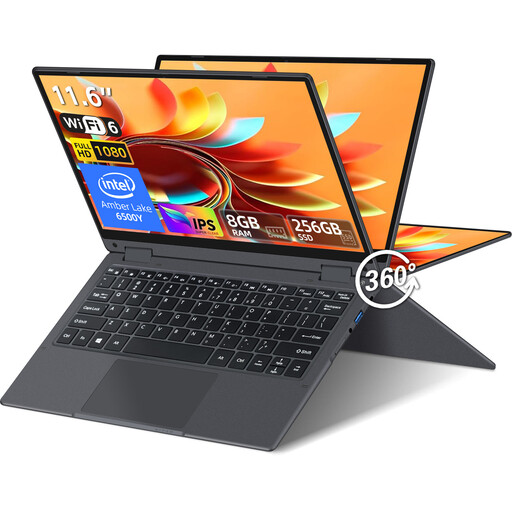
YOGA convertible, 11.6 inches
For a workflow where you want to switch between laptop and tablet modes; the smaller display offers less room to view the original and the record side by side.
360° touchscreen, Intel Pentium Gold 6500Y, 8 GB RAM, 256 GB SSD and Windows 11 Pro.
View at Joybuy
Frequently asked questions
Can a laptop reliably recognise handwritten recipe cards automatically?
You can’t tell from the laptop specifications alone. Microsoft notes that OneNote’s OCR doesn’t work very well with handwritten text in images, and that results should be checked. Test your own originals and compare any recognised quantities and ingredients with the source.
How do I set up custom recipe fields?
First decide which details you want to record, then create a test recipe. In LibreOffice Base, you can define data fields and create queries with criteria; Airtable describes customisable field types and file attachments. You’ll need to check separately that handwritten content is assigned to the right fields.
Do I need to install an application to use OneNote image OCR?
You can’t use OneNote on the web for the image OCR described here; Microsoft directs users to the desktop app. Check that the application you need is available for the operating system on your chosen laptop.
Is a convertible useful for old recipe cards?
A convertible is most useful for this workflow if you also want to write directly with a pen or look through originals in tablet mode. Pen input doesn’t mean OCR will be more reliable with old handwriting; also check what’s included with the variant you choose.
How do I back up a finished recipe archive?
Back up both the readable original images and corrected records separately from your laptop, and test that you can restore them. The Federal Office for Information Security lists hardware failure, theft and damage as situations where backups can help you recover your data.


